Using Sophos Anti-Virus for Virus Scanning on the Sun ZFS Storage Appliance
By Thomas Hanvey
June 2011
The Sun ZFS Storage Appliance from Oracle features a built-in scanning service that can communicate with external virus scanning engines to ensure protection against the threat of viruses and other malware on the appliance's CIFS or NFS shared volumes.
This article describes the installation and configuration of Sophos Anti-Virus software on Microsoft Windows, Linux, and UNIX operating systems for use as a virus scan engine with the Sun ZFS Storage Appliance VSCAN service.
Contents
- Introduction
- How VSCAN Works
- Overview of Sophos Anti-Virus
- Installing and Configuring the Sophos Anti-Virus Software
- Configuring the Sun ZFS Storage Appliance
- Conclusion
- References
Introduction
Efficient protection of electronic data against threats from malware is as important to an enterprise as a comprehensive backup/restore and disaster recovery process. Computer viruses, phishing, adware, and spyware can put electronic data at risk of being manipulated or destroyed, impact the operation and availability of data services, and result in unwanted disclosure of information and exposure to unsolicited content. The ability to protect content in electronic data repositories against corruption by malicious software and the ability to isolate and dispose of files that impose potential risks are essential components of any enterprise’s data protection strategy.
The Sun ZFS Storage Appliance provides protection against computer viruses using an integrated on-demand virus scanning service called VSCAN. The VSCAN service is based on the Internet Content Adaptation Protocol (ICAP) and works together with an external virus scanning engine, which, for performance and security reasons, should be running on another host located on the same LAN segment as the Sun ZFS Storage Appliance. The solution described in this paper uses Sophos Anti-Virus software as the external virus scanning engine.
Sophos Anti-Virus analyzes any files in question for suspicious patterns and passes the scan results back to the VSCAN service. Based on the scan result, VSCAN makes the file accessible to users or blocks access by quarantining the file. A file quarantined by the VSCAN service is not accessible to users regardless of the access protocol used (CIFS or NFS).
How VSCAN Works
When virus scanning is enabled on a populated volume, a scan is not initiated across all files. Instead, the VSCAN service initiates a request for a virus scan to the virus scanning engine (in this case, Sophos Anti-Virus) each time a "file open" or a "file close" request is issued. Thus, only files that are created, modified, or opened for read operations are scanned.
This approach ensures efficiency in that files are only scanned on demand. However, it does not support a pre-emptive scan of file system contents. A second limitation is that only shares using access protocols that issue "file open" and "file close" requests, such as CIFS and NFS v4, are candidates for virus protection using the VSCAN service. A share that is published using NFS v3 cannot be scanned using VSCAN because NFS v3 does not issue the "file open" or "file close" requests that trigger the ICAP client.
Note: As an alternative, a share can be scanned by mounting or mapping it to a host server running a Sophos client and then scanning it locally.
The VSCAN service maintains several file attributes that it uses when processing the results of a scan. These attributes describe:
- The configuration of the virus scan engine that was used for the most recent scan of the file (referred to as the
scanstamp). - Whether the file is quarantined, based on the evaluation of the file returned by the virus scan engine.
- The
modifiedattribute, which the file system sets when the file has been changed or renamed. After a successful scan of a file, the VSCAN service clears themodifiedattribute.
A file is scanned when a "file open" or "file close" request is initiated and one of the following is true:
- The file does not have a scanstamp attribute, indicating it has never been scanned before.
- The
scanstampof the file does not match the virus pattern and scan options (ISTagstring) specified in the current configuration of the virus scan engine. - The
modifiedattribute of the file is not cleared.
The VSCAN service communicates with the virus scan engine using ICAP. The Sun ZFS Storage Appliance acts as an ICAP client and the virus scan engine acts as the ICAP server. When the ICAP client requests that a file be scanned, the file is transmitted without encryption to the ICAP server for analysis.
While a request to scan a file is being fulfilled by the ICAP server, access to the file is denied. The user privileges defined in the access control list (ACL) for the file are irrelevant as long as the ICAP client is waiting for the ICAP server to respond.
Note: To avoid data becoming unavailable when a virus scan engine does not respond to ICAP requests, we recommend that you configure the VSCAN service to use two virus scan engines.
An ICAP server does not require registration or authentication with an ICAP client to serve scan requests. However, if the virus scan engine is registered, connection issues are logged in the log file /var/ak/logs/system.sys on the Sun ZFS Storage Appliance (a corresponding entry is not created in the GUI-based log for the VSCAN service).
Figure 1 shows the interaction between an ICAP client and an ICAP server when a NAS client requests access to data on a virus-protected share of the Sun ZFS Storage Appliance. The workflow comprises five steps initiated by a request from the NAS client to access a file on a shared volume using NSF v4 or CIFS protocol. The file is scanned by the ICAP server and then, assuming no viruses are detected requiring quarantine, it is delivered to the NAS client.
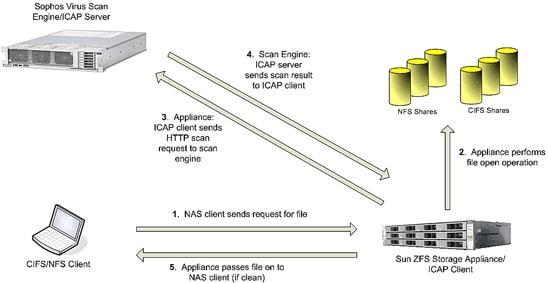
Figure 1. Virus Scanning Workflow on the Sun ZFS Storage Appliance Using ICAP and VSCAN with the Sophos Anti-Virus Software
Overview of Sophos Anti-Virus
The Sophos Anti-Virus software offers high performance scanning of files for malware viruses. It can protect data stored on a network file storage system from viruses and spyware with a single scan. Sophos uses the same anti-virus engine in Sun ZFS storage systems as it does for all Sophos protection--across servers, gateways, and endpoints.
The Sophos Anti-Virus Dynamic Interface (SAVDI) enables Sun ZFS storage systems to integrate with the Sophos anti-virus engine using the industry standard ICAP interface. Scanning is carried out intelligently. The Sophos engine recognizes the file type even if a file has an incorrect file extension, ensuring all infect-able files are scanned. The engine also detects if a file is unchanged since a previous scan, allowing it to scan only those files that need to be scanned.
Sophos Anti-Virus runs on a wide array of versions of Windows, Linux, and UNIX operating systems providing a range of options for protecting data on Sun ZFS Storage Appliances. The software is easy to set up and supports failover and load balancing if required. Updates to protect against new malware are small, frequent, and automatic, providing protection with minimal impact on the system or administrator.
Installing and Configuring the Sophos Anti-Virus Software
The procedures in this section describe how to install and configure the Sophos Anti-Virus software on a Sun ZFS Storage Appliance.
Installing on Microsoft Windows
To install and configure the Sophos Anti-Virus software on Microsoft Windows, complete these steps:
- Install Sophos Anti-Virus, if not already present.
- Run the SAVDI install package. After installation, SAVDI will be running as a service using the default configuration file settings.
- To make changes to the configuration, stop the SAVDI service, edit the configuration file
savdid.conf, and restart the service. - To stop the service, enter:
- To uninstall the service, enter:
- To run SAVDI as a command line process, enter:
- To reinstall the service, enter:
- To start the service, enter:
libsavi.so- Virus data
- Untar the SAVDI distribution. This will create a sub-directory called
savdi. - Make the savdi directory your current directory by entering:
- As
root, run the install script. The script installs the Sophos Anti-Virus software and tests the installation. - Modify the configuration file savdid.conf as needed for your environment. In particular:
- Set the IP address of the interface(s) that SAVDI will use.
- Set the subnet of addresses for the acceptable set of clients. This is of particular importance if the server is running in a hostile environment (for example, if it is on the public Internet).
- Specify the location of the virus data if it is in a non-standard location.
- Set the location for the log files.
- Set the location for any temporary files the ICAP service creates.
- Set the name of the service to that used by your application.
- Ensure that the directories specified in the configuration file exist and have the appropriate permissions.
- Run SAVDI/ICAP from the command line to aid in checking that the configuration is correct by entering:
./savdid -l -c savdid.conf -
The
-loption tellssavdidto send the log to the terminal. The-c savdid.confoption tellssavdidto use the specified configuration file. - After addressing any problems with the configuration, test
savdidwith a sample application. - To configure the VSCAN daemon, on the Configuration > Services page, select the Virus Scan data service, as shown in Figure 2.
- Configure the file extensions or file patterns to be used to determine which files are to be scanned, as shown in Figure 3.
- Configure the scanning engine host(s), as shown in Figure 3.
- Click Apply.
If this is the first time the service has been started, a prompt is displayed to enable the service, as shown in Figure 4.
- Select Enable to enable and start virus scanning on the appliance.
- To monitor or troubleshoot VSCAN activities, select the Virus Scan data service (see Figure 2). Then click on Logs at the upper right of the Virus Scan screen (see Figure 3) to access logs, as shown in Figure 5.
The drop-down dialog shown in Figure 5 allows you to view ICAP or VSCAN log activity. The ICAP log shows connectivity to the ICAP server and the VSCAN log shows virus scan activity.
- To enable scanning at the share level, go to Shares.
- Under Filesystems, click a share to be scanned to edit its properties, as shown in Figure 6.
- Under Properties, check the box next to Virus Scan to enable scanning of this share, as shown in Figure 7.
- Click Apply. Virus scanning is now enabled for this share.
Note: Virus scanning can be enabled at the project level for multiple shares.
When the Sophos anti-virus engine is not registered as a Windows service, SAVDI can be run interactively as a server from the command line using these commands:
net stop savdid
savdid.exe -uninstall
savdid.exe -l -c savdid.conf
The -c option specifies the configuration file to use in place of the default configuration file. The -l option causes messages to be output to the console rather than using the logging mechanism configured in savdid.conf.
Note: In this mode, savdid.exe can be stopped by using CTRL+C.
If required, you can reinstall SAVDI as a service and run it non-interactively using the commands below:
savdid.exe -install
net start savdid
Once the SAVDI service is running, test it with a sample application to see if you need to change any configuration settings, such as the TCP/IP port or host name.
Installing on Linux and Other UNIX Platforms
To install and configure the Sophos Anti-Virus software on a Linux or other UNIX platform, complete the procedure below. Installing Sophos Anti-Virus provides:
Complete these steps:
cd savdi
Configuring the Sun ZFS Storage Appliance
To enable virus protection for files on a volume of a Sun ZFS Storage Appliance, you will first configure and start the VSCAN daemon and then enable virus scanning for the shares to be scanned as described in these steps:
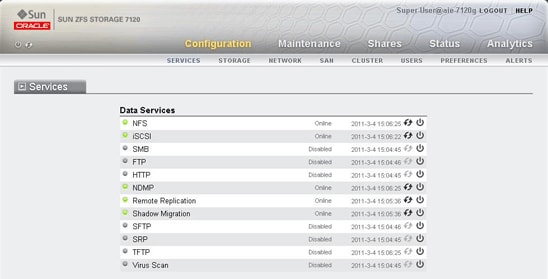
Figure 2. Selecting the Virus Scan Service to Configure the VSCAN Daemon

Figure 3. Configuring the Host(s) for the Scanning Engine(s)
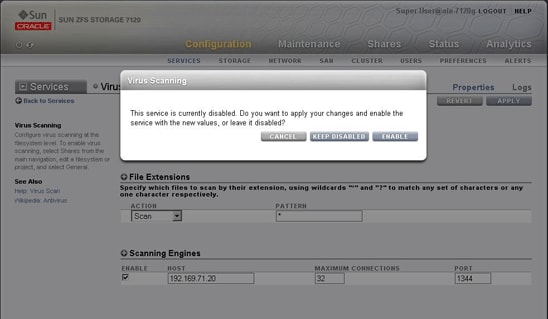
Figure 4. Enabling the Virus Scanning Service

Figure 5. Selecting a Virus Scan Log to View

Figure 6. Selecting a Share to Access Its Properties
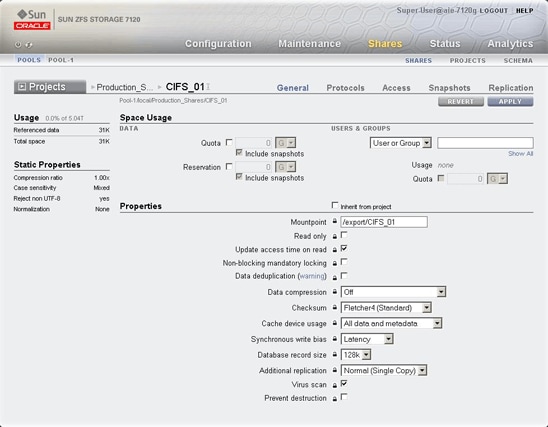
Figure 7. Enabling Virus Scanning for a Share
Conclusion
Using Sophos Anti-Virus with the Sun ZFS Storage Appliance provides a scalable and reliable virus scanning solution for protecting valuable data stored on network attached storage devices. Some of the key benefits to using this solution are that you can offload the burden of scanning the files onto the the ZFSSA, thereby reducing network traffic, while taking advantage of the ZFSSA's hardware to perform scanning of files.
This solution lets you move the file scanning task to the Sun ZFS Storage Appliance, reducing network traffic, while taking advantage of the Sun ZFS Storage Appliance’s integrated VSCAN virus scanning service to manage disposition of files based on scan results from Sophos Anti-Virus.
The solution has been certified by Sophos and Oracle to detect viruses, worms, and Trojan horses in files of all major file types, including mobile code and compressed file formats, ensuring fast virus resolution to reduce the risk of financial, data, and productivity loss.
References
For more information, visit the Web resources listed in Table 1.
Table 1: Web Resources for Further Information
| Web Resource Description | Web Resource URL |
|---|---|
| Sun Unified Storage Web page | http://www.oracle.com/us/products/servers-storage/storage/unified-storage/index.html |
| Sophos Web site | http://www.sophos.com |
Revision 1, 06/08/2011