SQL Developer
Oracle SQL Developer is a free, integrated development environment that simplifies the development and management of Oracle Database in both traditional and Cloud deployments. SQL Developer offers complete end-to-end development of your PL/SQL applications, a worksheet for running queries and scripts, a DBA console for managing the database, a reports interface, a complete data modeling solution, and a migration platform for moving your 3rd party databases to Oracle.
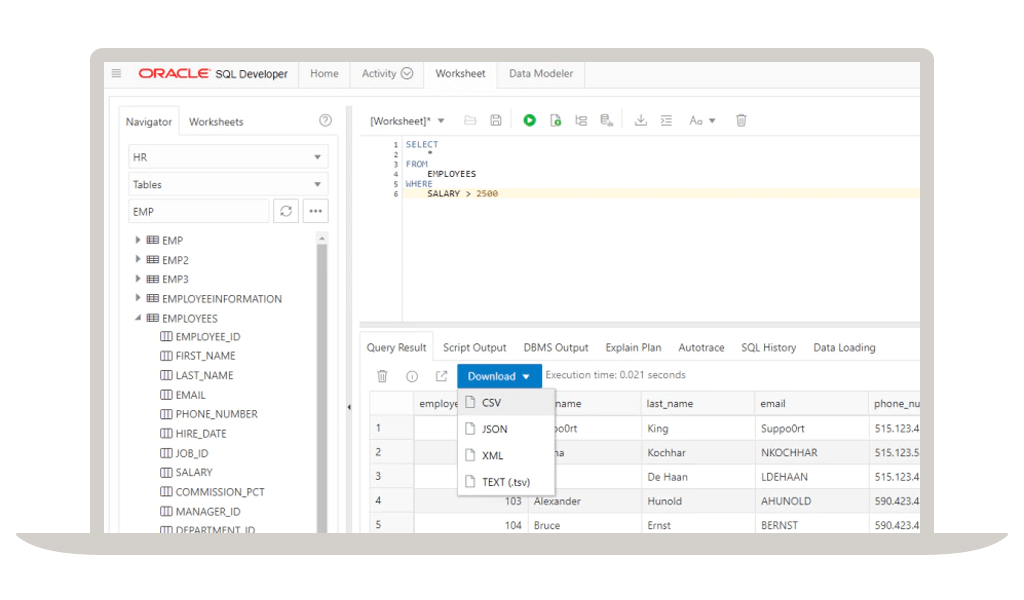
SQL Developer application interfaces
Oracle SQL Developer
Oracle SQL Developer is a free, integrated development environment that simplifies the development and management of Oracle Database. Java powered application for Windows, OS X, and Linux with + 5 Million users.
- Full featured PL/SQL IDE
- Database administration
- Complete Data Modeling Solution
- 3rd party DBMS migrations to Oracle
- Migrate Oracle On-Premises to Oracle Cloud
- SQL Developer—Get StartedOracle Database Actions
Formerly known as SQL Developer Web, Database Actions brings all of your favorite Oracle Database desktop tool’s features and experience to your browser!
- Included in Oracle Autonomous Cloud Database
- Available with Oracle REST Data Services for your on-premises instances
- Run scripts, manage users, create/edit objects, import data, diagnose performance issues, visualize schemas, etc.
- Download Database ActionsOracle SQLcl
Oracle SQL Developer Command Line (SQLcl) is a free and modern command line interface for the Oracle Database.
- Very small (25mb), download, unzip, and go!
- Automatic formatting (csv, xml, json, INSERTs, HTML, and more)
- SQL History
- Tab completion
- Build your own commands
- Liquibase integration for schema versioning
- Download SQLcl
- Customer Success Story: Pretius Cuts Software Development Time with Oracle SQLcl (PDF)
Oracle SQL Developer can be as simple as running queries against your Oracle Database, or it can be a complete development, management, and modeling solution. This demonstration takes you on a tour of the entire product.
In less than 10 minutes, see how to get up and running from your cmd prompt or bash shell with our modern command line interface for Oracle. New commands like LOAD and DDL save you tons of time, and the easy to read SQL results in the format you need make this a must-have utility. Also available for any of your OCI environments!
This playlist gives a quick introduction to the newest member of the SQL Developer family and then deep dives on the Data Modeler, creating and editing objects, and importing data from CSV or Excel.
SQL Developer features
Core features
- Supports Oracle Database, versions 11gR2, 19c, 21c, 23ai
- Supports Oracle Database in the Oracle Cloud and On-Premises
- Query, load, and extract data
- Easy installation, no Oracle Client required
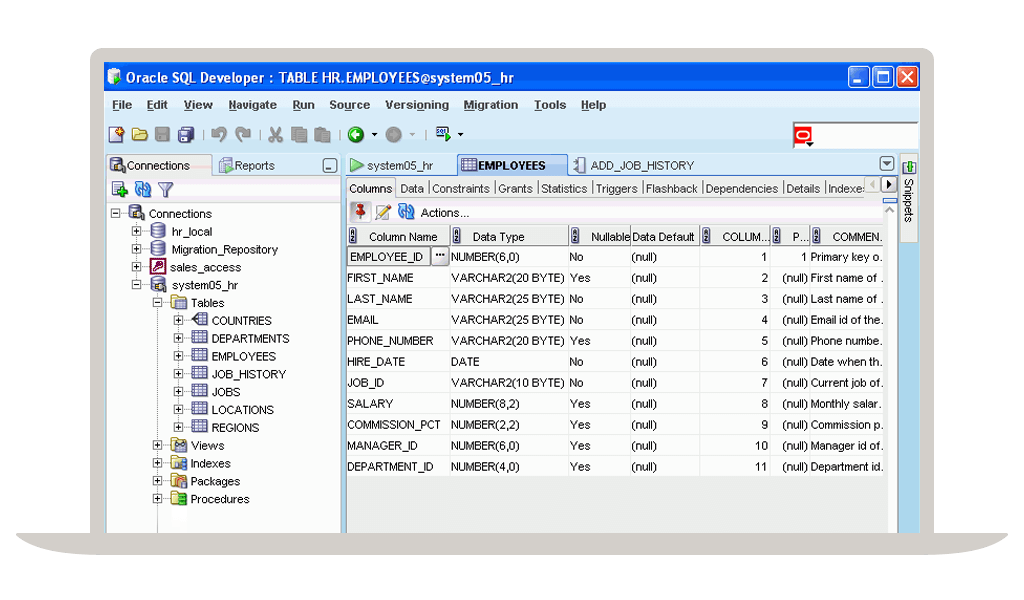
Desktop
- Full PL/SQL IDE - compile, debug, document, test, source control and more
- Click, browse, and managed the contents of your Oracle Database
- Manage your Oracle Database performance, security, storage, settings, and more
- RESTful Services Development and Oracle REST Services Integration
- Complete Data Modeling solution - ERDs, reports, SQL and DDL scripting, source control, DIFFs
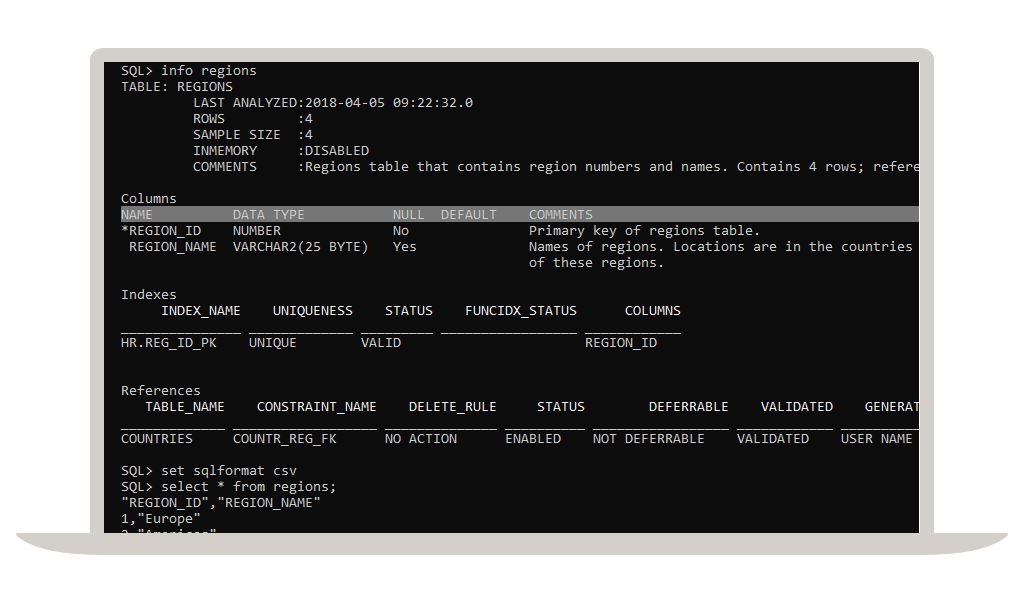
Command line
- Modern, in-line editing of your SQL and PL/SQL statements and scripts
- Tab completion for Oracle keywords, commands, and object names
- SQL History - access to all of the queries and scripts you've already ran
- Automatic Query Result Formatting - easy to read SQL results or format to JSON, XML, CSV, INSERTs, and HTML
- Generate object DDL or get object metadata with simple commands like DDL and INFO
- Liquibase integration for easy Oracle schema source control
- Extremely lightweight, only a 25MB download and install footprint
Browser
- Nothing to install, simply open your browser to start working with your Oracle Database
- Run any Oracle SQL or PL/SQL in a fully functioning SQL Worksheet (SQL History, insight, explain plans, and more)
- Create or Edit your favorite Oracle schema objects with easy to use wizards
- Generate rich, ERDs showing your current Oracle Schema designs
- Manage performance and general Database configuration
- Create and edit users
- Load data from CSV, JSON, and AVRO to new or existing Oracle tables
Additional Resources
Get started with SQL Developer
Try Oracle Cloud Free Tier
Build, test, and deploy applications on Oracle Cloud for free.
Run a workshop
Run a wide variety of labs and workshops and experience our best technology live.
Get certified
Access online training and certifications for Oracle Database cloud services.
Contact sales
Interested in learning more? Contact one of our industry-leading experts.