Before You Begin
Purpose
This tutorial provides instructions for creating a WebLogic domain with Oracle Traffic Director to be able to create and configure Oracle Traffic Director Configurations and Instances using the Oracle Fusion Middleware Configuration Wizard.
Time to Complete
Background
Oracle Traffic Director is a fast, reliable, and scalable layer-7 software load balancer. You can set up Oracle Traffic Director to serve as the reliable entry point for all HTTP, HTTPS and TCP traffic to application servers and web servers in the back end. Oracle Traffic Director distributes the requests that it receives from clients to servers in the back end based on the specified load-balancing algorithm, routes the requests based on specified rules, caches frequently accessed data, prioritizes traffic, and controls the quality of service.
When a WebLogic Server domain is extended to Oracle Traffic Director, the Oracle Traffic Director instances and configurations can be managed like any other elements of the WebLogic Server domain. Specifically, the instances can be managed from Enterprise Manager Fusion Middleware Control, the WLST Command line interface, and WebLogic Server Node Manager.
What Do You Need?
Operating System and Software Requirements
- A Linux machine with version 6 or greater of Oracle Linux or Red Hat Linux
- JDK 1.8 update 51 and above
- Oracle WebLogic Server 12c (12.2.1) software
Prerequisites
-
You should have completed the Oracle WebLogic Server 12c (12.2.1) Multitenancy: Installing WebLogic Server Using the Infrastructure Installer tutorial
-
Install Oracle Traffic Director(OTD) by following the steps in the Install Oracle Traffic Director(OTD) topic of the Configuring Oracle Traffic Director as a Cluster Proxy tutorial.
-
Created the WebLogic Server Restricted JRF Domain for Oracle Traffic Director by following the steps in Creating the WebLogic Server Restricted JRF Domain for Oracle Traffic Director topic of the Configuring Oracle Traffic Director as a Cluster Proxy tutorial.
Creating OTD Configuration using Fusion Middleware Control
To create a configuration by using Fusion Middleware Control, do the following tasks:
-
To display Fusion Middleware Control:
- Enter the URL,
http://host01.example.com:7001/em, in your Web browser. - Enter
weblogicas User Name andwelcome1as Password and click Login.
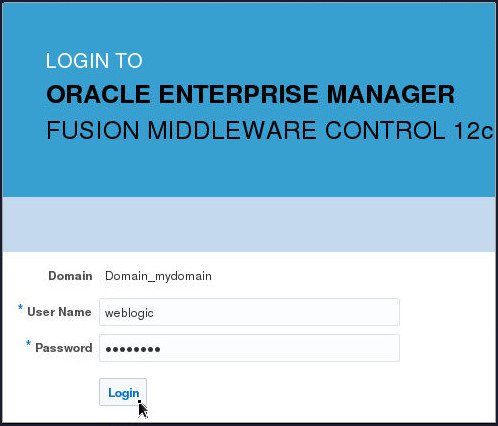
Description of this image - Enter the URL,
-
Click the WebLogic Domain button at the upper left corner of the page and select Administration > OTD Configurations.

Description of this image -
In the Change Center, click Lock & Edit.

Description of this image -
In the Common Tasks pane select the Create button on the Oracle Traffic Director Configurations page.

Description of this image The New Configuration wizard opens.
-
On the Create Configuration: General page:
- For Name, enter
tdirector_config. - Accept the default type
HTTPfor Origin Server Type. - Click Next.

Description of this image - For Name, enter
-
On the Create Configuration: Listener page:
- Accept defaults for Port and IP Address fields.
- For Server Name, enter
host01.example.com. - Click Next.

Description of this image -
On the Create Configuration: Server Pool page:
-
Click Add Server button in the Origin Servers section of the page.

Description of this image -
In the row that gets added on clicking Add Server button in the Origin Servers section of the page, enter the following and click Add Server button again:
- For Host, enter
host01.example.com. - For Port, enter
7005.

Description of this image - For Host, enter
-
In the second row that gets added on clicking Add Server button in the Origin Servers section of the page, enter the following and click Next :
- For Host, enter
host01.example.com. - For Port, enter
7006.

Description of this image - For Host, enter
-
-
On the Create Configuration: Deployment page:
- Select machine1.
- Click Next.

Description of this image -
On the Create Configuration: Review page:
- Review the configuration.
- Click Create Configuration.

Description of this image -
Back on the Oracle Traffic Director Configurations page, in the Change Center, click Activate Changes.

Description of this image
Want to Learn More?
-
For documentation on Oracle WebLogic Server 12c (12.2.1), visit the Oracle WebLogic Server Documentation Library.
- For more information about Oracle Traffic Director, see the Oracle® Fusion Middleware Administering Oracle Traffic Director
-
To learn more about Oracle WebLogic Server, refer to additional OBEs in the Oracle Learning Library
Credits
- Lead Curriculum Developers: Tom Eliason, Veerabhadra Rao Putrevu