Using RESTful Web Services to Implement CRUD Operations in NetBeans 7: Part 2
Purpose
This tutorial demonstrates using RESTful Web Services to implement CRUD database operations in NetBeans 7.
Time to Complete
Approximately 30 minutes.
Overview
RESTful Web Services use HTTP protocol methods. The HTTP methods such as GET, POST and DELETE can be mapped to create, read, update and delete (CRUD) actions to be performed.Java specification, JAX-RS (JSR 311) provides an API for creating RESTful web services in Java. Jersey is its official reference implementation. It provides additional features through its own APIs such as the Jersey Client API.
This tutorial is the second part of the tutorial, Part-1 of the tutorial, Creating RESTful Web Services in NetBeans 7 : Part 1 covered the Creation and Testing of RESTful Web Services in NetBeans 7.
In this tutorial, you will
- Create a Java client application to consume RESTful Web Services.
- Implement CRUD operations on the Database using RESTful Web Services.
Prerequisites
Before starting this tutorial, you should have completed Part 1 of this tutorial and met all its prerequisites.
Building a Client Application to
consume RESTful Web Services
The following section demonstrates how to create a Java client application PlayerClient, to consume the RESTful webservices created in PlayerServer application.
|
. |
Verify PlayerServer application is running as it creates the RESTful Web Services. Otherwise to start the Server, perform the following steps : a. Open the Projects tab. b. Right-click PlayerServer project. c. Select Run. This action starts the GlassFish server and deploys the application. 
On successful deployment of the application - a default jsp page with url, http://localhost:8080/PlayerServer/ is opened in the browser displaying "Hello World".
|
|---|---|
|
. |
To create new Java Project, select File > New Project.
|
|
. |
Select Java from the Categories column and Java Application from the Projects column and click Next.
|
|
. |
Perform the below steps: a. Name the project PlayerClient. b. Uncheck Create Main Class. c. Click Finish.
|


Generating Entity Classes from Database
Implementing CRUD operations on the database, requires creation of Entity Classes to communicate with the database. The following section demonstrates how to create Entity Classes from database.
|
. |
Right-click PlayerClient Project and select New >
Entity Classes From Database.
|
|---|---|
|
. |
a. In the Database Tables window, Database Connection field select jdbc:derby://localhost:1527/playerDB[john on JOHN] from the drop-down list.
You see PLAYER and TEAM tables in Available Tables category
c. Click Next
|
|
. |
In the Entity classes Window, enter the Package Name as playerentities
and click Next.
|
|
. |
In the Mappings Options Window, click Finish with default selection.
|
|
. |
Verify the creation of Entity Classes. a. Select the PlayerClient Project.
|


Create Operation Using RESTful Client
The following section demonstrates implemening Create operation using a RESTful Web Service. You will use RESTful Web Service to create a row in PLAYER table.
|
. |
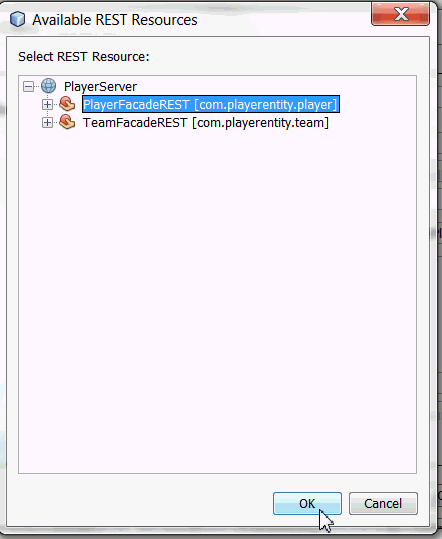
Complete the following steps to create RESTful client in PlayerClient project. a. Right-click the PlayerClient and choose New > Other > Web Services > RESTful Java Client. b. Click Next.
|
|---|---|
|
|
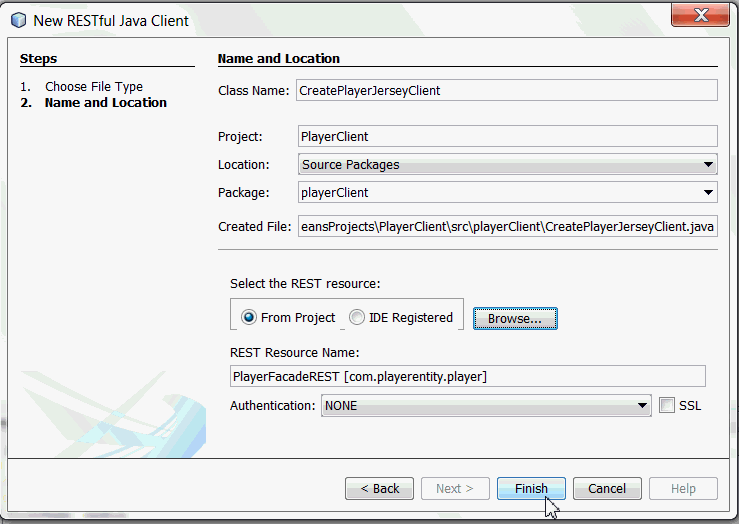
a. Enter the following details for the fields in the New Restful Java
Client window :
c. Expand the PlayerServer application. d. Select PlayerFacadeREST[com.playerentity.player].
h. Click Finish.
CreatePlayerJerseyClient.java opens in the code editor. |
|
. |
Examine CreatePlayerJerseyClient.java. a. Identify the code snippet where the WebResource is initialized with the URI and path of the RESTful service.
b. Observe all the methods of the web service are present which gets,
puts, deletes or posts data. |
|
. |
To create a row in the PLAYER table using the RESTful Web Service, make following changes to CreatePlayerJerseyClient.java a. Import the following packages. import java.util.ArrayList;
b. Add the main method. public static void main(String
args[])throws UniformInterfaceException
|
|
. |
In the Projects window, right-click CreatePlayerJerseyClient.java and select Run File.
|
|
. |
Verify the output. It can be done in two ways: examine the contents of the PLAYER table or Generate Web Services test client. a. To examine the contents of the PLAYER table, complete the below steps: 1. In the Services window, expand the
jdbc:derby://localhost:1527/playerDB connection under the Databases
node. 5. Examine the PLAYER table data, a new row would be created with the details specified for Player object p.
b. Generate Web Services test client as explained in Part-1. After the test client is deployed to test the Web Services Client, complete the following steps. 1. Select one resource node, com.playerentity.player.
|




Retrieve Operation Using RESTful Client
The following section demonstrates how to implement a Retrieve operation on the database using RESTful Web Service. You will use RESTful Web Service to retrieve all the rows in the PLAYER table and display in the console.
|
. |
Complete the following steps to create RESTful client in PlayerClient project. a. Right-click the PlayerClient and choose New > Other > Web Services > RESTful Java Client . b. Click Next.
|
|---|---|
|
. |
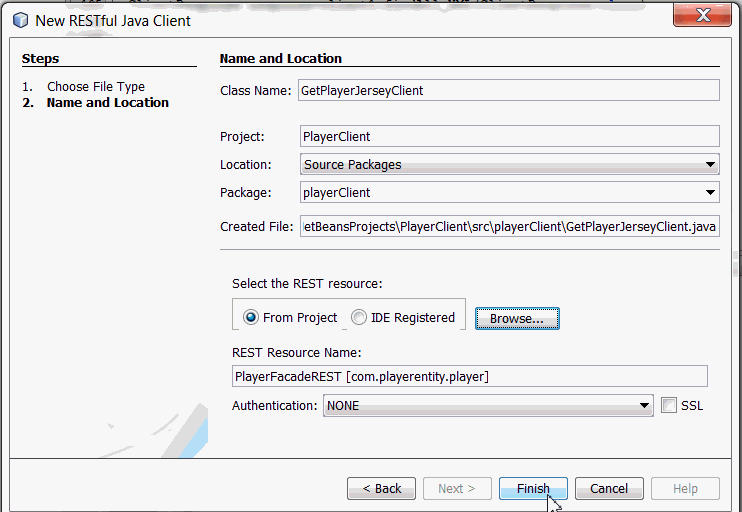
Enter the following details for the fields in the New Restful Java
Client window :
d. Select PlayerServer
h. Click Finish.
GetPlayerJerseyClient.java opens in the code editor. |
|
. |
To retrieve the contents of the Player table using the RESTful Web Service, make following changes to GetPlayerJerseyClient.java a. Import the following packages. import java.util.ArrayList;
b. Add the main method. public static void main(String
args[])throws UniformInterfaceException
Examine findAll_XML() method that is used to retrieve the records from the PLAYER table.
|
|
. |
In the Projects window, right-click GetPlayerJerseyClient.java
and select Run File.
|
|
. |
Examine the output, PLAYER table content is displayed in the console.
|



Update Operation Using RESTful Client
The following section demonstrates how to implement Update operation on the database using RESTful Web Service. You will use RESTful Web Service to update a specified row in the PLAYER table.
|
. |
To update a particular row in the PLAYER table using the RESTful Web Service, complete the following step: Make the following changes to main method in CreatePlayerJerseyClient.java. a. Delete the contents of the main method. b. Add the below lines of code to the main method : CreatePlayerJerseyClient client1=new
CreatePlayerJerseyClient();
The above code retrieves Player with id equals 3 from the Player Table. The find_XML() method is used to retrieve the Player object with the specified Player id . |
|---|---|
|
. |
In the Projects window, right-click CreatePlayerJerseyClient.java
and select Run File from the right-click menu.
|
|
. |
Verify the output, the details Player with id 3 is displayed on the console.
|
|
. |
Add the below code to the main method to update the retrieved Player object. player.setJerseynumber(100);
The above code updates the following fields of the row with player
id equals 3 in the PLAYER table : JerseyNumber
to 100 and LastSpokenWords
to "I will be retiring
soon". The edit_XML()
method is used to update the record in the PLAYER table. |
|
. |
In the Projects window, right-click CreatePlayerJerseyClient.java
and select Run File from the right-click menu.
|
|
. |
Verify the output. It can be done in two ways: examine the contents of the PLAYER table or Generate Web Services test client . a. To examine the contents of the PLAYER table, complete the following steps: 1. In the Services window, expand the
jdbc:derby://localhost:1527/playerDB connection under the Databases
node. b.Generate Web Services test client as explained in Part-1. After the test client is deployed to test the Web Services Client, complete the following steps. 1. Select one resource node, com.playerentity.player. |


Delete Operation Using RESTful Client
The following section demonstrates how to implement a Delete operation on the database using RESTful Web Service. You will use RESTful Web Service to delete a specified row in the PLAYER table.
|
. |
To Delete a specified row from the PLAYER table using the RESTful Web Service, perform the following steps: Make the following changes to main method in GetPlayerJerseyClient.java a. Delete the contents of the main method. b. Add the below lines of code to the main method : GetPlayerJerseyClient client1=new
GetPlayerJerseyClient();
b. Examine that remove() method is used to delete a record from the Player table with PlayerId, 3.
|
|---|---|
|
. |
In the Projects window, right-click GetPlayerJerseyClient.java
and select Run File from the right-click menu.
|
|
. |
Verify the output. It can be done in two ways: examine the contents of the PLAYER table or Generate Web Services test client . a. To examine the contents of the PLAYER table, complete the following steps: 1. In the Services window, expand the
jdbc:derby://localhost:1527/playerDB connection under the Databases
node.
b. Generate Web Services test client as explained in Part-1. To test the Web Services Client, complete the following steps. 1. Select one resource node com.playerentity.player.
|


Summary
This tutorial provides an overview of how RESTful WebServices and JPA together simplifies the implementation of database CRUD operations
Resources
- JSR 311: JAX-RS: The Java API for RESTful Web Services
- Jersey Implementation for building RESTful
Web Services
Credits
- Curriculum Developer: Anjana Shenoy

 |
Copyright © 2011, Oracle and/or its affiliates. All rights reserved |