Using a Raspberry Pi to Deploy JavaFX Applications
Overview
Purpose
This tutorial covers how to configure a Raspberry Pi as a development platform for the JavaFX platform.
Time to Complete
Approximately 1 hour
Introduction
The Java platform is designed to run on different machines regardless of operating system. Computers comes in
different shapes and capabilities, and Java still runs on most of them. The Raspberry Pi is a small, affordable, and extensible
computer that is based on an ARM 11 processor, which is capable of running a Linux distribution.
This new, compact computer also runs Java with the new Java 8 ARM distribution, providing you with a small and portable device
on which to run your applications.
The Raspberry Pi has USB, Ethernet, audio, High-Definition Media Interface (HDML), and RCA composite video output, making it capable of running
applications that connect to the network, are displayed in a connected screen, and are controlled by using any USB
keyboard or mouse.
In this tutorial, you install the Java Development Kit (JDK) for Java Platform, Standard Edition Release 8 (Java SE 8) on the Raspberry Pi, and then you deploy, run, and stop JavaFX applications directly
and remotely in the Pi.
Software Requirements
Download and install the following software on your PC:
In order to boot, the Raspberry Pi requires a bootable Linux
image on an SD memory card. There is no hard drive for the
computer. Instead, the 4 GB card stores the image that the
computer runs when it is powered on. This SD memory card also acts
as the storage for other applications that are loaded onto the card.
Formatting the SD Memory Card with the SD Formatter Tool
Insert the SD card into your computer, or connect it to your computer by using an SD card peripheral.
Start the SD Formatter tool and click Option.
Sizes might differ, depending on the SD size.
In the Option Setting dialog box, select FULL (Overwrite) from Format Type and ON
from Format Size Adjustment, and then click OK.
Click Format to start the SD Formatter tool.
Click OK to format the SD memory card.
A dialog box displays the progress of the format.
When the format is completed, click OK to close the dialog box.
Click Exit to close the SD Formatter tool.
You are now ready to install the Raspbian Wheezy image in the SD memory card. Leave the card in the computer.
Downloading and Confirming the Raspbian Wheezy Image
Make a note of the SHA-1 checksum for the zip file that you downloaded.
Note: The SHA-1 checksum may also be in a file with a .sha1 extension.
Open a command window in the directory where you downloaded the zip file and enter
sha1sum.exe 2013-09-10-wheezy-raspbian.zip.
Note: If the SHA-1 checksum does not match the checksum listed on the download page, try
downloading the zip file again.
Unzip 2013-09-10-wheezy-raspbian.zip with your favorite unzip tool.
Start the Win32DiskImager application. Make sure that the device address is the same as the mount point for the SD
memory card.
Click the folder button, navigate to the location of the image file, and then click Write.
Click Yes to confirm that you want to overwrite the contents of the SD memory card.
A progress meter is displayed.
When the Write Successful message is displayed, click OK.
Click Exit to close Win32 Disk Imager.
Remove the SD memory card from the computer.
You are now ready to boot the Raspberry Pi and install the JDK 8 distribution for Pi.
Setting Up the Raspberry Pi for Remote Access
To set up the Raspberry Pi for remote access, you configure Raspbian to allow SSH connections. To ensure that the
Raspberry Pi always has the same IP address, you configure the Raspberry Pi to use a static IP address.
Booting the Raspberry Pi and Configuring Raspbian Wheezy Linux
Perform the following steps:
Insert the SD memory card into the Raspberry Pi.
Connect the USB keyboard and USB mouse.
Connect the HDMI display.
Connect the Ethernet cable.
Plug in the power cable.
After a few moments, the monitor displays text, and the
Raspberry Pi raspi-config configuration screen appears.
Select setup option 1, Expand Filesystem, and press Enter
to expand the file system and use all of the SD memory card storage.
Press Enter to close the confirmation screen.
Configuring the Time Zone
Press the up or down arrow key to select option 4, Internationalisation
Options, and press Enter.
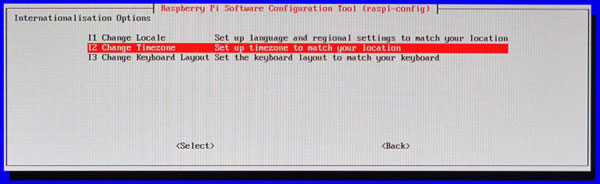
Press the up or down arrow key to select option I2, Change Timezone, and press Enter.
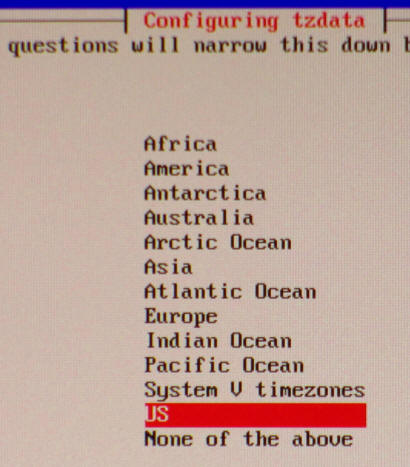
Press the up or down arrow key to select your country and press Enter.
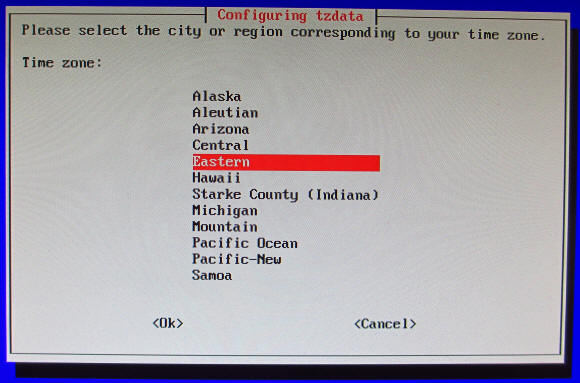
Press the up or down arrow key to select the time zone in your country (if applicable) and press Enter.
Configuring the Raspbian Wheezy OS to Enable SSH Connections
Press the up or down arrow key to select option 8, Advanced Options, and press Enter.
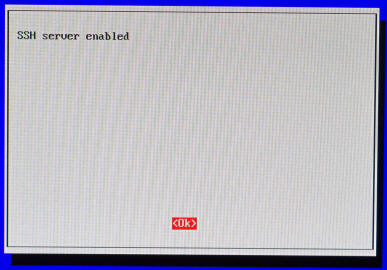
Press the up or down arrow key to select option A4, SSH, and press Enter.
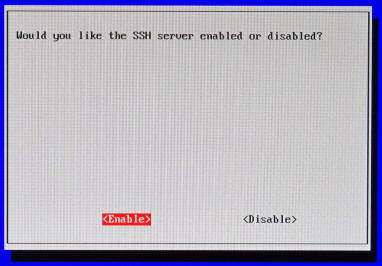
Press the left or right arrow key to select Enable and press Enter.
Press Enter.
Press the left or right arrow key to select Finish
and press Enter.
Press the left or right arrow key to select Yes and then press Enter to reboot the Raspberry Pi.
The Raspberry Pi reboots.
Notice the line that indicates the IP address of the Raspberry Pi.
At this point, you can disconnect the HMDI monitor, the USB mouse, and the USB keyboard.
Connecting to the Raspberry Pi with the Secure Shell
Start putty.exe and perform the following steps:
On the boot screen, enter the IP address in the IP address field.
Enter Raspberry SSH in the Saved Sessions field.
Click Save.
Click Open.
Click Yes to accept the security alert.
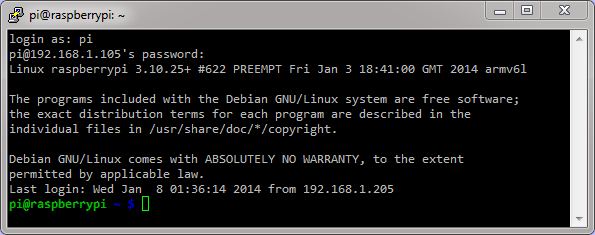
Enter pi as the login name and raspberry as the password.
Setting Up the Raspberry Pi to Use a Fixed Wired IP Address
If you plan to use your Raspberry Pi on a wireless network, skip this section.
In a separate command-prompt window, enter ipconfig to get the netmask and default gateway for your network.
Note: If you are using a wireless connection, the information appears under the Wireless LAN adapter heading.
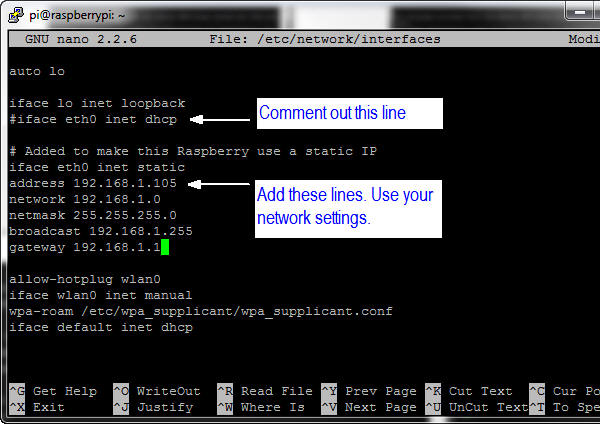
In a PuTTY window, enter sudo nano /etc/network/interfaces and then perform the following steps:
Comment out the iface eth0 inet dhcp line.
Below that, add the iface eth0 inet static line.
Use your network settings to add the IP, network, netmask, broadcast, and gateway addresses. For example: address 192.168.1.105 should be similar to the IPv4 address. network 192.168.1.0 should be the network prefix and zeroes. netmask 255.255.255.0 should match the subnet mask. broadcast 192.168.1.255 should be the network broadcast address. gateway 192.168.1.1 should match the default gateway.
Note: You have to set the network properties to match the network configuration that you are using on your PC.
Press Ctrl + O and then press Enter to write the file.
Press Ctrl + X and then press Enter to close nano and return to the prompt.
Enter sudo reboot to reboot the Raspberry Pi and make the changes.
Optional: Setting Up the Raspberry Pi to Use a Wireless Network with a Fixed IP Address
If you plan to use a wireless USB module with your Raspberry Pi, you need to edit the network interfaces file.
In a PuTTY window, enter sudo nano /etc/network/interfaces and then perform the following steps:
Comment out the following lines:
allow-hotplug wlan0
iface wlan0 inet manual
wpa-roam /etc/wpa_spplicant/wpa_supplicant.conf
Below that, add the following lines:
auto wlan0
iface wlan0 inet static
Use your network settings to add the IP address,
network mask, and gateway address. For example: address 192.168.1.105
netmask 255.255.255.0
gateway 192.168.1.1
Add the network SSID and passkey for your network in
double quotation marks. For example: wpa-ssid "mynetwork"
wpa-psk "cants@y"
Press Ctrl + O and then press Enter to write the file. Press Ctrl + X to exit nano.
Enter sudo halt to halt the Raspberry Pi.
Unplug the power cable to the Raspberry Pi.
The Raspberry Pi supports only two USB connections. To use the USB Wifi module, unplug the USB mouse, the USB
keyboard, and the Ethernet cable, and then plug in the USB Wifi module.
To use JavaFX applications, you need a mouse and
preferably a keyboard. You can use a USB hub to connect everything to the Raspberry Pi.
Plug the power cable into the Raspberry Pi.
Restarting the PuTTY Connection
To reconnect to the Raspberry Pi, right-click in the header of the PuTTY window and select Restart Session.
Enter pi as the login name and raspberry as the password.
Installing JDK 8 in the Raspberry Pi
Raspbian comes with an installed version of Java. To install a new version of Java with the full JDK,
you transfer the ARMV6/7VFP gzip distribution to the Pi by using PSFTP. After the gzip is on the Pi,
you unzip it and set the required environment variables.
Transferring JDK 8 to the Raspberry Pi by Using PSFTP
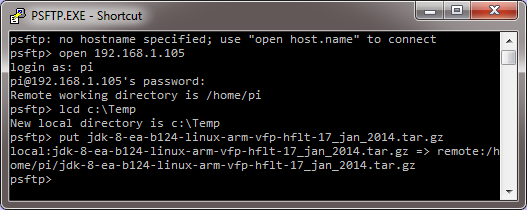
Launch the PSFTP tool and then perform the following steps:
Enter open 192.168.1.105.
Enter pi as the login name and raspberry as the password.
If a dialog box about a cached key is displayed, press Y to
update the key.
Enter lcd C:\Temp to change the local directory to the location of JDK 8 for Linux ARMv6/7.
Enter put jdk-8-ea-b124-linux-arm-vfp-hflt-17_jan_2014.tar.gz.
This process may take several minutes because it uploads JDK to the Raspberry Pi.
Type exit to quit the PSFTP tool.
Installing the Raspberry Pi JDK 8
In the PuTTY window, enter tar -xvf jdk-8-ea-b124-linux-arm-vfp-hflt-17_jan_2014.tar.gz to extract JDK 8.
Files are extracted inside the jdk1.8.0 folder. (The process may take
several minutes.)
If a message indicates that some files have a timestamp, perform the following steps to correct the error:
Enter rm jdk1.8.0 -Rf to remove the JDK.
Enter sudo date -s "28 JAN 2014 17:00:00" to set the new system date, replace the date with the current date.
Try the step again. Enter tar -xvf jdk-8-ea-b124-linux-arm-vfp-hflt-17_jan_2014.tar.gz to uncompress the JDK8 without problems.
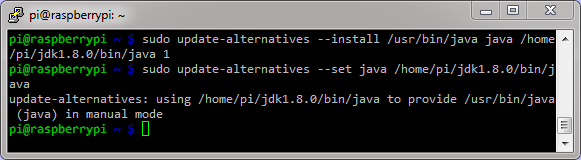
Enter sudo update-alternatives --install /usr/bin/java java /home/pi/jdk1.8.0/bin/java 1.
Enter sudo update-alternatives --set java /home/pi/jdk1.8.0/bin/java.
Press Ctrl + O and then press Enter to save the changes. Press Ctrl + X to exit nano.
Setting Up JAVA_HOME for sudo Commands
In the PuTTY window, enter sudo visudo.
Enter Defaults env_keep +="JAVA_HOME" after all the Defaults declarations.
Press Ctrl + O and then press Enter to save the changes. Press Ctrl + X to exit nano.
Using visudo, you edit the sudoers file safely. After the editor is closed, the file is validated. If any validation errors are in the file, the sudoers file is not modified.
Verifying the JDK 8 Installation
Enter sudo reboot to restart the Raspberry Pi. Wait a couple of seconds to let the Raspberry Pi reboot.
Right-click in the header of the PuTTY window and select Restart Session to reconnect to the Raspberry Pi.
Enter pi as the user name and raspberry as the password.
Enter java -version to see the current Java version that is being used.
Note: Your Java version should be at least 1.8.
Enter javac -version to see the current Java compiler version that is being used.
Note: Your Java version should be at least 1.8.
Enter sudo java -version to see the Java version that is being used by the root user.
Note: Your Java version should be at least 1.8.
Building JavaFX Applications
To develop JavaFX applications faster, you use your desktop computer with the NetBeans IDE. The JavaFX projects
generate JAR files that can be deployed to any device that can run JavaFX. In this section, you create two applications
with NetBeans and move the resulting JAR files to upload them later to the Raspberry Pi.
Building a Basic JavaFX Application
In NetBeans, select File > New Project.
Select JavaFX from Categories and JavaFX Application from Projects and click Next.
Enter BasicFX as the project name, select a location for the project, and click Finish.
Your project is created and loaded into the IDE, and you can explore the contents of the project.
Right-click the project and select Clean and Build
to generate a distributable JAR file.
Click Select Class in the Browse JavaFX Application Classes if the dialog box is displayed.
The Output tab shows the progress and indicates when the process is completed.
Open a File Explorer window and locate the project folder.
Open the dist folder and locate the BasicFX.jar file
Copy the BasicFX.jar file to c:\Temp to make it easier to upload to the Raspberry Pi.
Building the Clock Sample JavaFX Application
The NetBeans IDE includes sample applications that you can create and modify to showcase Java technologies.
In this section, you create a JavaFX clock application by using one of these templates.
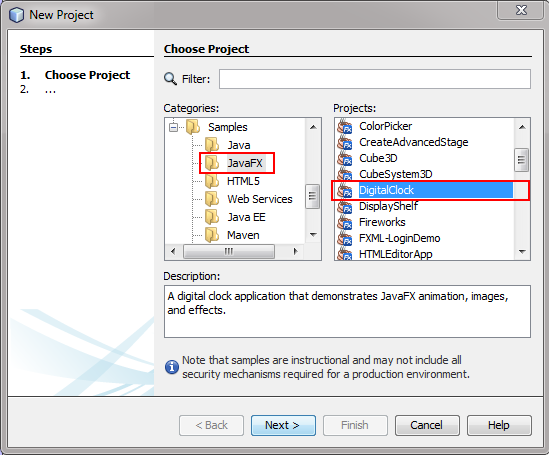
In NetBeans, select File > New Project.
Select Samples > JavaFX from Categories and DigitalClock from Projects and click Next.
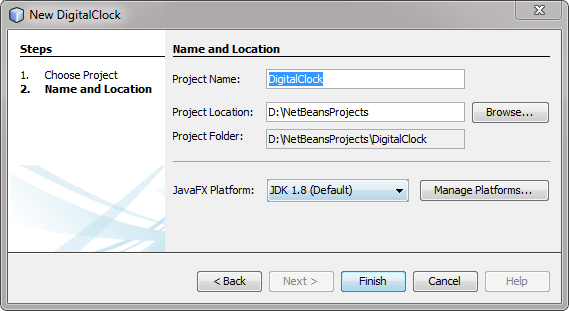
Set a location for the project and click Finish.
The project is created with the code required to display a digital clock using JavaFX.
Right-click the project, select Clean and Build, and wait until the project is built.
Open a File Explorer window, browse to the DigitalClock project folder, and open the dist folder.
Copy the DigitalClock.jar file to the c:\Temp folder to make it easier to deploy it on the Raspberry Pi.
Deploying, Running, and Stopping JavaFX Applications
Transferring the JavaFX Application JARs to the Raspberry Pi by Using PSFTP
Launch the PSFTP tool and then perform the following steps:
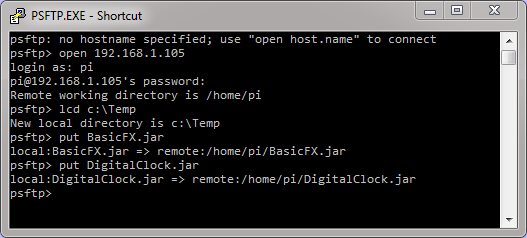
Enter open 192.168.1.105.
Enter pi as the login name and raspberry as the password.
Perform the following steps to transfer the JavaFX application JAR files:
Enter lcd C:\Temp to change the local directory to the location of the JDK 8 for Linux ARMv6/7.
Enter put BasicFX.jar.
Enter put DigitalClock.jar.
Type exit to quit the PSFTP tool.
The applications are deployed on the Raspberry Pi.
Running a JavaFX Application JAR in the Raspberry Pi
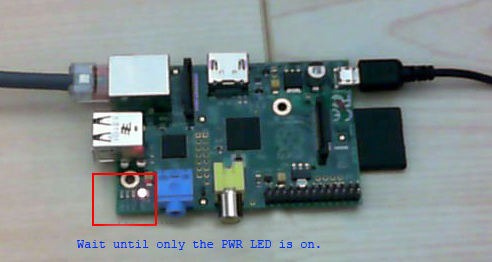
In a PuTTY window, enter sudo halt and wait for the LEDs to stop blinking.
When only the PWR LED is on, unplug the power cable from the Pi.
Connect the video cable, mouse, and keyboard to the Raspberry Pi, and then connect the power cable.
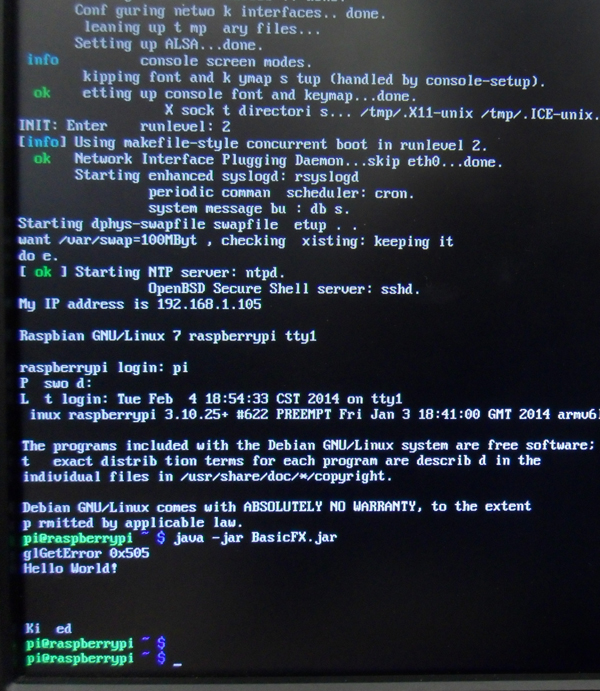
In the Pi, log in as the user pi with the password raspberry.
Enter java -jar BasicFX.jar.
The application is displayed on the Raspberry Pi screen.
Stopping a JavaFX Application
JavaFX applications are displayed on the main screen of the Raspberry Pi, but you can start and stop them from a remote console, which is useful when debugging or when the application cannot be stopped. In some cases, you can stop applications by pressing Ctrl + C. If the application doesn't stop, use the method outlined in this section.
On your Desktop PC, open a PuTTY window and log in to the Raspberry as the user pi with the password raspberry.
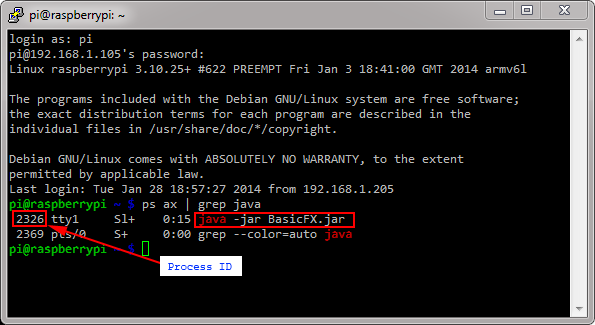
Enter ps ax | grep java and locate the process ID of the BasicFX.jar application.
Enter sudo kill -9 2326 and replace 2326 with the process ID from the previous step.
Notice that the JavaFX application stops.
You can use this method whenever you cannot shut down an application normally and you
need to forcefully stop it.
Running a JavaFX Application Remotely
In the PuTTY window, enter java -jar DigitalClock.jar.
The Digital Clock application starts and runs in full screen mode.
In the PuTTY window, press Ctrl + C to stop the application.
If the screen is blank, press Enter to display the shell console.
Summary
In this tutorial, you learned to:
Create a bootable image for the Raspberry Pi
Set up the Raspberry Pi for remote access
Install JDK 8 on the Raspberry Pi
Deploy and run JavaFX applications on the Raspberry Pi