
This document will continue to evolve as existing sections change and new information is added. All updates are logged below, with the most recent updates at the top.
| Date |
What's Changed |
Notes |
|---|---|---|
| 27 SEP 2016 |
Initial Document Creation |
This guide outlines the information you need to know about new or improved functionality in Oracle Responsys’ 6.30 October 2016 Release and describes any tasks you might need to perform for the update. Each section includes a brief description of the feature, the steps you need to take to enable or begin using the feature, any tips or considerations that you should keep in mind, and the resources available to help you.
This section gives you information to help you plan and use the features included in this release. We frequently update this document so don’t forget to check back and get the latest information.
- 6.30 October 2016 Release Training Videos
- Oracle Responsys 6.30 October 2016 Release Fixes and Known Issues
- Responsys Insiders (Customer Community)
Some of the new features are automatically available to users after the upgrade and some require action from the user, the company administrator, or Oracle.
The table below offers a quick view of the actions required to enable each of the features.
| Action Required to Enable Feature |
|||||||
|---|---|---|---|---|---|---|---|
| Feature |
Automatically Available |
End User Action Required |
Administrator Action Required |
Oracle Service Request Required |
|||
| Collaboration |
|||||||
|
|
|||||||
|
|
|||||||
|
|
|
||||||
|
|
|
||||||
|
|
|
||||||
| Campaigns |
|||||||
|
|
|||||||
|
|
|
||||||
|
|
|||||||
| Account Administration |
|||||||
|
|
|
||||||

Collaboration Process Designer
With this release, you can create Collaboration Processes that allow local and corporate marketers to collaborate.
The new Collaboration Process Designer lets you create and publish process flows using pre-defined steps. You can create processes to use once for a campaign, or for reuse with multiple campaigns.
New Roles for Collaboration Processes
In order to design and launch the Collaboration Processes, and contribute and approve content, a user must have one of the following new roles.
- Collaboration Process Designer: can design, launch, and monitor Collaboration Processes for their organizational units.
- Collaboration Process Launcher: can launch and monitor Collaboration Processes for their organizational units.
- Content Contributor: can contribute organizational unit-specific content.
- Content Approver: can approve organizational unit-specific content.
Designing Collaboration Processes
Users with the Collaboration Process Designer role can use the new Collaboration Process Designer to create and publish Collaboration Processes using pre-defined steps.
Steps to Enable
- Click
 , and select Create Process from the Collaboration menu.
 - In the Create Collaboration Process dialog, enter a unique title, select a folder, and, optionally, enter a description, then click Create.
- In the Collaboration Process Designer, drag process steps from the palette onto the canvas and draw connectors between them to create the process path.
- Double-click a step to set its properties, such as step duration, campaign name, and campaign launch time.
- Click Publish to make the process available for launching.
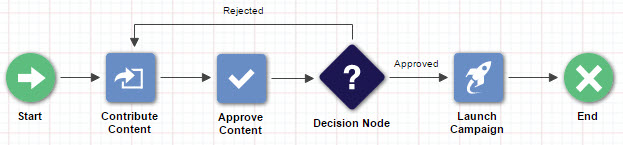
You can use variables instead of values. Using variables allows for values to be specified during a launch, making the process reusable for launching multiple campaigns.
Launching Collaboration Processes
Users with the Collaboration Process Launcher role can use the new Launch Collaboration Process dialog to launch published processes.
STEPS TO ENABLE
- Click , and select Launch Process from the Collaboration menu.
- In the Launch Collaboration Process dialog, select the process to launch, then click Launch.
- Type a name for the launch, select the organizational units, and specify all elements.
- Click Launch, then click Yes in the confirmation message.
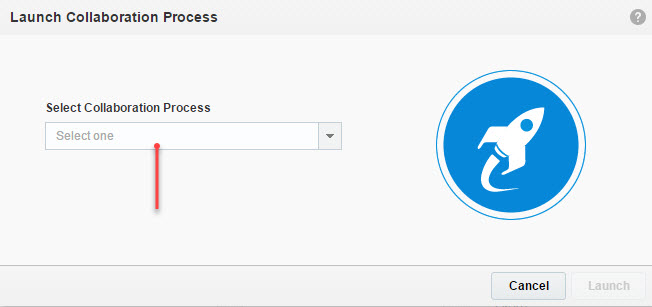
The launch will use content, approvals, and recipients specific for each selected organizational unit.
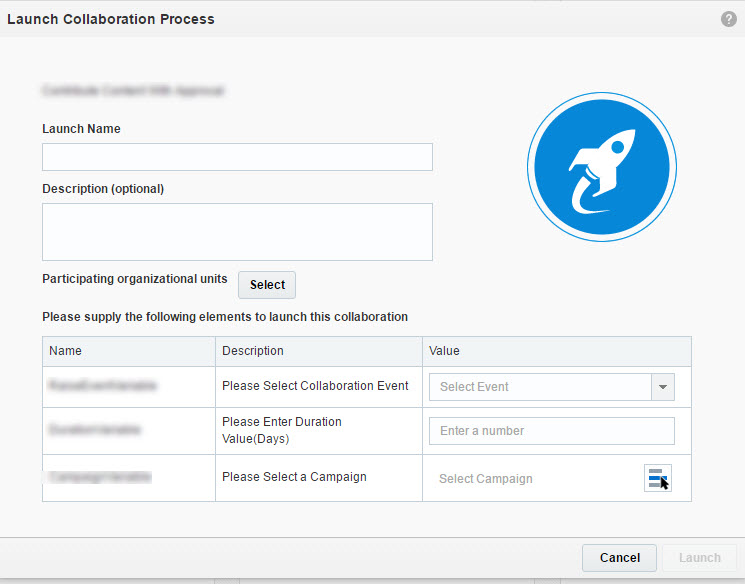
When the process launches, assigned tasks will appear in the workspaces of all participating users in the selected organizational units.
The launch will use content, approvals, and recipients specific to each organizational unit.
Monitoring Collaboration Processes
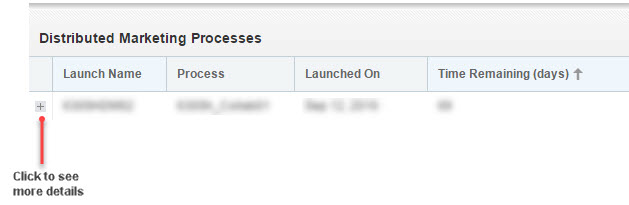
Users with the Collaboration Process Launcher and the Collaboration Process Designer roles can use the Process Monitor to monitor all active processes for their organizational units and take action if necessary.
STEPS TO ENABLE
- Click , and select Monitor Process from the Collaboration menu.
Reusable Dynamic Content Rules
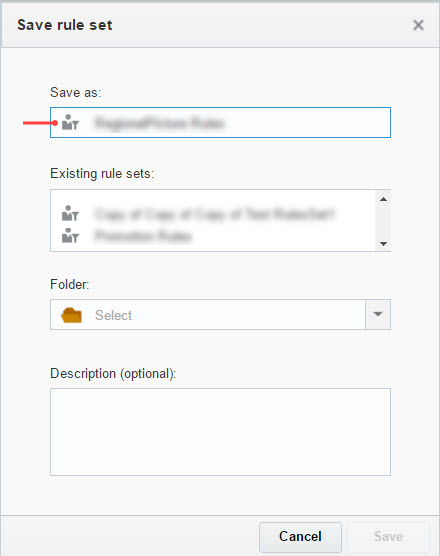
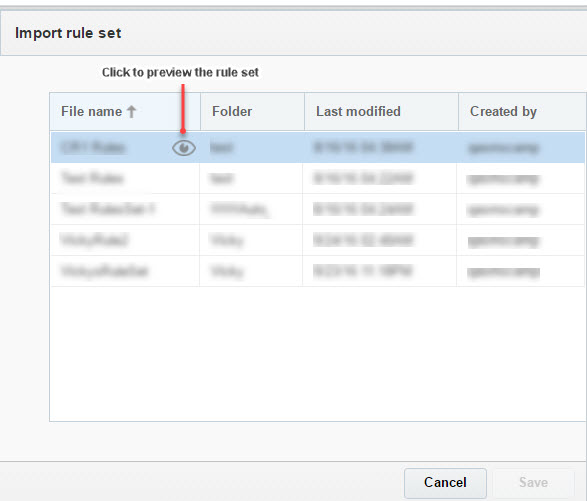
You can now save collections of dynamic content rules, called Rule Sets, for reuse in multiple email campaigns. This ability helps you create and edit dynamic rules faster, and eliminates the need to replicate work.
STEPS TO ENABLE
- In the Email Message Designer, create your rules, and click
 .
. - In the Save rule set dialog, type the name and select the folder for the Rule Set, then click Save.
To use a rule set in a campaign
- In the Email Message Designer, click
 .
. - In the Import rule set dialog, select the rule set, then click Save.
This release introduces the Campaign Approval workflow in for email campaigns. Campaign Approvals enable collaboration between campaign developers and campaign approvers.
The campaign approver can review and approve the campaign, and provide feedback to the campaign developer before the campaign is sent.
A printable view of the campaign and task list functionality provide a faster, simpler, and more traceable way for the campaign developer and campaign approver to collaborate.
STEPS TO ENABLE
- To enable this feature, click Define campaign approval settings on the Account Management page, and select Require approvals for all new and modified campaigns.
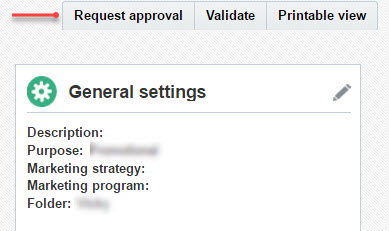
- In the Campaign Workbook, click the new Request Approval button.
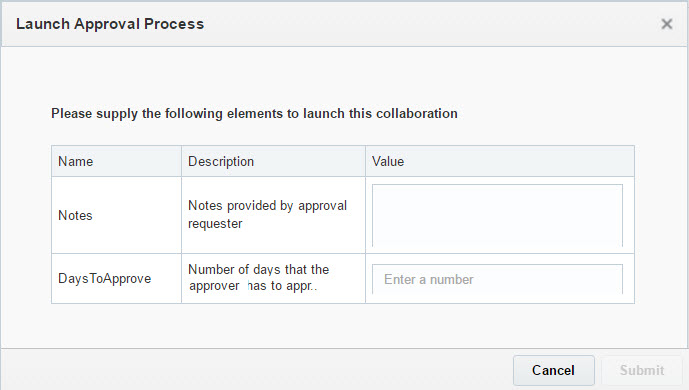
- In the Launch Approval Process dialog, type any notes for the approver and enter the number of days that the approver has to complete this task, then click Submit.
The user must have the Account Administrator role to do this.
All users with the Email Campaign Approver role will receive an email notification and an assigned task will appear in their workspaces.
Email Message Designer Source Editor Improvements
In this release, we updated the Source View of the Email Message Designer to make HTML and RPL editing simpler and faster.
With features common in integrated development environments, such as syntax highlighting, search and replace, tag completion, and autocomplete, you can now easily make changes, navigate code, and reference commonly used functions and tags.
The Salesforce integration is now enabled automatically, eliminating the need to rely on Oracle Responsys to enable it.
---

Copyright © 2016, Oracle and/or its affiliates. All rights reserved.
This document is provided for information purposes only, and the contents hereof are subject to change without notice.This document is not warranted to be error-free, nor subject to any other warranties or conditions, whether expressed orally or implied in law, including implied warranties and conditions of merchantability or fitness for a particular purpose. We specifically disclaim any liability with respect to this document, and no contractual obligations are formed either directly or indirectly by this document. This document may not be reproduced ortransmitted in any form or by any means, electronic or mechanical, for any purpose, without our prior written permission.
Oracle and Java are registered trademarks of Oracle and/or its affiliates. Other names may be trademarks of their respective owners.
Intel and Intel Xeon are trademarks or registered trademarks of Intel Corporation.All SPARC trademarks are used under license and are trademarks or registered trademarks of SPARC International, Inc. AMD, Opteron, the AMD logo, and the AMD Opteron logo are trademarks or registered trademarks of Advanced Micro Devices. UNIX is a registered trademark of The Open Group.
