
Performing File System Restores Using Oracle Secure Backup Web Tool
Performing Database and File System Backups and Restores Using Oracle Secure Backup
This lesson introduces you to Oracle Secure Backup which enables you to perform database and file system backups and restores easily.
Approximately 1 hour
This tutorial covers the following topics:
 Place the cursor over this icon to load and view all the screenshots for this tutorial. (Caution: This action loads all screenshots simultaneously, so, depending on your Internet connection, may result in a slow response time.)
Note: Alternatively, you can place the cursor over an individual icon in the following steps to load and view only the screenshot associated with that step. You can hide an individual screenshot by clicking it.
Database backup, restore, and recovery are critical processes underlying any mission-critical system. Imagine the potential for lost revenue, customer dissatisfaction or unrecoverable information caused by a disk failure or human error. Debuting with Oracle 8.0, Recovery Manager (RMAN) is the recommended backup and recovery utility for the Oracle Database to disk and is integrated with media management utilities for tape backup and restoration. In addition to backing up the database, critical file system data such as the Oracle Home and other non-database files must be protected. With the new Oracle Secure Backup release, Oracle now provides an end-to-end backup solution for Oracle environments. Oracle Secure Backup provides centralized tape backup management protecting diverse, distributed file system data (UNIX /Linux / Windows / NAS) and the Oracle Database. Tightly integrated with Recovery Manager (RMAN), Secure Backup delivers fast database backup and optional database backup encryption to tape.
This tutorial demonstrates how to use the advanced new features released in Recovery Manager (RMAN), Oracle Secure Backup and Enterprise Manager Database Control to create a complete backup and recovery infrastructure for your whole Oracle environment. During this tutorial, you will:
|
Setup an Oracle Database backup and recovery strategy to disk and tape | |
|
Backup non-database files to tape | |
|
Repair database files that require recovery | |
Oracle Secure Backup Architecture
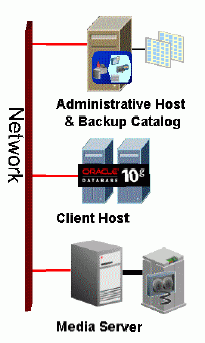
Oracle Secure Backup employs client-server architecture. Administrative domains are used to organize and manage the backup and restore operations within the enterprise. An administrative domain has one administrative server, one or more clients, and one or more media servers.
| Administrative Server | A machine in your administrative domain that contains a copy of Oracle Secure Backup software and the backup catalog that contains configuration settings and store backup history. The administrative server runs the scheduler, which starts and monitors jobs within the administrative domain. Each administrative domain will have one administrative server. | |
| Media server | A machine that has one or more secondary storage devices, such as a tape drives or libraries, connected to it. A media server transfers data to or from attached devices. During installation, you can configure multiple secondary storage devices on media servers. | |
| Client | A machine whose locally accessed data are backed up by Oracle Secure Backup. Most machines defined within the administrative domain are clients. | |
A backup strategy is necessary for every database, and it must provide fast and easy recovery from media failure and human error. In this lesson you will configure an Oracle Database recovery strategy to backup to disk using the Enterprise Manager’s Backup Wizard called the Oracle Suggested Strategy. The Oracle Suggested Strategy takes advantage of the Flash Recovery Area and RMAN’s incremental roll forward capabilities. You will also configure and create tape backups of the files in the Flash Recovery Area as well as non-database files. Finally, backing up is only the means to recovery, as you will also repair files for the database and restore files from tape.
Before starting this tutorial, you should:
| 1. | Have access to or install Oracle Database 10g. |
|
| 2. | Install Oracle Secure Backup. |
|
| 3. | Download and unzip the ob.zip file into your working directory (i.e. c:\wkdir). |
|
The flash recovery area is a unified storage location for all recovery related files and activities in an Oracle database. All files that are needed to completely recover a database from a media failure are part of the flash recovery area. The recovery related files that can be created in the flash recovery area include: archived redo log files, control files, backups created by Recovery Manager (RMAN), and flashback logs.
By allocating a storage location and unifying related recovery files within a specific area, the Oracle database server relieves the database administrator from having to manage the disk files created by these components.
Follow the steps below to configure the flash recovery area, put your database in ARCHIVELOG mode, and configure your CHANNEL.
| 1. | Log in to Enterprise Manager Database Console by opening your browser and entering the following URL: http://<yourhostname>:1158/em Enter sys/oracle as SYSDBA and click Login.
|
| 2. | The Oracle Database Home page allows you to view the current state of the database by displaying a series of metrics that portray the overall health of the database. The Oracle Database Home page provides a launch point for the database status and administration and configuration of the database environment. It contains four pages via subtabs with each page displaying subsections. Click on the Maintenance tab.
|
| 3. | Under Backup/Recovery Settings, click Recovery Settings.
|
| 4. | Click the ARCHIVELOG Mode checkbox and click Apply.
|
| 5. | Click Yes to restart the database.
|
| 6. | Enter your Host Credentials and then enter your Database Credentials as sys/oracle as SYSDBA then click Continue.
|
| 7. | Click Yes to confirm.
|
| 8. | Your database is being restarted. Wait about 10 minutes and click Refresh.
|
9 . |
Before you can schedule a backup, you need to configure one or more channels. Open a command window and execute the following: rman TARGET / CONFIGURE CHANNEL DEVICE TYPE sbt FORMAT '%U'; exit
|
To oversee data protection activities among diverse hosts, devices, and databases, Oracle Secure Backup defines an administrative domain. An administrative domain is a
collection of clients, servers and tape devices under the direction of an administrative server.
The Administrative Server is a server in your administrative domain that contains a copy of Oracle Secure Backup software and the backup catalog. The backup catalog contains configuration settings metadata relating to backup and restores. The administrative server runs the scheduler, which starts and monitors jobs within the administrative domain. You need one administrative server for each administrative domain at your site. Perform the following steps to add your administrative server:
| 1. | After you press Refresh from the previous section. If you receive the login window again, enter user sys and password oracle as SYSDBA and click Login.
|
| 2. |
Click the Maintenance tab.
|
| 3. | Under Oracle Secure Backup, click Oracle Secure Backup Device and Media.
|
| 4. |
Enter /usr/local/oracle/backup for the Oracle Secure Backup Home, admin for the Username and oracle for the password. Then click OK.
|
| 5. | Enter your host credentials and click OK.
|
| 6. |
Under the heading Resources, select the Manage link next to Devices.
|
Perform the following steps to insert volumes in your library:
1. |
You need to insert your volume. Select Insert Volume from the list of Actions and click Go.
|
2. |
For Source type, click This is an unlabeled tape and scroll down to the bottom of the page.
|
|
3. |
Enter 1-4 in the Storage Element. Then click OK
|
4. |
To see all your devices, click Expand All.
|
5. |
You want to make sure you can access your devices. Select Verify Connectivity from the list of Actions and click Go.
|
6. |
You can access your devices. Now you can create a Backup Storage Selector. Click the Database tab.
|
Oracle configuration data is stored in a database backup storage selector. Storage selectors are created, named, and modified by a user. As with other configuration objects such as hosts, devices, and users, storage selectors are stored on the administrative server.
Storage selectors give users fine-grained control over Oracle database backup and restore operations. You can define the type of backups that are valid for this database to be backed which includes archivelogs, backupsets, incrementals, and autobackup of control file and spfile. Oracle Secure Backup defines a media family called RMAN-DEFAULT that can be used to organize the backups to specific tape volumes. Oracle Secure Backup uses the information encapsulated in storage selectors when interacting with Recovery Manager (RMAN).
To configure your backup storage selector, perform the following steps::
| 1. | Click the Maintenance tab.
|
| 2. | Under Backup/Recovery Settings, click Backup Settings.
|
| 3. | Scroll down to the Oracle Secure Backup section.
|
| 4. | Click Configure. Even though you defined your Administrative Server, you need to associate it with this database.
|
| 5. | Make sure your Administration Server is selected from the list. Make sure your host username and password are correct. Then click OK.
|
| 6. | Click Add.
|
|
7. |
Click each Database Backup Type. Then under Use Devices click Add.
|
|
8. |
Select vt1 and click Select.
|
|
9. |
Select your vt1 device again and click OK.
|
|
10. |
Your Backup Storage Selector has been created. Click Return.
|
|
11. |
Make sure your host credentials are set and then click OK.
|
To backup the database to disk and to tape, perform the following steps:
| 1. |
Click Schedule Backup.
|
| 2. |
Make sure your host credentials are set to oracle/oracle and click Schedule Oracle-Suggested Backup.
|
| 3. |
Choose Both Disk and Tape and then click Next.
|
| 4. |
Select option Archivelogs and the Full Database Copy, and click Next. Typically you would perform this on a weekly basis however, in this tutorial, you need to perform a backup now so that you can perform the rest of the steps in this tutorial.
|
| 5. |
Set the time so that it will run within the next 5 minutes. Look at the VM Image time in the upper right of the screen, and choose the next time available. Be sure to set AM or PM correctly. Then click Next.
|
| 6. |
Click Submit Job.
|
| 7. |
Your job has been submitted successfully. Click View Job.
|
| 8. |
Click the browser's Reload button until log names appear in the log list at the bottom of the page. When the Backup log name appears, click on it.
|
| 9. |
Scroll to the bottom and see the progress. Keep hitting Reload until you see the progress. This will take several minutes to complete. When complete, click the Database link at the bottom of the window.
|
To restore a lost data file from a disk backup, perform the following tasks. Note: The employees and departments tables are both in the example tablespace. You will need to perform the following tasks:
|
Verify the Data | |
|
Delete a Data File | |
|
||
|
Place the Tablespace Online | |
|
Verify the Recovery | |
You first view some data contained in the employees table. Perform the following:
| 1. |
From Enterprise Manager, click Administration tab.
|
| 2. | Select Tables.
|
| 3. | Enter HR in the Schema field and click Go.
|
| 4. | Select the Employees table, select View Data from the list of Actions and click Go.
|
| 5. | The list of Employees is displayed. Click the Database breadcrumb.
|
In order to delete a data file, you need to take the tablespace offline, then delete it. Perform the following steps:
| 1. | Select Tablespaces.
|
| 2. |
Select the EXAMPLE tablespace, select Take Offline from the list of Actions and click Go.
|
| 3. | Click Immediate for the Offline Mode and click OK.
|
| 4. |
Your tablespace is now offline. Click the Database link.
|
| 5. | Since the tablespace is offline, you can now delete the file. Open a teminal window and execute the following commands: cd $ORACLE_BASE/oradata/orcl rm example01.dbf
|
| 6. | You want to verify that the data is not available any longer. Switch back to Enterprise Manager and select the Tables link.
|
| 7. | Enter HR in the Schema field and click Go.
|
| 8. | Select Departments, select View data from the list of Actions and click Go.
|
| 9. | Note the I/O error. The data file contents are no longer there. Click the Database breadcrumb.
|
Now you are ready to perform a recovery of the data file you just deleted. Perform the following steps:
| 1. | Click the Maintenance tab.
|
| 2. | Under Backup/Recovery, select Perform Recovery.
|
| 3. |
Note the database information stating that there is one data file that needs recovery. Click Datafiles Need Media Recovery.
|
| 4. |
The data file to restore is already in the data file list. Click Next.
|
| 5. |
Take the default settings for restoring to the default location, and click Next.
|
| 6. | Review the job to be submitted, and note that you can click Edit RMAN Script to view the script that will be run. Click Submit.
|
| 7. | The browser continues to poll for status on the restore request. After about a minute, an "Operation Succeeded" message appears, at which point you should click OK.
|
Before you can access the data in the restored data file, you need to put the tablespace back online. Perform the following steps:
| 1. | Click the Administration tab.
|
| 2. | Click Tablespaces.
|
| 3. |
Select the EXAMPLE tablespace and select Place Online in the list of Actions, then click Go.
|
| 4. | Click Yes to confirm.
|
| 5. |
Your data file for the EXAMPLE tablespace has been placed online again. Click the Database breadcrumb.
|
You can now verify that the data contained in the employees table has been recovered. Perform the following:
| 1. | Select Tables.
|
| 2. | Enter HR in the Schema field and click Go.
|
| 3. | Select the Employees table, select View Data from the list of Actions and click Go.
|
| 4. | The list of Employees is displayed. Click the Database breadcrumb.
|
To restore a lost data file from a tape backup, you need to delete the data file AND the backup of the data file. Perform the following tasks:
|
Delete a Data File | |
|
Delete a Backup Data File | |
|
||
|
Place the Tablespace Online | |
|
Verify Recovery | |
In order to delete a data file, you need to take the tablespace offline, then delete it. Perform the following steps:
| 1. | Select Tablespaces.
|
| 2. | Select the EXAMPLE tablespace, select Take Offline from the list of Actions and click Go.
|
| 3. | Click Immediate for the Offline Mode and click OK.
|
| 4. | Your tablespace is now offline. Click the Database link.
|
| 5. | Since the tablespace is offline, you can now delete the file. Open a teminal window and execute the following commands: cd $ORACLE_BASE/oradata/orcl rm example01.dbf
|
When you perform recovery of the database, RMAN will choose the fastest recovery method. Because there are data file image copies available on disk, RMAN chooses to use those files instead of restoring the file from the tape backup. In order to demonstrate recovery of a data file from tape, you need to first delete the backup of the data file stored on disk. The backup is in the Flash Recovery Area. Perform the following steps:
| 1. | Switch to your terminal window and execute the following commands: cd $ORACLE_BASE/flash_recovery_area/ORCL/datafile rm *example*.dbf
|
| 2. | You want to verify that the data is not available any longer. Switch back to Enterprise Manager and select the Tables link.
|
| 3. | Enter HR in the Schema field and click Go.
|
| 4. | Select Departments, select View data from the list of Actions and click Go.
|
| 5. | Note the I/O error. The data file contents are no longer there. Click the Database breadcrumb.
|
| 1. | Click the Maintenance tab.
|
| 2. | Under Backup/Recovery, select Perform Recovery.
|
| 3. | Note the database information stating that there is one data file that needs recovery. Click Datafiles Need Media Recovery.
|
| 4. | The data file to restore is already in the data file list. Click Next.
|
| 5. | Take the default settings for restoring to the default location, and click Next.
|
| 6. | Review the job to be submitted, and note that you can click Edit RMAN Script to view the script that will be run. Click Submit.
|
| 7. | The browser continues to poll for status on the restore request. After about a minute, an "Operation Succeeded" message appears. Scroll down to see what was recovered.
|
| 8. | Notice that the backup datafile was not found so the tablespace was recovered from tape. Click OK.
|
Before you can access the data in the restored data file, you need to put the tablespace back online. Perform the following steps:
| 1. | Click the Administration tab.
|
| 2. | Click Tablespaces.
|
| 3. | Select the EXAMPLE tablespace and select Place Online in the list of Actions, then click Go.
|
| 4. | Click Yes to confirm.
|
| 5. | Your data file for the EXAMPLE tablespace has been placed online again. Click the Database breadcrumb.
|
You can now verify that the data contained in the employees table has been recovered. Perform the following:
| 1. | Select Tables.
|
| 2. | Enter HR in the Schema field and click Go.
|
| 3. | Select the Employees table, select View Data from the list of Actions and click Go.
|
| 4. | The list of Employees is displayed. Click the Database breadcrumb.
|
The Oracle Secure Backup Web tool is an online graphical user interface that enables you to configure administrative domains, manage operations, browse the backup catalog and back up and restore file system data. You will use the Oracle Secure Backup Web Tool to review the backup jobs you performed in Enterprise Manager and perform a file system backup. Perform the following steps:
| 1. | From your browser window, click the Maintenance tab.
|
| 2. | Under Oracle Secure Backup, right-click on File System Backup and Restore and click Open Link in New Window.
|
| 3. | Click OK to connect with a certificate. The reason you get this warning is because the signer of the certificate is not trusted. Your browser does not recognize the signer as a registered CA, certificate authority. The only trusted CAs that come with each browser are Thwart and Verisign.
|
| 4. | Enter admin for the User Name and your Secure Backup password and click Login.
|
| 5. | You can view the backup job you just ran in Enterprise Manager. Click the Completed Jobs link.
|
| 6. | You see the jobs you performed in Enterprise Manager. At this point, you want to perform your file system backup. Click the Backup tab.
|
| 7. | Under Settings, click Datasets.
|
| 8. | Click Add.
|
| 9. | Enter wkdir for the Name and add your hostname to the include path so it now reads include path <hostname>. Then scroll down.
|
| 10. | In this scenario, you want to backup just the /home/oracle/wkdir/obdir/dir2 directory. So later in the tutorial you restore only the dir2 directory. Change/Add the following: include path /home/oracle/wkdir/obdir {
exclude path /home/oracle/wkdir/obdir/dir1.
Then click Save.
|
| 11. | Click wkdir from the list of Datasets and click Check Dataset.
|
| 12. | No errors were found. Click Close.
|
| 13. | Now you are ready to perform your backup. Click the Backup breadcrumb.
|
| 14. | Under Operations, click Backup Now.
|
| 15. | You first need to add your dataset. Click Add.
|
| 16. | Select the Dataset wkdir and the Restriction vt1 and click OK.
|
| 17. | Select your dataset from the list and click Go.
|
| 18. | Click the Home tab.
|
| 19. | Click the Completed Jobs.
|
| 20. | Your backup is now complete. You can take a look at the transcript if you want. Otherwise, you are ready to restore from backup.
|
To restore file system files, perform the following steps:
| 1. |
From your terminal window, enter the following commands to see the present state of the directories and then to delete them. cd /home/oracle/wkdir/obdir ls -lR rm -Rf *
Note that there are 2 sub-directories, and one of them has a file named core. After the restore you will see only the dir2 directory and the files file3.txt and file4.txt in the list. This is because when you performed the backup you excluded the path for dir1 and any files with the name core.
|
| 2. |
Switch back to your browser, and click the Restore tab.
|
| 3. |
Click Backup Catalog under the Operations heading.
|
| 4. |
Select your hostname and click Browse Host.
|
| 5. |
Click on the "home/" link.
|
| 6. |
Continue to navigate down into the directory until "obdir/" appears as the directory link. Click to turn on the checkbox for the obdir directory. Then click Add.
|
| 7. |
Keep the defaults, which restore all files unless they are in use. Click OK.
|
| 8. |
Note the "Success" message saying the selection was added to the restore list. Click "Show restore list and browse options" link.
|
| 9. |
Note that the obdir directory is in the list. Select it and click Go.
|
| 10. |
Note the "Info" message saying the job was submitted. Click Home.
|
| 11. |
Click Completed Jobs.
|
| 12. | You see that your restore completed successfully.
|
| 13. |
Switch to your terminal window and enter the following commands to see the results of the restore: cd /home/oracle/wkdir/obdir ls -lR
Note that directory dir2 has been restored, but not dir1. Also note that the file core has not been restored. This was as a result of the exclude path and name entries you set during the backup.
|
To cleanup your database as a result of performing this tutorial, perform the following steps:
| 1. |
From Enterprise Manager, click Recovery Settings from the Maintenance tab.
|
| 2. | Deselect ARCHIVELOG Mode and click Apply.
|
| 3. | You need to restart the database for the changes to take affect. Click Yes.
|
| 4. | Enter your host username and password and enter sys and its password and connect as SYSDBA. Then click OK.
|
| 5. | Click Yes.
|
In this lesson, you learned how to:
|
Configure a Backup Storage Selector | |
|
Perform a Database Backup and Restore from Disk and Tape | |
|
Perform a File System Backup and Restore | |
Place the cursor over this icon to hide all screenshots.