Using Transactional
Coherence in Enterprise Applications
Purpose
This tutorial covers using Coherence caches in the context of a
transaction.
Time to Complete
Approximately 1 hour
Overview
Coherence provides a transaction framework. The framework
itself is made up of a number of elements, including:
- Transactional Caches: Transactional caches are specialized distributed caches that provide transactional guarantees. Transactional caches are required whenever performing a transaction using the Transaction Framework API.
- Resource Adapter: Coherence includes a J2EE Connector Architecture (J2CA) 1.5?compliant resource adaptor that is used to obtain transaction-aware connections to a Coherence cache. The resource adapter leverages the connection API of the Coherence Transaction Framework and provides transaction guarantees by default. In addition, the resource adapter provides full XA support that allows Coherence to participate in global transactions.
- Connection Factories and Code
Artifacts: After applications are configured with the
Coherence
resource adapter,
they obtain access to transaction-aware caches via instances
of OptimisticNamedCache,
which themselves are obtained from
a Coherence-specific Connection Factory.
Scenario
Coherence supports transactions with EJB, JMS, and so on, as such it is
only
normal to combine any into a single
transaction. In this OBE, you will follow the steps to create and
deploy a simple web application which itself accesses a
transaction-aware cache, as well as possibly one or
more other transaction-aware resources.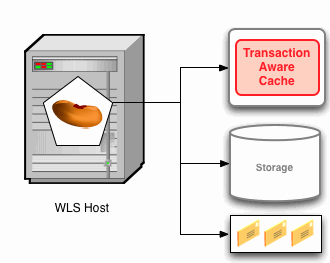
Software and Hardware Requirements (Optional)
The following is a list of software required:
- Operating System: Coherence supports a variety of operating systems. For this tutorial, WIndows XP professional is used.
- JEE Application Server: Oracle Coherence supports a number of application servers. For this tutorial, WebLogic Server 10.3.4 is used.
- Eclipse Helios with the Oracle Enterprise Pack for Eclipse
(OEPE).
Note that Eclipse is provided with the WebLogic Server download.
- Coherence: Coherence 3.6 is used in this tutorial (also included
with the download).
Prerequisites
Before starting this tutorial, you should:
|
. |
Download and install WebLogic Server 10.3.4, including
Coherence 3.6 and Eclipse
with Oracle Enterprise Pack for Eclipse. You can download
WebLogic Server packaged with Coherence 3.6 here.
|
|---|---|
|
. |
Refer to the following documentation: |
Create a WebLogic Server
Domain to House an Application
Applications require a place to execute. In the following steps, you
will create a simple WebLogic domain which can be used from Eclipse to
house applications.
|
. |
Read the documentation on creating an Oracle
WebLogic Server domain with the Domain Configuration Wizard.
Documentation on creating domains can be found here.
|
|---|---|
|
. |
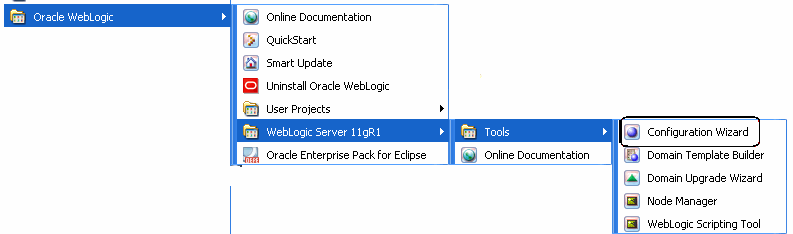
Execute the WebLogic Domain Configuration Wizard by
selecting Start > All
Programs
> Oracle WebLogic > WebLogic Server 11gR11 > Tools
>
Configuration Wizard.
|
|
. |
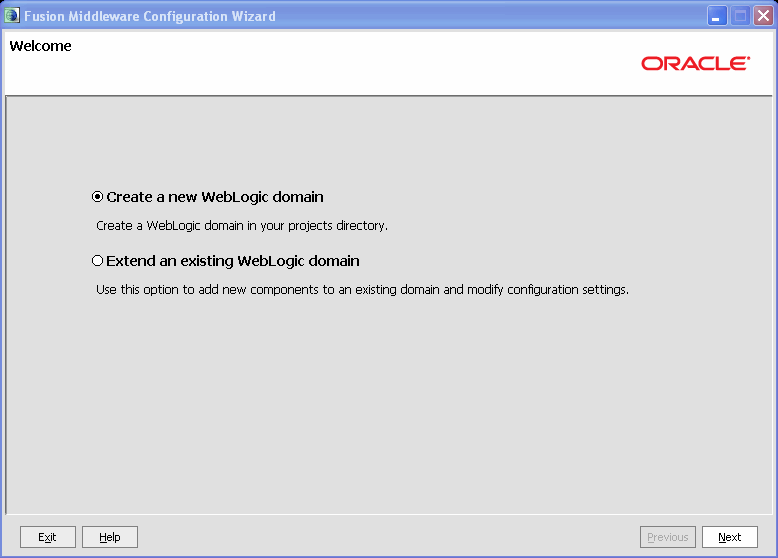
In the Welcome
dialog
box,
select Create a new WebLogic
domain and click Next.
|
|
. |
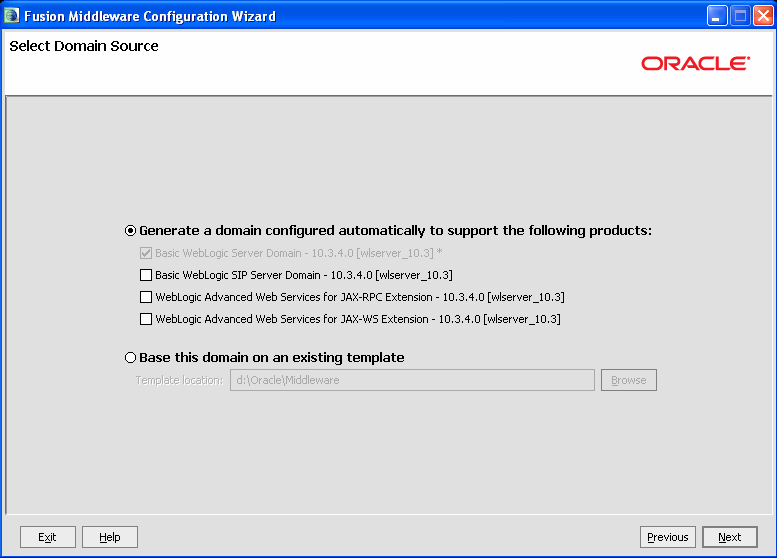
In the Select Domain Source dialog box, leave all options deselected and click Next.
|
|
. |
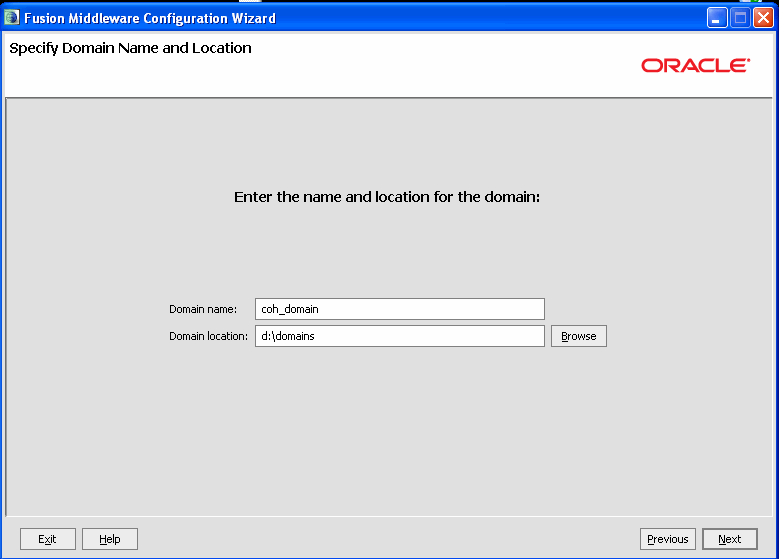
In the Specify Domain Name
and Location dialog box, enter an appropriate name
for the
domain
in the Domain name
field. In the Domain
location
field, enter the path to a directory to house the domain,
and click Next. Note
that for
the purposes of this tutorial, the domain is named coh_domain
and
placed in d:\domains.
|
|
. |
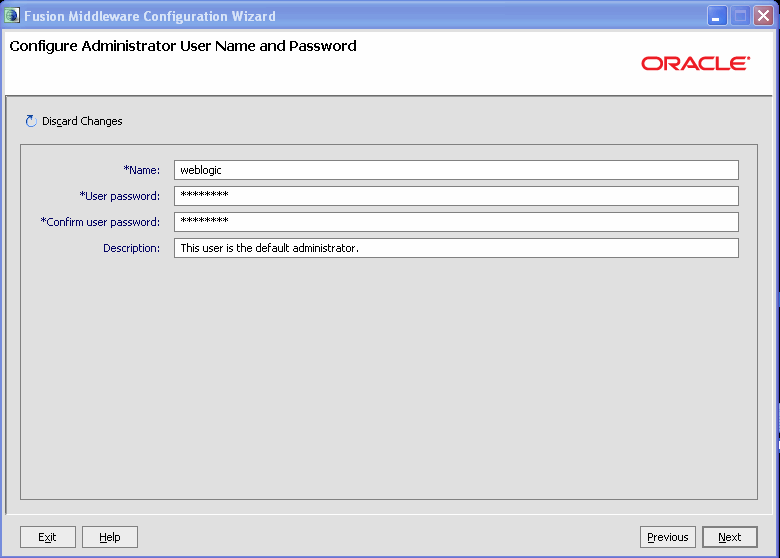
In the Configure
Administrator User Name and Password dialog box enter
an
appropriate
password. For the purposes of this tutorial, Welcome1
was used. Ensure that
both
passwords match and click Next.
|
|
. |
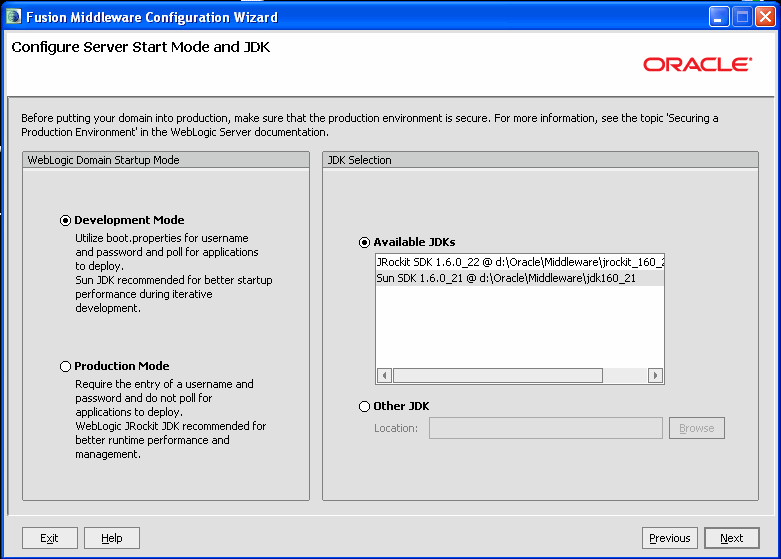
In the Configure Server
Start Mode and JDK dialog box, click Next.
For the purposes of this
tutorial, the Sun JDK was chosen. However, you may want to
consider
JRockit.
|
|
. |
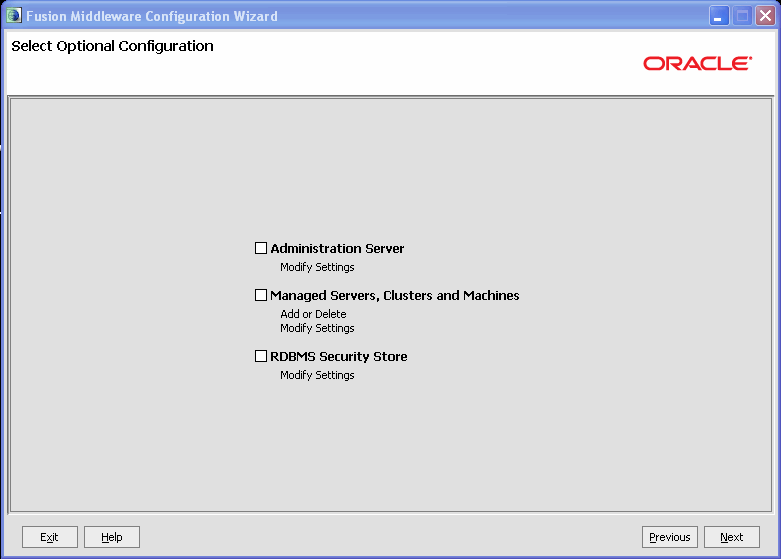
In the Select Optional
Configuration dialog box, leave all check boxes
deselected and
click Next.
|
|
. |
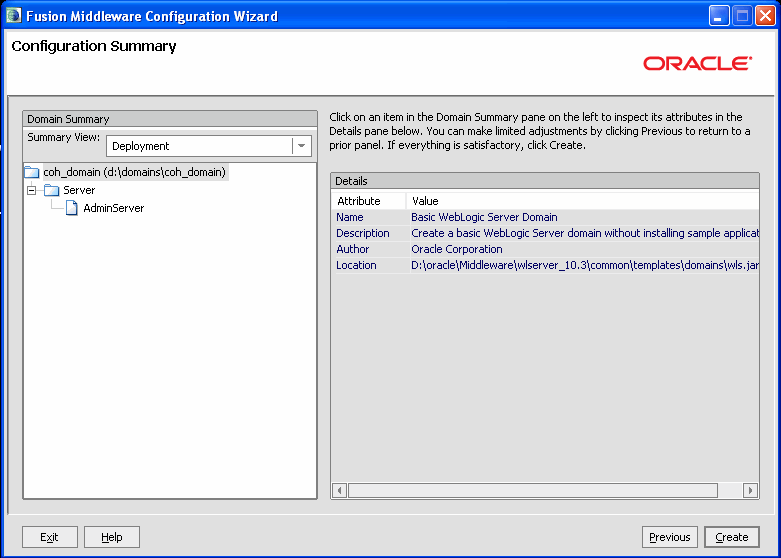
In the Configuration
Summary dialog box, confirm the values and click
Next.
|
|
. |
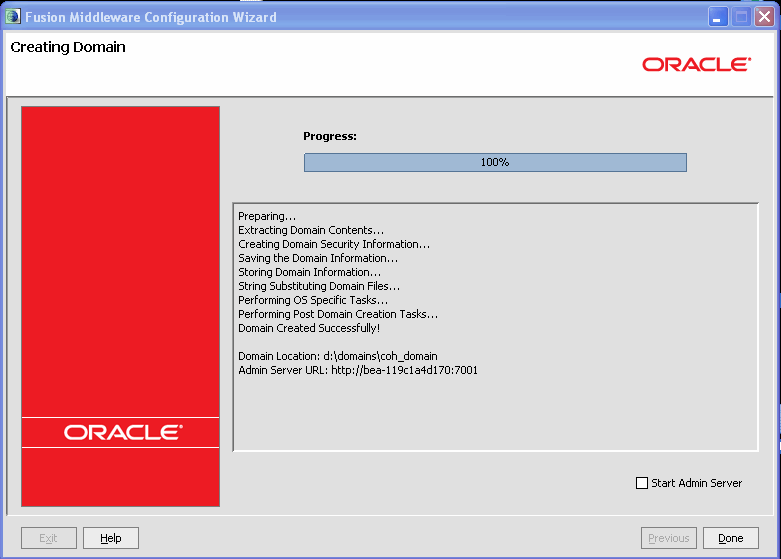
The Creating Domain
dialog box appears. Ensure that the Start Admin Server check
box
is deselected and when the process reaches 100%, click Done.
|
Upgrade Eclipse with Oracle
Enterprise Pack for Eclipse
Eclipse version 3.6.1 (code named Helios) comes prepackaged with the WebLogic Server installation. The prepackaged Eclipse installation includes the Oracle Enterprise Pack for Eclipse, or OEPE. However, those who cannot use the prepackaged version of Eclipse will need to upgrade to the latest version of OEPE. To install OEPE into an existing version of Eclipse, follow the instructions below. Note that these instructions describe the installation for the Helios version of Eclipse. Support also exists for earlier versions, however, installation may vary. For those using the prepackaged version may skip the upgrade process, or partially follow the steps to verify that the most up-to-date version of OEPE is installed.
To choose an
Eclipse
workspace location, perform the following:
|
. |
Launch Eclipse. Note that for this tutorial, Eclipse can be launched from
the command line using a command similar to: |
|---|---|
|
. |
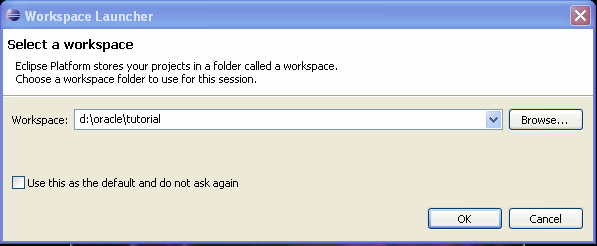
When presented with the Eclipse Workspace Launcher,
choose a location for your workspace. This tutorial uses D:\oracle\tutorial.
This location will be referred to as $WORKSPACE
hereafter.
|
To install or update Oracle Enterprise Pack for Eclipse, perform the following:
Note:
You
can find more information about Oracle Enterprise Pack for Eclipse here.
|
. |
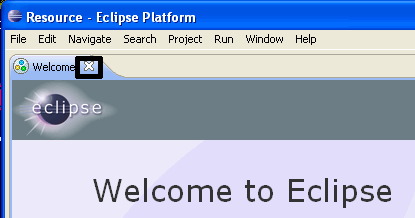
With your Eclipse workspace open, close the Welcome
screen that is displayed by
clicking X.
|
|---|---|
|
. |
From the Eclipse Help menu, select Install New Software.
|
|
. |
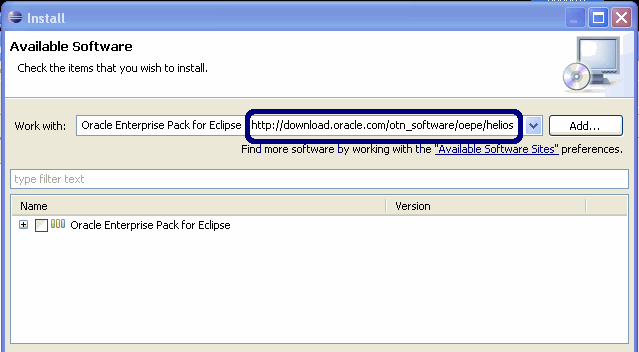
Enter the following URL: http://download.oracle.com/otn_software/oepe/helios,
and press Enter. You
will be presented with all available updates for Eclipse
Helios.
|
|
. |
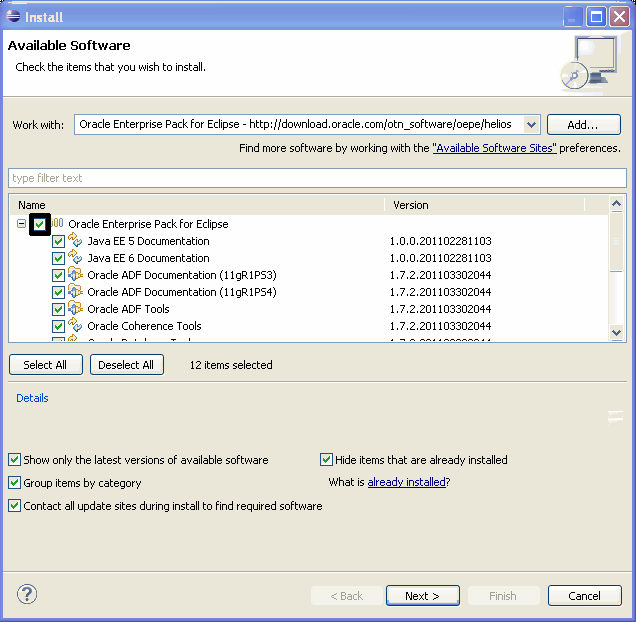
Select Oracle Enterprise Pack for Eclipse (shown expanded), and click Next.
|
|
. |
Follow the prompts to complete the installation. Note that OEPE comes preinstalled with WebLogic Server 10.3.4 when a complete installation is performed.
|

Create an Enterprise
Application and All Its Required Projects
Eclipse packages Enterprise applications (that is, those that include web applications, EJBs, and so on) into an Enterprise Application Project. Such projects consist of web applications, enterprise java beans, resources, JAR files and other esources.
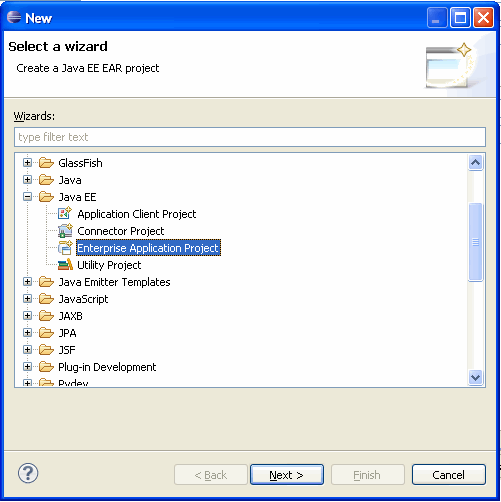
Creating an Enterprise Application consists of:
- Creating an Enterprise Application Project. Enterprise application projects result in the EAR Java EE artifact and are composed of EJB projects, EJB Client projects, and Dynamic Web Application Projects.
- Enterprise JavaBeans projects are actually two projects containing the implementation and externally facing interfaces for an EJB. These projects are created via a single wizard and have names based on a root name followed by EJB and EJBClient.
- Dynamic web application projects are typically web applications
and contain artifacts such as JSP, servlets, and similar content.
Create an
Enterprise Application Project and a Runtime Environment
|
. |
Start Eclipse |
|---|---|
|
. |
Start by creating an enterprise application project. Select File
> New, select Project
(or alternatively, press
Click Next. |
|
. |
Enter a project name to the Project
Name field. For this
tutorial, the project was named CoherenceTX.
Before
clicking the Next
button, click the New Runtime
button.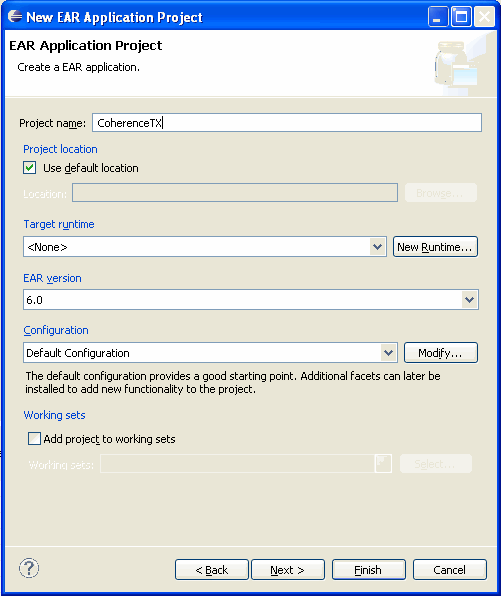
Note: If you have previously created a run time, you may simply select it rather than creating a new run time. |
|
. |
In the Define a new server runtime environment dialog box, select Oracle WebLogic Server 11gR1 PatchSet3. 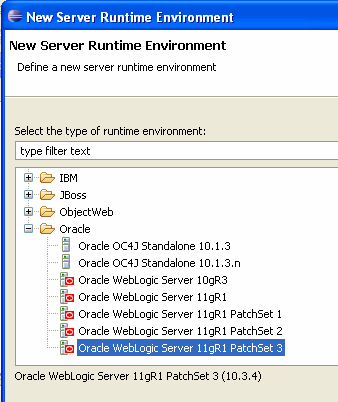
Then click Next. |
|
. |
In the Define a WebLogic Runtime dialog box, enter the fully qualified path to a WebLogic Server instance in the WebLogic home field. For this tutorial, WebLogic was installed in D:\oracle\Middleware and the Browse button was used to locate the installed instance. Note that the Java home field will be automatically filled. Leave this field blank. 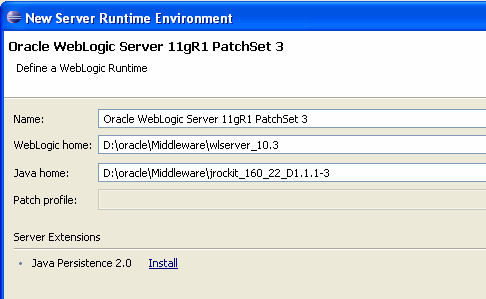
Then click Next. |
|
. |
In the Domain Directory field of the Configuration section, enter the fully qualified path of the domain created earlier. For this tutorial, the domain was created in D:\oracle\domains\coh_domain. 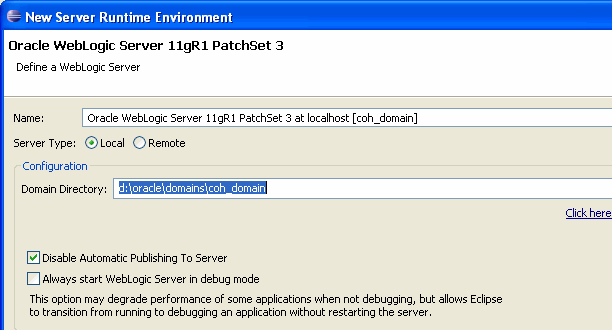
Then click Finish. |
|
. |
The EAR Application Project, with completed Target runtime should now resemble: 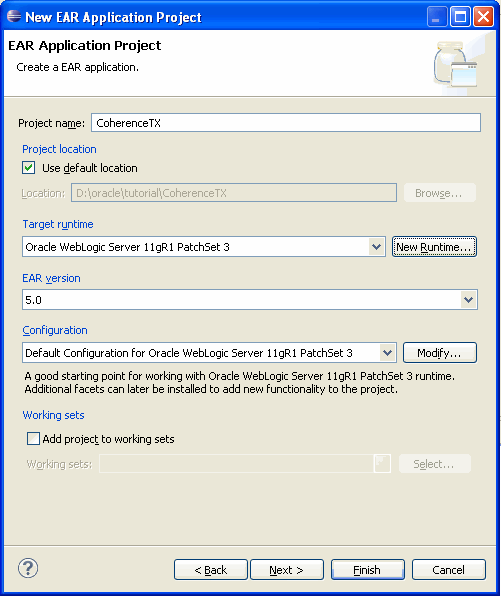
Click Next. |
|
. |
In the Configure enterprise application settings dialog box, ensure that the Generate application.xml deployment descriptor check box is selected. 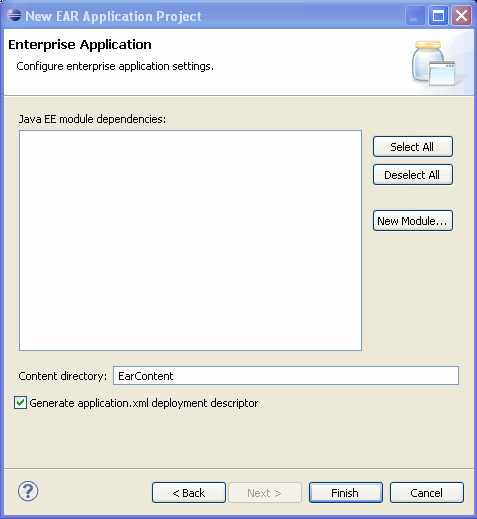
Click Finish. Note: If the Open Associated Perspective dialog box is displayed, suggesting opening a Java EE perspective, click Yes. |
|
. |
The Project Explorer pane of Eclipse will now show an empty Enterprise application which when expanded should resemble: 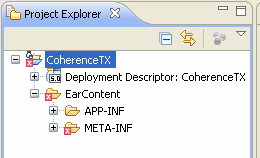 Note that the application shows a number of errors. This is a result of Enterprise applications being dependent on EJB, Web Applications, and other artifacts. |
Create a Dynamic
Web Project
|
. |
Start by creating an enterprise application project. Select File
> New, select Project
(or alternatively, press Ctrl
+ N) and in the pop-up window,
select Dynamic Web Project
in the Web category. 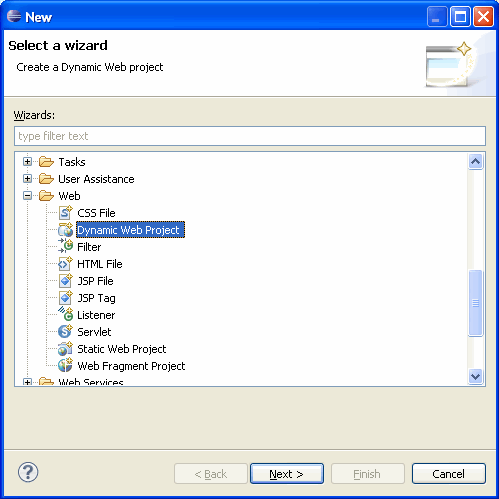 |
|---|---|
|
. |
Enter a Project name. For this tutorial, the project was named CoherenceWEB. In the EAR membership section, ensure that the Add project to an EAR check box is selected. Note that the CoherenceTX ear project name should be automatically selected. If there are other EAR projects in the workspace, select the CoherenceTX project. 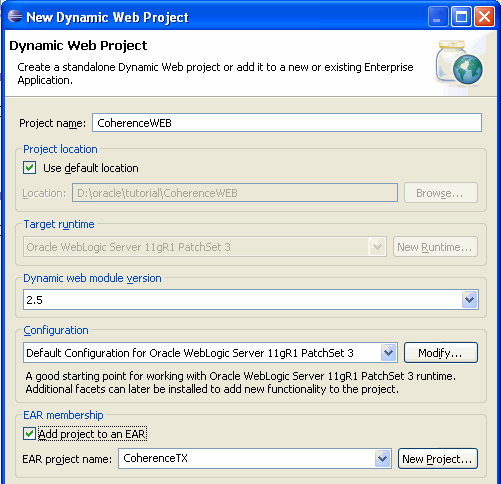 |
|
. |
In the Java dialog box, make no changes and click Next. 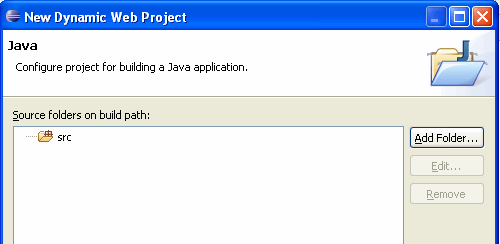 |
|
. |
In the Web Module dialog box, make no changes and click Finish. Note that the Generate web.xml deployment descriptor check box is selected. Click Finish. 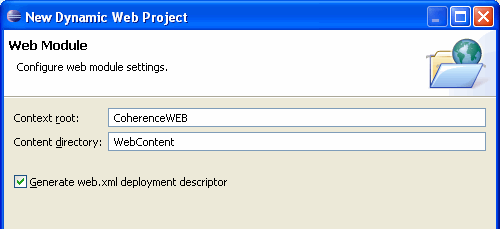 |
Configuring an Enterprise
Application for Transactional Coherence
Coherence supports transaction using a resource adapter. Using
the resource adapter requires that a number of application settings
and
files be modified. These changes include:
- Coherence proper: Coherence must be accessible from application
code such as EJBs, Servlets, and in general Java objects.
Accessing
Coherence means that coherence.jar
is in the application classpath, and that a cache
configuration file is accessible to Coherence. For this tutorial,
you will use what is referred to as application-scoped
Coherence.
- Supplying a resource adapter: The Coherence resource
adapter coherence-transaction.rar
must be packaged as part of the Enterprise application. Resource
adapters can be installed into a domain
as either a shared library or as part of an Enterprise
application.
This tutorial will include the file as part of an Enterprise
application
and register it into the application's XML deployment descriptors.
- Configuring application resources: Enterprise JavaBeans, Web Applications, and similar artifacts must be able to access Coherence caches, transactions, and other resources. This tutorial will use several resource references to access caches.
Prepare Enteprise
Application
The Enterprise application must be prepared for use with coherence in three ways:
- The coherence resource adapter must be added to the application as well as registered in the deployment descriptor.
- The coherence.jar
file must be added as part of the APP-INF/classes
directory, making it accessible to all modules that
are part of the application.
- The Coherence cache configuration must be updated; this step is
handled separately.
|
. |
Download the support materials. These materials are a
combination of code, XML snippet files, and other convenient
resources. These resources can be downloaded here.
|
|---|---|
|
. |
Unzip the files to a temporary location. For this tutorial,
the
files were downloaded and expanded to the desktop into the coh_tx_obe_support
directory. 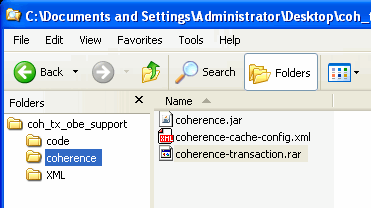
|
|
. |
Expand the CoherenceTx
application and find the CoherenceTX\EarContent
folder. |
|
. |
From the coh_tx_obe_support\coherence
directory, drag the coherence-transaction.rar
file to the CoherenceTX\EarContent
directory. When prompted to Copy or Link, choose Copy
and click OK. The
updated application
should resemble: 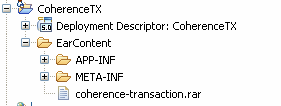 Note the addition of the Coherence transaction adapter, which must be registered as a connector with the application. |
|
. |
Navigate to the CoherenceTX\EarContent\META-INF
directory and open application.xml. |
|
. |
On the Design
tab, select the last module entry. Right-click and select Add
After.
Then in the new connector,
replace the word token
with coherence-transaction.rar,
the name
of the connector RAR file. |
|
. |
In the Source view, the updated application.xml
file should
now resemble: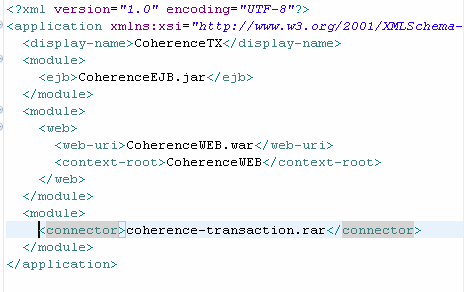 Save your changes. |
|
. |
Lastly, navigate to the CoherenceTX/EarContent/APP-INF/lib
directory. |
|
. |
From the download directory coh_tx_obe_support/coherence,
drag coherence.jar to
the
classes directory. When prompted to Copy or Link, ensure that Copy files is selected and click OK. The final result should resemble: 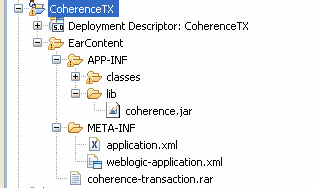
|
Prepare Coherence
Cache Configuration
The Coherence cache configuration must be prepared by:
- Adding the cache configuration file to the Enterprise application
- Modifying the cache configuration to support transaction-aware
caches
|
. |
Expand the CoherenceTX\EarContent\APP-INF\classes folder. |
|---|---|
|
. |
From the download directory coh_tx_obe_support/coherence,
drag coherence-cache-config.xml
to the classes
directory. When prompted to Copy or Link, ensure that Copy files is selected and click OK. |
|
. |
Open the file and in source view, scroll down to find the <caching-scheme-mapping> section. |
|
. |
Immediately after the caching-scheme-mapping
element, add a new cache mapping resembling: <cache-mapping> <cache-name>tx-*</cache-name> <scheme-name>example-transactional</scheme-name> </cache-mapping> Note that a snippet of pastable XML, resembling this addition, can be found in the coh_tx_obe_support/xml/coherence-cache-config.snippet.txt file. |
|
. |
The completed addition should resemble, with new code in bold.
<caching-scheme-mapping> <cache-mapping> <cache-name>tx-*</cache-name> <scheme-name>example-transactional</scheme-name> </cache-mapping> <cache-mapping> |
|
. |
Find the <caching-schemes>
section. |
|
. |
Immediately after the <caching-schemes>
element, add a new scheme resembling: <transactional-scheme> <scheme-name>example-transactional</scheme-name> <scheme-ref>base-transactional</scheme-ref> <thread-count>10</thread-count> </transactional-scheme> <transactional-scheme> <scheme-name>base-transactional</scheme-name> <service-name>TransactionalCache</service-name> <request-timeout>30000</request-timeout> <autostart>true</autostart> </transactional-scheme> Note that a snippet of pastable XML, resembling this addition, can be found in the coh_tx_obe_support/xml/coherence-cache-config.snippet.txt file. |
|
. |
Save your changes and close the editor. |
Prepare Web
Application
Depending on the application and how it is structured, the web application may or may not access the Coherence directory. However, it is not uncommon and as such the required configuration is presented here. The tutorial application does in fact reference Coherence.
- Adding coherence.jar to the project
- Importing supplied test servlet and support class
|
. |
Select the previously created CoherenceWEB application. 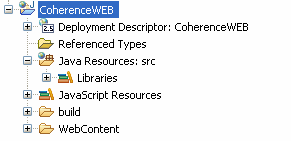
|
|---|---|
|
. |
Right-click and choose Properties. |
|
. |
In the Properties dialog box, choose Java Build Path and click the Libraries tab. 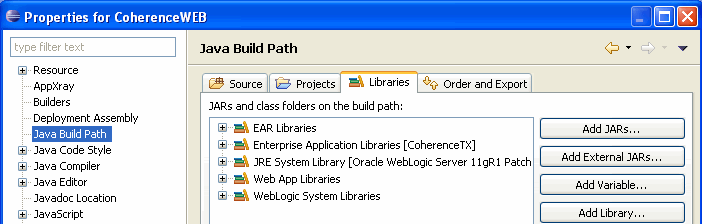
|
|
. |
Click Add External JARs and in the JAR selection dialog box, navigate to the d:\oracle\Middleware\coherence3.6\lib folder, selecting the coherence.jar file. 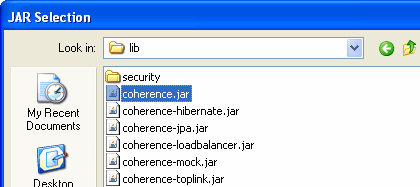
Click Open |
|
. |
The Java Build Path dialog box will now show the coherence.jar file. 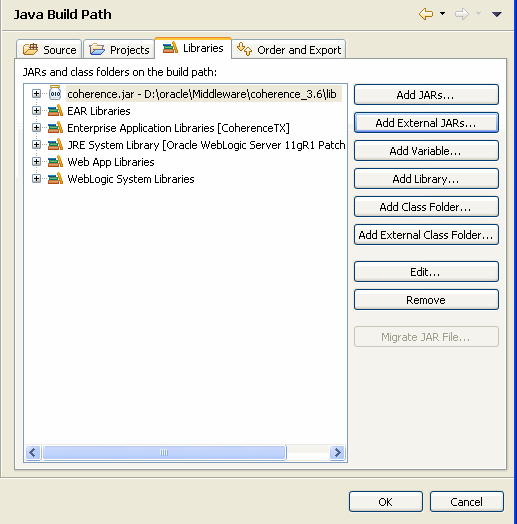
Click OK. |
|
. |
From the menu, choose File > Import. |
|
. |
In the Import dialog box, expand General and choose File System. 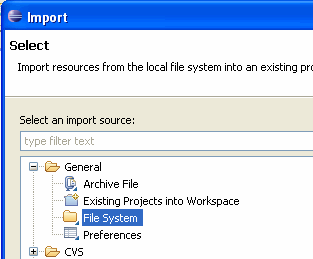
Click Next. |
|
. |
Using the Browse button, select the code folder of the coherence obe support directory. 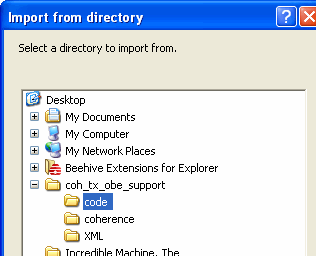
Click OK. |
|
. |
Select the Tests.java class. 
|
|
. |
Using the Into folder Browse button, choose CoherenceWEB/src. 
Click Finish. |
|
. |
The new class will be added to the CoherenceWEB application. 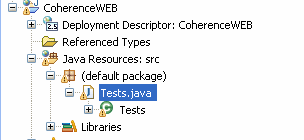 The newly added Tests class is a Java servlet and must be registered with the web application. |
|
. |
Expand the Deployment Descriptor: CoherenceWeb folder. 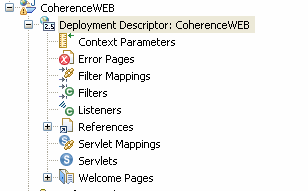
|
|
. |
Select Servlets, right-click and choose New > Servlet. |
|
. |
In the Create Servlet dialog box, select Use an existing Servlet class or JSP, and then browse to the imported class Tests. 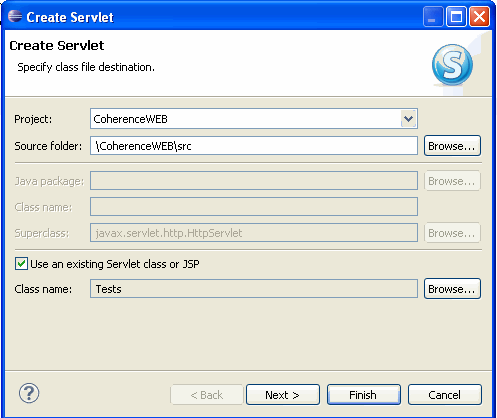
Click Finish. |
|
. |
Note that the class generated a default mapping for the servlet using the class name all in lowercase. 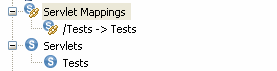
|
Add Resource
References
Most often environment settings in web applications are accessed
externally via environment references. Coherence applications are no
different and use an environment reference to access to create
connections to transaction caches. To add an environment
reference, the application must:- Define the environment reference in web.xml
- Specify the JNDI name of the reference in weblogic.xml
|
. |
Navigate to the CoherenceWEB/WebContent/WEB-INF folder. 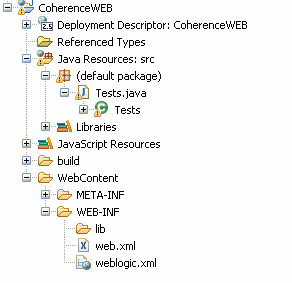 |
|---|---|
|
. |
Open the web.xml file, click the Source tab and after the <servlet- mapping> element, add a resource reference resembling: <resource-ref> <res-ref-name>eis/CoherenceTxCF</res-ref-name> <res-type>com.tangosol.coherence.transaction.ConnectionFactory</res-type> <res-auth>Container</res-auth> </resource-ref> Save your changes. For convenience, a snippet file, named webapp.snippet.web.txt, is provided in the XML directory of the provided source which contains this resource reference. |
|
. |
Open the weblogic.xml , select the Source tab and after the <wls:context-root> element, add a resource description resembling: <wls:resource-description> <wls:res-ref-name>eis/CoherenceTxCF</wls:res-ref-name> <wls:jndi-name>tangosol.coherenceTx</wls:jndi-name> </wls:resource-description> Save your changes. For convenience, a snippet file, named webapp.snippet.weblogic.txt, is provided in the XML directory of the provided source which contains this resource description. |
Deploy and Test
Eclipse can package and deploy applications to running instances of
application servers. However, when packaging a resource adapter,
Eclipse omits any RAR files. As such the next steps package the
application via export, and deploy using the WebLogic Server
Console.
- Define the environment reference in web.xml
- Specify the JNDI name of the reference in weblogic.xml
|
. |
Select the CoherenceTX application. |
|---|---|
|
. |
Right-click and choose Export
>
EAR file. 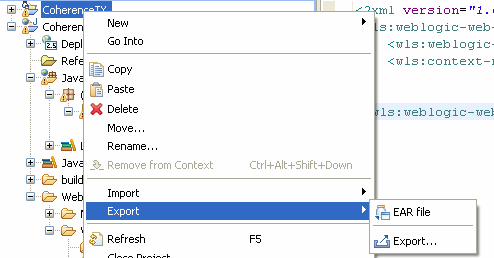
|
|
. |
Enter an export file name. For this tutorial, the D:\temp\CoherenceTX.ear file was used. 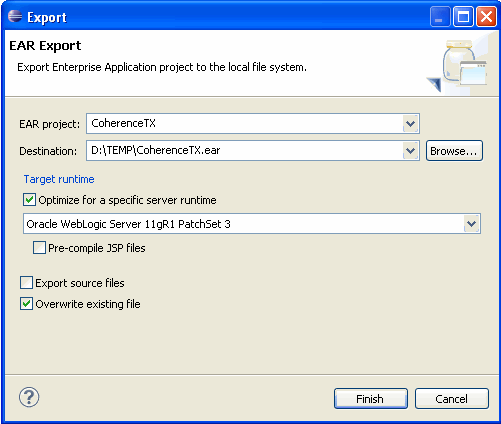
Click Finish. |
|
. |
Minimize Eclipse. |
|
. |
Open a command prompt and change directory to the directory where the Coherence domain was created. For this tutorial, that was d:\oracle\domains\coh_domain. |
|
. |
Start WebLogic server using a command similar to: start d:\oracle\domains\coh_domain\startWebLogic.cmd Note that the start command is purely a convenience. |
|
. |
Open Firefox or a convenient browser and enter the URL: http://localhost;:7001/console |
|
. |
Log in to the Weblogic Console using the username and password used when creating the domain. 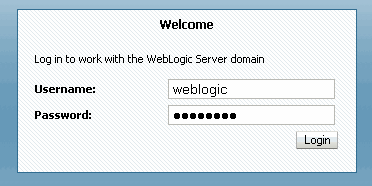
|
|
. |
Click the Preferences button.
|
|
. |
Deselect Automatically Acquire Lock and Activate Changes. 
Click Save. |
|
. |
In the Domain Structure pane, click Deployments. 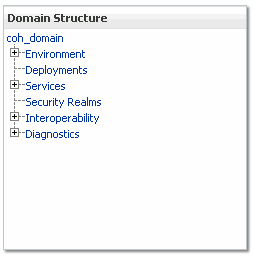
|
|
. |
In the Summary of Deployments pane, click Install in the Deployments section. 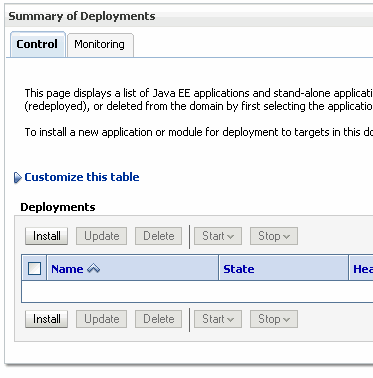
|
|
. |
In path, specify the directory where the Enterprise application was exported and choose the application from the list. If more than one exists, be sure to choose the correct application. For this tutorial, the file name used was CoherenceTX.ear. 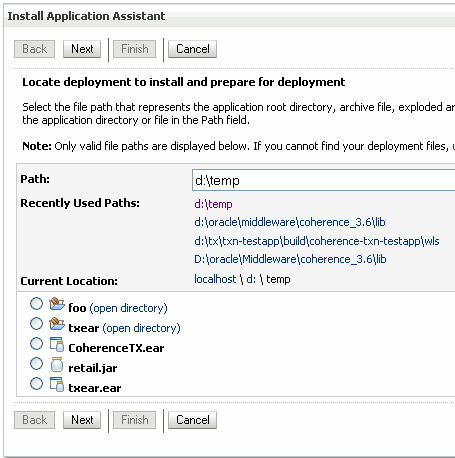
Click Next. |
|
. |
In the Install Application Assistant pane, ensure that Install this deployment as an application is selected. 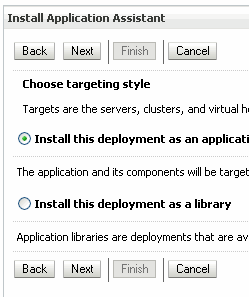
Click Next. |
|
. |
In the Optional Settings pane, make no changes. 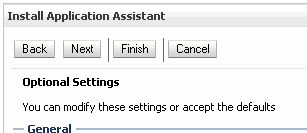
Click Finish. |
|
. |
In Change Center, click Activate Changes. 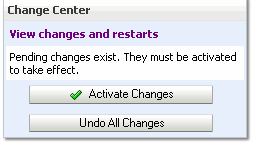
|
|
. |
In a different tab, execute the application by entering the URL: http://localhost:7001/CoherenceWEB/tests. 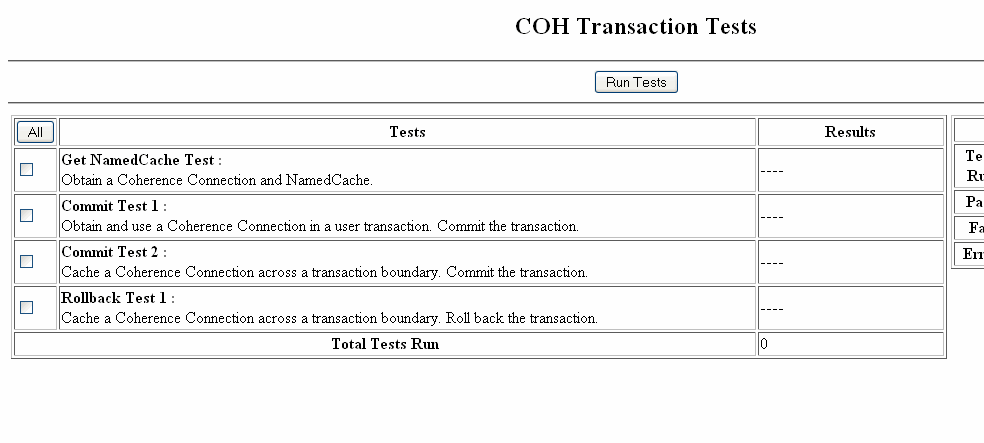
|
|
. |
Experiment with the provided tests. Compare each test with the code which implements it. |
Summary
During this tutorial, you explored how to create an Enterprise
application with Eclipse and enable that application to use Coherence
via a resource adapter.
In this tutorial, you have learned how to:
- Create a simple WebLogic Domain
- Run Eclipse Helios and update OEPE as required
- Create an Enterprise application along with its web application
- Add Coherence to an Enterprise application as a resource adapter
- Add a Coherence cache definition to an application
- Add a resource reference for Coherence to a web application
- Test an application which uses Coherence in various transaction
scenarios
Resources
- To learn more about Coherence
, refer to additional OBEs on the OLL web site.


|
About
Oracle |
 | Careers
| Contact
Us | Site
Maps | Legal
Notices | Terms
of
Use | Your
Privacy Rights
| Careers
| Contact
Us | Site
Maps | Legal
Notices | Terms
of
Use | Your
Privacy Rights |