This Internet page provides the Support information and basic instructions for Oracle and non-Oracle employees to participate on Webex conferences on the site 'myoracle.webex.com'.
The detailed instructions are restricted to Oracle employees.
The documentation can be accessed without VPN which prevents an interruption to Webex or Jabber need to use the instructions during a conference. (Registering or un-registering to the VPN during a Webex or Jabber call disconnects the connection)
For more detailed user guides, Oracle employees can route IT Web.
Note: This requires Oracle's single sign on (email) authentication, not the VPN.
Support for Webex is provided by InterCall, just like for Reservationless-Plus Audio Conferencing. Please do not raise a service request to Oracle IT. Please register your support request through this portal or call the support numbers:
Typically you will be invited to join a Webex conference using the host's Personal Meeting Room (PMR) link and using the host's InterCall account for the audio conference.
Webex is fully integrated with InterCall audio conferencing providing the Unified Collaboration experience described below however, there are 3 different ways you may launch the Webex session:
a) Clicking on the host’s PMR link, e.g. https://myoracle.webex.com/meet/firstname.lastname
b) Navigate to myoracle.webex.com and enter the host’s username (email address
without @oracle.com)
c) Navigate to myoracle.webex.com and enter the host’s Webex meeting number
(9 digit number unique across all Webex customers globally)
i) Clicking on the host’s PMR link, e.g. https://myoracle.webex.com/meet/firstname.lastname
• The link will launch the Webex application for you to join the Web Conference.
• There will usually be an InterCall audio conference call integrated with the Webex conference so the host will also have to provide participants the code along with the Webex URL.
Quick Guide
Step 1.
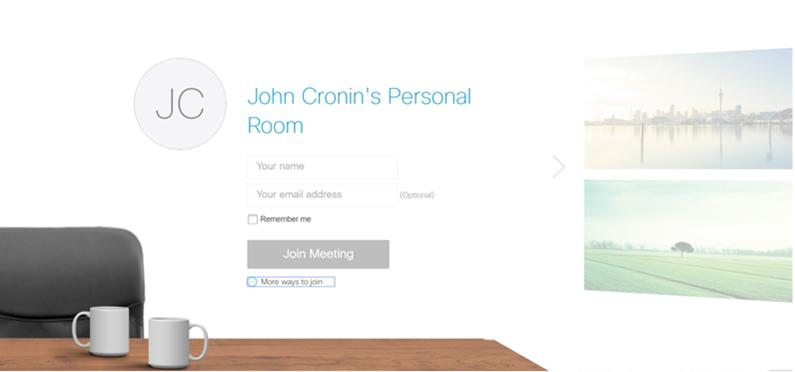
Click the host’s URL to navigate to their ‘personal room’: e.g. https://myoracle.webex.com/meet/webex.user
Step 2.
Enter your name and email, and then the ‘Join’ button will become active.
NOTE: Oracle employees with a Webex account on mywebex.oracle.com can ‘Log in’ with SSO and the username and email address will be automatically populated.
Step 3.
Once you click Join the Webex application will begin to install.
When you connect to the host's Webex conference you should see your username
in the participant list on the right hand side. Note it will list your name
but not have a phone icon beside your name until you connect to the InterCall
audio conference.
Step 4.
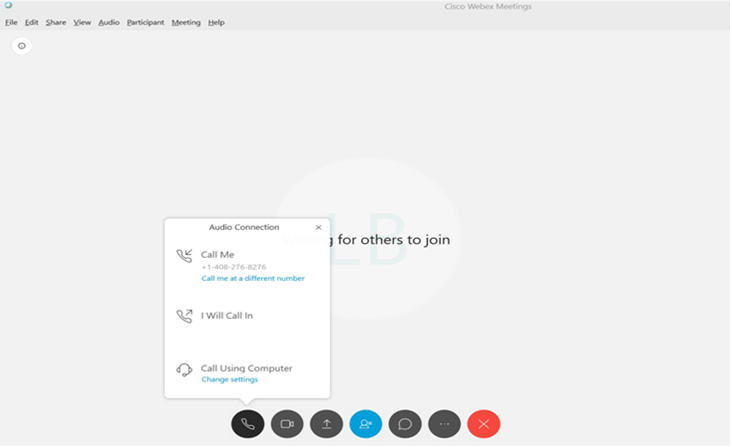
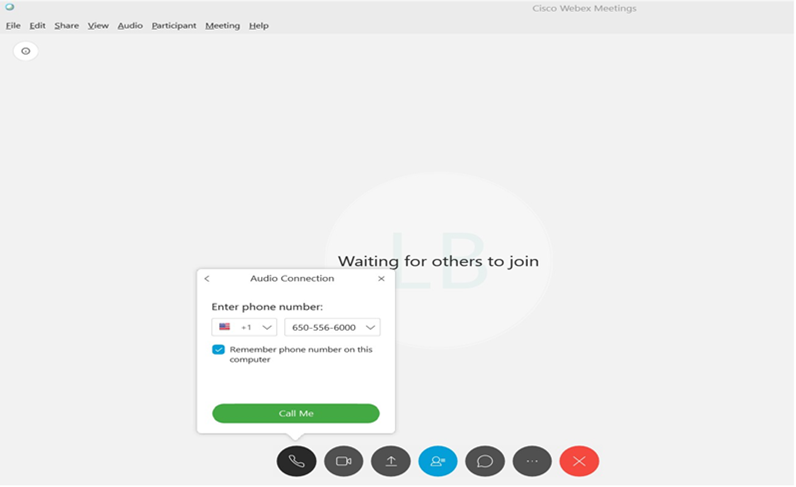
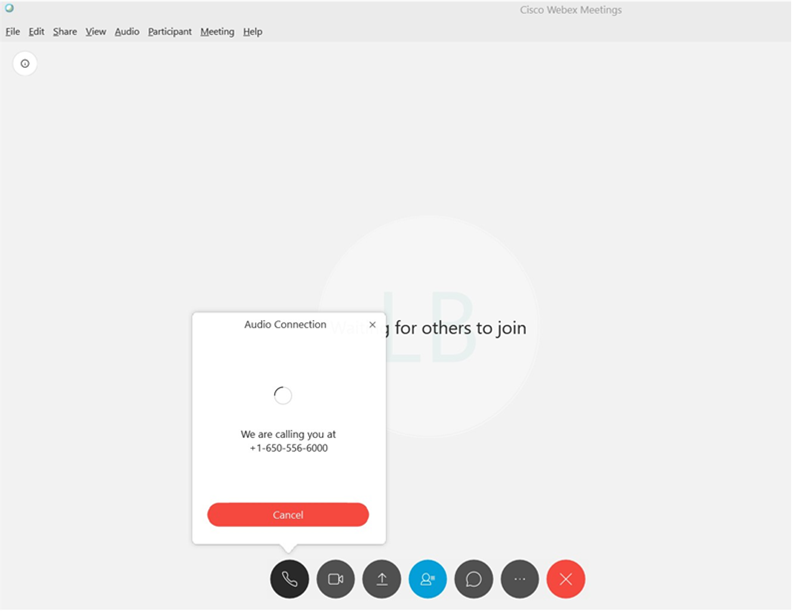
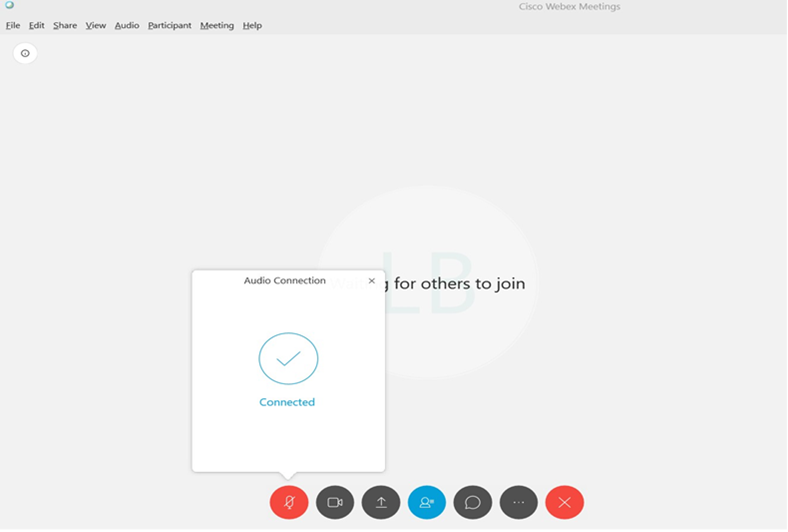
Use the 'Call Me' option in the 'Audio Connection' window to initiate the InterCall conference bridge to call your selected phone number. When you answer the call from InterCall you need to press '1' to acknowledge the call, then enter the security code the host will have provided you with. Then you should see the phone icon beside your name in the participant list on Webex.
NOTE: Oracle employees should use their Jabber or deskphone number for the optimum call quality & cost effective option.
Alternatively you can still dial into the InterCall audio conference the 'standard' way using **700 or non-Oracle employees through the access numbers displayed when you select 'I will dial in'.
Active Speaker
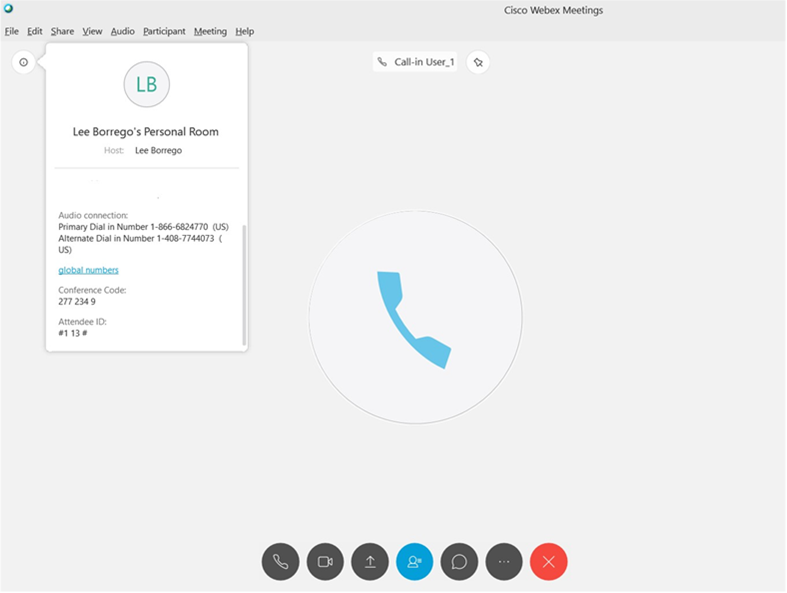
If you don't use 'Call Me' and dial into the Intercall conference the 'standard' way, and Webex you will see your name is displayed in the participant list without a phone icon and your audio connection is represented as a 'Call-in User'.
Webex knows the host's Intercall account is associated with their Webex Meeting Center profile but it doesn't know which Call-In User you or any of the participants are.
To associate the Webex session with you simply dial a code into the Intercall conference call after you have joined.
Click on the 'Meeting information icon"