The results presented after running a configuration report can contain a lot of information that is not relevant to your current investigation. It is possible to filter and sort your results data to allow you to focus on the data that is most important to you.
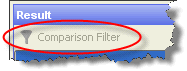
When browsing a configuration report for a single component, the comparison filter button in the top pane is disabled, as it is meaningless in the context of a report:
When reporting on the configuration of a process, the middle pane in the results area displays a list of processors:

It is possible to filter this list by processor name and/or type, as indicated by the filter icons ( ) in the header row. Clicking on a filter icon will launch a dialog allowing you to specify the kinds of components you wish to view in this pane. For example, for the Pane B Type column, the dialog will present you with a list of processor types present in that list. Simply unselect the processor types you do not wish to see:

When you press 'OK', the list of components displayed in the panel will be filtered. As with the comparison filters, filter activity is indicated by a green background to the filter icon:

Oracle ® Enterprise Data Quality Help version 9.0
Copyright ©
2006,2011 Oracle and/or its affiliates. All rights reserved.