
When a report has been run, the results are displayed in the reports area. The top section of the results area is populated with a list of the components included in the report:
The Comparison Filter button is disabled for report results.
To see further details of any of the components in the report, click on the row containing the component. The lower portion of the results pane will be populated with further information on the component:
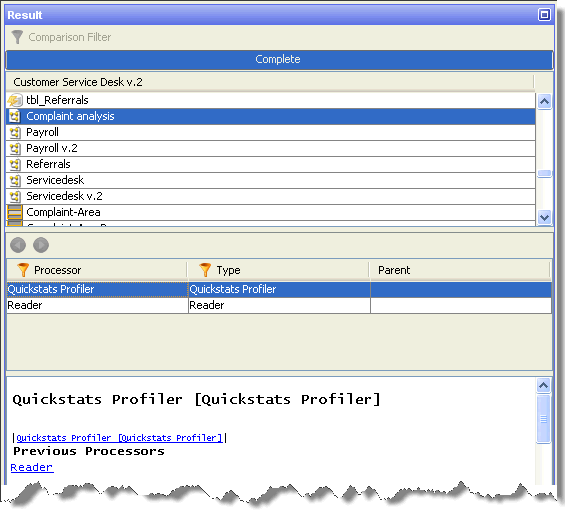
If the selected component is a process, the processor list will be included in the details pane, as described in the Processes section. Otherwise, the layout will be as described in the Other Components section.
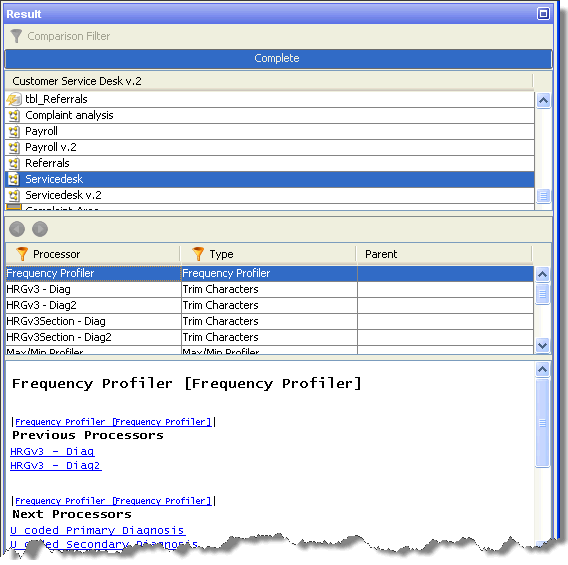
Some components, such as processes and jobs, are made up of subsidiary components. When a complex component is selected in the upper pane, the lower details area will be subdivided into two further panes.
The upper of these two panes is very similar to the top pane. This pane contains a list of the components contained within the component selected in the top pane.
Click on one of the components listed in the middle pane to view its configuration details:
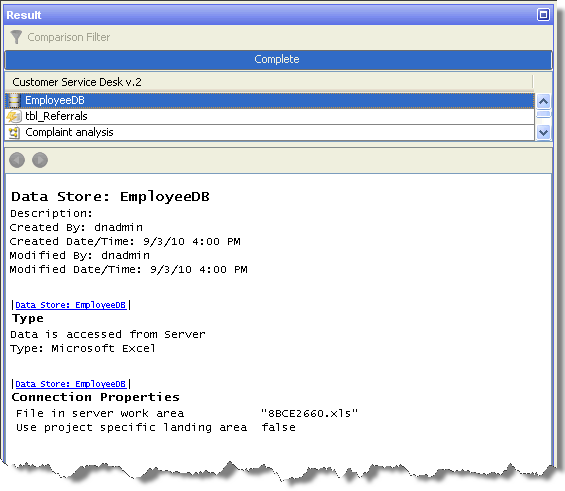
If you are reporting on a component which does not contain other components (such as data stores, reference data and external tasks), the results area will be divided into only two panes. Selecting a component in the upper pane will report on the component configuration in the lower pane:
Oracle ® Enterprise Data Quality Help version 9.0
Copyright ©
2006,2011 Oracle and/or its affiliates. All rights reserved.