
Most objects that are set up in Director can be packaged up into a configuration file, which can be imported into another OEDQ server using the Director client application.
This allows you to share work between users on different networks, and provides a way to backup configuration to a file area.
The following objects may be packaged:
|
Note:As they are associated with specific server users, issues cannot be exported and imported, nor simply copied between servers using drag-and-drop. |
To package an object, select it in the Project Browser, right-click, and select Package...
For example, to package all configuration on a server, select the Server in the tree, or to package all the projects on a server, select the Projects parent node, and select Package in the same way.
You can then save a Director package file (with a .dxi extension) on your file system. The package files are structured files that will contain all of the objects selected for packaging. For example, if you package a project, all its subsidiary objects (data stores, snapshot configurations, data interfaces, processes, reference data, notes, and export configurations) will be contained in the file.
|
Note: Match Decisions are packaged with the process containing the match processor to which they are related. Similarly, if a whole process is copied and pasted between projects or servers, its related match decisions will be copied across. If an individual match processor is copied and pasted between processes, however, any Match Decisions that were made on the original process are not considered as part of the configuration of the match processor, and so are not copied across. |
It is often useful to be able to package a number of objects - for example to package a single process in a large project and all of the Reference Data it requires in order to run.
There are three ways to apply a filter:
Whenever a filter has been applied to the Project Browser, a box is shown just above the Task Window to indicate that a filter is active. For example, the below screenshot shows an indicator that a server that has been filtered to show only the objects used by the 'Parsing Example' process:
You can then package the visible objects by right-clicking on the server and selecting Package... This will only package the visible objects.
To clear the filter, click on the x on the indicator box.
In some cases, you may wish to specifically exclude some objects from a filtered view before packaging. For example, you may have created a process reading data from a data interface with a mapping to a snapshot containing some sample data. When you package up the process for reuse on other sets of data, you want to publish the process and its data interface, but exclude the snapshot and the data store. To exclude the snapshot and the data store from the filter, right-click on the snapshot and select Exclude From Filter. The data store will also be excluded as its relationship to the process is via the snapshot. As packaging always packages the visible objects only, the snapshot and the data store will not be included in the package.
To open a Director package file, either right-click on an empty area of the Project Browser, and select Open Package File..., or select Open Package File... from the File menu. Then browse to the .dxi file that you want to open.
The package file is then opened and visible in the Director Project Browser in the same way as projects. The objects in the package file cannot be viewed or modified directly from the file, but you can copy them to the OEDQ host server by drag-and-drop, or copy and paste, in the Project Browser.
You can choose to import individual objects from the package, or may import multiple objects by selecting a node in the file and dragging it to the appropriate level in your Projects list. This allows you to merge the entire contents of a project within a package into an existing project, or (for example) to merge in all the reference data sets or processes only.
For example, the following screenshot shows an opened package file with a number of projects all exported from a test system. The projects are dragged and dropped into the new server by dragging them from the package file to the server:
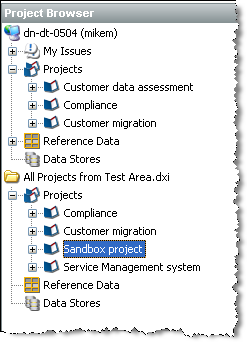
Note that when multiple objects are imported from a package file, and there are name conflicts with existing objects in the target location, a conflict resolution screen is shown allowing you to change the name of the object you are importing, ignore the object (and so use the existing object of the same name), or to overwrite the existing object with the one in the package file. You can choose a different action for each object with a name conflict.
If you are importing a single object, and there is a name conflict, you cannot overwrite the existing object and must either cancel the import or change the name of the object you are importing.
Once you have completed copying across all the objects you need from a package file, you can close it, by right-clicking on it, and selecting Close Package File.
Opened package files are automatically disconnected at the end of each client session.
Some package files may be very large, for example if large volumes of Reference Data are included in the package. When working with large package files, it is quicker to copy the file to the server's landingarea for files and open the DXI file from the server. Copying objects from the package file will then be considerably quicker.
To open a package file in this way, first copy the DXI file to the server landing area. Then, using the Director client, right-click on the server in the Project Browser and select Open Server Package File...
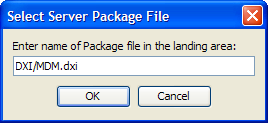
You then need to type in the name of the file into the dialog. If the file is stored in a subfolder of the landingarea, you will need to include this in the name. For example, to open a file called MDM.dxi that is held within a DXI subfolder of the landingarea:
If you want to copy objects between OEDQ servers on the same network, you can do this without packaging objects to file.
To copy objects (such as projects) between two connected OEDQ servers, connect to each server, and drag-and-drop the objects from one server to the other:
|
Note:To connect to another server, select File menu, New Server... The default port to connect to OEDQ using the client is 9002. |
Oracle ® Enterprise Data Quality Help version 9.0
Copyright ©
2006,2011 Oracle and/or its affiliates. All rights reserved.