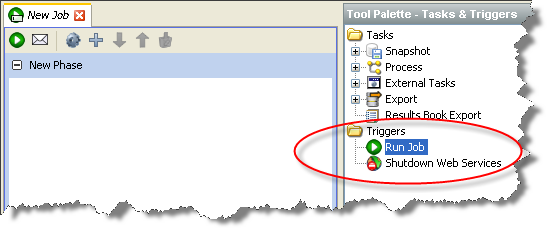
Triggers provide a way for a job to start or interrupt other jobs. Two types of trigger are available by default:
In addition to these two pre-configured actions, further trigger actions may be configured by an administrator, such as sending a JMS message, or calling a Web Service, etc.
There are three times when triggers may be fired:
Triggers are added to a job by dragging them in from the tool palette:
To add a trigger to a job, click on the trigger type you wish to add, and drag it into the phase. When you drop the trigger into the phase, you will be asked to select the specific job or Web Service that you wish the trigger to target, and when in the phase you want the trigger to run:
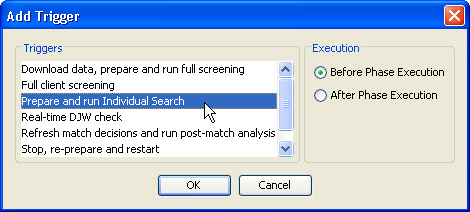
Assuming we are adding a Run Job trigger, the selections made in the dialog shown above will create a trigger which runs the 'Prepare and run Individual Search' job before the rest of the phase is executed.
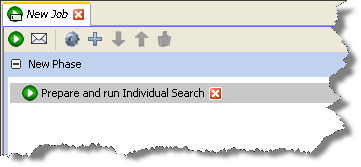
A trigger which has been added to a job appears as a gray bar in the phase. The name of the trigger shows the job targeted by the trigger, and the icon indicates the trigger type:
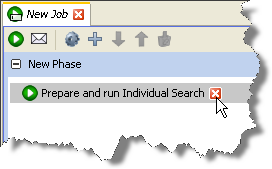
A trigger can be deleted by clicking on the white 'x' on a red button on the trigger:
Relationship decision triggers allow you to choose a trigger action to be fired when a manual relationship decision is made. For example, this could be used to notify another application that a decision has been made that might require further action, such as identifying an individual as a genuine match against a watchlist.
Triggers must be set up on an OEDQ server by an administrator. If you need to set up a new trigger according to custom requirements (for example to notify another application when a match decision is made in the Match Review application), please contact your account representative for more information.
Oracle ® Enterprise Data Quality Help version 9.0
Copyright ©
2006,2011 Oracle and/or its affiliates. All rights reserved.