 Add Page
to Results Book button, and click on the New Results Book
button at the bottom of the dialog.
Add Page
to Results Book button, and click on the New Results Book
button at the bottom of the dialog.Results Books provide an instant view of the key pages of results in a data quality project. The results pages in the Results Book may be from several processes within the project.
Many Results Books may be used in a project, for example to divide up results of different types of processing, or different phases in a project. For example, you may wish to create one Results Book for profiling results, another for data cleansing, and another for matching results, or you may wish to collate these into a single Results Book.
Results Books can be created in the Project Browser, or by linking a set of results in the Results Browser to a new Results Book.
Add Page
to Results Book button, and click on the New Results Book
button at the bottom of the dialog.Pages are added to a Results Book using the Results Browser and the
Add Page to Results
Book button.
The Results Page configuration allows you to tailor your view of the results page - by selecting which columns to display, and by giving different names to the columns. The user can also choose to link the page to the latest version of a process, or for the page to be linked in perpetuity to the version of the process it was created against:
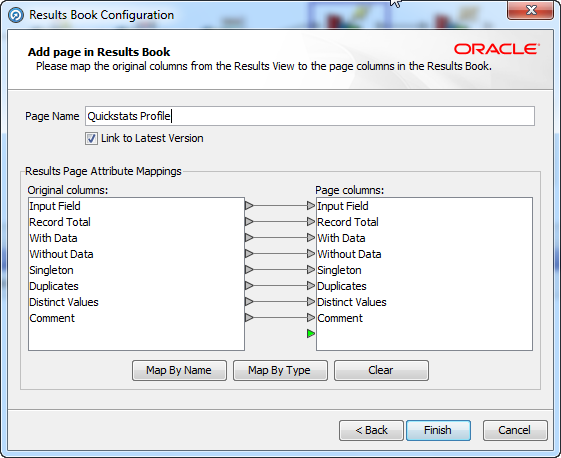
OEDQ offers the user the opportunity to apply version control to the processes that they design. Creating a new version of a process effectively 'freezes' the original version, so that further development can take place without risking the original. If the 'Link to Latest Version' checkbox is checked for a page in a results book, that page will always reference the most recent results from the latest version of the process. If the checkbox is not checked, the results book will reference the most recent results from the version of the processor that was active when the results book was created.
|
Note:Readers and Writers are not versioned. They always read directly from the current data set, and no historical data is stored. Therefore, they always behave as if they are linked to the latest version of the process, even if the checkbox is not checked. |
For example, suppose we have a process with two results pages referencing it:
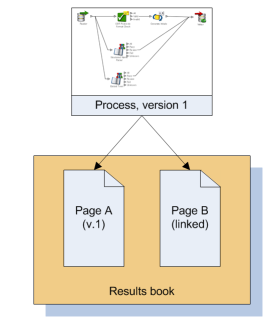
Page A is not linked to the latest version of the process, but Page B is linked. At this point, there is no difference between the behavior of the two pages, because there is only one version of the process.
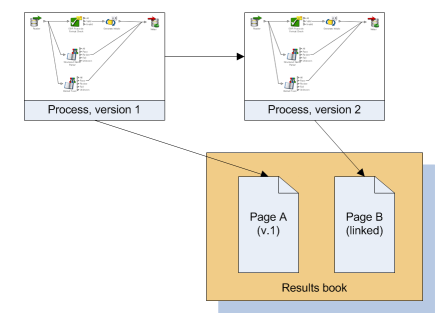
However, if a new version of the process is created, Page B will reference the new version, because it is always linked to the latest version. Page A, however, will still reference the most recent results from version 1 of the process, because it is not linked:
|
Note:Both options may occasionally result in unexpected behavior in the results book:
|
To view a Results Book, select the Results Book in the Project Browser. The pages of the Results Book appear as tabs in the Results Browser.
The easiest way to share a Results Book externally, for example to send it to a colleague who does not have access to OEDQ, is to create a Microsoft Excel workbook containing all of the pages of the Results Book as worksheets. This can be done using the far right icon on the Results Browser:
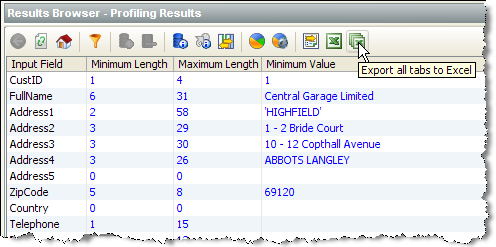
To create an Excel workbook with just the current page, use the single Export to Excel button.
If you want to write the results in your Results Book out to a file or database on a repeated or regular basis, you can set up a Results Book Export, and schedule it as part of a job. This allows you to automate the output of selected results each time a process, or set of processes, is run. This is useful if you have changing input data and want to store metrics each time the data is analyzed.
To set up a Results Book Export, either right-click on a Results Book and select Export, or right-click on Exports, and select Results Book Export.
Oracle ® Enterprise Data Quality Help version 9.0
Copyright ©
2006,2012, Oracle and/or its affiliates. All rights reserved.