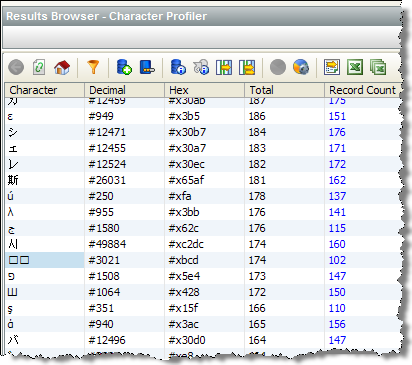
The OEDQ Results Browser is designed to be easy-to-use. In general, you can click on any processor in an OEDQ process to display its summary view or views in the Results Browser.
The Results Browser has various straight-forward options available as buttons at the top - just hover over the button to see what it does.
However, there are a few additional features of the Results Browser that are less immediately obvious:
It is often useful to open a new window with the results from a given processor so that you can refer to the results even if you change which processor you are looking at in OEDQ. For example, you might want to compare two sets of results by opening two Results Browser windows and viewing them side-by-side.
To open a new Results Browser, right-click on a processor in a process and select Show Results in New Window.
The same option exists for viewing Staged Data (either snapshots or data written from processes), from the right-click menu in the Project Browser.
On occasion, you might see unusual characters in the Results Browser, or you might encounter very long fields that are difficult to see in their entirety.
For example, if you are processing data from a Unicode-enabled data store, it may be that the OEDQ client does not have all the fonts installed to view the data correctly on-screen (though note that the data will still be processed correctly by the OEDQ server).
In this case, it is useful to inspect the characters by right-clicking on a character or a string containing an unusual character, and selecting the Show Characters option. For example, the below screenshot shows the Character Profiler processor working on some Unicode data, with a multi-byte character selected where the client does not have the required font installed to display the character correctly. The character therefore appears as two control characters:
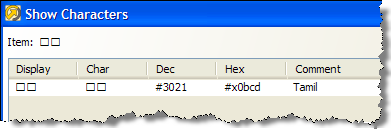
If you right-click on the character and use the Show Characters option, OEDQ can tell you the character range of the character in the Unicode specification. In the case above, the character is in the Tamil range:
The Show Characters option is also useful when working with very long fields (such as descriptions) that may be difficult to view fully in the Results Browser.
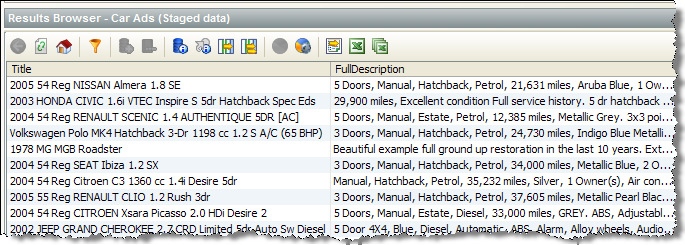
For example, the below screenshot shows some example data captured from car advertisements:
The Full column widths button  will widen the columns
to show the full data, but in this case there is too much data to show
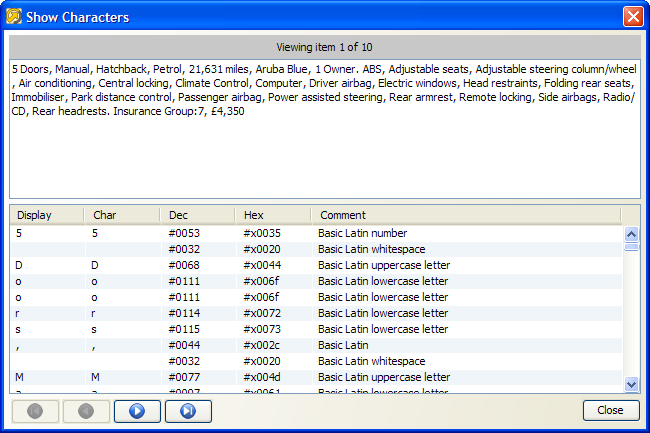
on the width of a screen. To see the FullDescription field as wrapped
text, it is possible to right-click on the rows you want to view and use
the Show Characters option. You
can then click on the arrow at the top-right of the screen to show each
value in a text area, and use the arrows at the bottom of the screen to
scroll between records:
will widen the columns
to show the full data, but in this case there is too much data to show
on the width of a screen. To see the FullDescription field as wrapped
text, it is possible to right-click on the rows you want to view and use
the Show Characters option. You
can then click on the arrow at the top-right of the screen to show each
value in a text area, and use the arrows at the bottom of the screen to
scroll between records:
Clicking on the column header in the Results Browser will sort the data
by that column. However, if you control-click on the column header (hold
down the Ctrl key and click on the header), you can select all the visible
(loaded) data in that column in the Results Browser. This is useful for
example to copy all loaded rows, or to use them to create or add to reference
data using the right-click option. Note that the Results Browser only
loads 100 records by default, so you may want to use the Load All Data
button  before selecting the column header.
Multiple column headers can be selected in the same way.
Oracle ® Enterprise Data Quality Help version 9.0
Copyright ©
2006,2011 Oracle and/or its affiliates. All rights reserved.