Set up your account
Set up your service
Optional: Integrate with CX Sales
Optional: Modify your service

Set up your account
1Order subscription

Order a subscription for Account and Contact Enrichment D&B by contacting Oracle Sales.
2Activate service
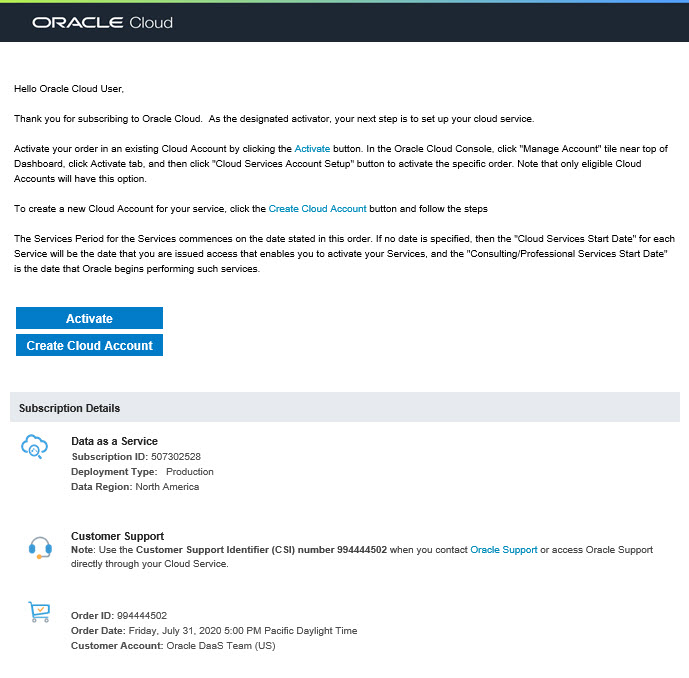
You'll get an activation email titled:
Welcome to the Oracle Cloud. The Provisioning Process Started.
If you have an existing Oracle Cloud account, click Activate in the email. We recommend using your existing account to manage all Oracle services.
If you need a new Oracle Cloud account, click Create Cloud Account in the email.
3Verify access
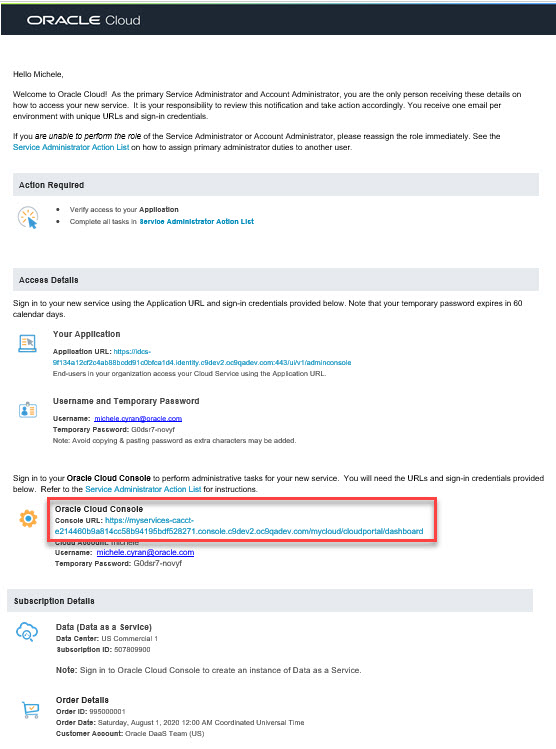
You'll receive a second email titled:
Setup Complete. You're ready to go.
In the email, under Access Details, click the Cloud Console URL.
Sign in with the temporary password listed in the email. You'll be prompted to change this password.
Temporary passwords expire after 60 days. Contact Oracle Support if you need to request a new password.
4Create instance
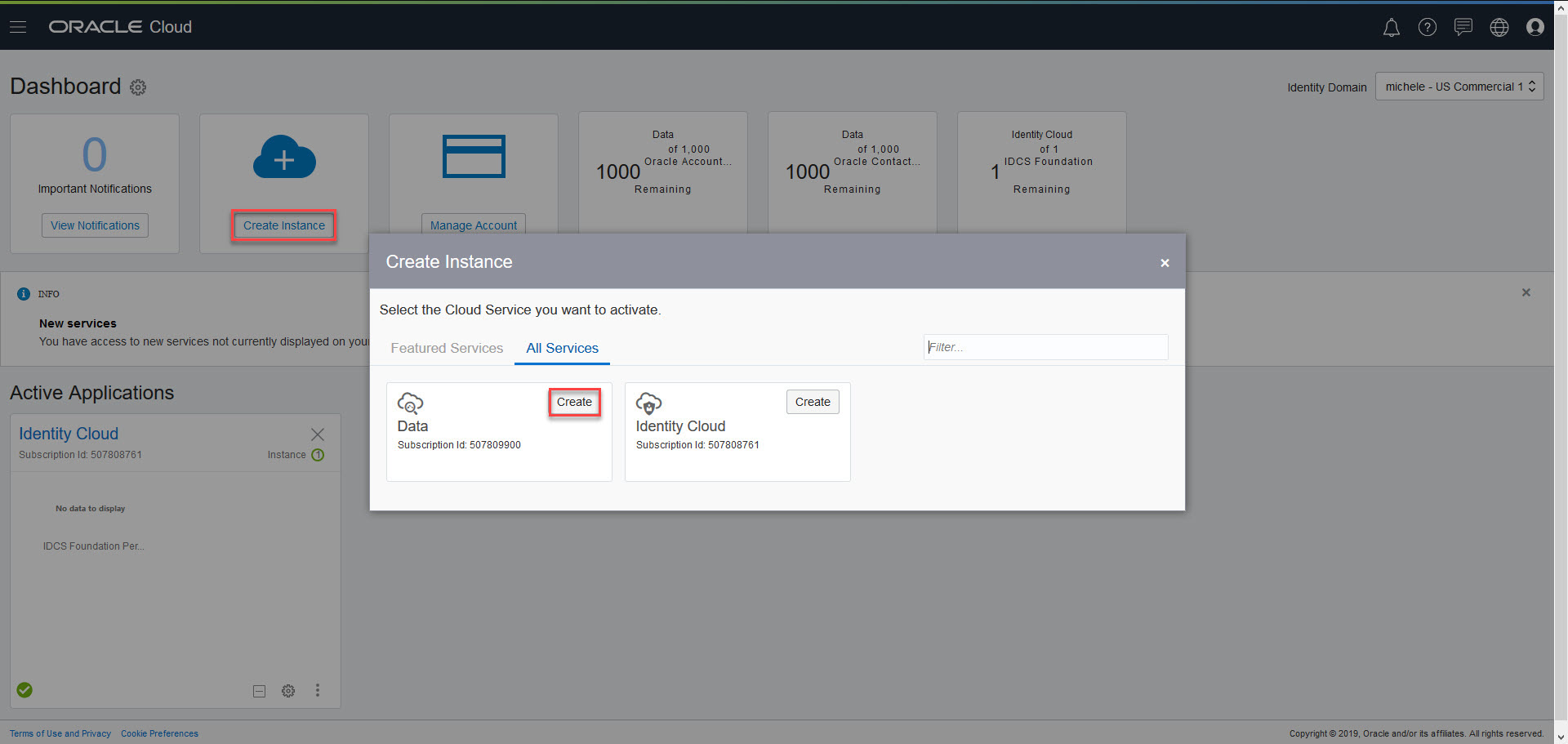
On the Cloud Console Dashboard, click Create Instance.
Click Create for the Data service. Data is the cloud service instance that hosts both data enrichment and verification services.
Enter a name for this instance, confirm your administrator, then click Create.
Click Create again to confirm the instance details.
Set up your service
5Access service
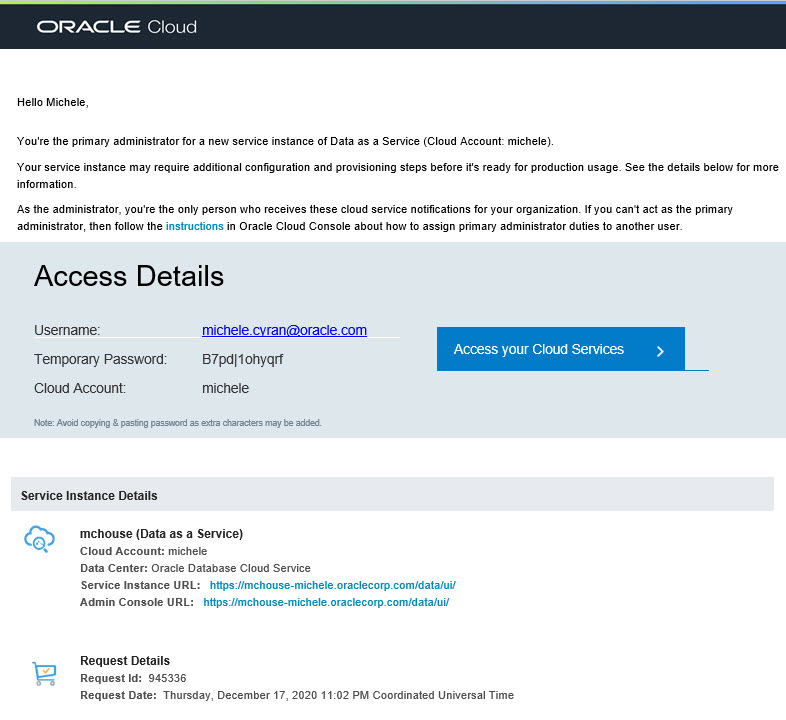
The person you designated as the administrator will receive an email titled:
Action Required: Your new instance in Cloud Account is ready.
In the email, click Access Your Cloud Services.
On the Cloud Console, click the Data application to see the URLs for the UI and the API.
Note: The Billing Metrics and Documents tabs are not applicable for the Data service.
6Add users
On the Cloud Console application menu, under Account Management, click Users.
On the Users page, click Add to add a user with the DATASERVICE_USER or DATASERVICE_ADMINISTRATOR role.
If the new user doesn't already have a password for this domain, they get an email with a temporary password.
Optional: Integrate with CX Sales
7Integrate with CX Sales
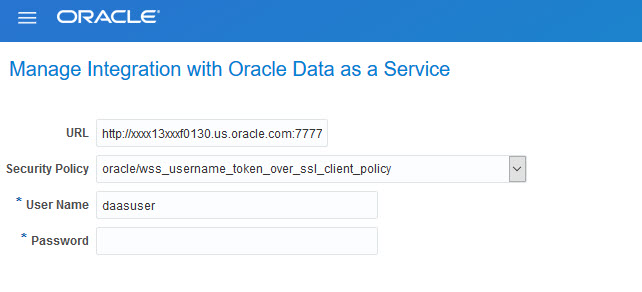
On the Cloud Console, go to the Users page.
Create a new Data user with the DATASERVICE_CLIENT_API_APP_ID role and either the DATASERVICE_USER or DATASERVICE_ADMINISTRATOR role.
On the Cloud Console Users page, reset the password for this user.
Sign in to CX Sales.
In the Setup and Maintenance work area, select the Sales - Integrations task Manage Integration with Data as a Service.
URL: Enter your instance URL. Remove /data/ui from the end. For example: https://dataservice-identitydomain.data.us2.oraclecloud.com.
Security Policy: Select oracle/wss_username_token_over_ssl_client_policy.
For username and password, enter the user credentials you entered earlier in this step.
Click Save and Close.
Optional: Modify your service
8Update subscription
Expand or renew your subscription by contacting Oracle Sales.
You'll get an activation email titled:
Your service has been updated.
9Modify service
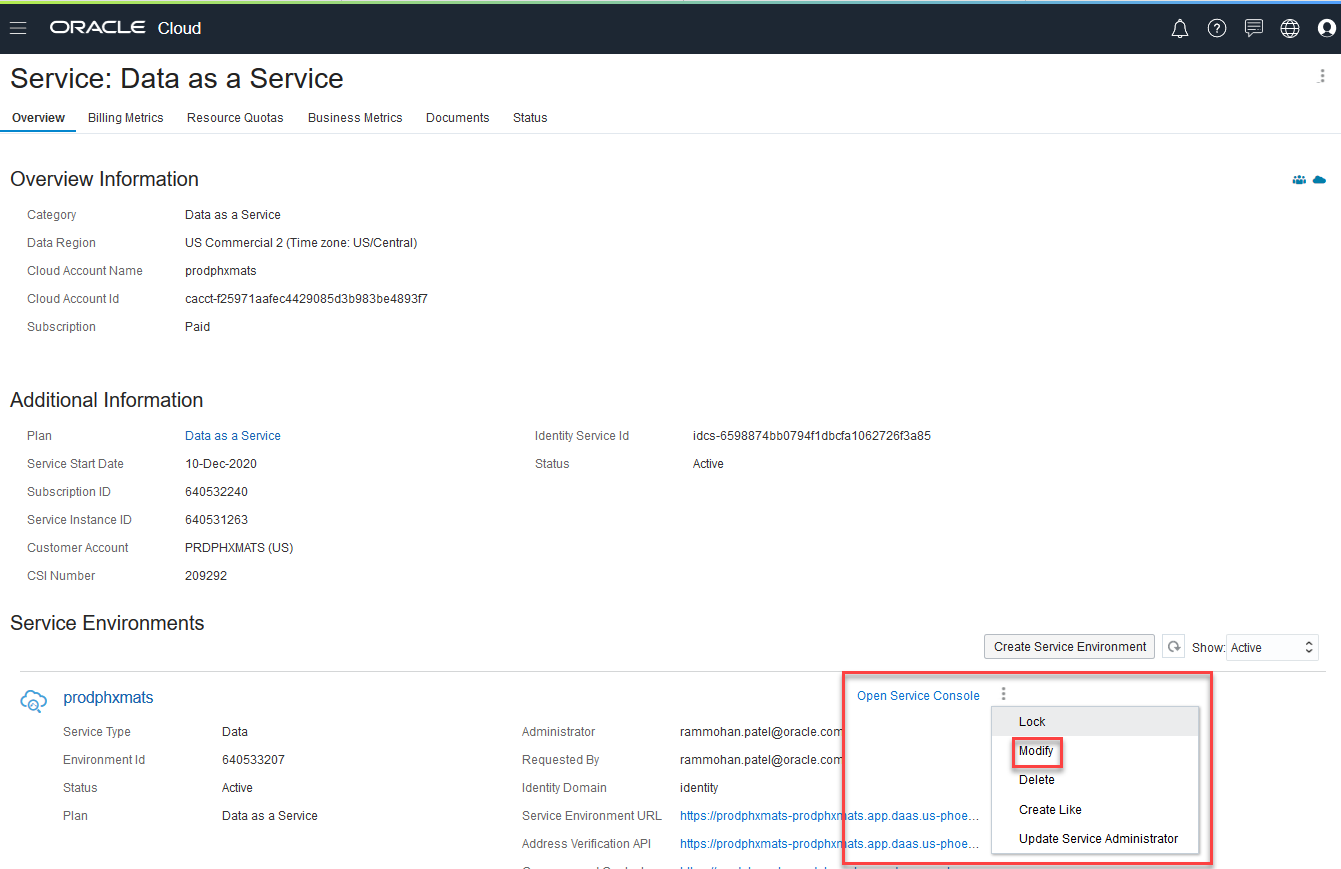
On the Cloud Console Dashboard, select your active Data service.
On the Overview page, click the Action Menu to then click Modify.
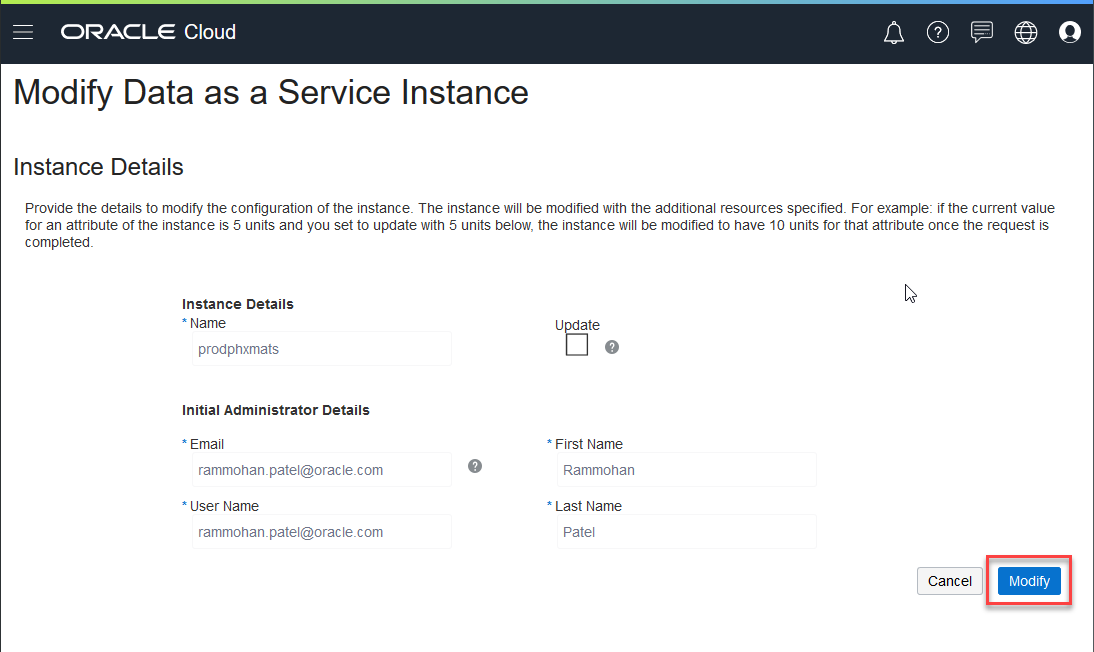
On the Modify page, leave all default values, and click the Modify button.
Click Modify again to confirm that you want to update this instance.
You'll get an activation email titled:
Your service instance has been updated.

Find out more about Oracle Account and Contact Enrichment by D&B
See events.oracle.com and blogs.oracle.com/cloud for information about Oracle Cloud events.
Follow Oracle Cloud on


Set up your account
Set up your service
Integrate with CX Sales