

Integrate a catalog application
Integrate custom applications
Display applications

Integrate a catalog application
1Add a catalog application
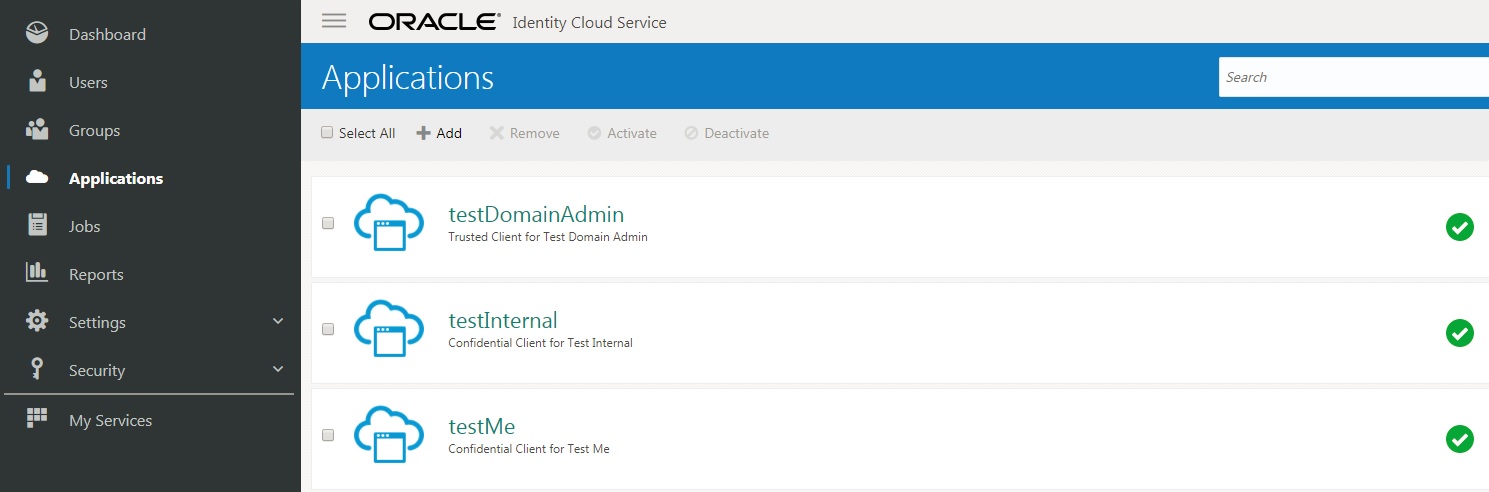

In the Identity Cloud Service console, expand the Navigation Drawer  , click Applications, and then click Add.
Click App Catalog.
Search for the application, select it, and then click Add.
Click Next.
Follow the instructions provided in the UI for configuring the application, and then click Finish.
Click Activate, and then click Activate Application.
Integrate custom applications
2Add a trusted application
In the Identity Cloud Service console, expand the Navigation Drawer ,
click Applications, and then click Add.
Select Trusted Application. Enter the application name and a description. Upload an application icon, provide the application URL, and then click Next.
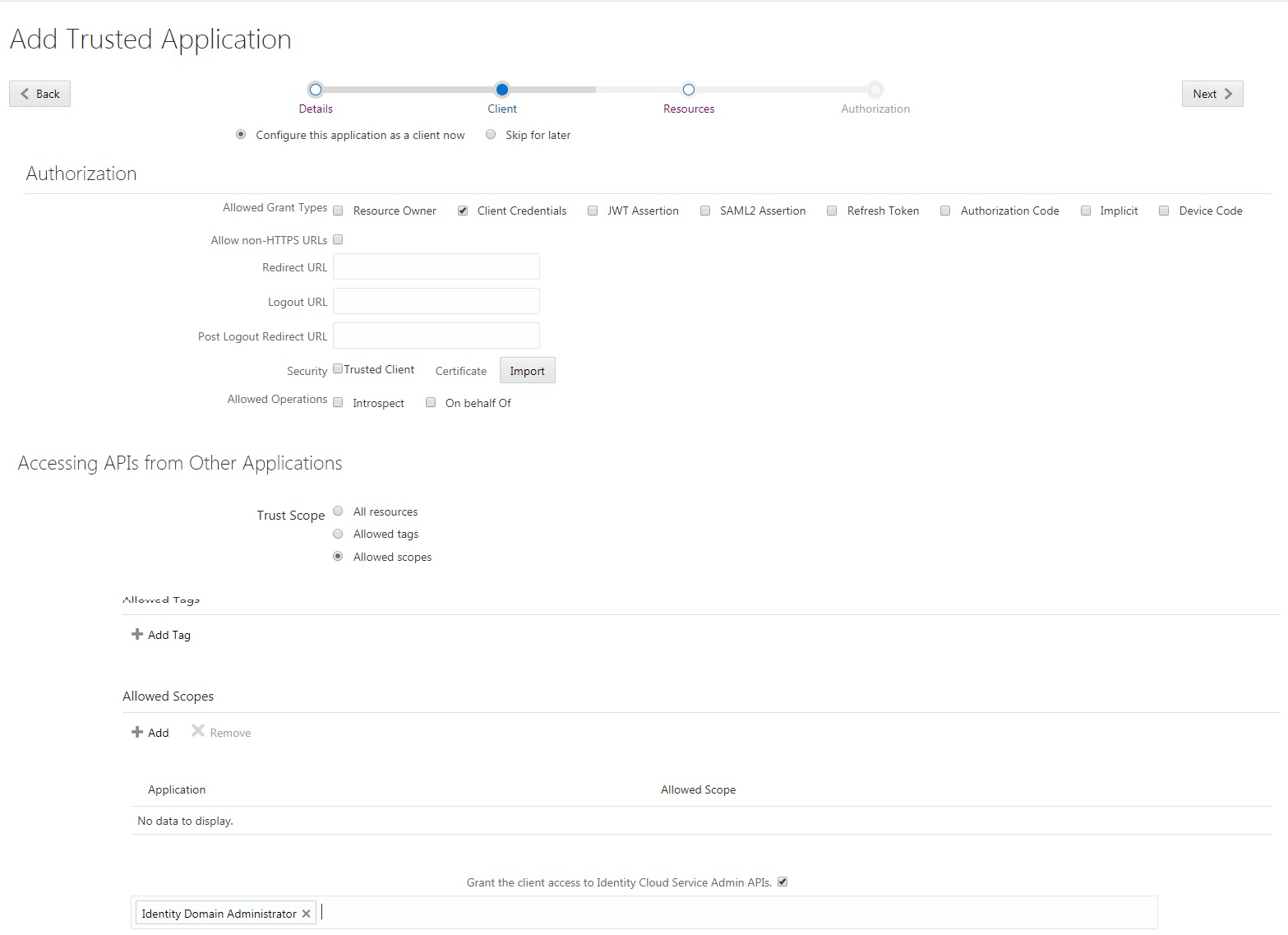
Select Configure this application as a client now and enter the authorization settings according to your custom application.
If the application is expected to manage Oracle Identity Cloud Service via REST APIs, select Grant the client access to Identity Cloud Service Admin APIs. In the input box that appears in the next row, select the admin API rights you want to grant for the application.
Click Next.
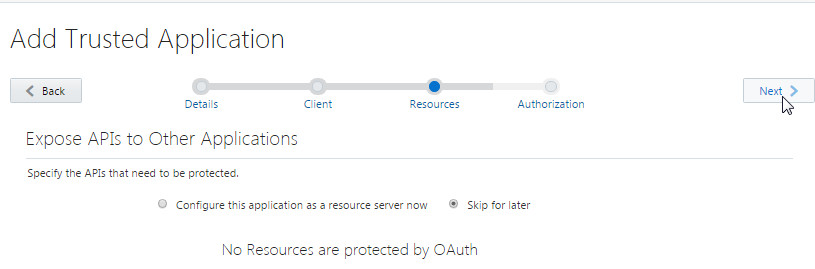
If the application is expected to expose APIs to other applications, select Configure this application as a resource server now and configure the fields according to your custom application.
Click Next.
If you want the application to enforce grants as an authorization mechanism, select Enforce Grants as Authorization. Click Finish.
3Add a SAML application
In the Identity Cloud Service console, expand the Navigation Drawer ,
click Applications, and then click Add.
Select SAML Application. Enter the application name and a description. Upload an application icon, provide the application URL, and then click Next.
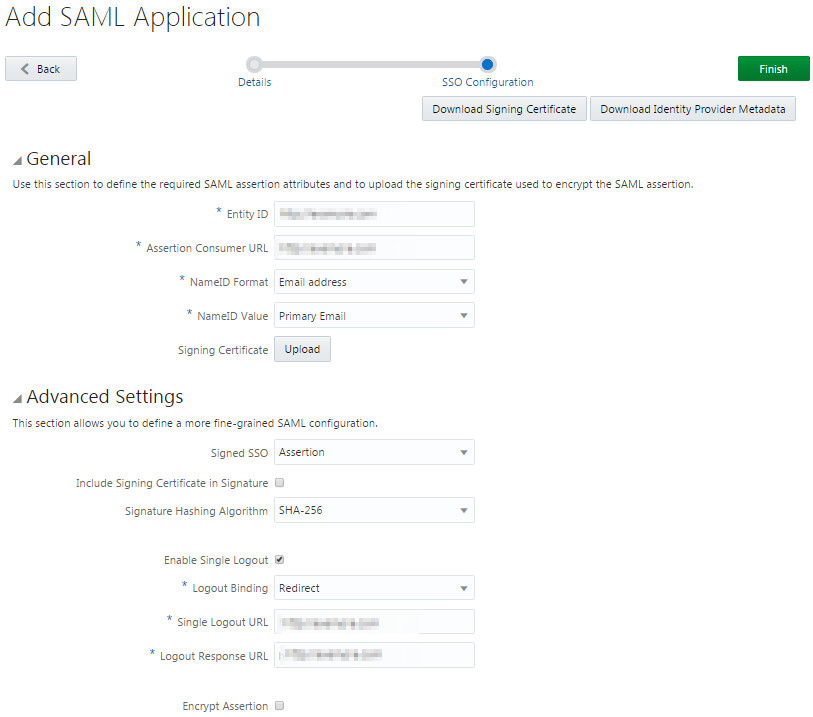
In the SSO Configuration page enter values for
the Entity ID and the Assertion Consumer
URL.
Expand the Advanced Settings section and
provide values for the Single Logout URL and the Logout
Response URL.
Click Finish.
4Add a mobile application
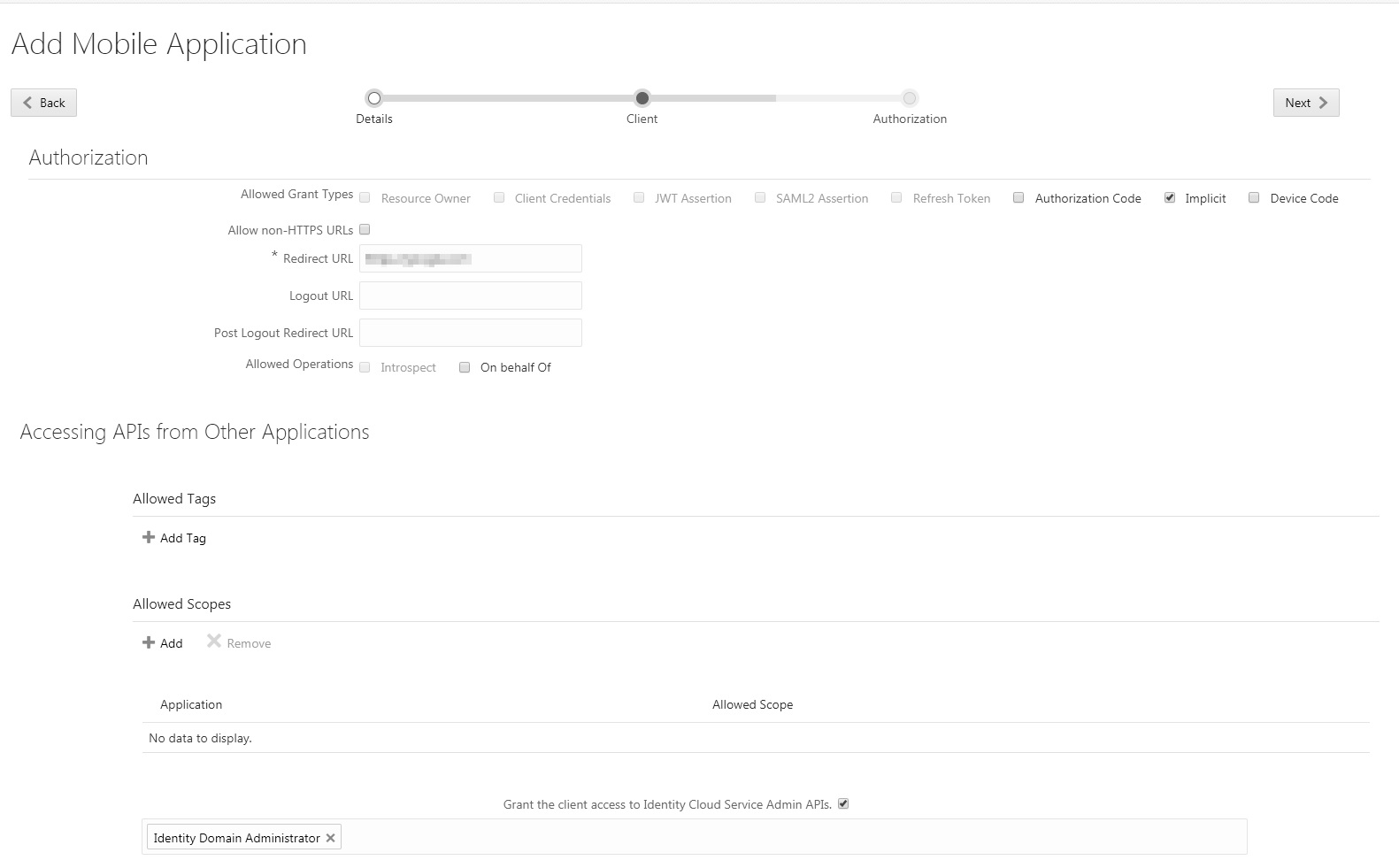
In the Identity Cloud Service console, expand the Navigation Drawer ,
click Applications, and then click Add.
Select Mobile Application. Enter the application name and a description. Upload an application icon, and then click Next.
Enter the authorization settings according to your custom application.
If the application is expected to manage Oracle Identity Cloud Service via REST APIs, select Grant the client access to Identity Cloud Service Admin APIs. In the input box that appears in the next row, select the admin API rights you want to grant for the application.
Click Next.
Click Finish.
5Activate and integrate custom applications
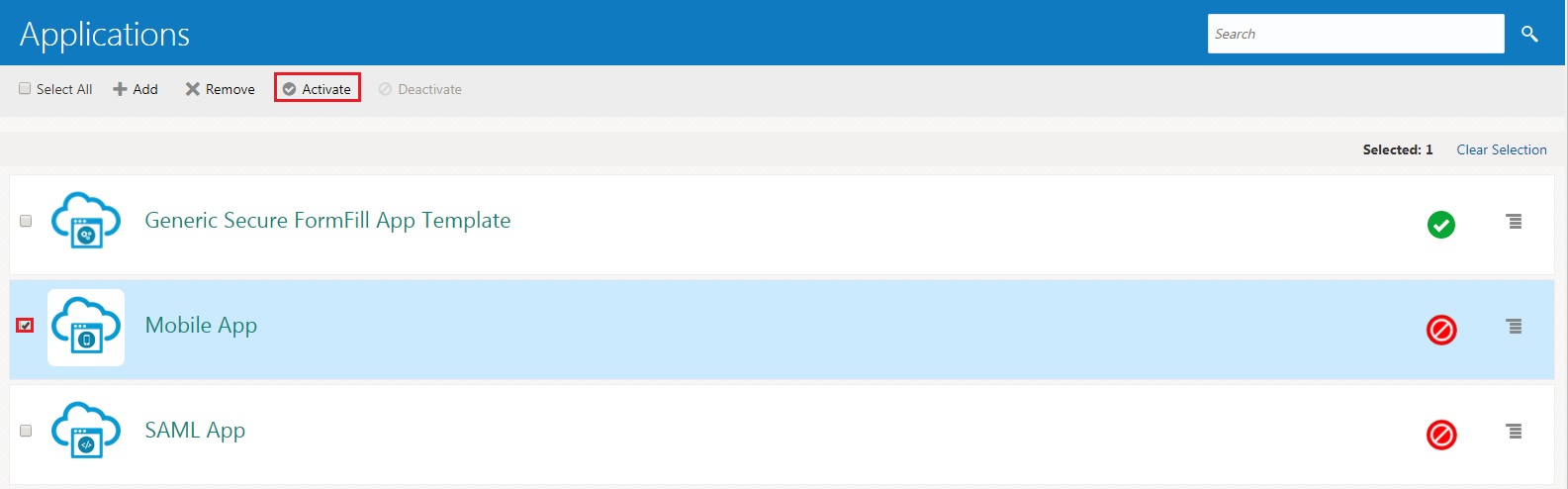
In the Identity Cloud Service console, expand the Navigation Drawer ,
click Applications. Select the application that
you want to activate.
Click Activate, and then click Activate Application.
To integrate Oracle Identity Cloud Service with a custom REST
client, see:
(tutorial | doc).
To integrate Oracle Identity Cloud Service with a custom client
application, see:
(tutorial | doc).
To integrate Oracle Identity Cloud Service with a custom resource
server application, see:
(tutorial | doc).
Display applications
6Display the application in the My Apps page
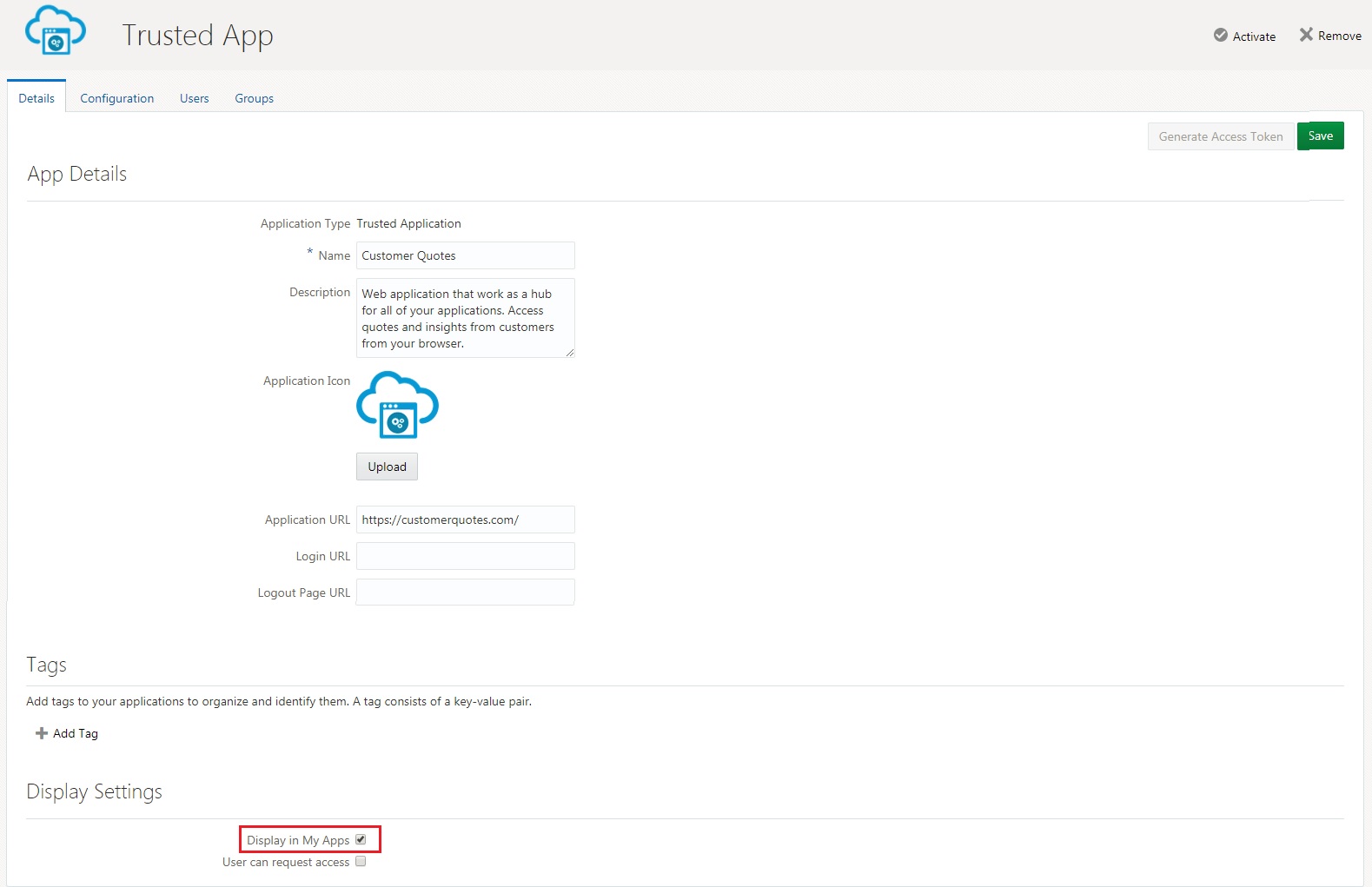
In the Identity Cloud Service console's Applications page, open the application you want to appear in the My Apps page.
In the Details tab, select Display in My Apps, and then click Save.
7Display the application for selected users
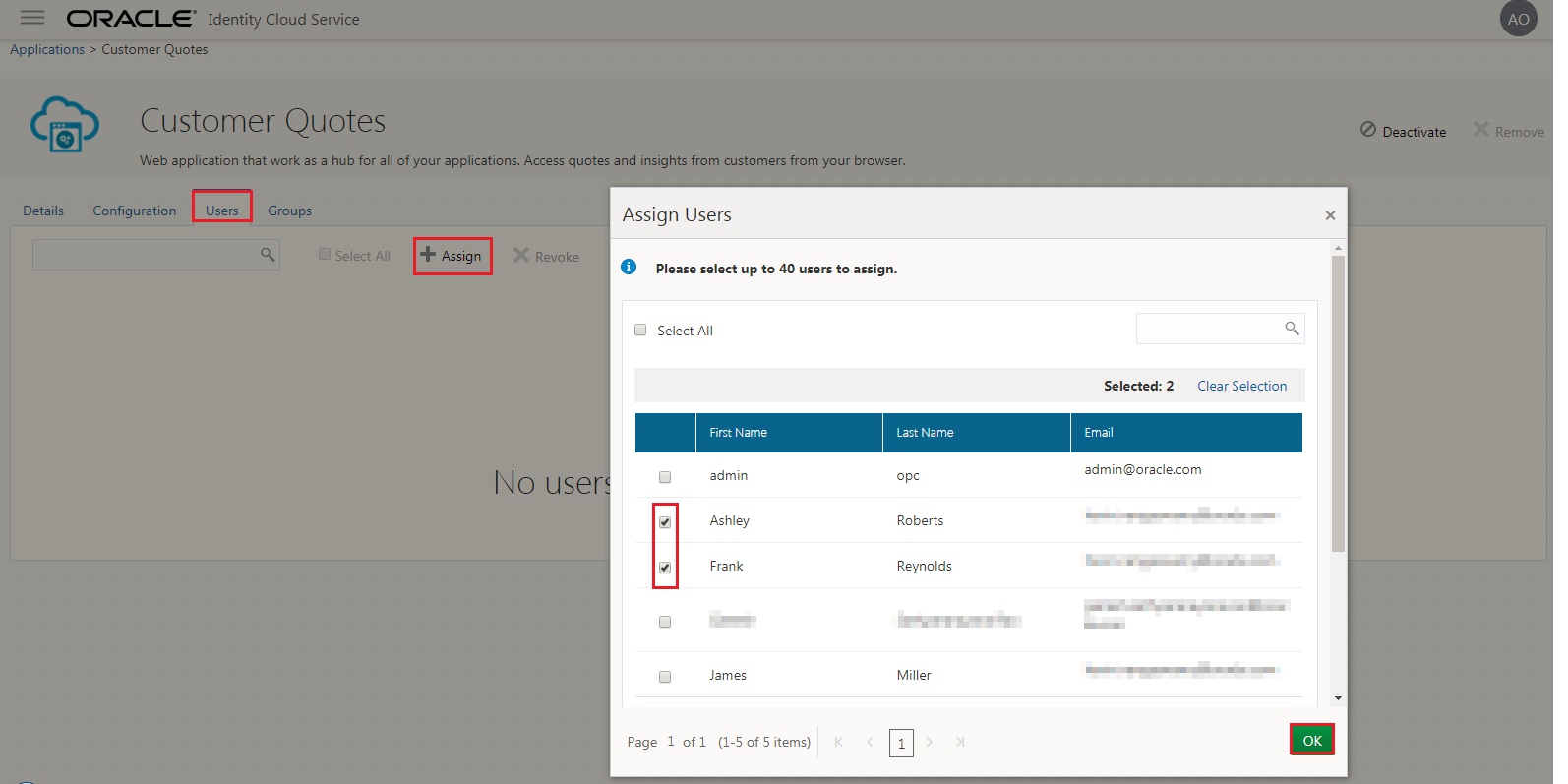
In the Identity Cloud Service console's Applications page, open the application you want to display for selected users in their My Apps page. Click Users.
Click Assign.
Select the users who will see the application displayed in their My Apps page, and then click OK.
Oracle Identity Cloud Service displays a confirmation message.
8Display the application for selected groups
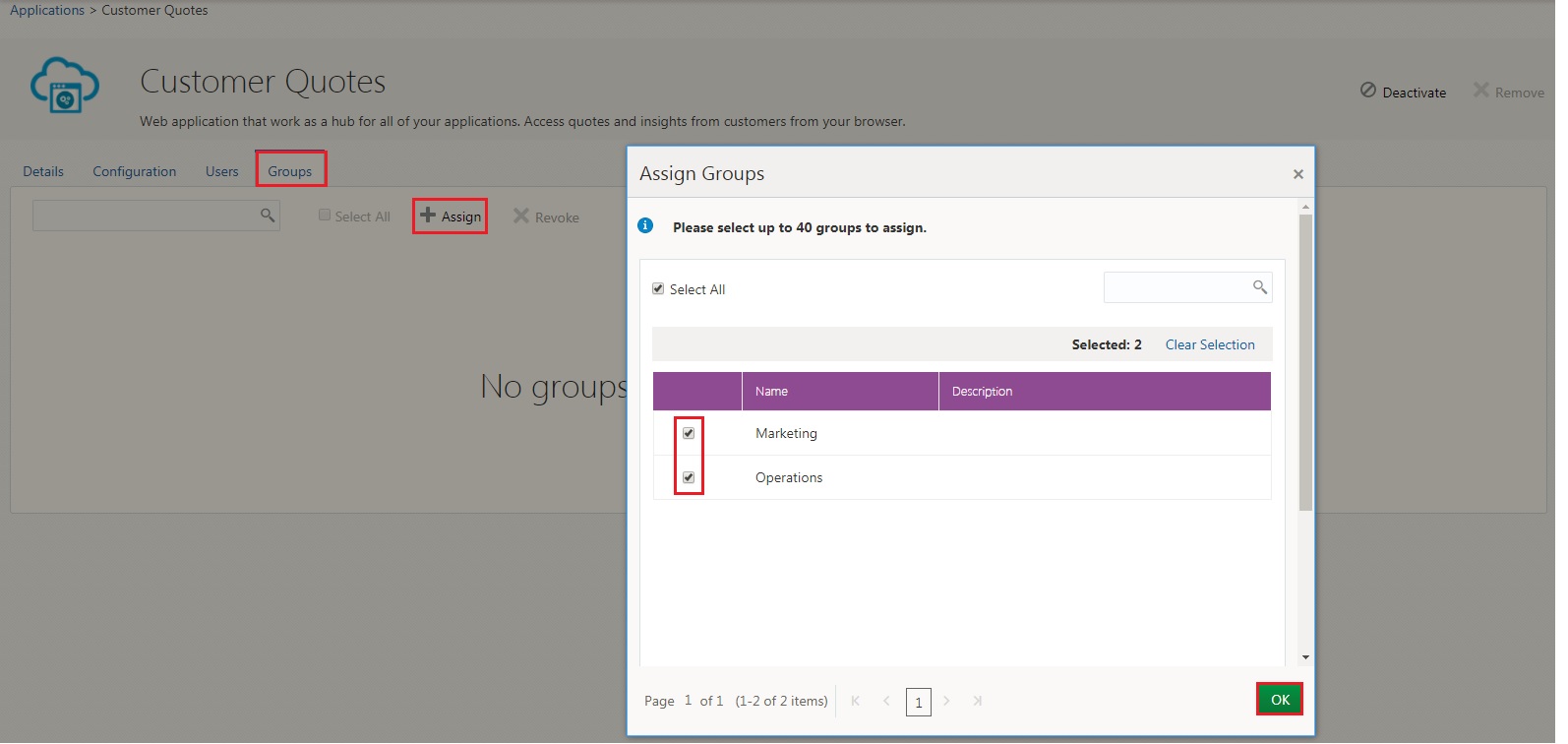
In the Identity Cloud Service console's Applications page, open the application you want to display for selected users in their My Apps page based on their group membership. Click Groups.
Click Assign.
Select the groups that contain users who will see the application displayed on their My Apps page, and then click OK.
Oracle Identity Cloud Service displays a confirmation message.
 You're
done!
You're
done!
Find out more about Oracle Identity Cloud Service
See: cloud.oracle.com/identity
Product Documentation- Oracle Identity Cloud Service's REST API
- Managing Applications
- Oracle Identity Cloud Service - Application Catalog
 Facebook
 Twitter
 YouTube