

Modify the security settings
Integrate with external providers
Verify the integrations

Modify the security settings
1Assign administrators
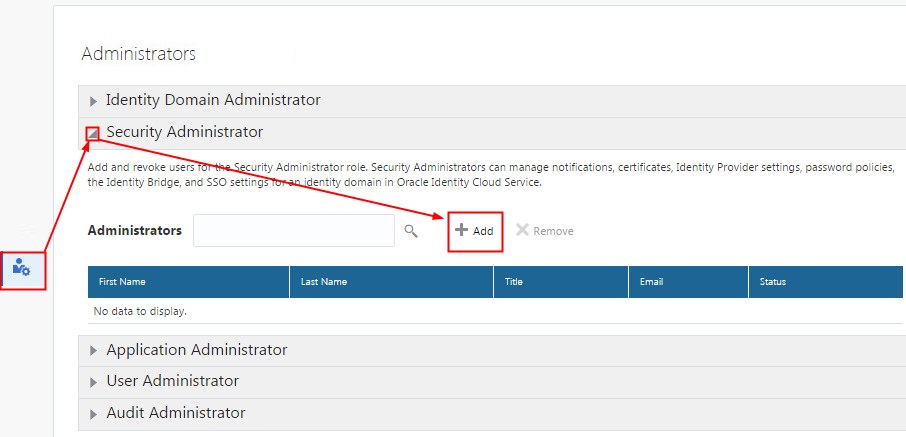

In the Identity Cloud Service console, expand the Navigation Drawer  , and then click Security.
Click Administrators (the user with the gear icon in the Security menu).
Click a security role title (for example, Security Administrator), and then click Add.
Search and select the users you want to assign as administrators, and then click OK.
4Modify session settings
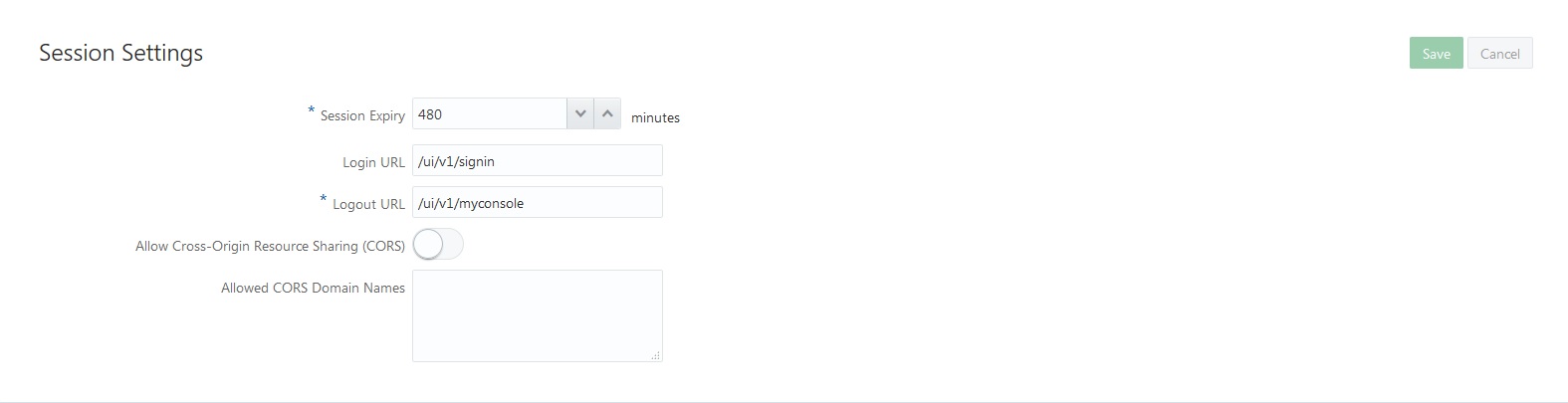
In the Identity Cloud Service console, expand the Navigation Drawer , click Settings,
and then click Session Settings.
Update the the session timeout value (Session Expiry) according to your preference.
Enter the Logout URL that users will be redirected to after signing out of the Oracle Identity Cloud Service UI.
If you want to allow client applications that run on one domain to obtain data from another domain, enable CORS slide button. Enter the domain names URL.
Click Save.
3Modify the password policy
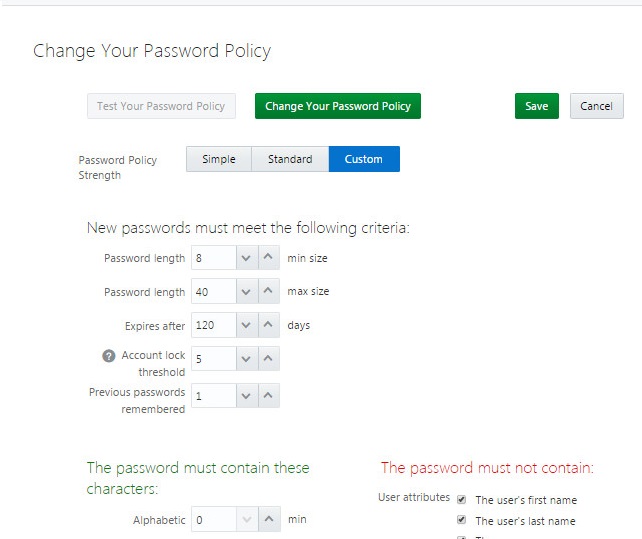
In the Identity Cloud Service console, expand the Navigation Drawer , click Settings,
and then click Password Policy.
Click Change Your Password Policy.
For the Password Policy Strength, click Custom.
Update the password policy criteria according to your preferences, and click Save.
(Optional). In the Save Password Policy dialog window, select the check box to force all users to set a new password the next time they log in, if you wish to do so.
Click OK.
4Test the password policy
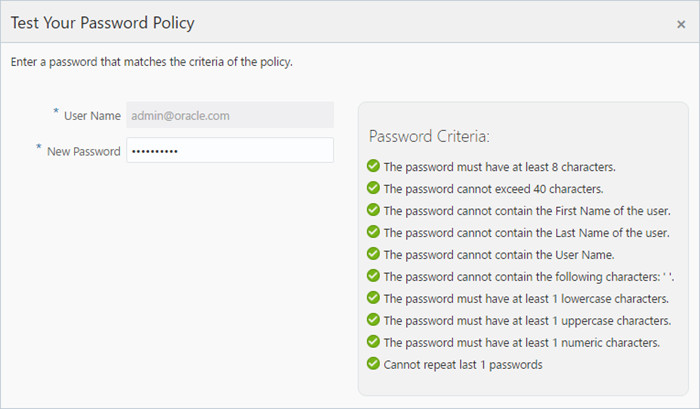
In the Password Policy page, click Test Your Password Policy.
Enter a new password.
In the Password Criteria box, verify how the new password criteria is met.
Close the Test Your Password Policy window.
Integrate with external providers
5Register a bridge
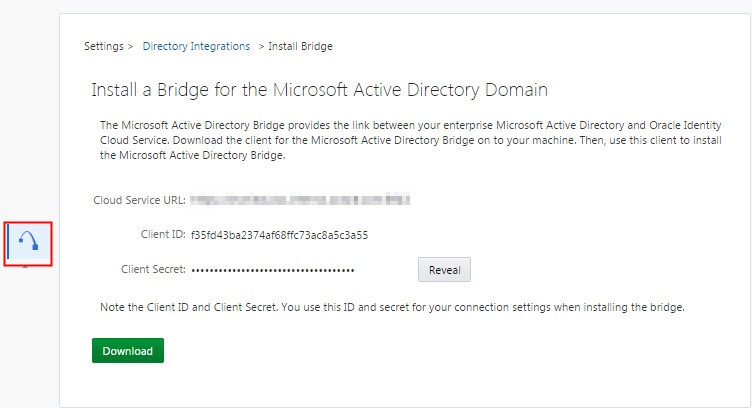
In the Identity Cloud Service console, expand the Navigation Drawer , click Settings, and
then click Directory Integrations.
Click Add.
Click Download, and save the client for the bridge.
Copy the Cloud Service URL, the Client ID and the Client Secret to an editing tool (such as Notepad).
6Register an identity provider
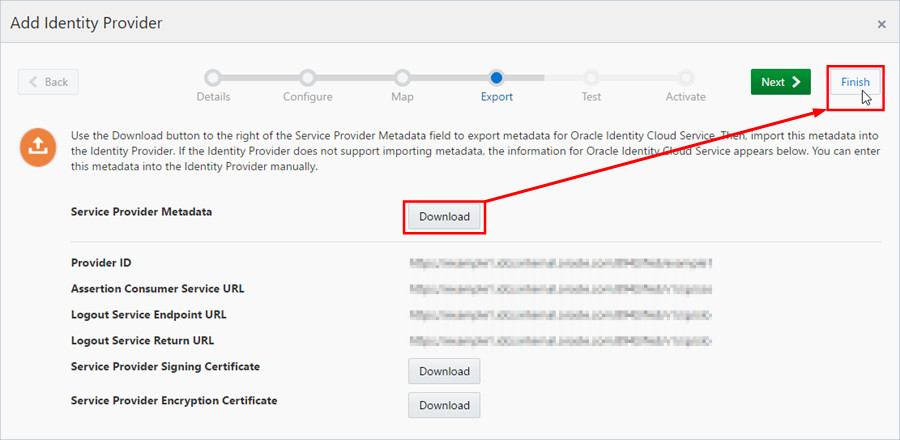
In the Identity Cloud Service console, expand the Navigation Drawer , click Security,
and then click Identity Providers.
Click Add SAML IDP.
Enter an identity provider name and a description, upload an icon for the identity provider, and then click Next.
Select Import Identity Provider metadata.
Click Upload. Select the metadata XML file that you downloaded from your identity provider. Click Open, and then click Next.
Validate the identity provider attribute mappings, and then click Next.
To save the service provider metadata, click Download and then save the XML file.
Click Finish.
7Register a trusted partner
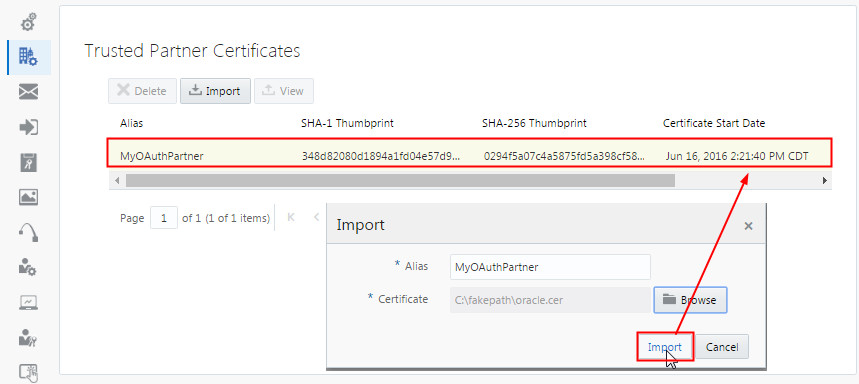
In the Identity Cloud Service console, expand the Navigation Drawer , click Settings,
and then click Partner Settings.
Click Import.
Provide an alias and upload the signing certificate from the
trusted partner (.pem, .cer, or .der
formats).
The Trusted Partner Certificate page displays the signing certificate details, including the alias, the thumbprint, the start date, and the end date.
8Configure external providers
To integrate Oracle Identity Cloud Service with Microsoft Active
Directory using a bridge, see:
(tutorial | doc).
To integrate Oracle Identity Cloud Service Microsoft with Microsoft
Active Directory Federation Services as an identity provider, see:
(tutorial | doc).
To integrate Oracle Identity Cloud Service with Oracle Access
Manager (OAM) as an identity provider, see:
(tutorial | doc).
Verify the integrations
9Verify the bridge integration
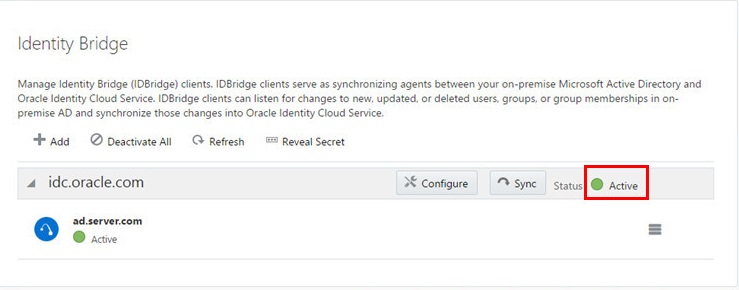
In the Identity Cloud Service console, expand the Navigation Drawer , click Settings,
and then click Directory Integrations .
Verify that the status of the bridge is Active.
10Verify the identity provider integration
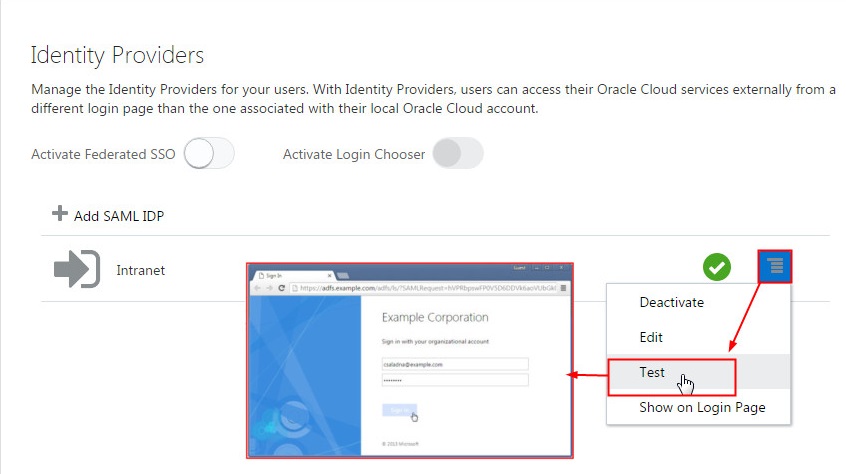
In the Identity Cloud Service console, expand the Navigation Drawer , click Security,
and then click Identity Providers.
For the identity provider that you want to verify, click the Hamburger icon, and select Test.
Authenticate with your identity provider's credentials and verify the results.
 You're
done!
You're
done!
Find out more about Oracle Identity Cloud Service
See: cloud.oracle.com/identity
Product Documentation- Understanding Administrator Roles
- Managing Oracle Identity Cloud Service Password Policies
- Managing the Bridge for Oracle Identity Cloud Service
- Adding an Identity Provider
- Changing Session Settings
- Integrating Oracle Identity Cloud Service with Microsoft Active Directory using a bridge
- Integrating Oracle Identity Cloud Service with Microsoft Active Directory Federation Service or Oracle Access Manager (OAM) as identity providers
 Facebook
 Twitter
 YouTube