

Set up your account
Set up your service
Set up your account
1Purchase a subscription
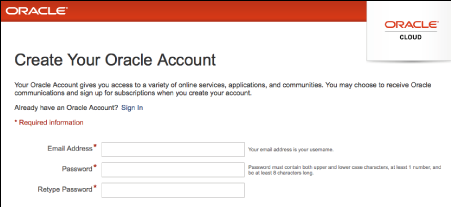
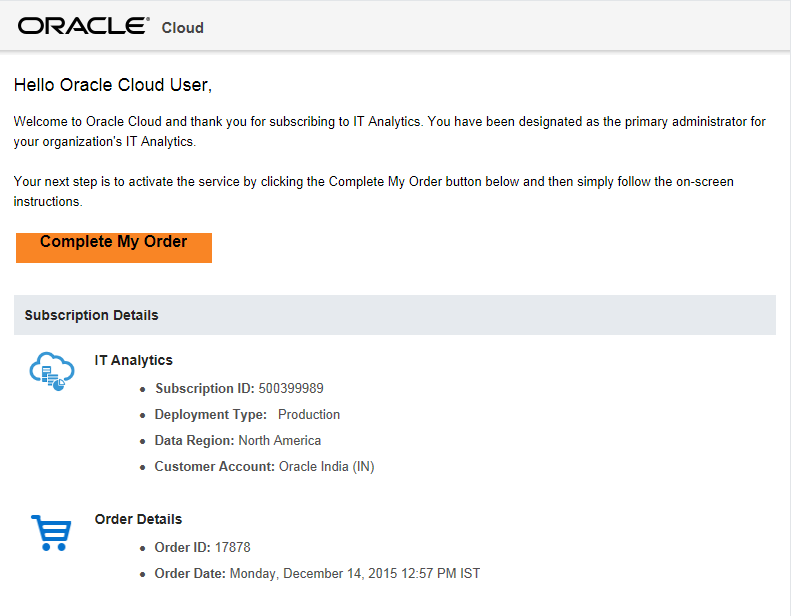

Go to https://cloud.oracle.com/it-analytics. Don't have an oracle.com account? Click here to sign up.
Purchase a subscription. When approved, you will get an activation email titled:
Welcome to Oracle Cloud. Start your service.
2Activate your paid service
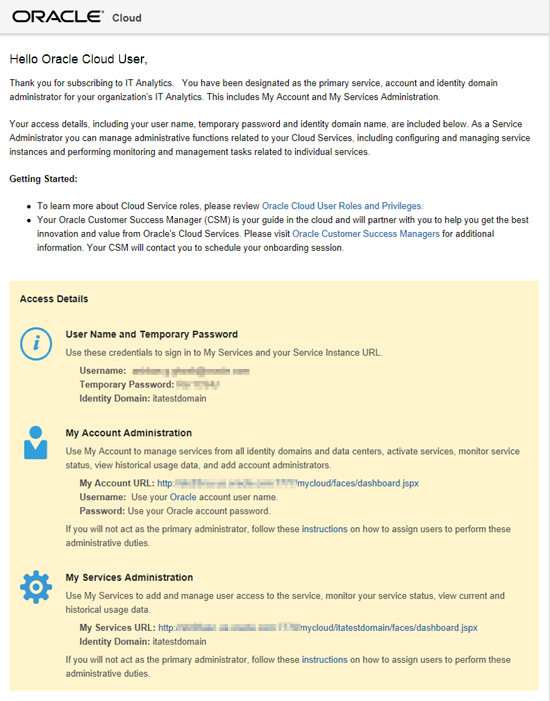
Click Complete My Order in the welcome email.
You will then get an activation email titled:
Setup Complete. You are ready to go.
This email contains the details required to access the service.
Set up your service
3Before you begin
Review the following topics in Deploying and Managing Oracle Management Cloud Agents at Oracle Help Center:
Overview of Deploying IT Analytics and Log Analytics
Prerequisites for Deploying Oracle Management Cloud Agents
4Download the Master Installer
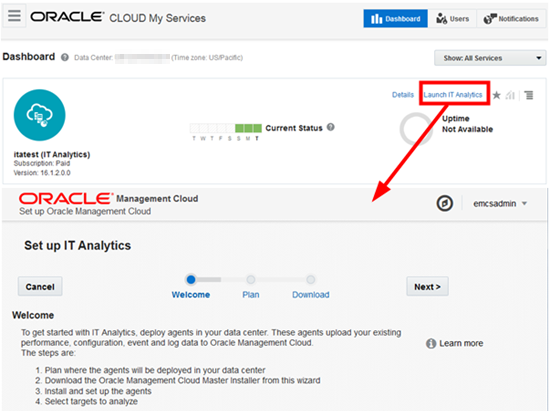
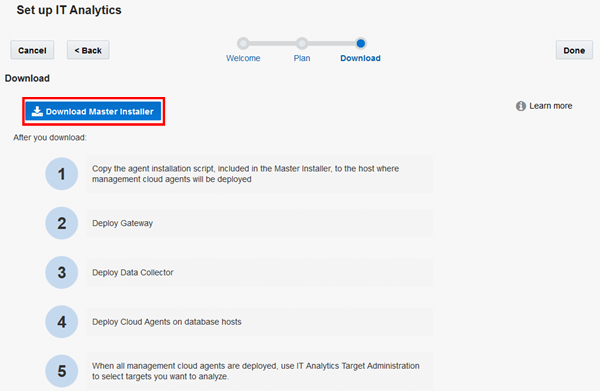
Sign in to My Services by accessing cloud.oracle.com/sign-in.
Click Launch IT Analytics.
The Welcome page of the Set Up IT Analytics wizard is displayed.
Navigate through the wizard till the Download page is
displayed.
Download the Master Installer to a shared directory that can be accessed by all the target hosts in your data center.
Extract the contents of the master installer ZIP file.
5Deploy the Gateway
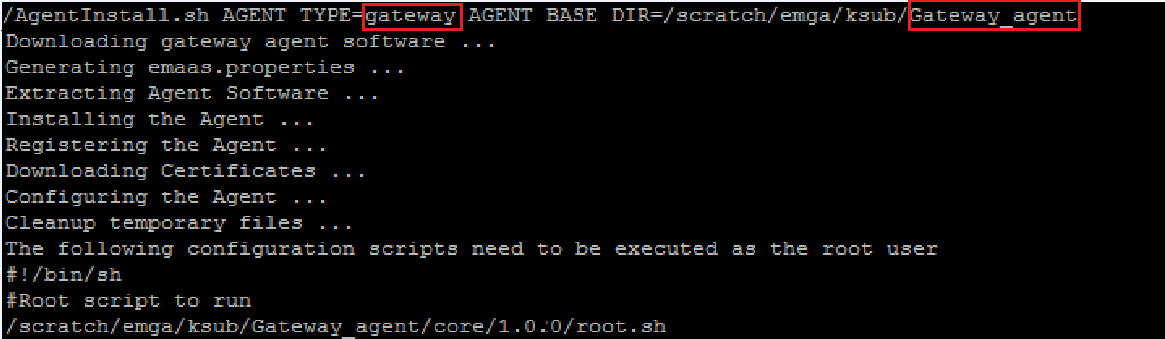
Identify a host in your data center with Internet access to Oracle Management Cloud.
Copy the installer script (AgentInstall.sh) to the
host.
Go to the directory where you copied the installer script.
Run the installer script to deploy the gateway.
6Deploy the Data Collector

Deploy the data collector on a host with SSH and SQL access to the Oracle Management Repository in your data center.
Go to the shared directory where you copied the installer script to.
Run the installer script to deploy the data collector on your Oracle Management Repository host.
7Deploy Cloud Agents
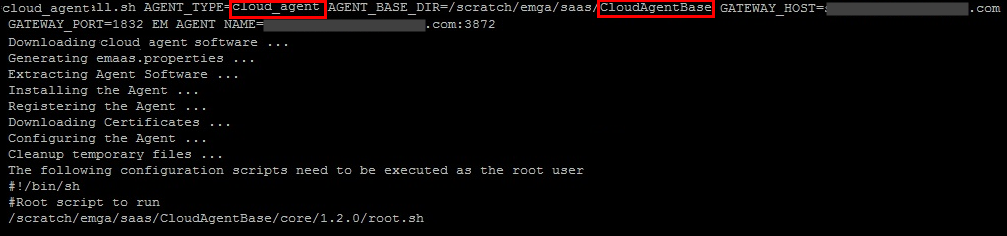
Go to the directory where you copied the installer script.
Deploy cloud agents on hosts for which you'd like to analyze logs.
Run the installer script to deploy cloud agent.
8Add targets to the warehouse
From the Oracle Management Cloud home page, click the  Application Navigator icon.
From the Administration group, click the IT Analytics Administration link.
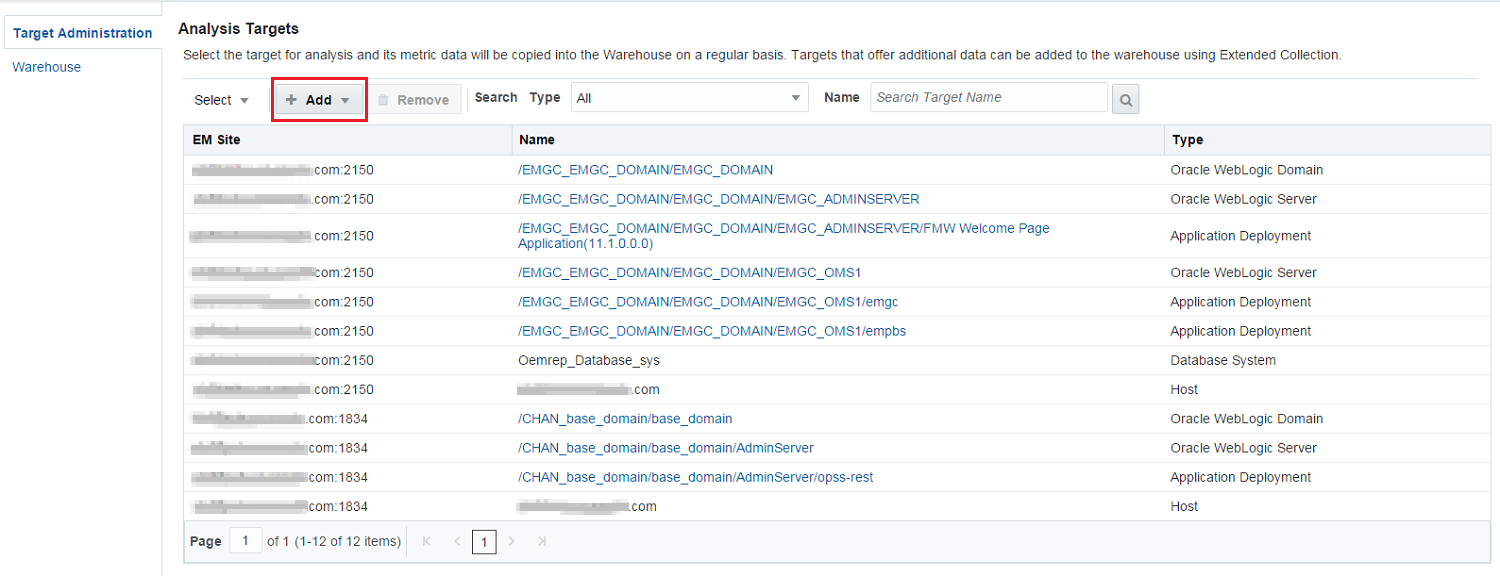
The Analysis Targets page is displayed with the Target Administration tab selected.
From the Analysis Targets page, click Add and select Analysis Targets from the drop-down list.
The Select Targets dialog box is displayed.
From the Type drop-down list, select the target category to add.
Select one or multiple targets to add, and click Select.
The Related Targets page is displayed. Based on the relationship between target types, there may be targets related to the target that you selected. Analysis won’t be complete unless you add the related targets.
View the related targets and click Add Targets to Warehouse.
The targets are successfully added to the warehouse.
 You're
done!
You're
done!
Find out more about the Oracle IT Analytics Cloud Service
See events.oracle.com and blogs.oracle.com/cloud for information about Oracle Cloud events.
Join the CommunityJoin the Oracle Cloud Community at cloud.oracle.com
Follow Oracle Cloud on Facebook
 Twitter
 YouTube