

Set up your account
Set up your service
Set up service instances if you've purchased resources
View details of your service

Set up your account
1Purchase a nonmetered Oracle Cloud service
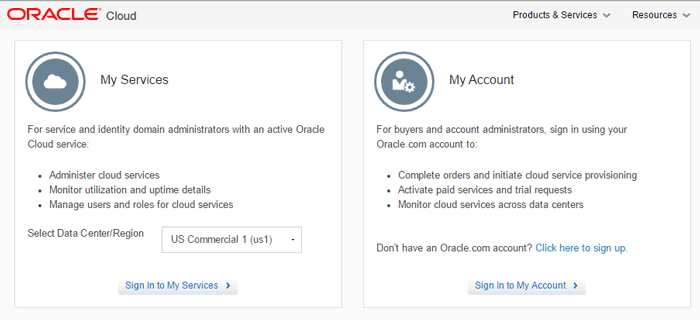
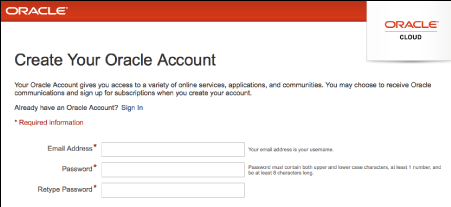

Go to cloud.oracle.com. Don't have an oracle.com account? Click here to sign up.
Purchase a nonmetered service. When approved, you'll get an activation email titled:
Welcome to Oracle Cloud. Start your service.
2Activate your service
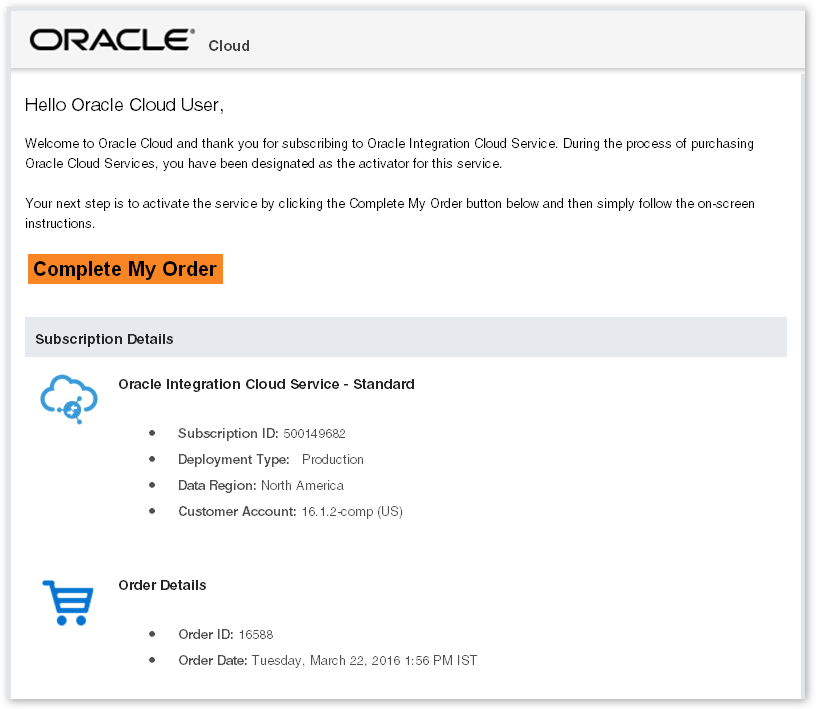
Click Complete My Order in the Welcome email.
You'll then get a service-ready email titled:
Welcome to Oracle Cloud. Your service is ready.
This email contains the details required to access the service.
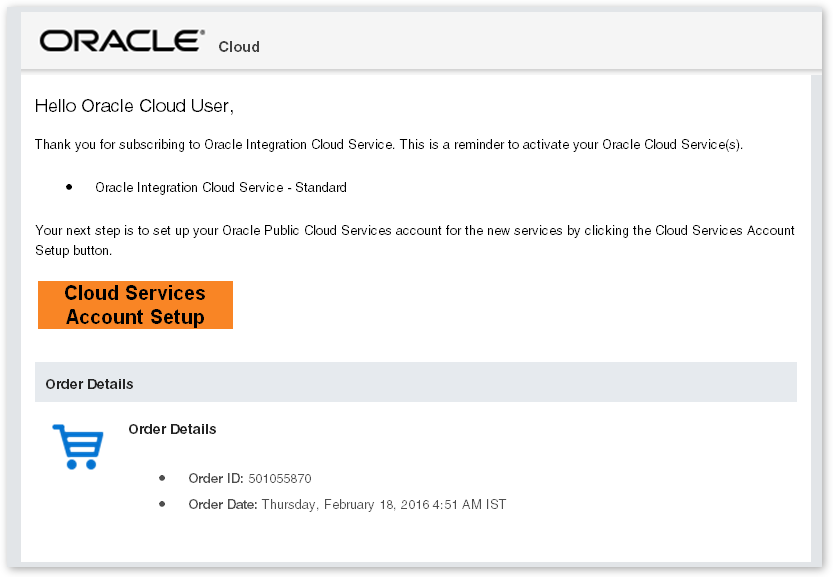
If you've purchased resources, then you must set up an Oracle Cloud Services account to activate your service. Click Cloud Services Account Setup in the Welcome email.
You'll then get a service-ready email titled:
Welcome to Oracle Cloud. Your Oracle Public Cloud Services are ready for use. Some services may require additional configuration and provisioning steps.
This email contains the details required to access the service and create service instances.
Set up your service
3Access your service
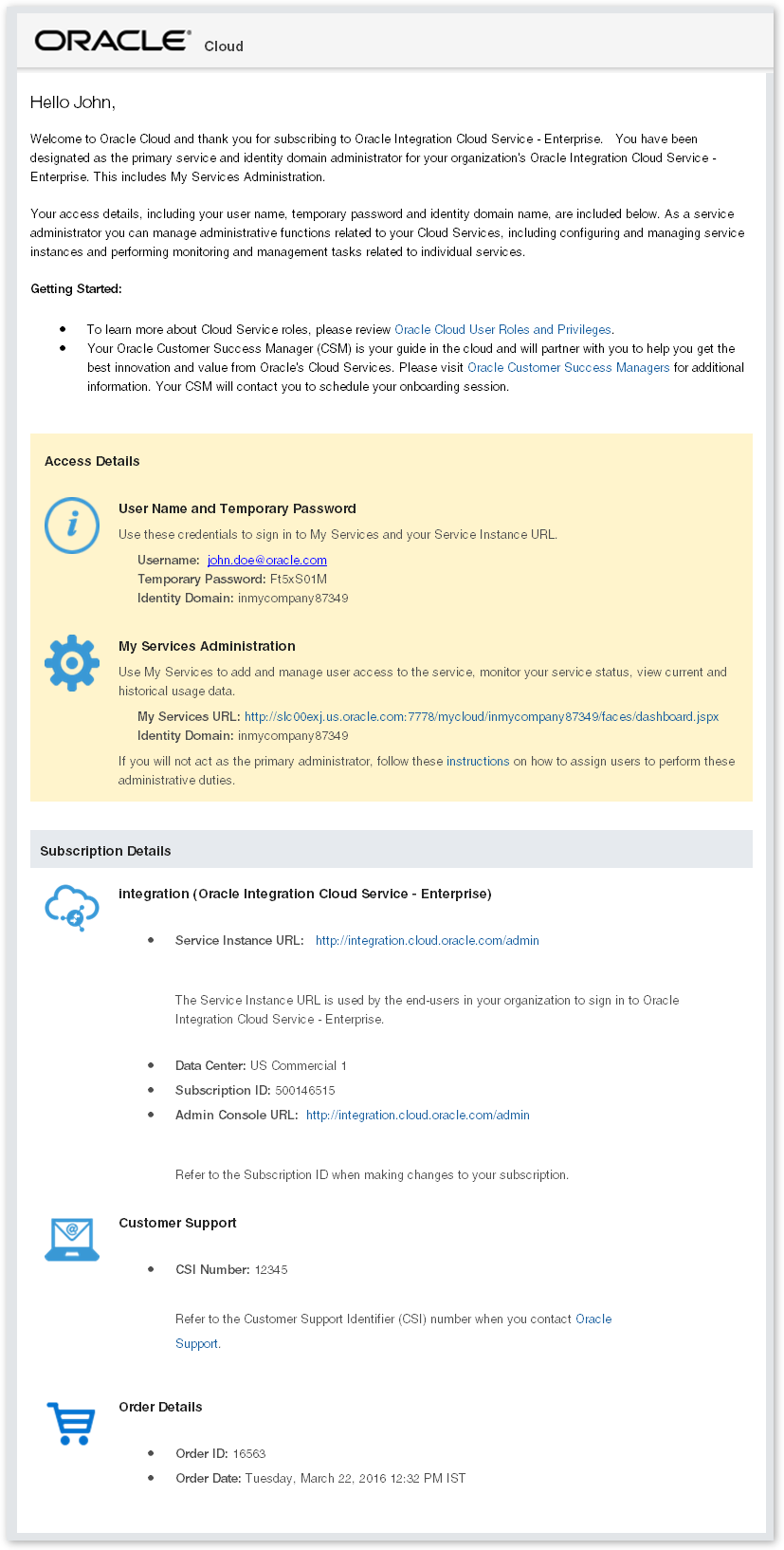
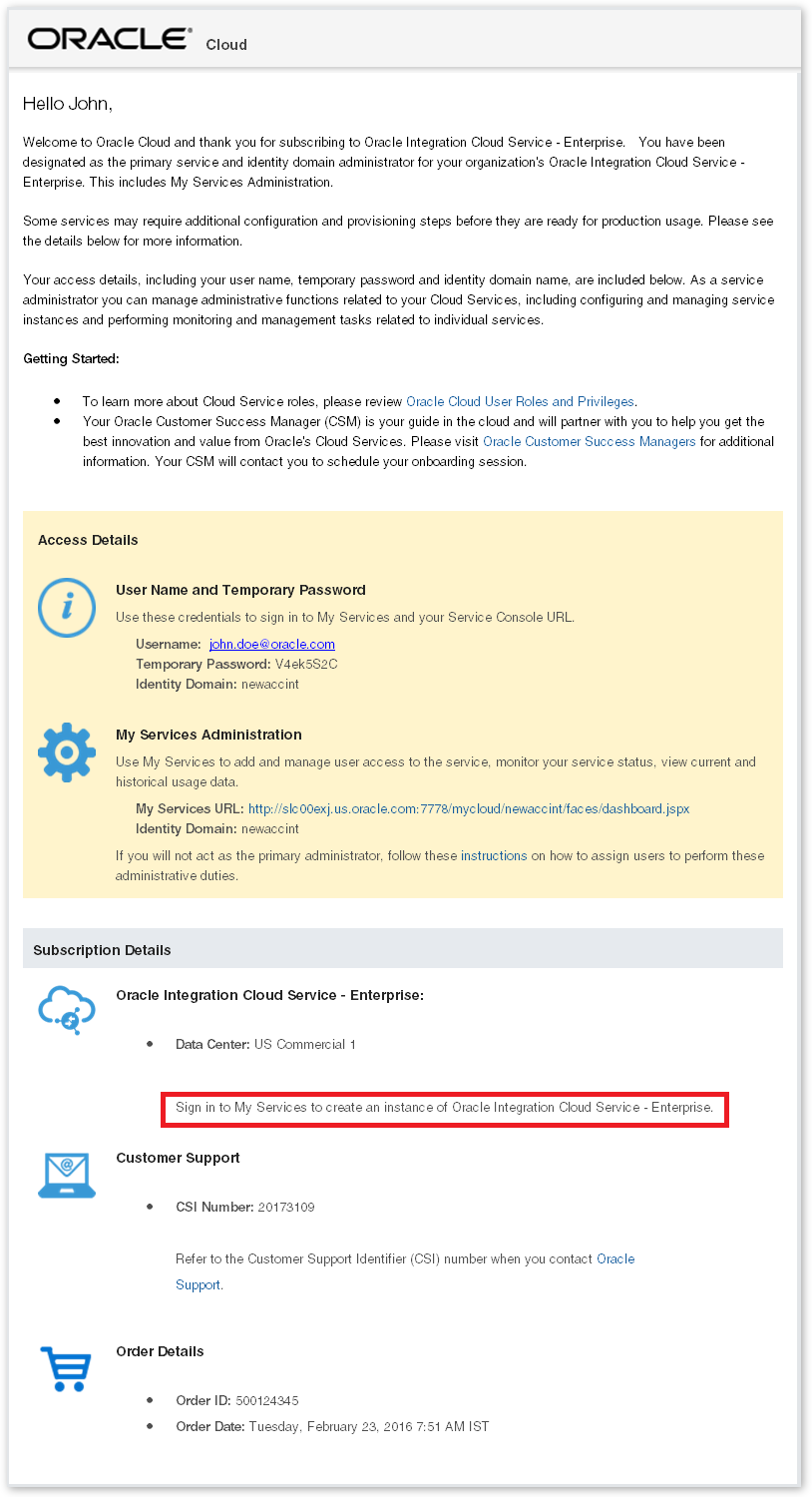
Access your service by clicking the appropriate link in the "Your Service is ready" or "Your Oracle Public Cloud Services are ready" email.
Sign in using the details provided in the email, then change your password and set your security questions when prompted.
4Set your language preferences
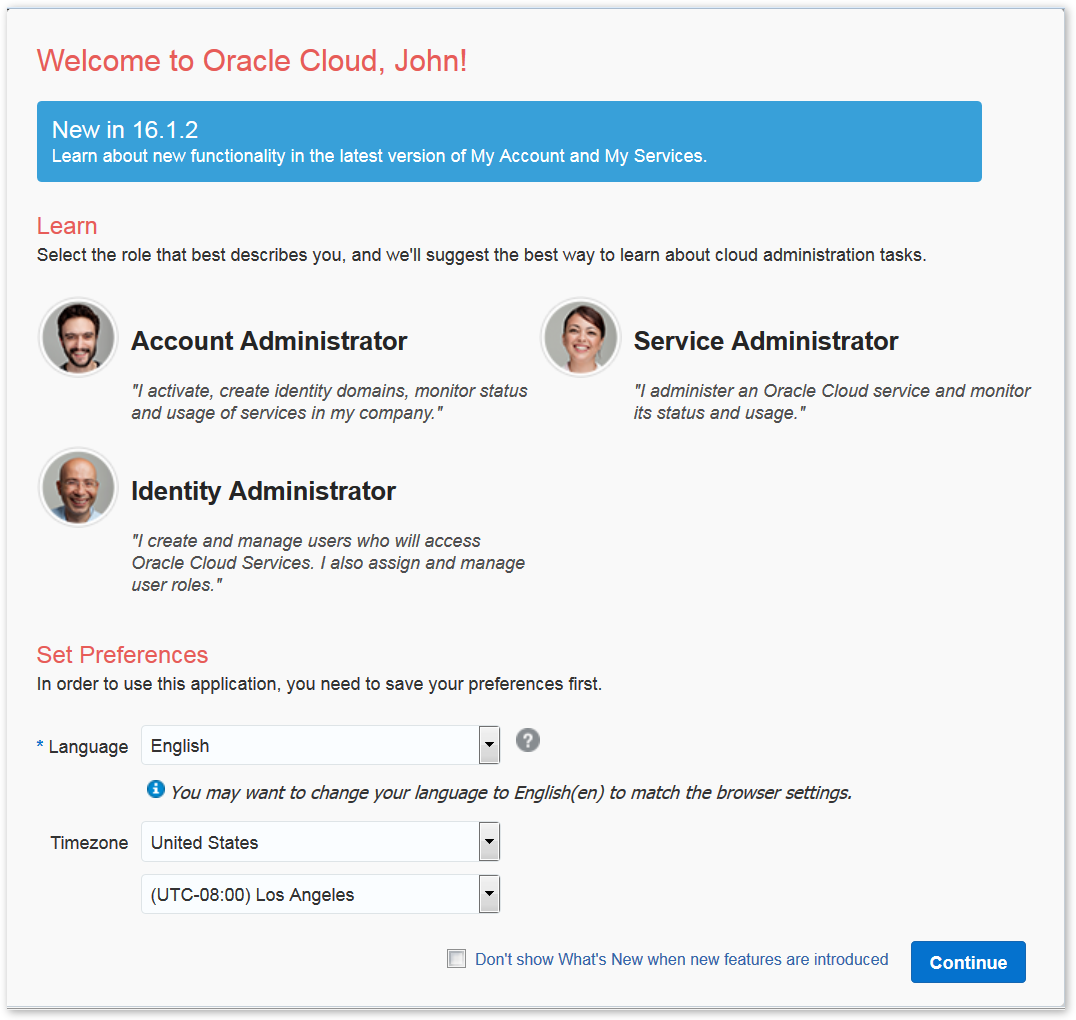
Set your language and time zone preferences when prompted.
5Add or import users and assign roles
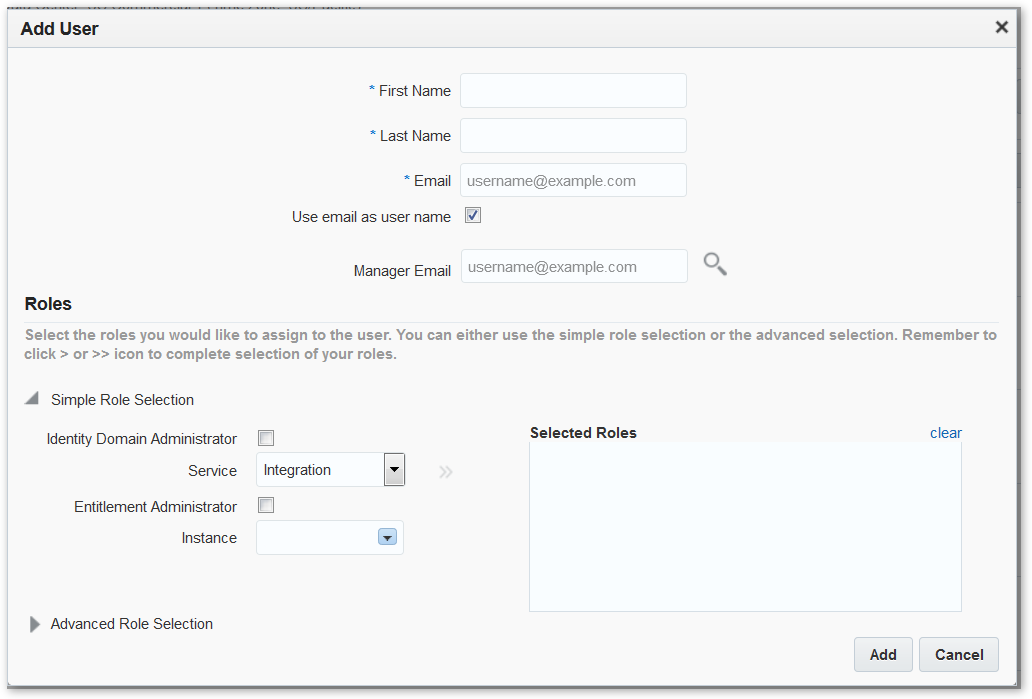
Sign in to My Services.
Click Users > Users.
Click Add to add a new user OR
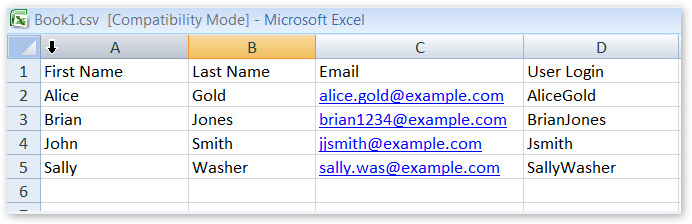
Click Import to add multiple users from a .csv file.
Assign a role to a user.
If you've purchased resources, assign the Entitlement Administrator role to a user and continue to the next step, else go to Step 8.
Set up service instances if you've purchased resources
6Create service instances
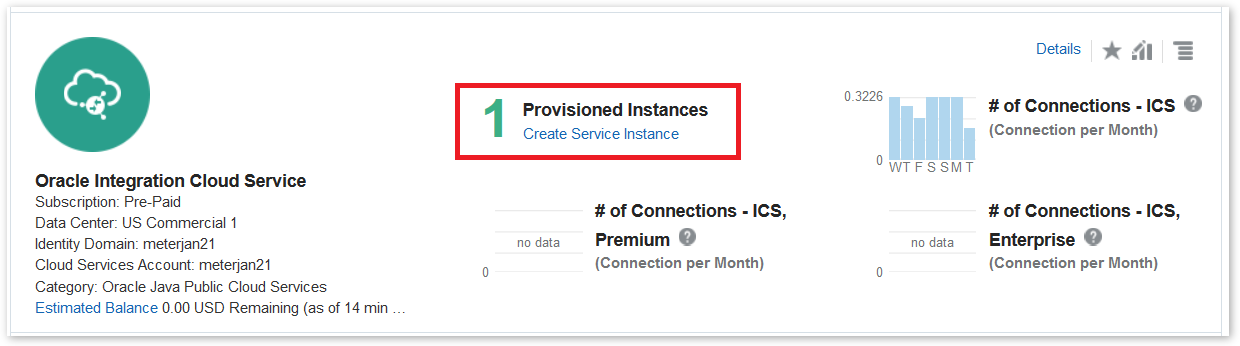
As an Entitlement Administrator, navigate to your service in the My Services dashboard.
Click Create Service Instance.
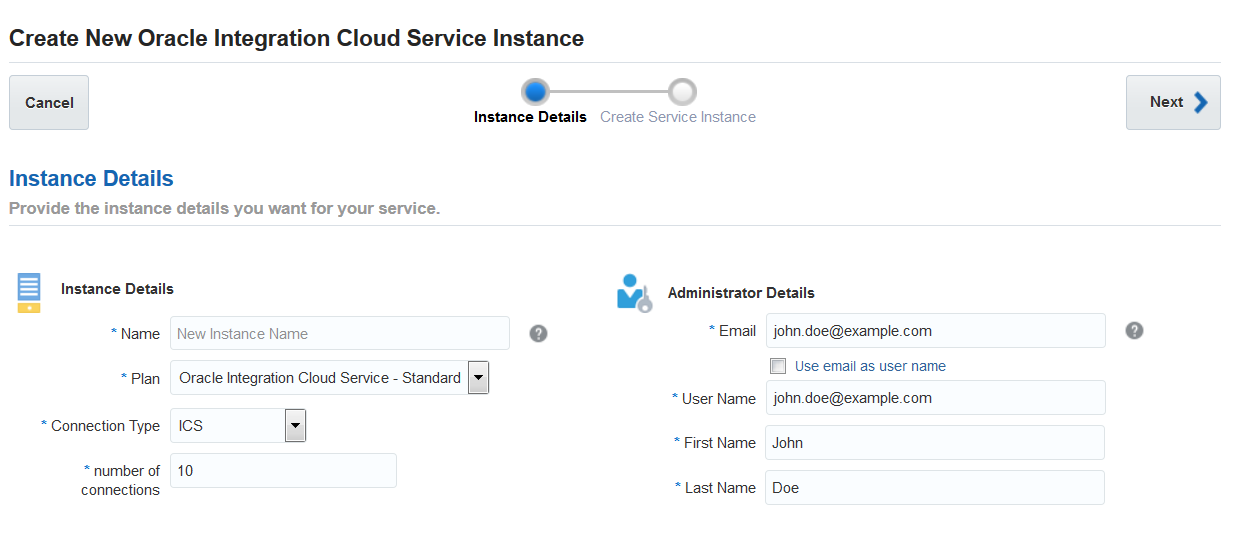
Specify a unique name and other details for your service instance. The fields displayed here depend on the service you have purchased.
The image shows an example of Oracle Integration Cloud Service.
7View service instance details
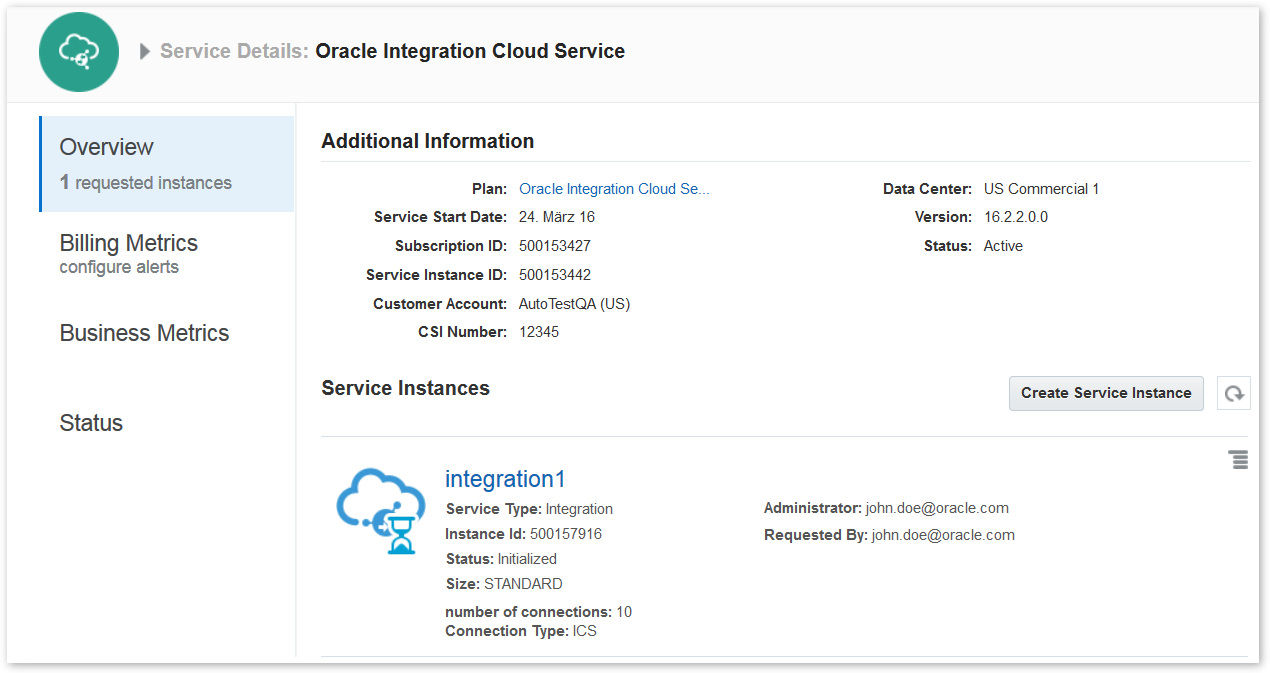
In the My Services dashboard, navigate to your service.
Click the service name to open the service details page.
Click the tiles to view details of your service. Details you can view depend on the service type.
The image shows an example of Oracle Integration Cloud Service.
View details of your service
8View details
Sign in to My Account.
In the dashboard, navigate to your service.
Click the service name to open the service details page.
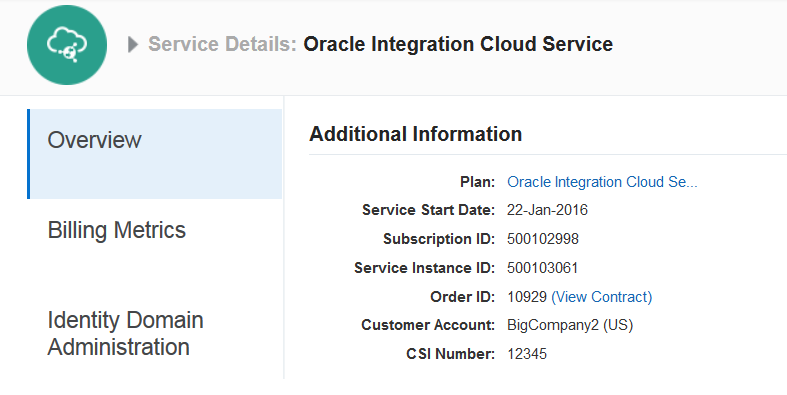
Click the tiles to view details of your service. Details you can view depend on the service type.
The image shows an example of Oracle Integration Cloud Service.
 You're done!
Find out more about the Oracle Cloud Services
- Getting Started with Oracle Cloud
- Overview of Oracle Cloud Subscriptions
- Buying a Nonmetered Oracle Cloud Service
- Creating Service Instances
See events.oracle.com and blogs.oracle.com/cloud for information about Oracle Cloud events.
Join the Community- Oracle Cloud Community: cloud.oracle.com
- Oracle Cloud forums
 Facebook
 Twitter
 YouTube
Set up your account
Set up your service
Set up service instances if you've purchased resources
View details of your service