

Prepare to Onboard the Application
Create a target system user account for connector operations
Onboard the Application using Identity Self Service

Prepare to Onboard the Application
1Download and Unzip the Connector Installation Package
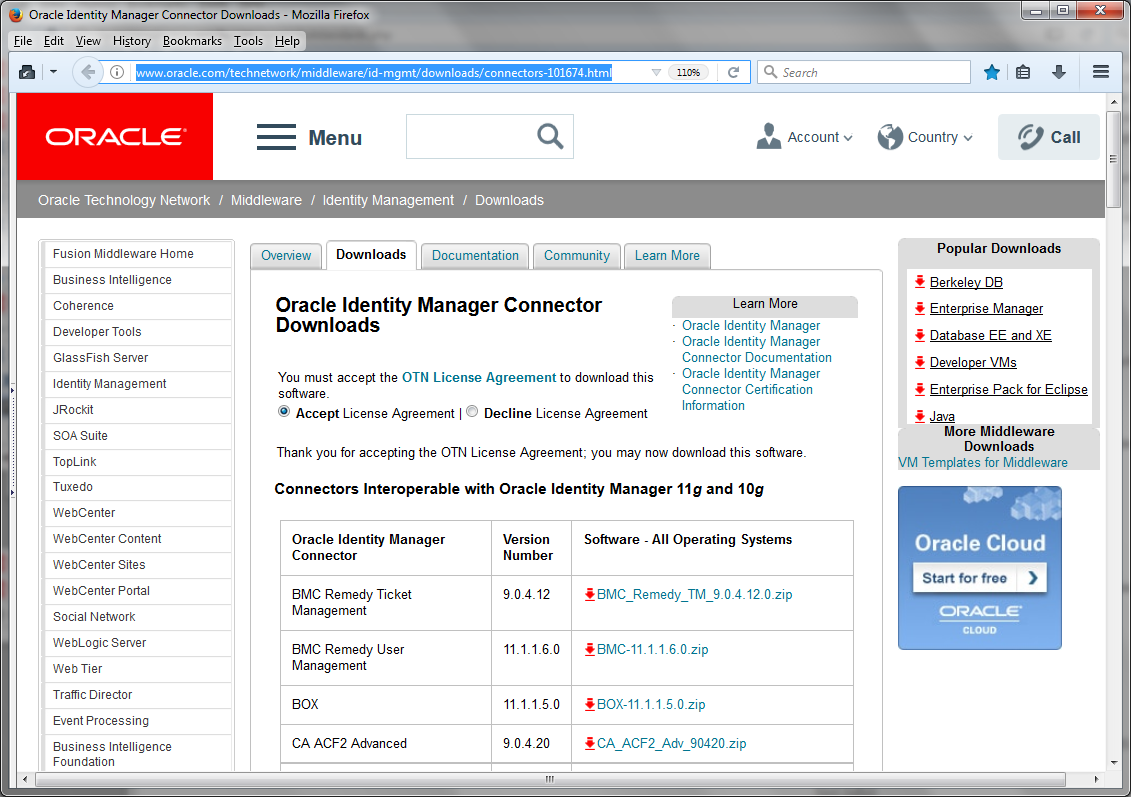

Navigate to the OTN website at http://www.oracle.com/technetwork/middleware/id-mgmt/ downloads/connectors-101674.html.
Click OTN License Agreement, and read and select the Accept License Agreement option.
You must accept the license agreement before you can download the installation package.
Download and save the installation package to any directory on the computer hosting Oracle Identity Governance.
Extract the contents of the installation package to any directory on the computer hosting Oracle Identity Governance.
This creates a directory named DBUM-RELEASE_NUMBER. For example, DBUM-12.2.1.3.0.
Copy the DBUM-RELEASE_NUMBER directory to the OIG_HOME/server/ConnectorDefaultDirectory directory.
2Copy Third-Party JAR Files
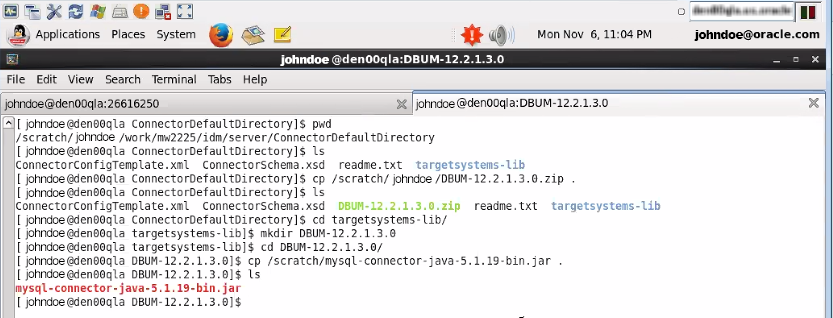
If you are using MySQL is the target system, then copy the mysql-connector-java-5.1.20-bin.jar file to the ConnectorDefaultDirectory/targetsystems-lib/DBUM-RELEASE_NUMBER. directory.
If you are using Oracle database as the target system, then there is no need to copy any JAR files.
Create a target system user account for connector operations
3If You Are Using Oracle Database as the Target System . . .

Log in to the database.
Create Login using the following query:
			    CREATE USER serviceuser IDENTIFIED BY password
				   DEFAULT TABLESPACE users
				   TEMPORARY TABLESPACE temp QUOTA UNLIMITED ON users;
Assign the following permissions and roles to the created user:
				   GRANT CONNECT TO serviceuser;
				   GRANT SELECT on dba_role_privs TO serviceuser;
				   GRANT SELECT on dba_sys_privs TO serviceuser;
				   GRANT SELECT on dba_ts_quotas TO serviceuser;
				   GRANT SELECT on dba_tablespaces TO serviceuser;
				   GRANT SELECT on dba_users TO serviceuser;
				   GRANT CREATE USER TO serviceuser;
				   GRANT ALTER ANY TABLE TO serviceuser;
				   GRANT GRANT ANY PRIVILEGE TO serviceuser;
				   GRANT GRANT ANY ROLE TO serviceuser;
				   GRANT DROP USER TO serviceuser;
				   GRANT SELECT on dba_roles TO serviceuser;
				   GRANT SELECT ON dba_profiles TO serviceuser;
				   GRANT ALTER USER TO serviceuser;
				   GRANT CREATE ANY TABLE TO serviceuser;
				   GRANT DROP ANY TABLE TO serviceuser;
				   GRANT CREATE ANY PROCEDURE TO serviceuser;
				   REVOKE DROP ANY PROCEDURE TO serviceuser;
4If You Are Using MySQL as the Target System . . .
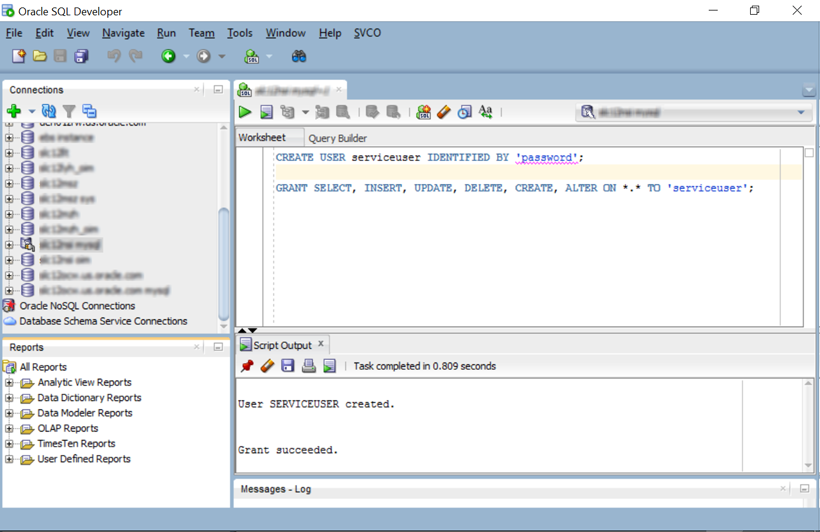
Log in to the database.
Create a user using the following query:
CREATE USER serviceuser IDENTIFIED BY 'password';
Assign the following permissions and roles to the created user using the following query:
GRANT SELECT, INSERT, UPDATE, DELETE, CREATE, ALTER ON *.* TO 'serviceuser';
Onboard the Application using Identity Self Service
5Select the Application Type
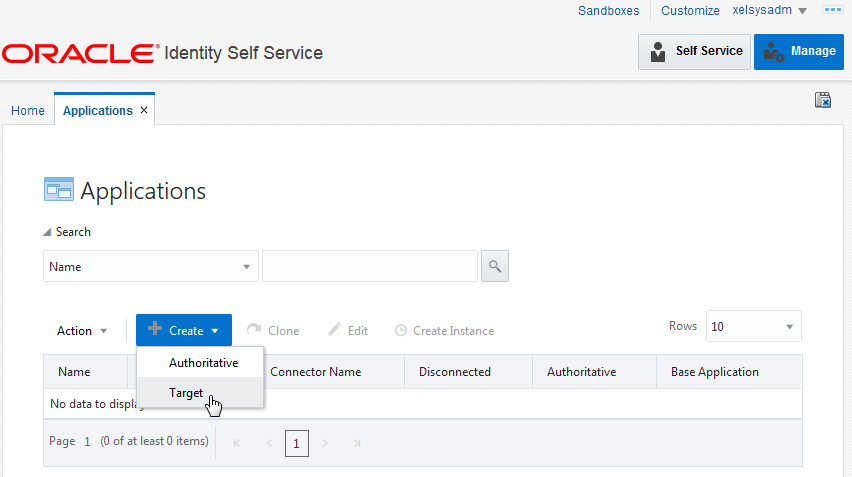
Log in to Identity Self Service either by using the System Administration account or an account with the ApplicationInstanceAdministrator admin role.
Click the Manage tab and then click the Applications box to open the Applications page.
Click Create on the toolbar, and select the type of application to create - Authoritative or Target.
6Enter Basic Information
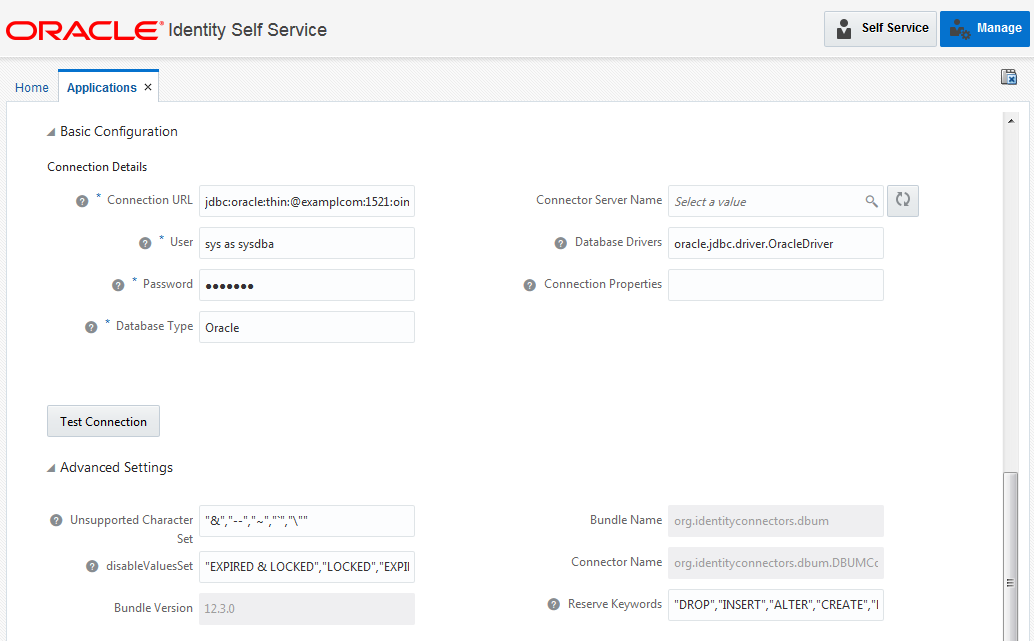
On the Basic Information page, select Connector Package.
From the Select Bundle list, select the relevant connector package bundle. For example, Oracle DB User Management Connector 12.2.1.3.0.
Enter the Application Name, Display Name, and a Description.
In the Basic Configuration section, enter the values to include connectivity-related information.
(Optional) In the Advanced Settings section, update configuration entries related to connector operations.
Click Next.
7Review the Default Schema Mapping

On the Schema page, review the default schema mapping between Oracle Identity Governance and your target system.
To add attributes to the default schema, click Add Attribute and then enter values for the Identity Attribute, Display Name, Target Attributes, and Data Type fields and the Mandatory, Provision Field, Recon Field, Key Field, and Case Insensitive properties.
To delete attributes from the default schema, click the Delete icon corresponding to the attribute.
Click Next.
8Review and Configure the Application Settings
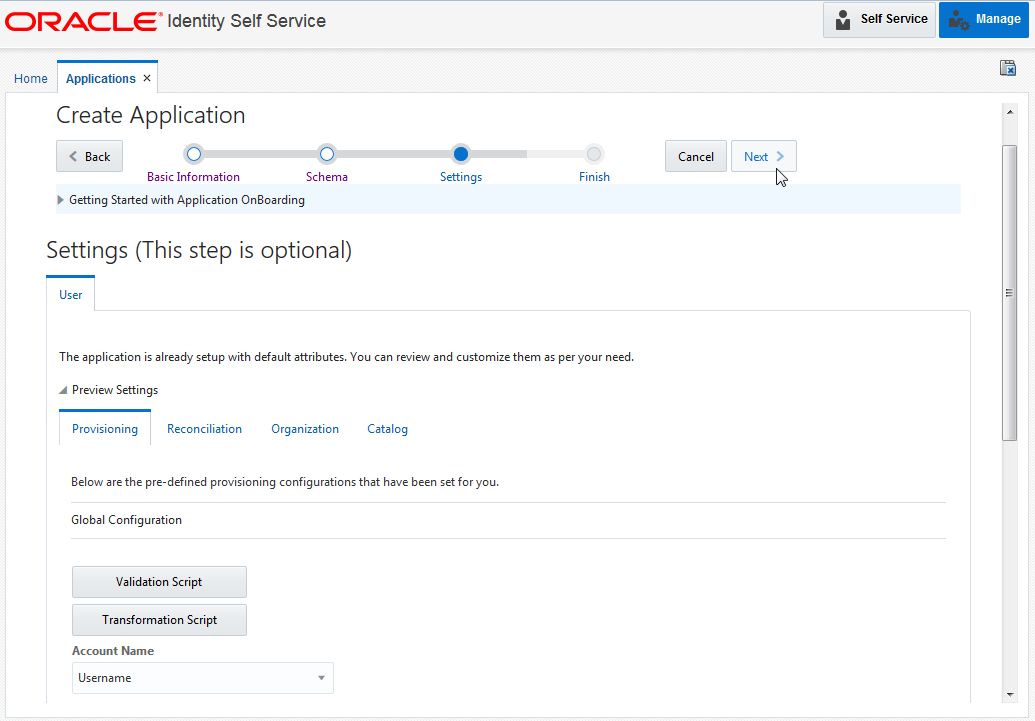
On the Settings page, expand Preview Settings to review the settings for your application.
On the Provisioning tab, review any predefined provisioning configurations such as Transformation, Validation, and Action scripts and edit them if required.
The Provisioning tab is available only if you are creating a Target application.
On the Reconciliation tab, review and edit (if required) the predefined identity correlation rules and situations and responses.
In addition, review the predefined reconciliation jobs and edit them if required.
On the Organization tab, review the default organizations to which the application must be published.
If required, click the Add or Delete icons to add or remove organizations.
On the Catalog tab, if required, configure the settings to make the application available in the request catalog.
The Catalog tab is available only if you are creating a Target application.
Click Next.
9Review and Submit Application Details
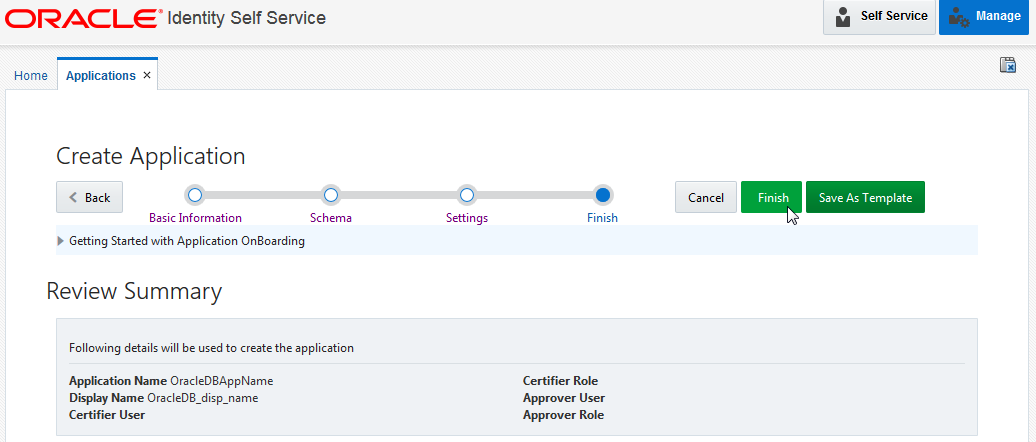
On the Review Summary page, review the details of the application being created.
If you want to save use the same settings for onboarding multiple applications, click Save As Template to save all the settings as an application template.
Click Finish.
The application is onboarded and you can search for and view it on the Applications page.
 You're done!
Find out more about Oracle Identity Governance Connectors
See: docs.oracle.com/middleware/oig-connectors-12213/index.html


