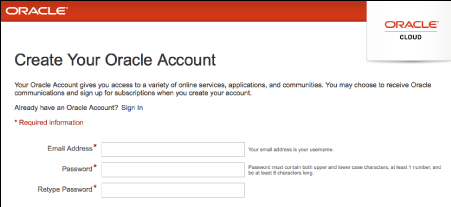

Build a Portal
Develop Portal Pages
Add Data Visualizations
Manage Membership and Security

Build a Portal
1Create a portal

Sign in to Oracle WebCenter Portal.
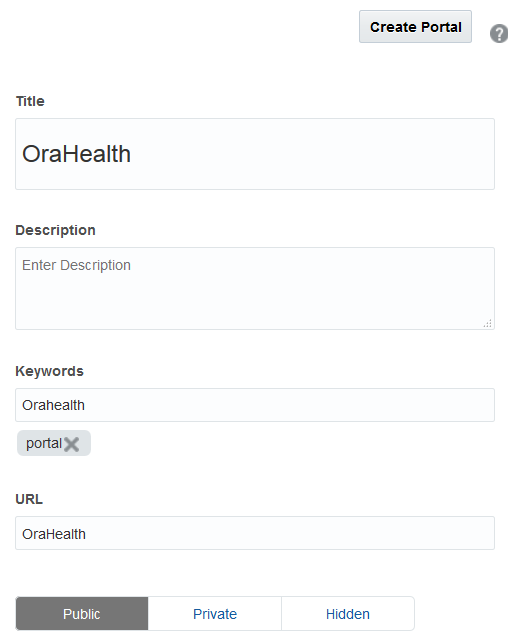
In the portal browser, click Create Portal.
Choose a template and provide portal specifications like the portal title, description, search keywords, and type of portal.
Click Create Portal.
2Create pages or subpages
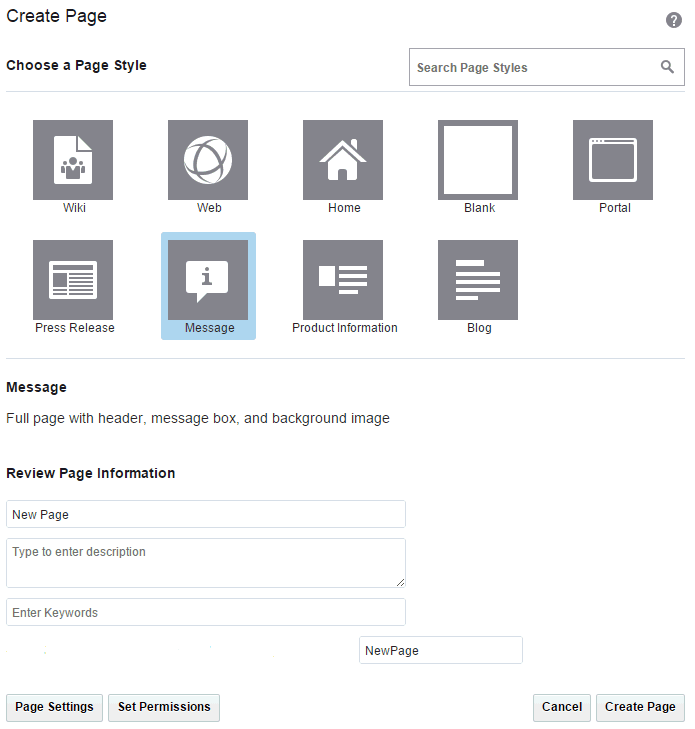
In the portal editor, click Create New Page.
Choose the page style you want to use and specify the page title and other details.
Click Create Page.
3Build portal navigation

Select an existing navigation item in the portal editor, then click its Actions icon and select Add.
Select Page link. You can select any other navigation item you want to add.
In the Pages dialog, select the page you want to add to portal navigation and save your changes.
Similarly add other navigation items and specify the properties if required.
4Customize portal look and feel
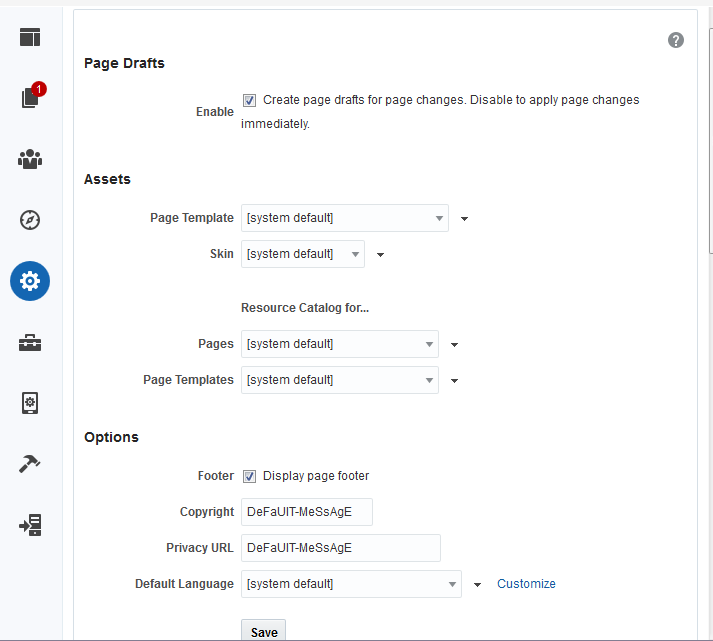
In the portal editor, click the Settings icon.
On the Settings page, modify the settings to suit your needs.
Click Save.
Develop Portal Pages
5Enable services
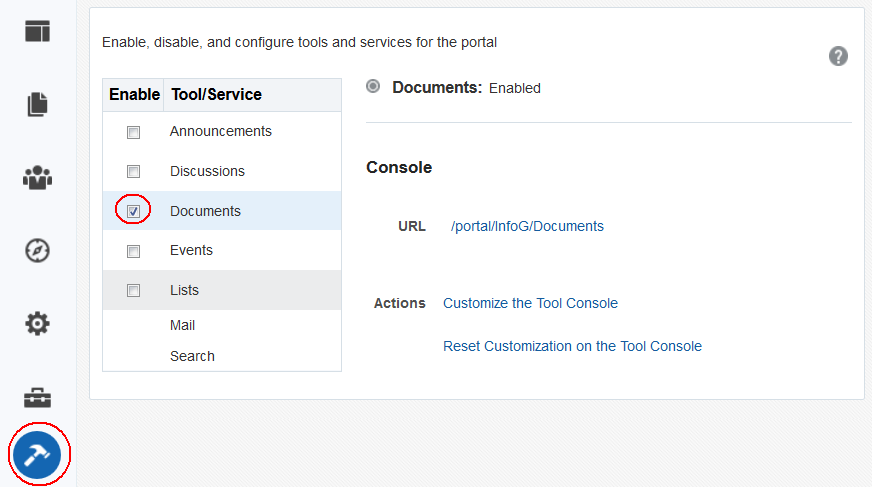
In the portal editor, click the Tools and Services icon.
Select the tools and services you want to enable in your portal, for example Documents, Events, Lists, and Discussions.
Click OK.
6 Add components to a page
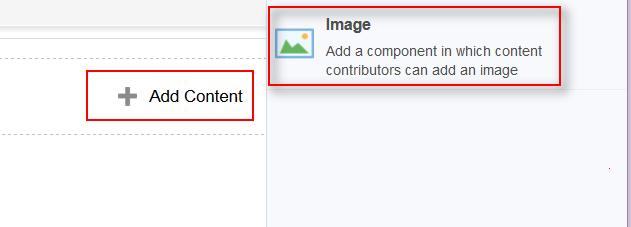
Open your portal page in the portal editor.
Click Add Content.
In the resource catalog, locate the required component and add it to the page.
7Manage portal content
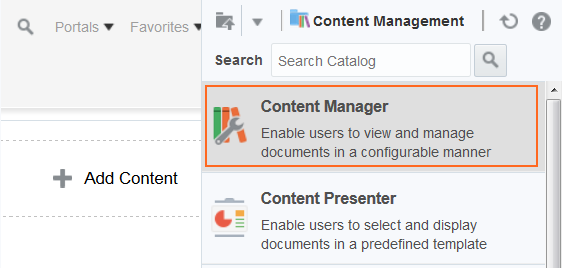
In the portal editor, open your page, and click Add Content.
Select Content Management, then click Content Manager. Save the page
In the portal view mode, click Upload and select Standard Check-In to upload a document.
Browse to locate the file you want to upload and click Upload.
8Use content presenter
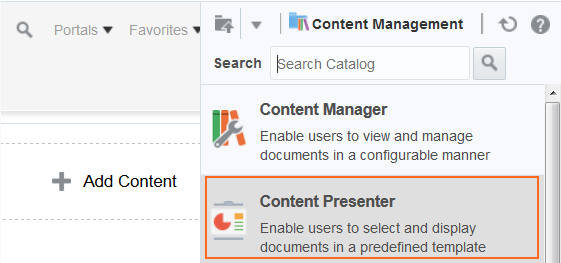
In the portal editor, click Add Content on the desired page.
Select Content Management from the resource catalog, then click Content Presenter. Save the page.
Click anywhere in the Content Presenter task flow and click Edit.
Click Select Content, select a display template, and browse to the content you want to display on your page.
9Integrate with Oracle Document Cloud Service
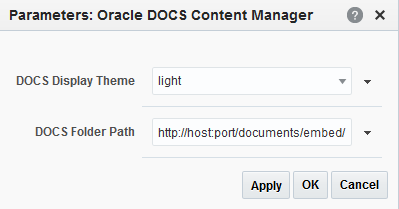
In the portal editor, click Add Content on the desired page.
Select Content Management from the resource catalog, then click Oracle DOCS Content Manager.
In the Oracle DOCS Content Manager task flow, click the View Actions icon and select Parameters.
In the Parameters dialog, specify the Oracle Document Cloud Service URL and select the required theme for the page. Save the page.
10Publish pages
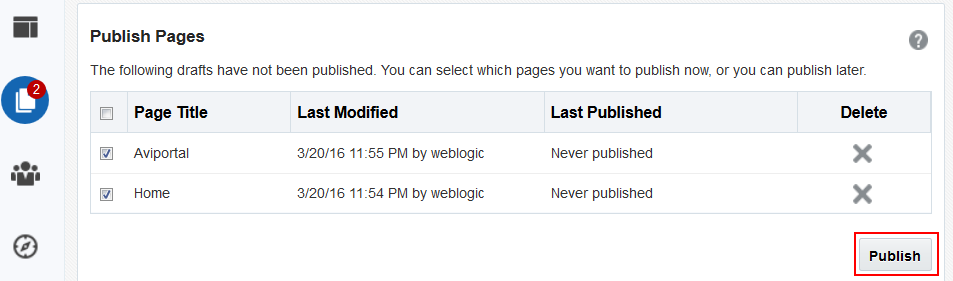
In the portal editor, click the Drafts icon.
Select the pages you want to publish.
Click Publish.
Add Data Visualizations
11Create a data source

In the portal editor, click the Assets icon.
In the left panel, under Data Sources, click SQL Data Sources, then click Create.
In the Create New SQL Data Source dialog, specify the page title and configuration details. Specify the SQL statement to query the SQL data source. For example. SELECT * FROM Persons WHERE City LIKE 'sa%'.
Click Test to validate and click Save.
12Add the default data visualization
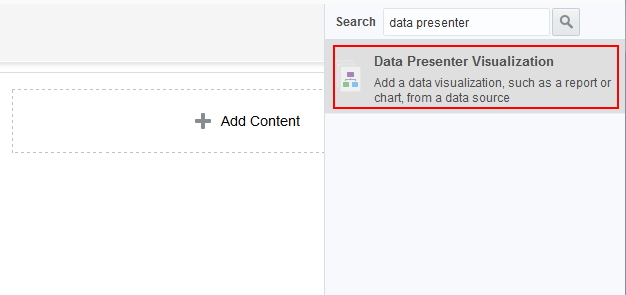
In the portal editor, click Add Content.
From the resource catalog, select Data Presenter Visualization.
Save the page.
13Configure a data visualization
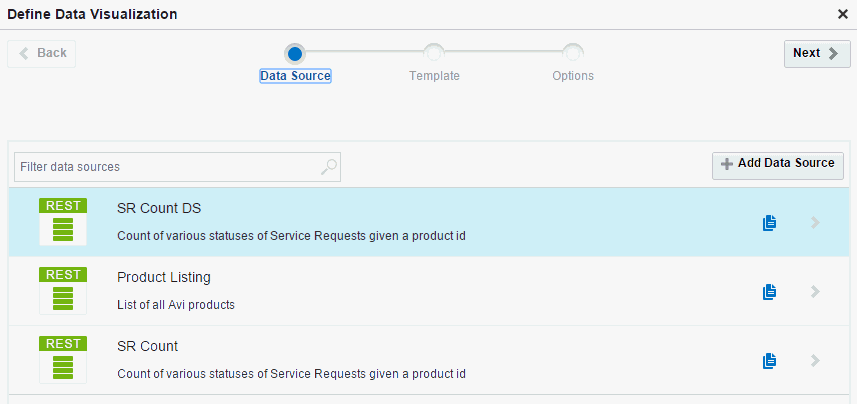
In the page editor, select the data visualization component and click Configure.
On the Data Source page, select the existing data source and click Next.
On the Template page, select a visualization template to present the data retrieved from the data source and click Next.
On the Options page, set the elements on the Setting tab and define the parameters on the Parameters tab. Click Save.
Manage Membership and Security
14Add members
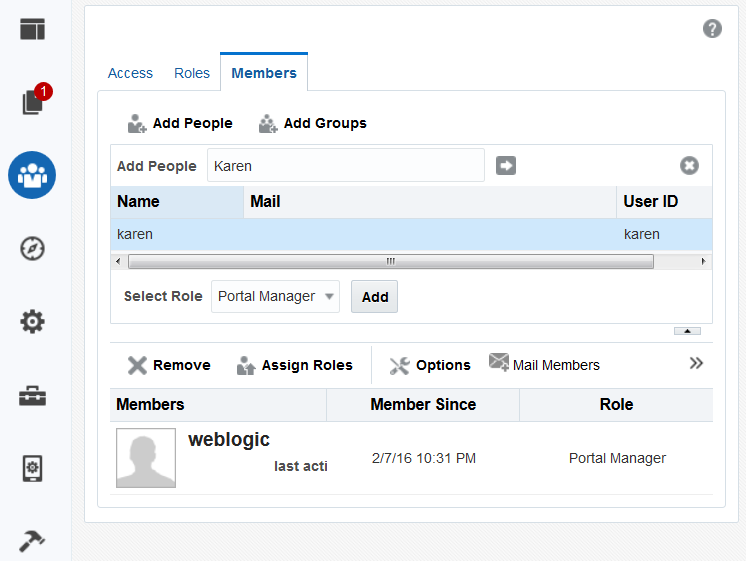
In the portal editor, click the Security icon.
On the Members tab, click Add People or Add Groups.
Search and select the members you want to add.
Select a role and click Add.
15Create a custom role
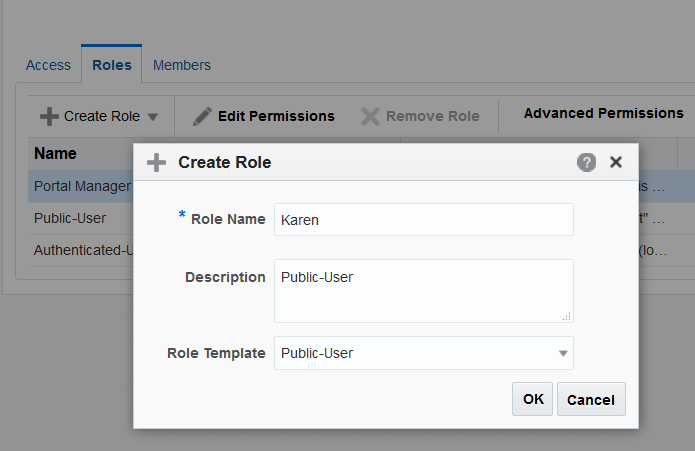
On the Roles tab, click Create Role and select Custom Role.
Provide role specifications such as, the role name, description, and role template.
Click OK.
16Edit permissions for a role
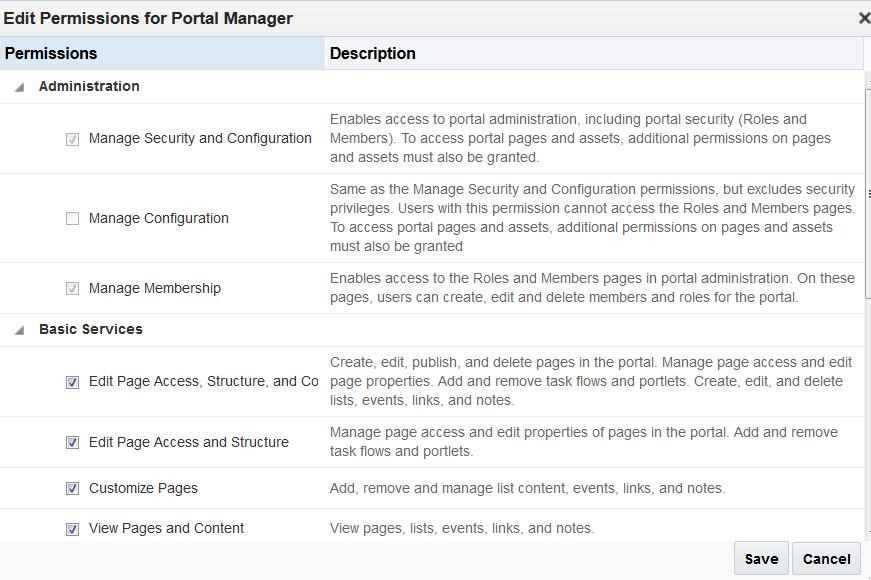
On the Roles tab, select a role and click Edit Permissions.
Select the permissions you want to assign to the role.
Click Save.
17Customize page permissions
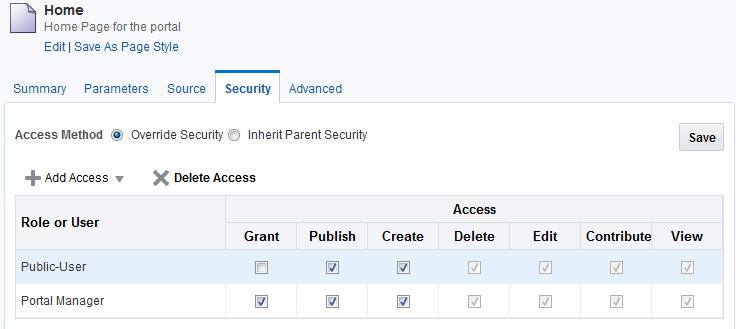
Open your portal page in the portal editor, then click its Actions icon and select Page Information.
On the Security tab, select Override Security.
Modify the access permissions as required.
Click Save.
 You're
done!
You're
done!
Find out more about Oracle WebCenter Portal
See events.oracle.com and blogs.oracle.com/ for information about Oracle WebCenter events.
Join the Community- Oracle WebCenter Community: oracle.com
- Oracle WebCenter Portal forum
Follow Oracle WebCenter on
 Facebook
 Twitter
 YouTube