Before You Begin
Purpose
This Oracle By Example (OBE) shows you how to
create and subscribe to a simple notification that
reminds employees every Monday to complete their
time entry for the previous week.
Time to Complete
20 minutes
Background
This OBE employs the following scenario to show you how to create a simple notification: You need to create a notification that reminds your employees to enter their work hours every Monday morning. This notification must contain a shortcut to the Time Entry Self Service Director (P051125) application to enable employees to immediately enter their time. To create this notification, perform the following tasks:
- Create a simple notification to remind employees about time entry
- Create a weekly schedule and add it to your time entry notification
- Subscribe to the notification in Subscription Manager in EnterpriseOne
- Test the Weekly Time Entry Reminder notification
What Do You Need?
- Orchestrator Studio 6.0.1 or higher deployed in
a JD Edwards EnterpriseOne environment with a
minimum of EnterpriseOne Tools 9.2.2.
-OR- - The latest JD Edwards EnterpriseOne Trial
Edition.
Creating a Simple Notification to Remind Employees about Time Entry
-
Sign in to the Orchestrator Studio.
-
On the Orchestrator Studio Home page, click the Notifications icon.
-
On the Notifications page, click New Notification.
-
On the Notification page, complete the following fields:
- Notification
=
Weekly Time Entry Reminder - Enter
Short Description =
 Reminder
                                    to do time entry every Monday morning
- Notification
=
-
Click the Product Code drop-down list and select 55 for a customer product code.
-
Click the Type drop-down list and select Simple as the notification type.
-
Leave the option to Run As Subscriber off. This notification only needs to be run once for all subscribers since it is a simple message.
-
Open the Message section and complete the following fields:
Subject =Reminder: Time Entry Due Today
Message Body (space below Subject) =Please remember to complete your time entry for last week since it is due today. -
Open the JD Edwards EnterpriseOne Shortcut section and complete the following fields:
Application =P051125
Form =W051125C
Version =ZJDE0001 -
Click Load. Starting with Orchestrator Studio 6.1.0, this button was removed as it is no longer necessary to "load" the shortcut.
Your notification should look like this: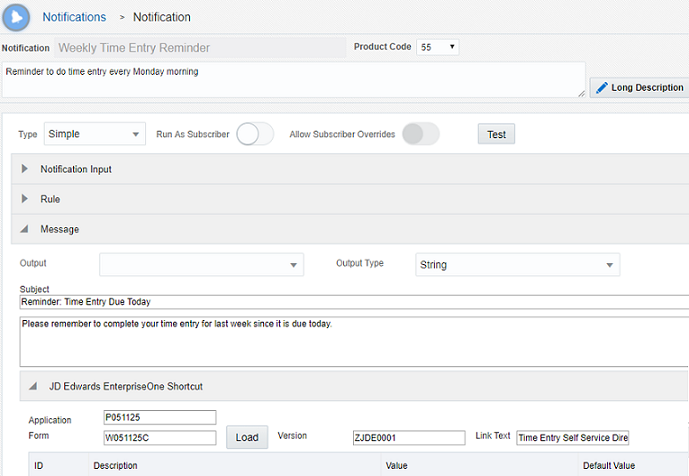
Notifications -
Click Save
 .
.
Creating a Weekly Schedule and Adding It to Your Time Entry Notification
- While still in your newly created notification, open the Schedule section.
- Click New Schedule.
- On the Schedules page, complete the following fields:
- Schedules =
Every Monday at 9 am - Enter Short Description =
Runs every Monday morning at 9 am - Click the Product Code drop-down list and select 55 for a customer product code.
-
In order to run every Monday at 9:00 am, enter the following value in the Or Enter a Cron String field:
0 0 9 ? *
                                  MON *
Note: You can use any third-party Cron string generator to create your Cron string and then paste it into this field.
-
Click Save
.
Attaching this schedule to your notification establishes that it runs weekly on Mondays. However, your notification does not actually run on this schedule until your scheduler administrator starts this job for processing. See the link in the “Want to Learn More?” section below for more information. -
Click Close
 to return to the Notification page and your
“Weekly Time Entry Reminder” notification.
to return to the Notification page and your
“Weekly Time Entry Reminder” notification. -
Open the Schedule section, and select "Every Monday at 9 am" from the drop-down list.
-
Click Save to save your notification with the new schedule.
Subscribing to the Notification in Subscription Manager on the EnterpriseOne Client
-
In the upper right corner of the Notifications page, click Tools.
-
On the Tools page, click the Oracle JD Edwards EnterpriseOne icon.
-
Sign in to JD Edwards EnterpriseOne as the same user. Since you are using a personal notification, you must sign in as the same user for the notification to be available to you.
-
Click your User ID in the upper right corner to access the Personalization menu and select My Subscriptions.
-
In the upper left corner of Subscription Manager, click
 Add
Subscription.
Add
Subscription. -
From the list of available notifications, select "Weekly Time Entry Reminder."
In the Configuration Settings section, accept the default value for Subscription Name. Note that you can change this value if you plan to have more than one subscription to the same notification. -
For Delivery Methods, select Notification List and Email.
-
Enter your email address or SMS for text message (i.e. 1231231234@tmomail.net) where you would like to receive the notification. You can enter multiple email addresses separated by semicolons.
-
In the Policy section, ensure that Notify Me is set to Always.
-
Click Save
.
Your subscription should look like this: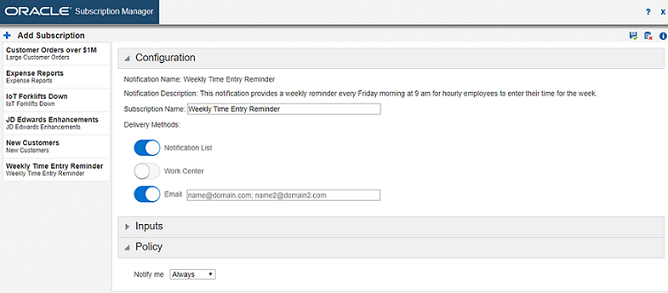
Subscription
Testing the Weekly Time Entry Reminder Notification
To test the Weekly Time Entry Reminder Notification:
-
In Orchestrator Studio, select the Notifications icon. Then select your Weekly Time Entry Reminder notification from the list of notifications on the left.
-
Click Edit Notification.
-
Click Test.
-
Turn on the option to Dispatch Notifications.
-
Click Execute.
You should see a message, indicating that the notification was sent successfully, like this:
{
"success": true
}
To verify that the notification was delivered:- Access your email and look for the notification message with the subject, “Reminder: Time Entry Due Today.”
- In EnterpriseOne, click the
Notifications List icon
 on the
EnterpriseOne menu toolbar to see if you have
received the notification message.
on the
EnterpriseOne menu toolbar to see if you have
received the notification message. - Click the message name, “Reminder: Time Entry Due Today,” in the list to see the detailed message and then click the shortcut displayed in the message. This shortcut takes you to the time entry application.
- If you have pop-ups enabled for your browser, you also receive a pop-up notification message. The first time you send a notification, you need to allow the pop-ups. Although this may vary by browser, here is an example:
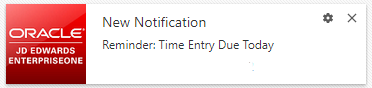
New Notification
NOTE: In this OBE, we left the notification as a personal user-defined object (UDO). This works for testing as long as the user ID that creates the notification is the same as the user ID that subscribes to the notification. When you are ready to share your notification with other subscribers, use the Request to Publish button on the Orchestrator Studio menu bar to submit it for approval to publish. When your UDO administrator approves it, other users may subscribe to it.
Next OBE
The next OBE in this series, “Creating and Subscribing to a Notification Based on the G Batches in Error Watchlist,” does not build on this OBE, but shows you how to create a notification that is built on a Watchlist.