Before You Begin
Purpose
This OBE shows how to create a new report, add and
configure lists, and work with chart properties in
BI Publisher Layout Editor.
Time to Complete
35 Minutes
Background
BI Publisher Layout Editor provides several options
to create graphical reports. The various components
empower you to personalize reports that display JD
Edwards EnterpriseOne data in a way that is
intuitive and improves day to day decisions.
What Do You Need?
EnterpriseOne and BI Publisher Enterprise Edition
11g or later installed and running, and the Database
with the sample data available.
Creating New Report
- Open One View Customer Ledger Inquiry (P03B2022) from Fast Path or by navigating through the following menus: EnterpriseOne Menus, Financials, Accounts Receivable, Daily Processing, Accounts Receivable Inquiries.
- To
create a new report, from the
 , select Add
Reports.
, select Add
Reports.
The right hand panel and Report Definition tab appears.
Note: You can access the One View button through Data Browser.
When creating a new report, besides selecting columns from the application to be added to the definition, you can Select Naming Convention for Data Model and Set Default Row Set to Run Report.
- Select Naming Convention for Data Model: This option determines the name of the fields that are displayed in BI Publisher Layout Editor.
- Use Column Title: This option will use the column description as they are displayed in the application. This option should be used for reports that will not be translated into multiple languages. It may be helpful to use Column titles because what the user sees in BIP will be exactly what they see in the interactive application.
- Use Data Dictionary Item Name: This option
should be used if your report will be
translated into other languages. This option
will use the column titles from the data
dictionary. So Company Name would appear in
Layout Editor as Description. By using the
Data Dictionary titles the fields in Layout
Editor will be the same for all languages and
allow the report to be shared across
languages.
- Select
Default Row Set to Run Report and use the
default value.
- Any
field from the grid can be added to the Report
Definition. To add a field, simply click
 associated with the column. For this report,
select the following columns:
associated with the column. For this report,
select the following columns:
- Customer Number
- Customer Name
- Gross Amount
- Open Amount
- CO
- Company Name
- Document Number
- Document Ty
- Document Type Description
- Pay Itm
- Discount Available
- A/R Cd9
- A/R Reporting Code 9
- A/R Reporting Code 10
- To save the Report Definition click
 , and enter a report name.
 - When
BI Publisher opens, there are different options
for layout. Select Header and Footer
(Landscape).
You will be prompted to define the number of rows and columns for the grid.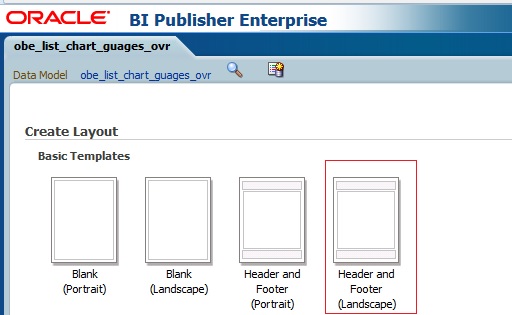
Create Layout View
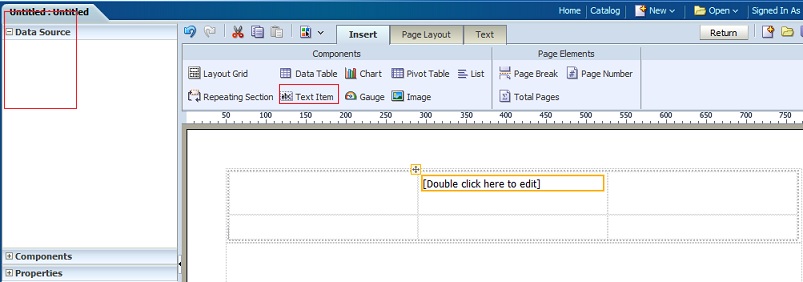
Layout Editor opens with a blank page with a header
and footer. Unlike creating a new report from a One
View Application, there are no fields in the Data
Source since there is no sample data. - To add a Grid Layout to the header, set focus on
the header and select Layout Grid from the Insert
Tab by dragging it into the header area.
This is a key component to creating a new report without a template because the Layout Grid creates regions on the report to insert other components such as Data Tables, Charts, Images, and other BIP components. The Layout Grid simplifies the process of aligning the various components and spacing.
You will be prompted to define the number of rows and columns for the grid.
- For
the Layout Grid in the header select 2 Rows and
3 Columns. Then click OK.
The Grid Layout will appear in the Header. - To resize the top row to be larger and the second row smaller, set focus in the middle cell in the top row and drag the blue line down.
- To insert a Report Title, drag Text Item into the middle cell of the top row.
- Double
click on the Text Item to enter text and format
the text. For the Report title type One View
Workshop.
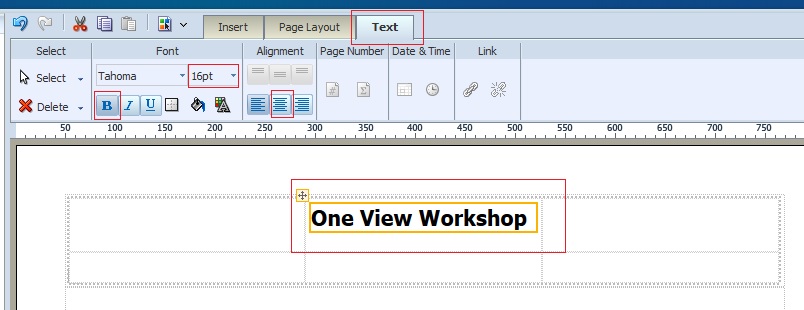
Entering Title Text Option - To format the text, change the font size to 16, Bold and center using the Text tab.
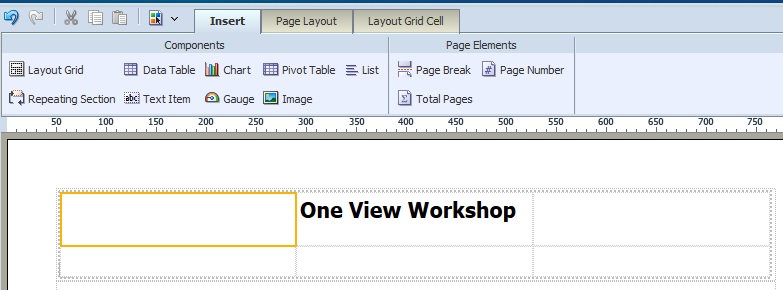
- To
add an image, set focus on the left cell on the
top row.
Adding Image Option - From
the Insert tab, drag and drop Image into the
cell.
Cell For Image - A dialog box will open to select the location of the image. Click the Browse button and search for a logo or image that you would like to use.
- Select an image to import and click Open, and then click Insert.
- Drag
Layout Grid into the body by page.
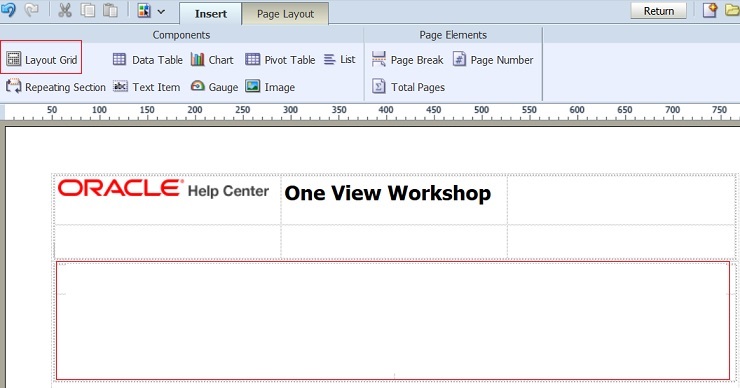
Inserting Grid on Body Page Option - Enter
6 Rows and 2 Columns.
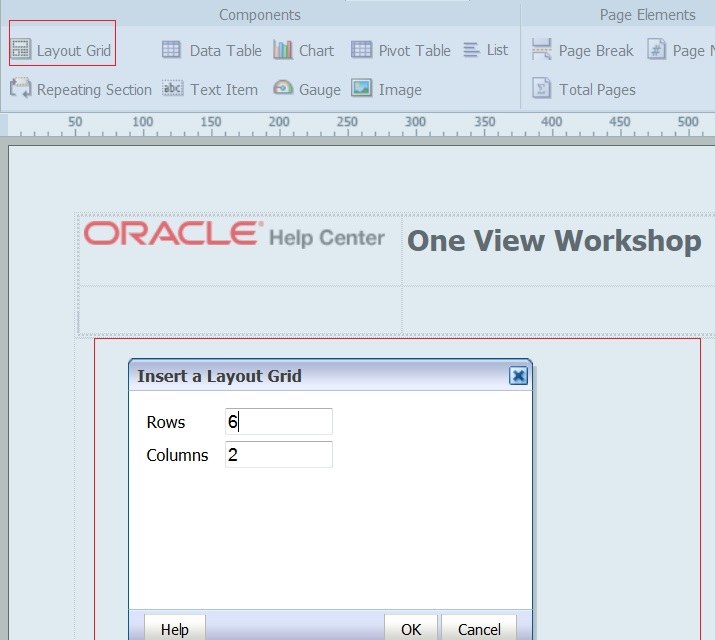
Entering Rows and Columns Option
Adding and Configuring Lists and Gauges
- Select all the cells in the left column and Join
Selected Cells.
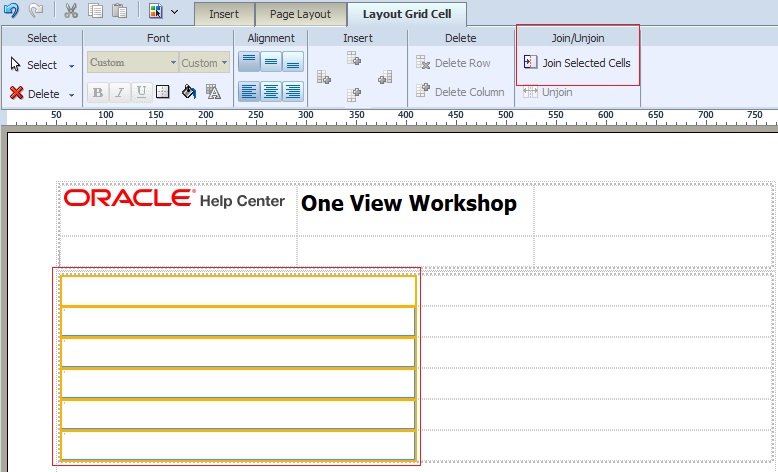
Selecting Cells View -
Resize the Layout Grid so that the left column is smaller than the right column.

Resizing Layout Grid View - Set the focus in the left column and insert a List component.
- Next, assign a data field to the list. Drag
Customer Name into the new list.
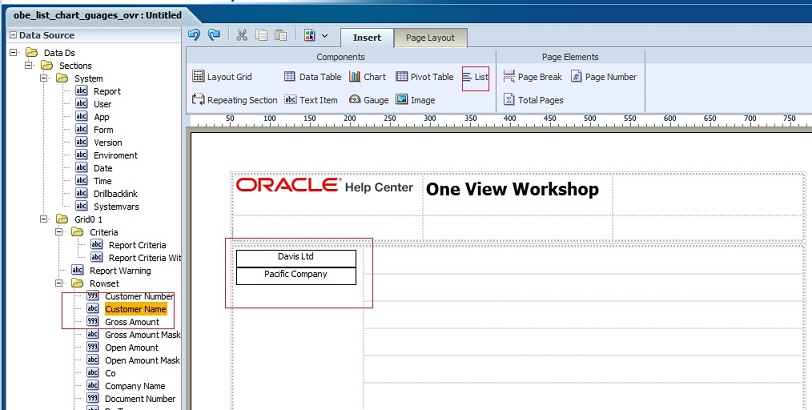
Assigning Data Field View - This will display the customer names down the left side of the report.
- Set
focus in the second row of the right column.
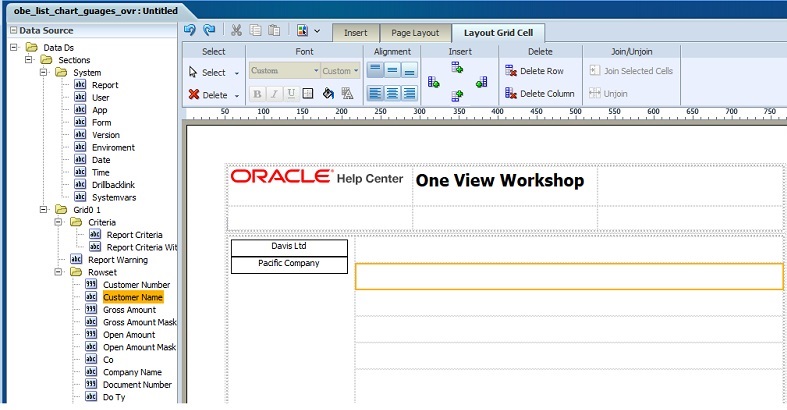
Set Focus View - Add
a Gauge to this cell.
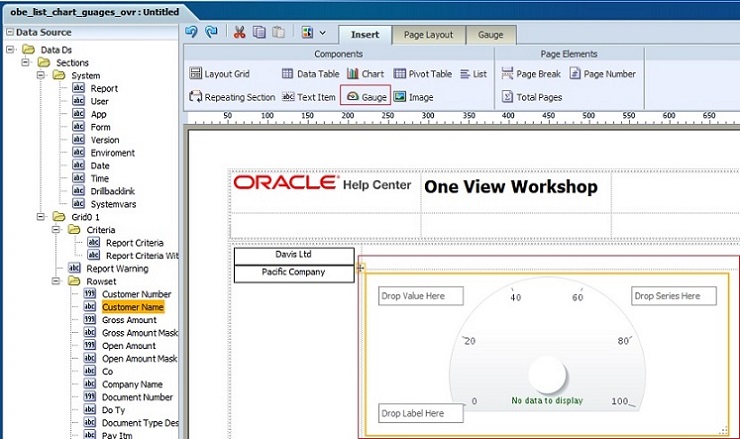
Cell with Gauge View - To
assign properties to the gauge, select
Properties from the left hand panel.
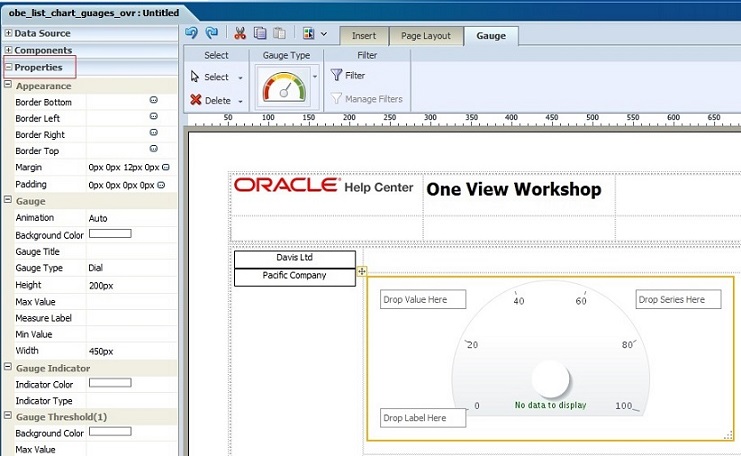
Assigning Properties to Gauge Option - Assign
values and colors for the gauge and thresholds
as shown:
Gauge Threshold 1 Threshold 2 Threshold 3 Max Value:10,000,000 Max Value: 500,000 Max Value: 2,000,000 Max Value: 10,000,000 Min Value: 0 Background Color: Green Background Color: Yellow Background Color: Red
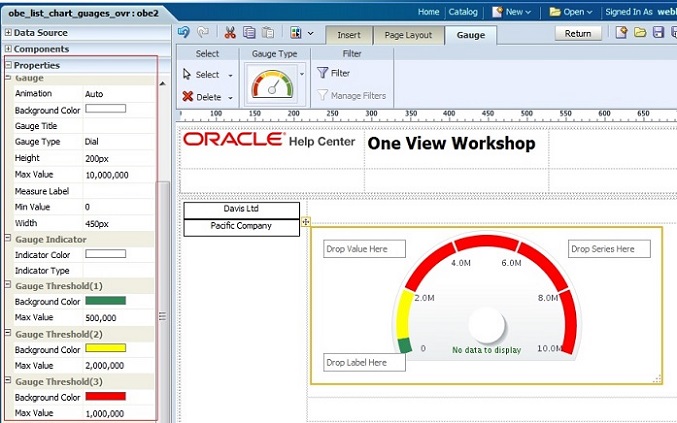
Gauge View with Assigned Values and Colors - Resize the gauge to fit the cell.
- Drag
Customer Name to the lower label and Open Amount
to the upper value.
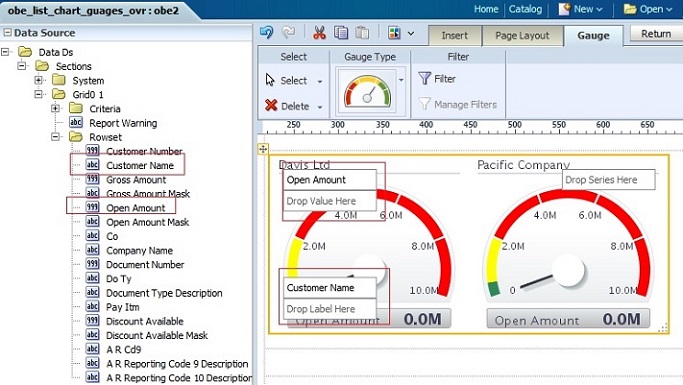
Labeling Gauge View -
Save the report by clicking . Give the report the same name as
the report definition.
- To
close Layout Editor, close the window.
Note: Do not sign out. This will require you to sign out of EnterpriseOne and sign back in. - Go back to One View Customer Ledger Inquiry.
- Change
the query to All Records and enter 00001 in for
Company
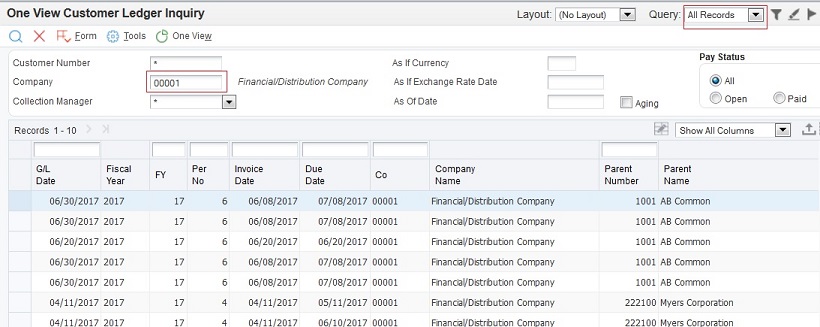
Search Options in Customer Ledger Inquiry - Click
, the
new report appears. Select the new report name
to run the report.
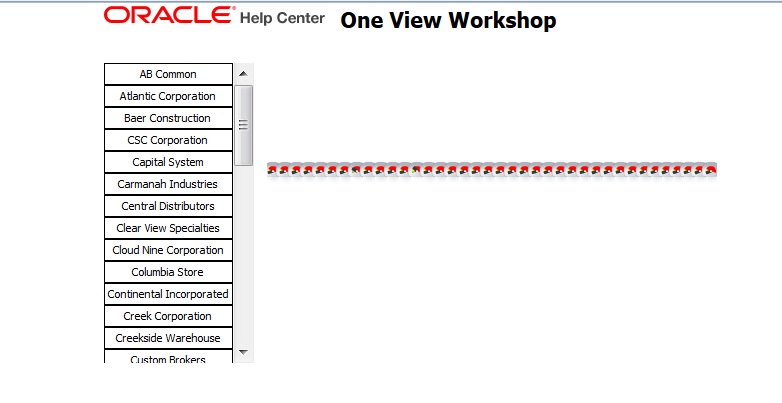
Report List View Notice that the list on the left is interactive and provides a quick view of customers. However, at this point, the gauges are not very useful. There are a couple of ways to resolve this issue. One is to use the Enhanced Query to select a smaller list of customers. Another option is to filter within the report. For this lab, the report will be modified to filter the data. - Close the report.
- Click ,
Manage Reports, select your report, and
 .
. - Within Layout Editor, select Edit.
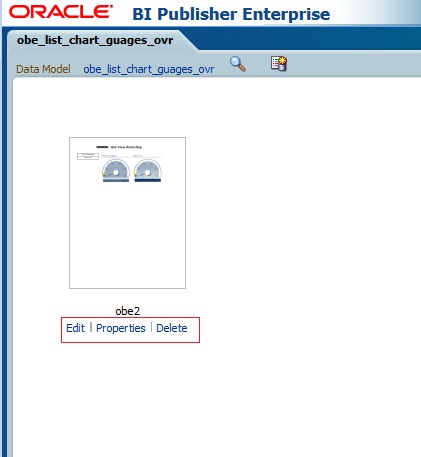
Editing Tab View - Set focus on the gauge and select Filter.
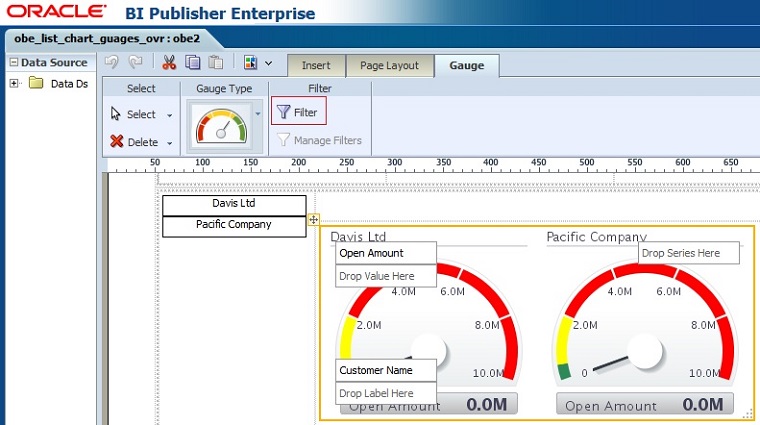
Selecting Filter Option - For the Data Field select Open Amount.
- For Operator select Is In Top, and enter 5 for the Value.
- Click OK.
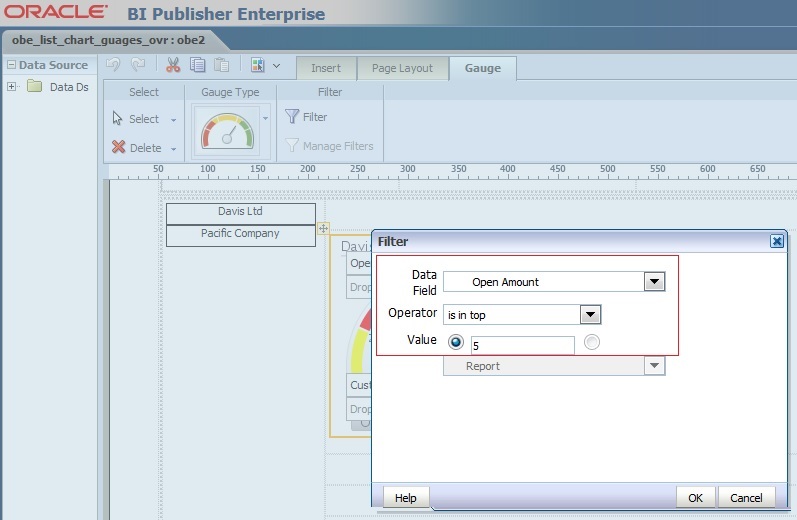
Filter Dialog Box View - Save the report by clicking .
- To close Layout Editor, close the window.
Note: Do not sign out. This will require you to sign out of EnterpriseOne and sign back in. - In the One View Customer Ledger Inquiry,
click ,
and select the report name to run it.
- Notice that the gauges are limited to only five.
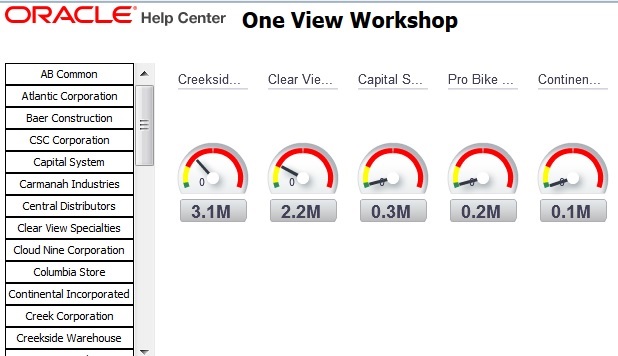
Filtered Number of Gauges View - Close the report.
Working with Chart Properties
- Click ,
Manage Reports, select your report, and .
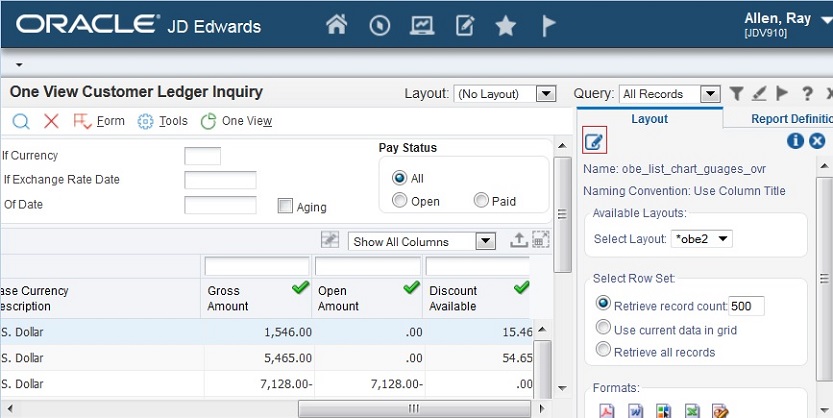
Edit Layout Option - Within Layout Editor, select Edit.
- Set focus in the third row in the Layout Grid.
- Insert a Chart.
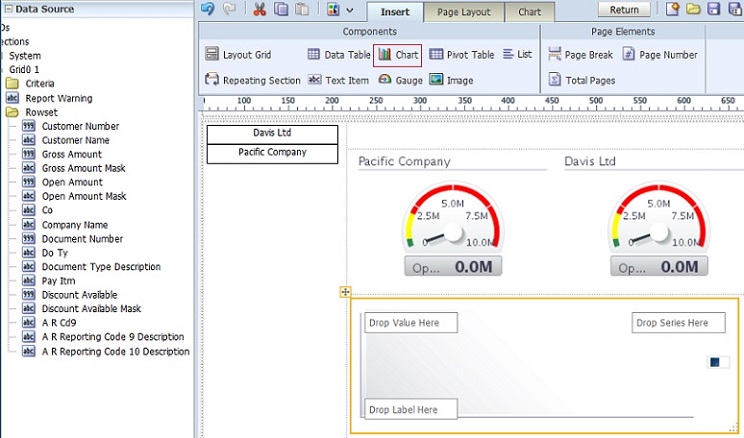
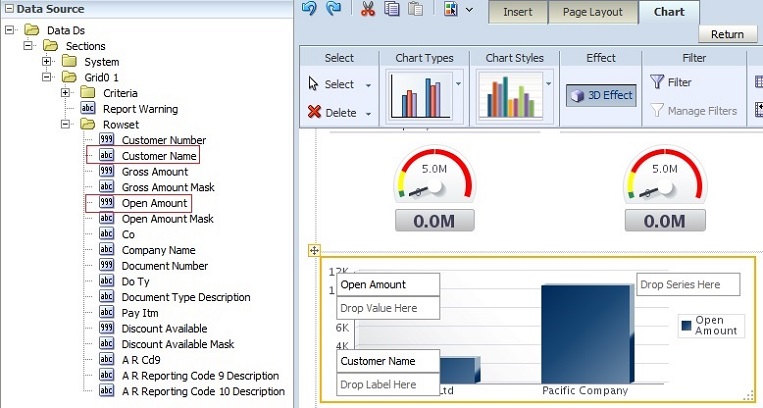
Inserting Chart Option - Drag Open Amount to the Y axis and Customer Name
to X axis.
Entering Values to Plot Graph Option - Select Properties for the Chart.
- Click on Chart Label and enter Open Amounts in Title Text.
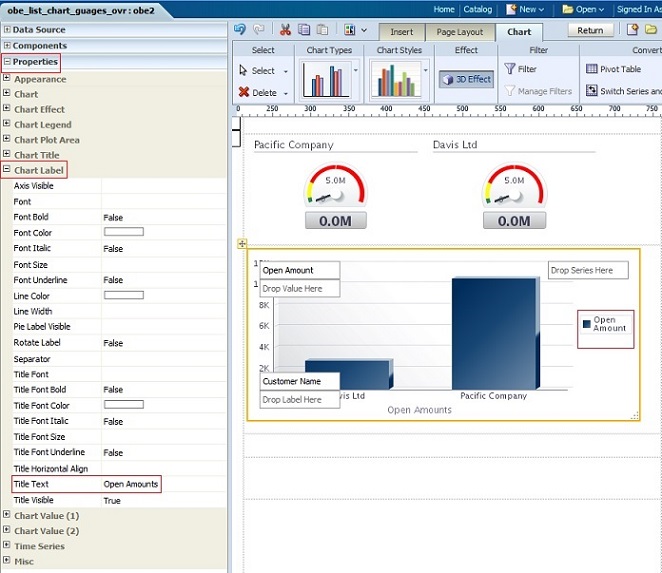
Chart Labeling Option - Select Chart Value (1) and Title Text enter in $.
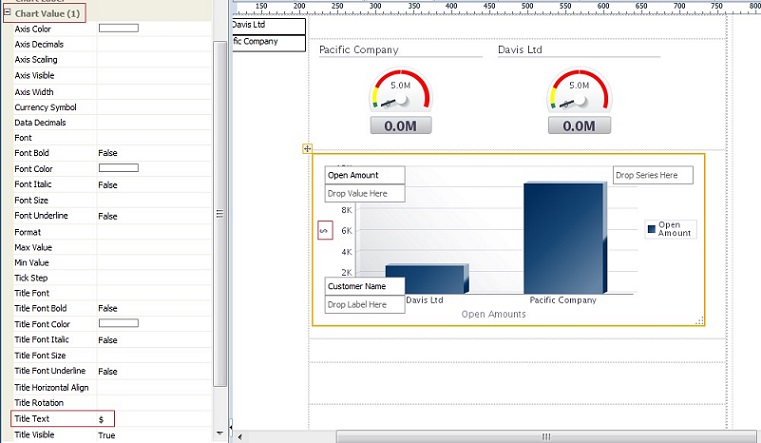
Entering Values and Title Text - Open and review the other options for the chart that can be changed.
- Save the report by clicking
- To close Layout Editor, close the window.
Note: Do not sign out. This will require you to sign out of EnterpriseOne and sign back in.- Go back to One View Customer Ledger Inquiry.
- Click
,
and select report name to run the report.
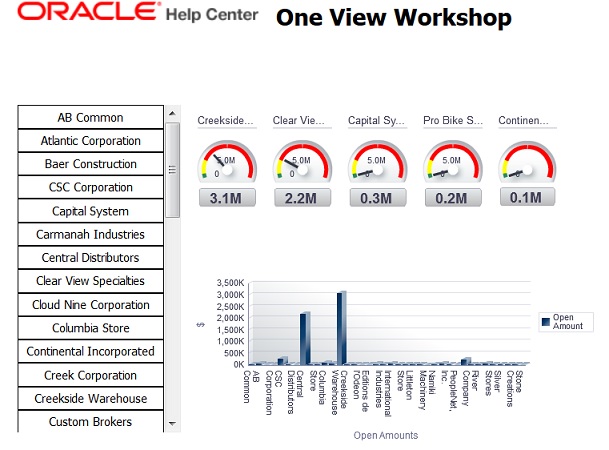
Gauges and Graph View