Before You Begin
Purpose
In this OBE, you will learn how to customize report definition output file name, how to define report definition output path and how to create hierarchy for the report definition output.
Time to Complete
60 minutes
Background
Customizing the report definition output file name and the file path enables you to maintain and locate the output files easily. For example, you can name the report definition output file as CustomerEmailAddress and specify the output file path if you using the Microsoft Windows operating system as C: /JDE/RDOutputStore. The output file with the name CustomerEmailAddress.pdf suggests that this PDF file contains email addresses of all customers. Different paths and file names can be specified for different report definitions. This enables users to store the output on different locations.
You can also save the output files in the folder that contains the structural hierarchy.
Customizing Report Definition Output File Name
The customized file name is reflected in the Report Definition Output Repository (W95630E) form and Work With Submitted Jobs form of the Use Report Definition Jobs (P95630) application. If the output delivery option is selected as email, the customized output file name is reflected in the email as well. If the archiving option is turned on, the report definition output is saved with the customized file name in the defined location.
-
Access the Report Definition application. Type P95620 in the Fast Path field and press Enter.

BI Publisher Report Definitions form -
For this OBE, select the Report Definition RD078305CX in the grid.

BI Publisher Report Definitions form -
Click Select button.The Update Report Definition form is displayed.
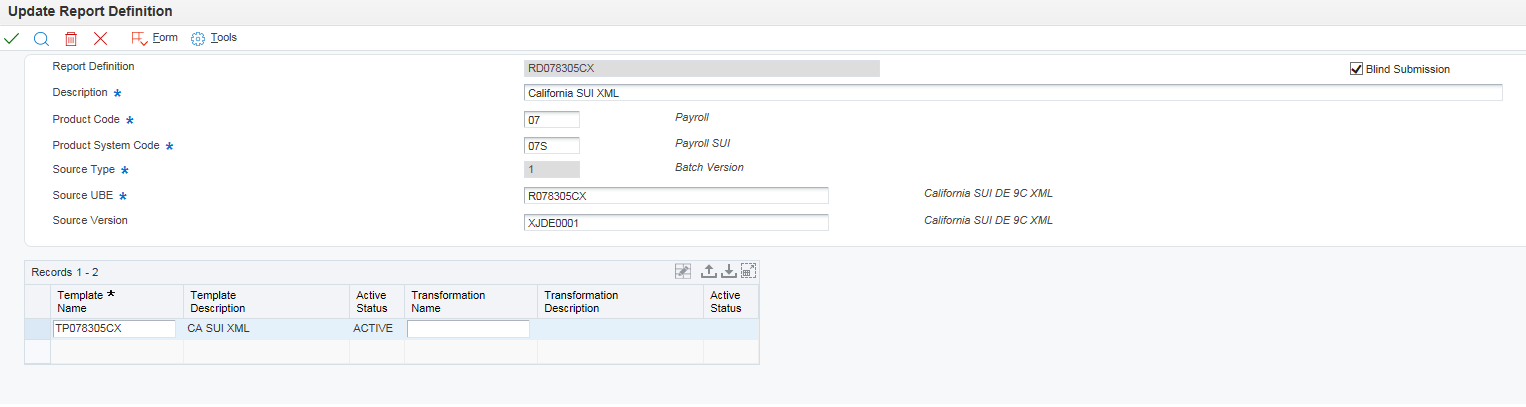
Update Report Definition form -
In the Update Report Definition form, from the Form menu, select Burst/Delivery.
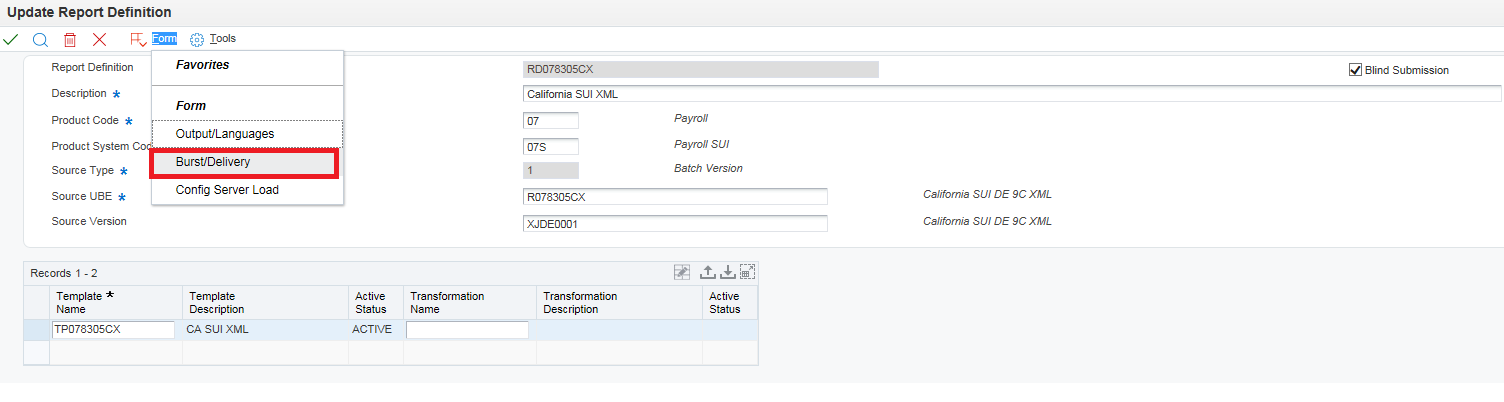
Burst and Delivery option -
In the Update Report Definition - Bursting and Delivery form, select the Override Output File Name tab.

Override Output File Name If you do not use the Override Output File Name option, the output files will be saved with the default file name in the following format:
<RD_NAME>_<RD_LANG>_<UBE_JOBNUMBER>_<RD_JOBNUMBER>_<SEQ_NO>.<OUTPUT_TYPE>
-
Select the Override Output File Name check box. The Data Item for Output File Name field is enabled.

Override Output File Name -
In the Data Item for Output File Name field, enter the data dictionary item that has template substitution data structure defined. Enter 003RS. Now, the Define File Name button is enabled.

Override Output File Name tab -
Click Define File Name. The Output Structure Definition Value Revisions form is displayed.
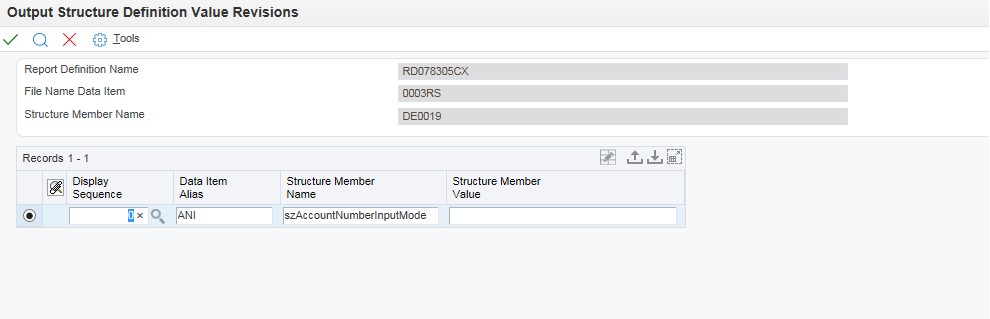
Output Structure Definition Value Revisions form -
If you have several data structures defined for the data item you selected, you can enter several values in the Structure Member Value field and define the sequence in which you want the names to be displayed. Each text/field is divided by an underscore. For example, CustomizedFileName_Test_1.
The Data Item Alias and Structure Member Name fields are populated automatically.
You can enter any one of the following values or a combination of the following values in the Structure Member Value field: Static customized file name and Dynamic customized file name.
-
Enter any static text you want to be the name of the report definition output file. For example, enter the static customized file name as Demo and click OK.
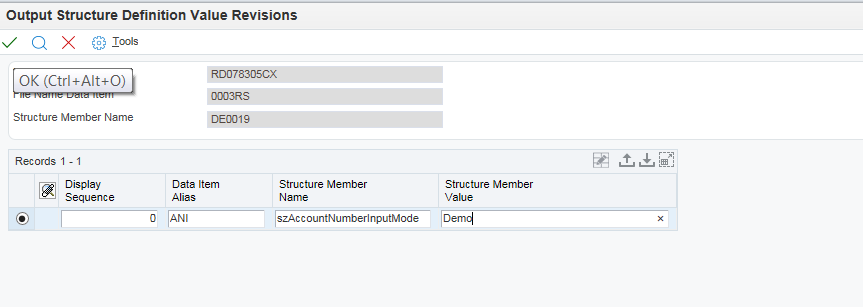
Output Structure Definition Value Revisions form -
To add a dynamic customized file name, enter the name of the field you want to be the name of the report definition output file.
Prefix the name of the field with '/' character. This prefix indicates that the text is an XML field. If the field is entered, the value of the field will be accessed from the XML source file of the report definition output and displayed as the name of the output file.
This is helpful since you do not have to change the file name every time you run a report definition. For example, if you are running the address book number report, you can include the AddressNumber field as part of the file name. The report definition gets generated with different address number as the output file name every time you run this report definition.
If you choose the data item with several data structures, you can define the name of the output file in a sequence.
-
To enter a dynamic customized file name, access BI Publisher Report Definition application.
-
Select the Report Definition RD76B561Z in the grid.
-
From the Form menu, select Burst/Delivery option.
-
In the Update Report Definition - Bursting and Delivery form, click the Override Output File Name tab.
-
Select Override Output File name option.
-
In the Data Item for Output File Name field, enter the data item 399S.

Update Report Definition - Bursting and Delivery form -
The description of the DD item 399S in the DD application(P92002) is Bus Unit &1 Invalid for Empl &2 . Here, &1 and &2 can be replaced with a static or dynamic report definition field.

Glossary Items -
In the Update Report Definition - Bursting and Delivery form, click the Define File Name button. In the Output Structure Definition Value Revisions form and enter the value for the Structure member value field.
-
To select a dynamic field, access the Report Definition Job Control Search. Enter P95630 in the FastPath and press Enter.
-
In the Report Definition Job Control Search form, select a Report Definition job to look into the Source. From the Row menu, select View RD Source.
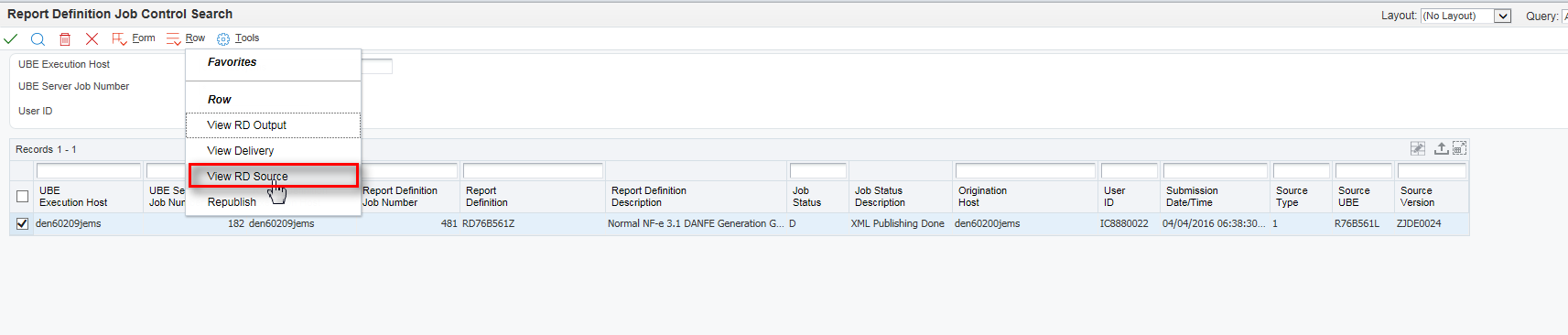
View RD Source -
From the source file, copy AddressBookNumber_ID3.
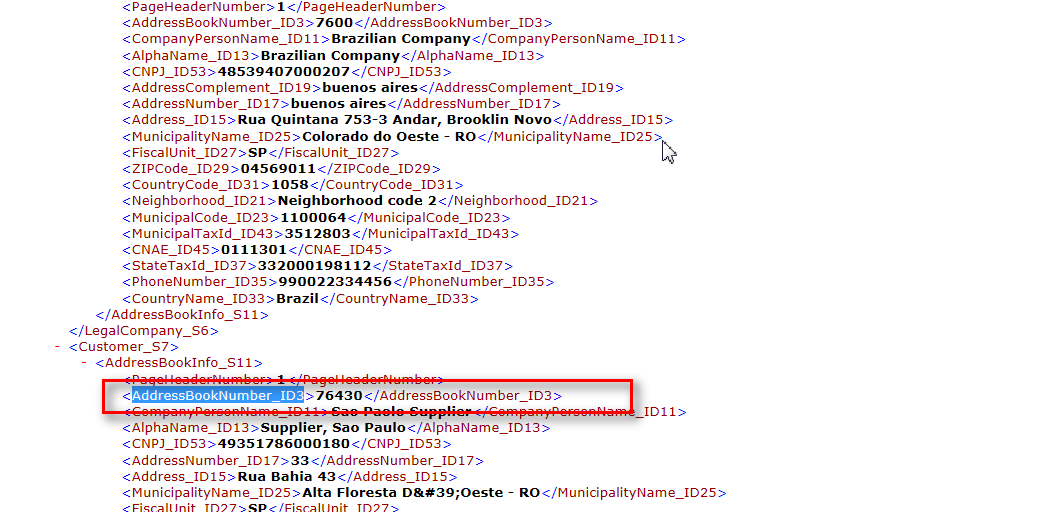
Source File -
In the Output Structure Value Revisions form, enter the values as shown in the following screenshot and click Save.
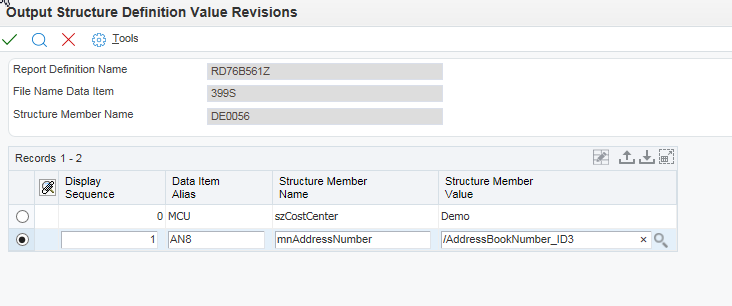
Output Structure Definition Value Revisions form -
To See the output, let us access the Report Definition Job Control Search application and select the report definition for which we customized the file name and from the Row menu, select View RD Output.

Report Definition Job Control Search -
In the Report Definition Output Repository, enter the appropriate UBE Execution host name.
Select the RD for which we just customized a dynamic output file name and select View RD Output.

Report Definition Output Repository -
We can see the name of the output file just like how we customized it. This number 7600 is dynamic and it was taken from the xml source file. Demo is the static file name.
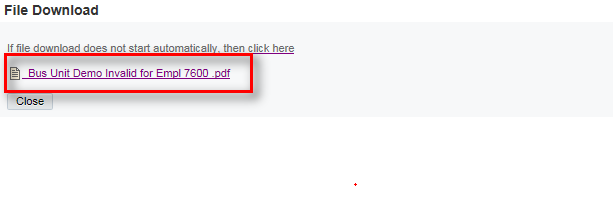
Dynamic customized file name -
Click Close.
Defining the Report Definition Output Path
If you use the enterprise server jde.ini to define the path for archiving, all the report definitions will be saved in same path defined in enterprise server jde.ini file.
You can choose to define a customized output path for a specific report definition output using the Report Definition Server Mapping application (P95641).
If the path is not defined for a report definition in P95641, the output file is stored in the default path defined in the enterprise server jde.ini.
To define output path for the report definition, access the Report Definition Server Mapping application (P95641).
-
Type P95641 in the fast path and press enter.

Work with Report Definition Archive Path -
Click Add. On the Report Definition Archive Paths form, in the Report Definition field, enter the report definition for which you want to define the output path. You can use the visual assist to select a report definition.
In the Report Definition field, enter RD078305CX.
Enter the values for the Server Name, User/Role and Path as shown in the following screenshot.

Work with Report Definition Archive Path If you enter a folder name in the Path Field that does not exist, the folder structure is created and the output is stored at the specified path. For example, if you enter C: /JDE/RDOutputStore in the Path field and if the folder RDOutputStore does not exists, then the folder with the name RDOutputStore is created and the output file is stored in the path specified. If you enter an invalid path, the report definition job will end in FD status. You can access P95630 application and select View Delivery option and then, select Re-Deliver Output option to correct the path and save the file again.
-
The Status description populates automatically to Active if the object status is AV and Not Active if the Object status is NA.
Click OK.
-
To change the status, select the record and from the Row menu, select Change Status.
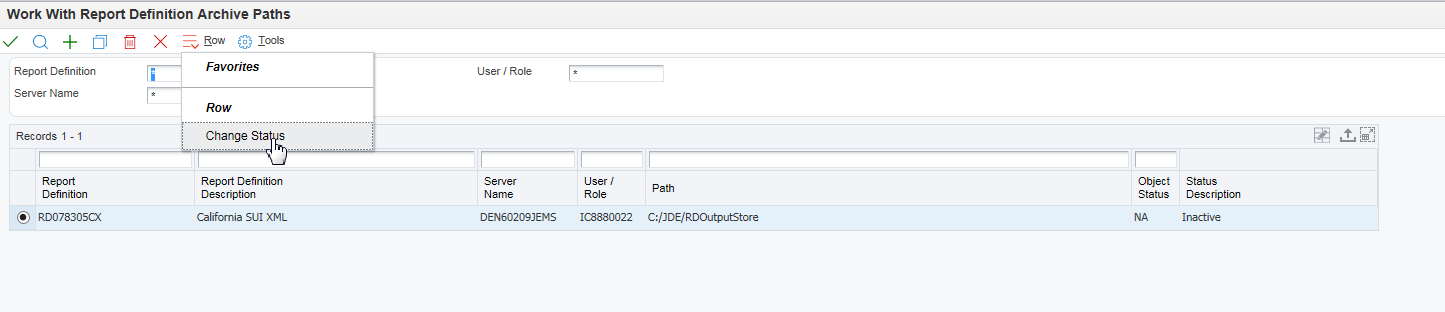
Work with Report Definition Archive Path
Creating Hierarchy for the Report Definition Output
You can choose to create hierarchy of folders with report definition name, report definition language and report definition job number for the report definition output.
To create the report definition output in folder hierarchy:
-
Access Embedded BI Publisher Configuration application (P95642).
-
Select the Archive Report Definition in Hierarchical Structure checkbox.
If Archive Report Definition in Hierarchical Structure is selected, the output file is saved in hierarchical structure in the path defined in Report Definition Server Mapping application (P95641). If the path is not defined in Report Definition Server Mapping application (P95641), the output file is archived in hierarchical structure in the path defined in enterprise server jde.ini.

Embedded BI Publisher Configuration -
Click Save.
Summary
In this exercise you customized the report definition output file name, and defined the report definition output path and created hierarchy for the report definition output.