Before You Begin
Purpose
In this OBE, you will learn how to use the JDE_ORCH_Sample_UpdateMeterReadings sample orchestration to simulate the process of sending fuel and hour (runtime) meter readings from an Internet of Things (IoT) device into the EnterpriseOne Speed Meter Readings (P12120U) application.
Time to Complete
20 minutes
Background
Oracle provides the
JDE_ORCH_Sample_UpdateMeterReadings sample
orchestration for customers to test their JD Edwards
IoT implementation, as well as use as a template for
creating their own orchestrations. It is important
to understand the components of this sample
orchestration before following the steps in this
OBE.
The JDE_ORCH_Sample_UpdateMeterReadings sample
orchestration is made up of the following three
components, which the IoT Orchestrator processes to
send data from a third-party device to
EnterpriseOne:
- The orchestration. The master component where the inputs received from the third-party IoT device are defined. The pre-defined inputs in this sample orchestration are:
- EquipmentNumber
- NewFuelMeterReading
- NewHourMeterReading
- A white list. A component of an orchestration that provides an initial pass/fail check by only allowing data into an orchestration from pre-defined key inputs. This white list contains an EquipmentNumber key input, which means that the IoT Orchestrator will process the orchestration only when a valid equipment number is received. If the orchestration white list receives an invalid equipment number, the orchestration will terminate.
- A service request. A component of an orchestration that provides the steps for invoking and performing a business transaction in EnterpriseOne. In this sample orchestration, the service request invokes the Speed Meter Readings application (P12120U) and updates the equipment number record with real-time meter readings.
What Do You Need? (Optional)
Note: The steps in this OBE are written for Orchestrator Studio 3.0 and will not work with earlier versions of the Orchestrator Studio.
You must have the following prerequisites before performing the steps in this OBE:
-
EnterpriseOne running in a test environment with a minimum of EnterpriseOne Tools 9.2.1.
-
An EnterpriseOne IoT configuration, which requires an EnterpriseOne Application Interface Services (AIS) Server configuration for running the EnterpriseOne Orchestrator Client and an ADF Server for running the EnterpriseOne Orchestrator Studio 3.0.
-
Sample Orchestrations package, which includes the JDE_ORC_Sample_UpdateMeterReadings sample orchestration described in this OBE.
-
Access to the Orchestrator Studio features, which is controlled through EnterpriseOne UDO feature security.
See “Getting Started” in the JD Edwards EnterpriseOne Internet of Things Orchestrator Guide for instructions on how to implement these prerequisites.
Add a Cross Reference Record in EnterpriseOne for the White List
The Update Meter Readings sample orchestration includes a white list that contains EquipmentNumber as a key input of the orchestration. Before you can run the sample orchestration, you must follow these steps to add a cross reference record in the Cross Reference (P952000) application in EnterpriseOne that specifies a valid equipment number to be accepted by this white list. You will use this equipment number later when you test running the JDE_ORCH_Sample_UpdateMeterReadings sample orchestration.
-
In EnterpriseOne, open the Business Services Cross Reference application (Fast Path: P952000).
-
On Work with Business Service Cross References, click the Add button (+ icon) in the menu bar to add a new record.
-
Enter the values for the fields as described here:
- Cross Reference Type = AIS
- Cross Reference Object Type = Click the search button in the field to select a cross reference object type. This is used to categorize your cross reference records. You can select an existing cross reference object type or create a new one, for example “equipment.” If your system does not have an object type to choose from, click the Form menu > Object Type on the previous form to create one.
- Third Party App ID = WHITELIST (case-sensitive, use all capitals). For cross reference records for a white list, you must always enter WHITELIST in this field.
- Third Party Value = 1001 (or another valid Equipment Number in EnterpriseOne) Equipment number 1001 should be available in the EnterpriseOne pristine data. If not, you can use another valid equipment number. Make sure to record the equipment number because you will use it later. This value represents the actual equipment number to which the sample orchestration will send fuel and hour meter readings as described later in this OBE.
-
Click OK (check mark icon) to add the record. And then click Cancel (X icon) to close the form.
-
On the Work with Business Service Cross Reference form, enter the search criteria as shown in the following screenshot and click Find to verify that your equipment is in the white list:

Work with Business Service Cross Reference - Click Cancel to close the form.
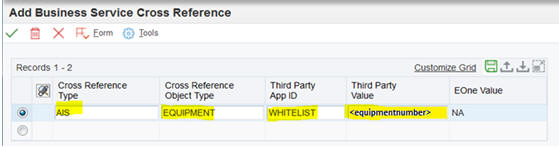
Add Business Service Cross Reference
Note: The EOne Value field is used for a cross reference component in an orchestration, which is described in the documentation. This field automatically defaults to NA when you add a record for a white list.
Review the Sample Orchestration in the Orchestrator Studio
Note: You do not have to modify the sample orchestration in the Orchestrator Studio before running it.
-
Access Orchestrator Studio 3.0, which requires entering your EnterpriseOne credentials for sign-in.
- On the Orchestrator Studio Home page, click the Orchestrations icon.
-
In the list of orchestrations, locate and select the JDE_ORCH_Sample_UpdateMeterReadings sample orchestration to review it.
The studio displays a graphical representation of the components that make up the orchestration.
- In the graphical area, click the box
representing the Orchestration to access the
Orchestration design page.
Notice the orchestration inputs:
- EquipmentNumber
- NewFuelMeterReading
- NewHourMeterReading
Notice the steps in the grid which show the other two components used in this orchestration, the white list and service request, which are also depicted in the graphical representation.
- Click the Orchestrations link at the top of the page to return to the previous page with the graphical representation of the sample orchestration.
- Click the White List and Service Request boxes
to review them as well.
On the White List design page, notice that EquipmentNumber is listed as the input key.
On the Service Request design page, review the Order of Execution area, which shows the sequence of tasks required for the orchestration to update the Speed Meter Readings application (P12120U) in EnterpriseOne.

Test Running the Sample Orchestration
-
After reviewing the orchestration, click the Tools link at the top of the Orchestrator Studio.
- On the Orchestrator Studio Tools page, click the Orchestrator Client icon.
-
On the Orchestrator Client Sign In screen, enter your EnterpriseOne credentials and click Login.
-
In the Orchestrator Client, click the Orchestration Name drop-down list to see a list of available orchestrations on the AIS Server.
- Select the
JDE_ORCH_Sample_UpdateMeterReadings
orchestration from this list.
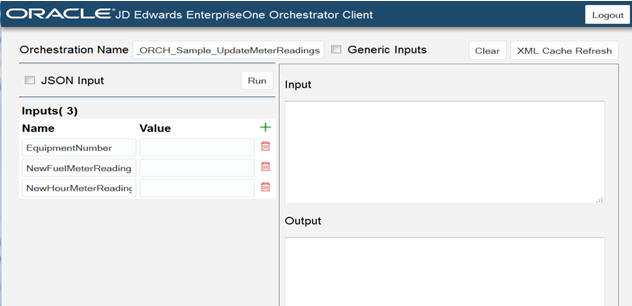
The Orchestrator Client automatically displays the three inputs defined in the sample orchestration:
- Enter the following values to simulate inputs
from a third-party device:
- EquipmentNumber = (your equipment number) This value must be the same equipment number that you entered in the EnterpriseOne cross reference record for the white list.
- NewFuelMeterReading = Any numeric value.
- NewHourMeterReading = Any numeric value.
- Click the Run button to run
the orchestration.
A green check mark or yellow caution symbol at the top right of the Output box indicates that the orchestration was executed successfully.
The Input box displays the JSON data that the IoT Orchestrator generated and sent to the orchestration running on the AIS Server. The Output box shows the JSON data that the IoT Orchestrator returned.

JD Edwards EnterpriseOne Orchestrator Client: Input and Output - If a caution symbol appears, scroll to the
bottom of the Output box to view the warning
message.
A warning does not mean the orchestration failed, but might indicate irregular or unexpected input, as in the following example:
Warning Message in the Output Area
Optional Test
Perform another test by entering an invalid part number for EquipmentNumber.
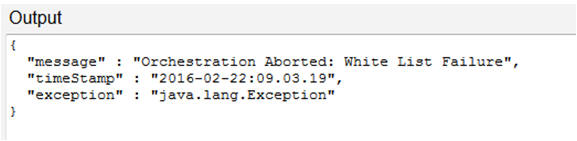
Notice that the orchestration was executed successfully, as indicated by the green check mark. But the record was not created in EnterpriseOne due to the invalid part number, which is indicated by the “White List Failure” message in the Output area:
Verify the IoT Data Was Added to EnterpriseOne
- Go back to the browser session in which you are running the JD Edwards EnterpriseOne web client. If you have been inactive for a while, you will probably need to log out and log back in.
- Launch the Meter Readings application (Fast Path: P12120).
- In the Skip to Equipment field, enter your equipment number.
- Clear (uncheck) the Odometer checkbox, and select the Fuel Meter and Hour Meter check boxes.
- Click Find, and then verify that the Fuel Meter Reading and Hour Meter Reading show the values you input from the IoT Orchestrator client:
Summary
In this OBE, you added a cross reference record in EnterpriseOne to specify the equipment number allowed by the orchestration white list, and then you simulated an IoT device sending meter readings for that equipment to the Meter Readings (P12120) application in EnterpriseOne.