Creating Multi Data Set Data Models


<Do not delete this text because it is a placeholder for the generated list of "main" topics when run in a browser>

Purpose

This tutorial covers how to create a BI Publisher that joins two data sets on a common dimension.

Time to Complete

Approximately 1 hour.

Overview

This tutorial is intended for users who want to create reports using Oracle BI Publisher in the Taleo Recruiting Embedded Reporting feature. The tutorial covers creating a BIP report with multiple data sets.

This tutorial is intended for users who already have an understanding of the principles of writing SQL, and/or who have previous experience with Oracle BI Publisher.

Requirements

Taleo Enterprise 14B or later is required to complete this training.

Prerequisites

Before starting this tutorial, you should have the proper user type permissions. The Author Content (BI Developer) and the Access Embedded Reports permissions are recommended. The Access Subject Area - Recruiting and Access Embedded Reporting Management permissions are also required.

Oracle BI Publisher MS Word plug-in is required. The plug-in can be downloaded at the Oracle BI Publisher download page (http://www.oracle.com/technetwork/middleware/bi-publisher/downloads/index.html ).

Note From the Author

The field values available, and the rows returned will vary as you are reporting on the information from your zone.

Creating a Multi Data Set BIP Report

Create Base Analyses in OBI Answers

This topic will cover how to use BI Answer analysis logical SQL as a base for your Data Set logical SQL.

.

Navigate to the homepage of Oracle Business Intelligence.

.

Create a new analysis using the Recruiting (Legacy) subject area.

.

Add the following fields to the analysis:

  • Candidate > Candidate Personal Information > Candidate ID
  • Candidate > Candidate Application > Application Dates > Application Hire Start Date > Application Hire Start Date
  • Requisition > Requisition Logistics > Requisition Identification Requisition No
  • Requisition > Requisition Logistics > Requisition Identification Requisition Title (BL)
  • Requisition > Requisition Logistics > Requisition Structure Req. Recruiter ID
  • Candidate > Candidate Application > Application General Information Application Matched From Requisition No

Add the following filters to the analysis:

  • Application Hire Start Date is not null
  • Application Matched From Requisition No is not null

The analysis criteria should look like this:

.

Navigate to the Advanced tab and copy the analysis sql into a notepad.

.

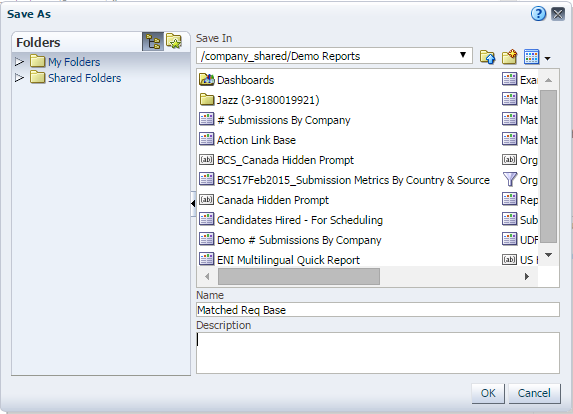
Save the analysis as Matched Req Base.

.

Create a new analysis using the Recruiting (Legacy) subject area.

.

Add the following fields to the analysis:

  • Requisition > Requisition Logistics > Requisition Identification Requisition No
  • Requisition > Requisition Logistics > Requisition Identification Requisition Title (BL)
  • Requisition > Requisition Logistics > Requisition Structure Req. Recruiter ID

The analysis criteria should look like this:

.

Add a filter for Requisition NO.

Under Add More Options Select SQL Expression

.

Paste the following expression into the SQL Expression text box.

SELECT
"Recruiting (Legacy)"."Application General Information"."Application Matched From Requisition NO"
FROM "Recruiting (Legacy)"
WHERE
(("Application Hire Start Date"."Application Hire Start Date" IS NOT NULL) AND ("Application General Information"."Application Matched From Requisition NO" IS NOT NULL))

Click OK

.

Create a new analysis using the Recruiting (Legacy) subject area.

.

Navigate to the advance tab and copy the SQL Issued.

.

Save the analysis as Matched Req Info.

Create the Data Model

We will now use the sql from the Answers analyses to create a multi data set data model.

.

Access Embedded Reporting by going to the Taleo Enterprise Homepage and going to Configuration > [Recruiting] Administration > [Embedded Reporting] Administration > Data Model Definitions.

Create a new data model definition.

.

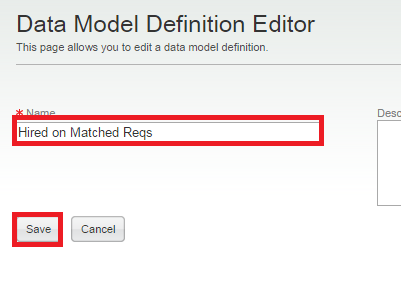
Name the Data Model Hired on Matched Reqs.

Click Save.

.

Edit the data sets.

.

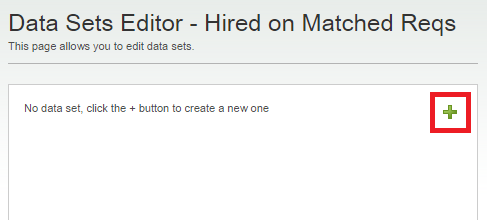
Add a new data set.

.

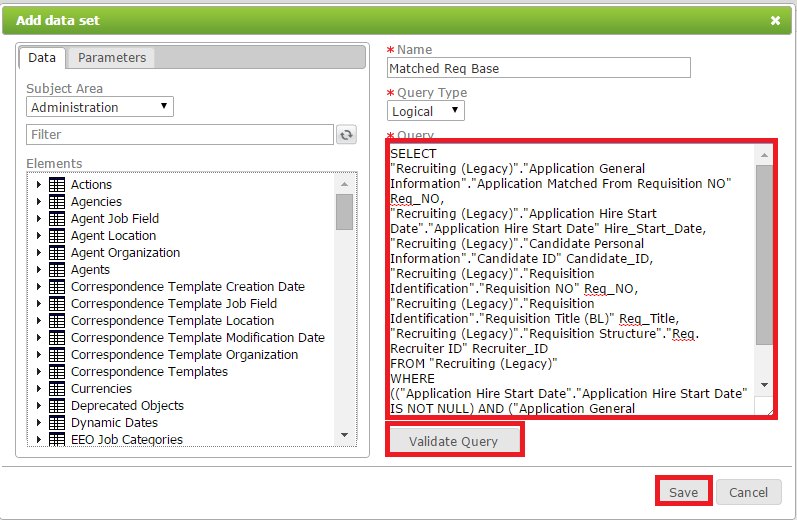
Name the data set Matched Req Base and paste the sql copied from the advanced tab of the Matched Req Base Report.

The sql in the editor should look like this:

SELECT
0 s_0,
"Recruiting (Legacy)"."Application General Information"."Application Matched From Requisition NO" s_1,
"Recruiting (Legacy)"."Application Hire Start Date"."Application Hire Start Date" s_2,
"Recruiting (Legacy)"."Candidate Personal Information"."Candidate ID" s_3,
"Recruiting (Legacy)"."Requisition Identification"."Requisition NO" s_4,
"Recruiting (Legacy)"."Requisition Identification"."Requisition Title (BL)" s_5,
"Recruiting (Legacy)"."Requisition Structure"."Req. Recruiter ID" s_6
FROM "Recruiting (Legacy)"
WHERE
(("Application Hire Start Date"."Application Hire Start Date" IS NOT NULL) AND ("Application General Information"."Application Matched From Requisition NO" IS NOT NULL))
ORDER BY 1, 4 ASC NULLS LAST, 3 ASC NULLS LAST, 5 ASC NULLS LAST, 6 ASC NULLS LAST, 7 ASC NULLS LAST, 2 ASC NULLS LAST FETCH FIRST 100301 ROWS ONLY

.

Edit the sql. When modifying sql to create a data set you need to remove all elements in red and re-alias all fields in brown.

The sql in the editor should look like this:

SELECT
0 s_0,
"Recruiting (Legacy)"."Application General Information"."Application Matched From Requisition NO" s_1,
"Recruiting (Legacy)"."Application Hire Start Date"."Application Hire Start Date" s_2,
"Recruiting (Legacy)"."Candidate Personal Information"."Candidate ID" s_3,
"Recruiting (Legacy)"."Requisition Identification"."Requisition NO" s_4,
"Recruiting (Legacy)"."Requisition Identification"."Requisition Title (BL)" s_5,
"Recruiting (Legacy)"."Requisition Structure"."Req. Recruiter ID" s_6
FROM "Recruiting (Legacy)"
WHERE
(("Application Hire Start Date"."Application Hire Start Date" IS NOT NULL) AND ("Application General Information"."Application Matched From Requisition NO" IS NOT NULL))
ORDER BY 1, 4 ASC NULLS LAST, 3 ASC NULLS LAST, 5 ASC NULLS LAST, 6 ASC NULLS LAST, 7 ASC NULLS LAST, 2 ASC NULLS LAST FETCH FIRST 100301 ROWS ONLY

.

Make the following replacements.

SELECT
"Recruiting (Legacy)"."Application General Information"."Application Matched From Requisition NO" Matched_Req_NO,
"Recruiting (Legacy)"."Application Hire Start Date"."Application Hire Start Date" Hire_Start_Date,
"Recruiting (Legacy)"."Candidate Personal Information"."Candidate ID" Candidate_ID,
"Recruiting (Legacy)"."Requisition Identification"."Requisition NO" Req_NO,
"Recruiting (Legacy)"."Requisition Identification"."Requisition Title (BL)" Req_Title,
"Recruiting (Legacy)"."Requisition Structure"."Req. Recruiter ID" Recruiter_ID
FROM "Recruiting (Legacy)"
WHERE
(("Application Hire Start Date"."Application Hire Start Date" IS NOT NULL) AND ("Application General Information"."Application Matched From Requisition NO" IS NOT NULL))

The sql in the editor should look like this:

Validate and save the query

.

Add a new data set.

.

Name the data set Matched Req Info and paste the sql copied from the advanced tab of the Matched Req Info Report.

The sql in the editor should look like this:

SELECT
0 s_0,
"Recruiting (Legacy)"."Requisition Identification"."Requisition NO" s_1,
"Recruiting (Legacy)"."Requisition Identification"."Requisition Title (BL)" s_2,
"Recruiting (Legacy)"."Requisition Structure"."Req. Recruiter ID" s_3
FROM "Recruiting (Legacy)"
WHERE
(("Requisition Identification"."Requisition NO" IN (SELECT "Recruiting (Legacy)"."Application General Information"."Application Matched From Requisition NO" FROM "Recruiting (Legacy)" WHERE (("Application Hire Start Date"."Application Hire Start Date" IS NOT NULL) AND ("Application General Information"."Application Matched From Requisition NO" IS NOT NULL))))) ORDER BY 1, 2 ASC NULLS LAST, 3 ASC NULLS LAST, 4 ASC NULLS LAST FETCH FIRST 100301 ROWS ONLY

.

Edit the sql. When modifying sql to create a data set you need to remove all elements in red and re-alias all fields in brown.

The sql in the editor should look like this:

SELECT
0 s_0,
"Recruiting (Legacy)"."Requisition Identification"."Requisition NO" Req_NO, s_1,
"Recruiting (Legacy)"."Requisition Identification"."Requisition Title (BL)" s_2,
"Recruiting (Legacy)"."Requisition Structure"."Req. Recruiter ID" s_3
FROM "Recruiting (Legacy)"
WHERE
(("Requisition Identification"."Requisition NO" IN (SELECT "Recruiting (Legacy)"."Application General Information"."Application Matched From Requisition NO" FROM "Recruiting (Legacy)" WHERE (("Application Hire Start Date"."Application Hire Start Date" IS NOT NULL) AND ("Application General Information"."Application Matched From Requisition NO" IS NOT NULL)))))
ORDER BY 1, 2 ASC NULLS LAST, 3 ASC NULLS LAST, 4 ASC NULLS LAST FETCH FIRST 100301 ROWS ONLY

.

Make the following replacements.

SELECT
"Recruiting (Legacy)"."Requisition Identification"."Requisition NO" Req_NO, Req_NO,
"Recruiting (Legacy)"."Requisition Identification"."Requisition Title (BL)" Req_Title,
"Recruiting (Legacy)"."Requisition Structure"."Req. Recruiter ID" Recruiter_ID
FROM "Recruiting (Legacy)"
WHERE
(("Requisition Identification"."Requisition NO" IN (SELECT "Recruiting (Legacy)"."Application General Information"."Application Matched From Requisition NO" FROM "Recruiting (Legacy)" WHERE (("Application Hire Start Date"."Application Hire Start Date" IS NOT NULL) AND ("Application General Information"."Application Matched From Requisition NO" IS NOT NULL)))))


The sql in the editor should look like this:

Validate and save the query

.

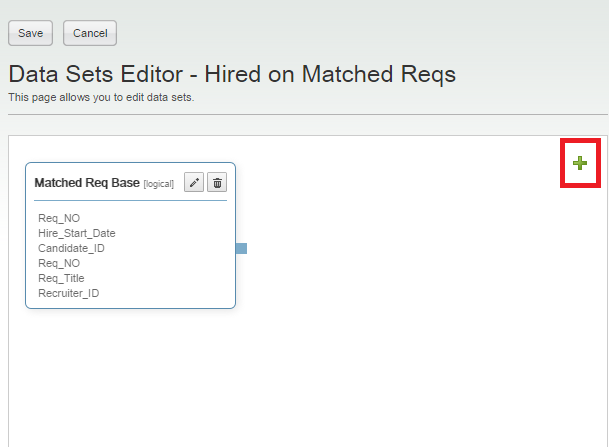
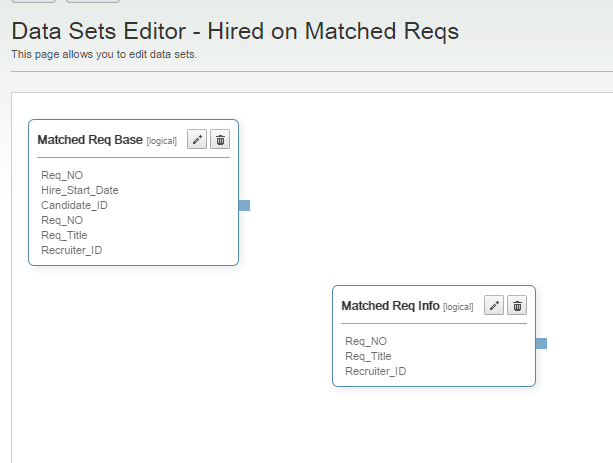
The data set editor should look like this:

.

Connect the data sets by grabbing the handle in the Matched Req Base data set and dragging the arrow into the Matched Req Info data set.

.

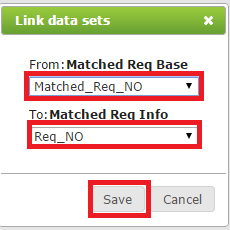
Link the data sets by choosing From: Matched_Req_NO from Matched Req Base To: Req_No from Matched Req Info

Save the link data sets.

Save the Data Sets.

Create the Template

.

Return to the list of Data Model Definitions.

.

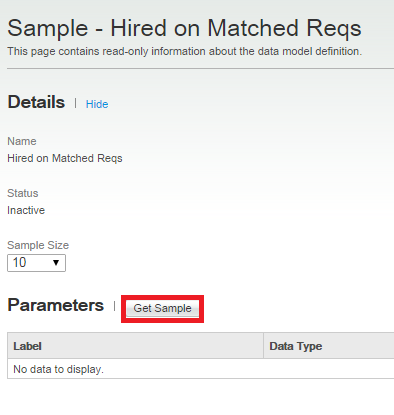
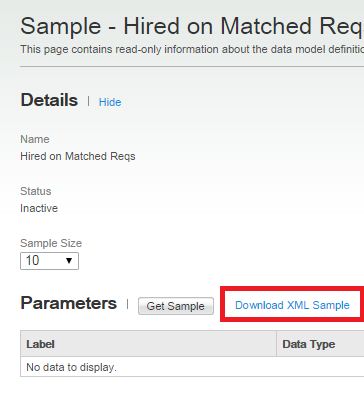
Get a sample of the Data Model XML.

.

Open Microsoft Word and go to the BI Publisher Tab.

.

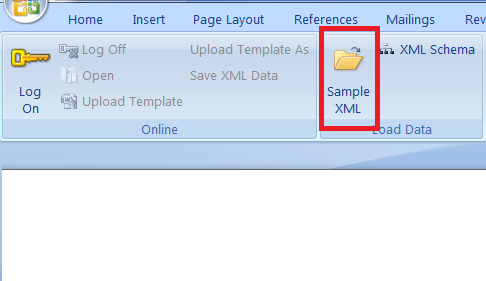
Import the xml.

a. Click the Sample XML icon.

b. Select the sample xml you downloaded previously.

You will get a message that the data loaded successfully.

.

Click the table wizard..

.

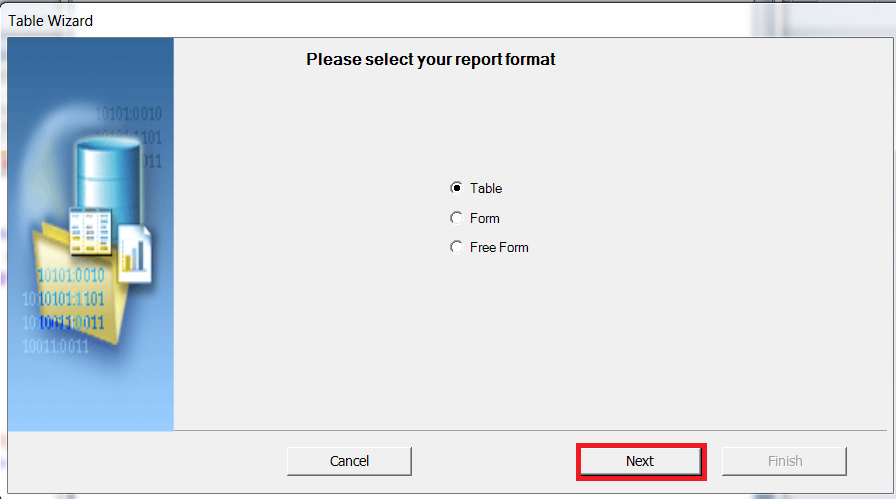
Table is selected, click Next.

.

When prompted to choose a data set choose G_MATCHED_REQ_BASE. Click Next.

.

Shuttle all fields into the right pane except the Matched Req No field.

Click Finish.

.

Save the template as a Rich Text File namedHired on Matched Reqs.

.

Preview the report as a Rich Text File.


Summary

This tutorial has covered creating a data model definition with a linked data set..

Resources

Credits:

Hardware and Software Engineered to Work Together Copyright © 2013, Oracle and/or its affiliates. All rights reserved