Before You Begin
Purpose
This tutorial explains how you can develop a
RESTful web service in Java Platform Standard
Edition 8 (Java SE 8) with Jersey (an implementation
of the Java API for RESTful Web Services, JAX-RS) in
a Grizzly container so that it can be deployed on
Oracle Application Container Cloud Service. The
implemented operations are the basic REST
operations: PUT, GET, POST,
and DELETE. You use Java Script Object
Annotation (JSON) and Extensible Markup Language
(XML) formats for data interchange. To keep this
tutorial simple, you won't use a database to persist
the data.
Time to Complete
Approximately 60 minutes
Background
RESTful services are easy to develop and deploy, lightweight, inexpensive to host and maintain, and ideal for typical online applications. They are completely stateless and particularly useful for restricted-profile devices such as mobile and PDAs because they don't have native support for SOAP services but they do for HTTP, XML and JSON.
Context
This tutorial covers developing and packaging your application. To deploy your application please see this guide: Deploying an Application to Oracle Application Container Cloud Service.
What Do You Need?
- Java Development Kit 8 (JDK 8)
- Maven 3.0+
- cURL 7.0+(cURL is installed by default on most UNIX and Linux distributions. For the steps to install cURL on a Windows 64-bit machine, click here).
- A text editor or integrated development environment IDE.
- jersey-service.zip (This is the Maven project with source code. Download it if you want to view the completed project.)
Creating a Maven Project
In this section, you create a Jersey Maven project from an archetype project.
-
Open a command-line window (or Terminal in Linux).
-
Navigate to the directory where you want to store the project.
-
Generate the Maven artifacts:
mvn archetype:generate -DarchetypeArtifactId=jersey-quickstart-grizzly2 -DarchetypeGroupId=org.glassfish.jersey.archetypes -DinteractiveMode=false -DgroupId=com.example.rest -DartifactId=jersey-service -Dpackage=com.example.rest -DarchetypeVersion=2.17Note: You can change the
groupId,packageandartifactIdfor your particular project.This command creates a standard Maven structure. After it's finished, the
jersey-serviceproject directory is created in your current location.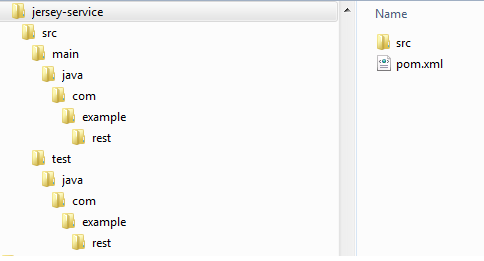
Description of this image
Note: You can open the project in Netbeans (from the File menu, select Open Project) or in Eclipse (from the File menu, select Import, then Maven, and then Existing Maven Project), but you must configure Maven in your IDE.
The directory has the following structure:
Project sources: Located undersrc/main/java.
Contains 2 classes in the com.example.rest
package:
-
The
Mainclass configures and deploys the project's JAX-RS application to the Grizzly container. It configures the Universal Resource Identifier (URI) where the Grizzly HTTP Server listens and the packages where the Grizzly HTTP Server scans for JAX-RS resources. It then starts a new instance of the Grizzly HTTP Server.public class Main { // Base URI the Grizzly HTTP server will listen on public static final String BASE_URI = "http://localhost:8080/myapp/"; /** * Starts Grizzly HTTP server exposing JAX-RS resources defined in this application. * @return Grizzly HTTP server. */ public static HttpServer startServer() { // create a resource config that scans for JAX-RS resources and providers // in com.example.rest package final ResourceConfig rc = new ResourceConfig().packages("com.example.rest"); // create and start a new instance of grizzly http server // exposing the Jersey application at BASE_URI return GrizzlyHttpServerFactory.createHttpServer(URI.create(BASE_URI), rc); } /** * Main method. * @param args * @throws IOException */ public static void main(String[] args) throws IOException { final HttpServer server = startServer(); System.out.println(String.format("Jersey app started with WADL available at " + "%sapplication.wadl\nHit enter to stop it...", BASE_URI)); System.in.read(); server.stop(); } } - The
MyResourceclass, contains an implementation of a simple JAX-RS resource with one resource method. For the purpose of this tutorial, this class isn't used.
src/test/java.
Contains a unit test class MyResourceTest
in the com.example.rest package
responsible for testing myresource. A pom.xml
file in the project root directory contains all
dependencies needed for a Jersey project that runs on
a Grizzly container. The file also specifies the class
that contains the main method (in this case the Main
class) that's called when the mvn exec:java
command is executed (this command is discussed in
Running the Service). Configuring the pom.xml File
In this section you make changes to pom.xml
to implement JSON and Java 1.8 support.
Jersey provides four ways to integrate JSON support:
- Jackson: Jackson is a multi-purpose Java library for processing JSON data format.
- Jettison: Jettison is a StAX implementation that reads and writes JSON.
- Java API for JSON Processing (JSON-P): JSON-P is a technique used by web developers to overcome the cross-domain restrictions imposed by browsers to allow data to be retrieved from systems other than the one the page was served by.
- MOXy: MOXy is the default and preferred way of supporting JSON binding in Jersey applications, requires the entity setters methods.
Because this tutorial uses the Builder Pattern, where setters are not allowed, you use Jackson to add support for JSON.
-
Open the
pom.xml. -
Add the
jersey-media-json-jacksondependency for JSON support.<dependency> <groupId>org.glassfish.jersey.media</groupId> <artifactId>jersey-media-json-jackson</artifactId> </dependency> -
Change
maven-compiler-pluginto support Java 1.8.<plugin> <groupId>org.apache.maven.plugins</groupId> <artifactId>maven-compiler-plugin</artifactId> <version>2.5.1</version> <inherited>true</inherited> <configuration> <source>1.8></source> <target>1.8</target> </configuration> </plugin>
Creating the Customer Class Model
Creating the Customer Class
To model the Customer representation, you create a plain old Java class with fields, constructors, and accessors for the fields. We use the Builder Pattern in order to make the Customer class immutable.
-
Create a new class called
Customerin thecom.example.restpackage. - Copy and paste the following code to create
a customer model by using the Builder Pattern.
package com.example.rest;

import java.util.concurrent.atomic.AtomicLong;

public class Customer {
  private final long id;
  private final String firstName;
  private final String lastName;
  private final String email;
  private final String city;
  private final String state;
  private final String birthday;
  private static final AtomicLong counter = new AtomicLong(100);

  private Customer(CustomerBuilder builder){
    this.id = builder.id;
    this.firstName = builder.firstName;
    this.lastName = builder.lastName;
    this.email = builder.email;
    this.city = builder.city;
    this.state = builder.state;
    this.birthday = builder.birthday;
  }

  public Customer(){
    Customer cust = new Customer.CustomerBuilder().id().build();
      this.id = cust.getId();
      this.firstName = cust.getFirstName();
      this.lastName = cust.getLastName();
      this.email = cust.getEmail();
      this.city = cust.getCity();
      this.state = cust.getState();
      this.birthday = cust.getBirthday();
  }

  public Customer(long id, String firstName, String lastName,
      String email, String city, String state, String birthday){
      Customer cust = new Customer.CustomerBuilder().id()
           .firstName(firstName)
           .lastName(lastName)
           .email(email)
           .city(city)
           .state(state)
           .birthday(birthday)
           .build();
      this.id = cust.getId();
      this.firstName = cust.getFirstName();
      this.lastName = cust.getLastName();
      this.email = cust.getEmail();
      this.city = cust.getCity();
      this.state = cust.getState();
      this.birthday = cust.getBirthday();
  }

  public long getId(){
    return this.id;
  }

  public String getFirstName() {
    return this.firstName;
  }

  public String getLastName() {
    return this.lastName;
  }

  public String getEmail(){
    return this.email;
  }

  public String getCity() {
    return this.city;
  }

  public String getState() {
    return this.state;
  }

  public String getBirthday(){
    return this.birthday;
  }

  @Override
  public String toString(){
    return "ID: " + id
        + " First: " + firstName
        + " Last: " + lastName + "\n"
        + "EMail: " + email + "\n"
        + "City: " + city
        + " State: " + state
        + " Birthday " + birthday;
  }

  public static class CustomerBuilder{
    private long id;
    private String firstName = "";
    private String lastName = "";
    private String email = "";
    private String city = "";
    private String state = "";
    private String birthday = "";

    public CustomerBuilder id(){
      this.id = Customer.counter.getAndIncrement();
      return this;
    }

    public CustomerBuilder firstName(String firstName){
      this.firstName = firstName;
      return this;
    }

    public CustomerBuilder lastName(String lastName){
      this.lastName = lastName;
      return this;
    }

    public CustomerBuilder email(String email){
      this.email = email;
      return this;
    }

    public CustomerBuilder city(String city){
      this.city = city;
      return this;
    }

    public CustomerBuilder state(String state){
      this.state = state;
      return this;
    }

    public CustomerBuilder birthday(String birthday){
      this.birthday = birthday;
      return this;
    }

    public Customer build(){
      return new Customer(this);
    }

  }
}
Creating a Mock Customer List
In this section, you create a helper class to create a list of customers for testing purposes.
-
Create a new class called
MockCustomerListin thecom.example.restpackage. - Copy and paste the following code to create
a list of customers.
package com.example.rest;

import java.util.concurrent.CopyOnWriteArrayList;
import java.util.stream.Collectors;

public class MockCustomerList {
  private static final CopyOnWriteArrayList<Customer> cList = new CopyOnWriteArrayList<>();

  static {
    // Create list of customers
    cList.add(
        new Customer.CustomerBuilder().id()
        .firstName("George")
        .lastName("Washington")
        .email("gwash@example.com")
        .city("Mt Vernon")
        .state("VA")
        .birthday("1732-02-23")
        .build()
    );

    cList.add(
        new Customer.CustomerBuilder().id()
        .firstName("John")
        .lastName("Adams")
        .email("jadams@example.com")
        .city("Braintree")
        .state("MA")
        .birthday("1735-10-30")
        .build()
    );

    cList.add(
        new Customer.CustomerBuilder().id()
        .firstName("Thomas")
        .lastName("Jefferson")
        .email("tjeff@example.com")
        .city("CharlottesVille")
        .state("VA")
        .birthday("1743-04-13")
        .build()
    );

    cList.add(
        new Customer.CustomerBuilder().id()
        .firstName("James")
        .lastName("Madison")
        .email("jmad@example.com")
        .city("Orange")
        .state("VA")
        .birthday("1751-03-16")
        .build()
    );

    cList.add(
        new Customer.CustomerBuilder().id()
        .firstName("James")
        .lastName("Monroe")
        .email("jmo@example.com")
        .city("New York")
        .state("NY")
        .birthday("1758-04-28")
        .build()
    );

  }

  private MockCustomerList(){}

  public static CopyOnWriteArrayList<Customer> getInstance(){
    return cList;
  }

}
Reading from a REST Web Service
In this section, you learn how to create a Rest
Service that implements the GET
resource method by using the annotations introduced
in Java SE 5 (@GET, @Path,
@PathParam, @Produces).
-
Create a new class called
CustomerServicein thecom.example.restpackage. - Annotate the class with
@Path ("customers").The
@Pathannotation provides a value attribute that indicates the path at which the resource is available to receive HTTP requests. The value attribute may be literal characters, variables, or variables plus a customized regular expression.It can be placed upon a class or on one or more Java methods. Java classes annotated with@Pathare called JAX-RS root resources.@Path("/customers") public class CustomerService { -
Create a
CopyOnWriteArrayListof Customer usingMockCustomerListclass. This array will used to apply the REST operations (get, put, post and delete).private final CopyOnWriteArrayList<Customer> cList = MockCustomerList.getInstance(); - Create a
GETresource method calledgetAllCustomersthat returns an array with all the Customers in JSON format.The
@GETannotation enables the method to process HTTP GET requests. HTTP GET methods are used to retrieve (or read) a representation of a resource, in this case the list of Customers.The
@Producesannotation is used to specify the MIME media types a resource can produce and send back to the client. In this example, the Java method will produce representations identified by the MIME media type "JSON".@GET @Path("/all") @Produces(MediaType.APPLICATION_JSON) public Customer[] getAllCustomers() { return cList.toArray(new Customer[0]); } -
Create a
GETresource method calledgetCustomerthat receives an ID and returns the Customer.This method gets the ID from the URI and using a Lambda expression looks for the Customer that matches, if there is none an exception is thrown and a message in json format is send to the client.
NotFoundExceptionandJsonErrorclasses are covered in the next sections.URI path templates are URIs with variables embedded within the URI syntax. These variables are substituted at runtime in order for a resource to respond to a request based on the substituted URI. Variables are denoted by braces ({ }).
The
@PathParamannotation is used to extract parameters from the URI. The@Pathexpression "{id}" must matches with the value of the@PathParam"id".This method returns 200 (OK) and in this case a single Customer or 404 (Not found) if the ID is not found or is invalid.
@GET @Path("{id}") @Produces(MediaType.APPLICATION_JSON) public Customer getCustomer(@PathParam("id") long id){ Optional<Customer> match = cList.stream() .filter(c -> c.getId() == id) .findFirst(); if (match.isPresent()) { return match.get(); } else { throw new NotFoundException(new JsonError("Error", "Customer " + id + " not found")); } } - Add the missing imports.
import java.util.Optional;
import java.util.concurrent.CopyOnWriteArrayList;
import javax.ws.rs.Consumes;
import javax.ws.rs.GET;
import javax.ws.rs.Path;
import javax.ws.rs.PathParam;
import javax.ws.rs.Produces;
import javax.ws.rs.core.MediaType;
import javax.ws.rs.core.Response;
Creating the JsonError Class
In this section, you create a JsonError class to send error messages to the client if something is wrong. This class is used to give more information to the client about the error.
- Create a new class called
JsonErrorin thecom.example.restpackage. - Add two private String fields: type
and message.
private String type; private String message; - Create a constructor with the parameters
type and message.
public JsonError(String type, String message){ this.type = type; this.message = message; } - Add the getters methods.
  public String getType(){
    return this.type;
  }

  public String getMessage(){
    return this.message;
  }
Creating the NotFoundException Class
In this section you create the NotFoundException
class witch wraps WebApplicationException
to provide a message error in JSON format. The WebApplicationException
class is a runtime exception used by resource
methods to send a message error and a HTTP
status to the client when something is wrong.
- Create a new class called
NotFoundExceptionincom.example.restpackage that extends fromWebApplicationException. -
Add the following constructors:
public NotFoundException() { super(Response.status(Response.Status.NOT_FOUND).type(MediaType.TEXT_PLAIN).build()); } public NotFoundException(String message) { super(Response.status(Response.Status.NOT_FOUND).entity(message).type(MediaType.TEXT_PLAIN).build()); } public NotFoundException(JsonError jse) { super(Response.status(Response.Status.NOT_FOUND).entity(jse).type(MediaType.APPLICATION_JSON).build()); } -
Add the missing imports.
    import javax.ws.rs.WebApplicationException;
    import javax.ws.rs.core.MediaType;
    import javax.ws.rs.core.Response;
Running the Web Service
- Open a command-line window (or Terminal in Linux).
- Go to the root directory of the project (jersey-service),
where the
pom.xmlresides. -
Compile the code:
mvn clean compileNote: If you get a compile error, review your source code for errors, then save it and run the command again.
c:\examples\jersey-service>mvn clean compile [INFO] Scanning for projects... [INFO] [INFO] ------------------------------------------------------------------------ [INFO] Building jersey-service 1.0-SNAPSHOT [INFO] ------------------------------------------------------------------------ [INFO] [INFO] --- maven-clean-plugin:2.5:clean (default-clean) @ jersey-service --- [INFO] Deleting c:\examples\jersey-service\target [INFO] [INFO] --- maven-resources-plugin:2.6:resources (default-resources) @ jersey-service --- [INFO] Using 'UTF-8' encoding to copy filtered resources. [INFO] skip non existing resourceDirectory c:\examples\jersey-service\src\main\resources [INFO] [INFO] --- maven-compiler-plugin:2.5.1:compile (default-compile) @ jersey-service --- [INFO] Compiling 7 source files to c:\examples\jersey-service\target\classes [INFO] ------------------------------------------------------------------------ [INFO] BUILD SUCCESS [INFO] ------------------------------------------------------------------------ [INFO] Total time: 4.284 s [INFO] Finished at: 2015-07-29T16:07:34-05:00 [INFO] Final Memory: 14M/135M [INFO] ------------------------------------------------------------------------ -
Run the
mainmethod.mvn exec:javac:\examples\jersey-service>mvn exec:java [INFO] Scanning for projects... [INFO] [INFO] ------------------------------------------------------------------------ [INFO] Building jersey-service 1.0-SNAPSHOT [INFO] ------------------------------------------------------------------------ [INFO] [INFO] >>> exec-maven-plugin:1.2.1:java (default-cli) > validate @ jersey-service >>> [INFO] [INFO] <<< exec-maven-plugin:1.2.1:java (default-cli) < validate @ jersey-service <<< [INFO] [INFO] --- exec-maven-plugin:1.2.1:java (default-cli) @ jersey-service --- jul 29, 2015 4:09:45 PM org.glassfish.grizzly.http.server.NetworkListener start INFO: Started listener bound to [localhost:8080] jul 29, 2015 4:09:45 PM org.glassfish.grizzly.http.server.HttpServer start INFO: [HttpServer] Started. Jersey app started with WADL available at http://localhost:8080/myapp/application.wadl Hit enter to stop it...
Testing the Customer Service
cURL is a command-line tool and library for transferring data with URL syntax.
Testing getAllCustomers resource method
- Open a command-line window (or Terminal in Linux).
- Get all customers:
curl -X GET http://localhost:8080/myapp/customers/all -X is used to specify the type of method request.
http://localhost:8080/myapp/ is the URI where the service is hosted.
/customers is the path of the root class and /all is the path of the resource method.
C:\Program Files\curl>curl -X GET -i http://localhost:8080/myapp/customers/all
HTTP/1.1 200 OK
Content-Type: application/json
Date: Wed, 29 Jul 2015 21:49:42 GMT
Content-Length: 684

[{"firstName":"George","lastName":"Washington","email":"gwash@example.com","city":"Mt Vernon","state":"VA","id":100,"
birthday":"1732-02-23"},{"firstName":"John","lastName":"Adams","email":"jadams@example.com","city":"Braintree","state
":"MA","id":101,"birthday":"1735-10-30"},{"firstName":"Thomas","lastName":"Jefferson","email":"tjeff@example.com","ci
ty":"CharlottesVille","state":"VA","id":102,"birthday":"1743-04-13"},{"firstName":"James","lastName":"Madison","email
":"jmad@example.com","city":"Orange","state":"VA","id":103,"birthday":"1751-03-16"},{"firstName":"James","lastName":"
Monroe","email":"jmo@example.com","city":"New York","state":"NY","id":104,"birthday":"1758-04-28"}]
Testing getCustomer resource method
- Get the customer ID 101:
curl -X GET -i http://localhost:8080/myapp/customers/101In the previous command, use -i to display the headers, which typically are hidden. Use 101 for the Customer ID. Initially in the
MockCustomerListclass where added five customers (ID from 100 to 104).C:\Program Files\curl>curl -X GET -i http://localhost:8080/myapp/customers/101 HTTP/1.1 200 OK Content-Type: application/json Date: Wed, 29 Jul 2015 21:25:49 GMT Content-Length: 133 {"firstName":"John","lastName":"Adams","email":"jadams@example.com","city":"Braintree","state":"MA","id":101,"birthday":
"1735-10-30"}The 200 (OK) status and the customer's data are returned.
-
Get the customer ID 110 which doesn't exist.
curl -X GET -i http://localhost:8080/myapp/customers/110C:\Program Files\curl>curl -X GET -i http://localhost:8080/myapp/customers/110 HTTP/1.1 404 Not Found Content-Type: application/json Date: Wed, 29 Jul 2015 21:27:36 GMT Content-Length: 51 {"type":"Error","message":"Customer 110 not found"}404 (Not found) status and a message error in JSON format are returned.
Modifying REST Web Service Data
In this section you implement the POST,
PUT, and DELETE methods
by using the annotations @POST, @PUT
and @DELETE.
-
Create a
POSTmethod calledaddCustomerthat receives a Customer and returns a status response.The
@POSTannotation enables the method to process HTTP POST requests. The HTTP POST method is most-often utilized for creation of new resources.On successful creation, HTTP returns status 201. Thejavax.ws.rs.core.Responseclass is used to send the status response to the client.@POST @Path("/add") @Produces(MediaType.APPLICATION_JSON) public Response addCustomer(Customer customer){ cList.add(customer); return Response.status(201).build(); } -
Create a
PUTresource method calledupdateCustomerthat receives a Customer object and returns the response status.The
@PUTannotation indicates that the annotated method responds to HTTP PUT requests. HTTP PUT methods are used to update an existing resource base on the Request-URI. The URI in a PUT request identifies the resource that will handle the enclosed entity. On a successful update, the method returns status 200. A status code of 204 is returned if the ID is not found or is invalid.@PUT @Path("{id}/update") @Produces(MediaType.APPLICATION_JSON) public Response updateCustomer(Customer customer){ int matchIdx = 0; Optional<Customer> match = cList.stream() .filter(c -> c.getId() == customer.getId()) .findFirst(); if (match.isPresent()) { matchIdx = cList.indexOf(match.get()); cList.set(matchIdx, customer); return Response.status(Response.Status.OK).build(); } else { return Response.status(Response.Status.NOT_FOUND).build(); } } -
Create a
DELETEresource method calleddeleteCustomerthat receives an ID and removes the Customer of the list.The
@DELETEannotated indicates that the annotated method responds to HTTP DELETE requests. The DELETE method should identify resources to be deleted by Resource-URI.@DELETE @Path("/remove/{id}") public void deleteCustomer(@PathParam("id") long id){ Predicate <Customer> customer = c -> c.getId() == id; if (!cList.removeIf(customer)) { throw new NotFoundException(new JsonError("Error", "Customer " + id + " not found")); } } - Add the missing imports.
    import java.util.function.Predicate;
    import javax.ws.rs.DELETE;
    import javax.ws.rs.POST;
    import javax.ws.rs.PUT;
Testing Web Service Updates
In this section you test the PUT, POST,
and DELETE resources by using the cURL
tool.
Testing the updateCustomer resource method
- Stop the app (if it's running).
- Reexecute the steps in Running the Web Service.
- Open a command-line or a Terminal for Linux.
- Search the Customer ID 102 executing the
following command:
curl -X GET -i http://localhost:8080/myapp/customers/102C:\Program Files\curl>curl -X GET -i http://localhost:8080/myapp/customers/102 HTTP/1.1 200 OK Content-Type: application/json Date: Wed, 29 Jul 2015 21:30:01 GMT Content-Length: 144 {"firstName":"Thomas","lastName":"Jefferson","email":"tjeff@example.com","city":"CharlottesVille","state":"VA","id":102, "birthday":"1743-04-13"} - Update the Customer with the ID 102:
For Linux:
curl -X PUT -i -H "Content-Type: application/json" -d '{"id":102, "firstName":"Abigail","lastName":"Adams","email":"aadams@example.com","city":"Braintree","state":"MA","birthday":"1744-11-22"}' http://localhost:8080/myapp/customers/102/updateFor windows, the syntax changes a little, you need to escape the double-quotes.
curl -X PUT -i -H "Content-Type:application/json" -d "{\"id\":102,\"firstName\":\"Abigail\",\"lastName\":\"Adams\",\"email\":\"aadams@example.com\",\"city\":\"Braintree\",\"state\":\"MA\",\"birthday\":\"1744-11-22\"}" http://localhost:8080/myapp/customers/102/update-d is used to send data.
-H is used to pass custom header LINE to server
C:\Program Files\curl>curl -X PUT -i -H "Content-Type:application/json" -d "{\"id\":102,\"firstName\":\"Abigail\",\"l
astName\":\"Adams\",\"email\":\"aadams@example.com\",\"city\":\"Braintree\",\"state\":\"MA\",\"birthday\":
\"1744-11-22\"}" http://localhost:8080/myapp/customers/102/update
HTTP/1.1 200 OK
Date: Wed, 29 Jul 2015 21:32:04 GMT
Content-Length: 0
200 (OK) status is received which means the Customer (ID 102) was successfully updated.
-
Verify that the Customer's data have changed executing the command in the step 4 again.
C:\Program Files\curl>curl -X GET -i http://localhost:8080/myapp/customers/102 HTTP/1.1 200 OK Content-Type: application/json Date: Wed, 29 Jul 2015 21:34:02 GMT Content-Length: 136 {"firstName":"Abigail","lastName":"Adams","email":"aadams@example.com","city":"Braintree","state":"MA","id":102,"birthday":"1744-11-22"} - Try to update a Customer (ID) that doesn't
exist executing the following command:
For Linux:
curl -X PUT -i -H "Content-Type: application/json" -d '{"id":118, "firstName":"Abigail","lastName":"Adams","email":"aadams@example.com","city":"Braintree","state":"MA","birthday":"1744-11-22"}' http://localhost:8080/myapp/customers/118/updateFor windows:
curl -X PUT -i -H "Content-Type:application/json" -d "{\"id\":118,\"firstName\":\"Abigail\",\"lastName\":\"Adams\",\"email\":\"aadams@example.com\",\"city\":\"Braintree\",\"state\":\"MA\",\"birthday\":\"1744-11-22\"}" http://localhost:8080/myapp/customers/118/updateC:\Program Files\curl>curl -X PUT -i -H "Content-Type:application/json" -d "{\"id\":118,\"firstName\":\"Abigail\",\"l astName\":\"Adams\",\"email\":\"aadams@example.com\",\"city\":\"Braintree\",\"state\":\"MA\",\"birthday\":\"1744-11-2 2\"}" http://localhost:8080/myapp/customers/118/update HTTP/1.1 404 Not Found Date: Wed, 29 Jul 2015 21:35:32 GMT Content-Length: 0A 404 (Not Found) status is received because the Customer ID 118 doesn't exist.
Testing the addCustomer resource method
- Add a new Customer:
For Linux:
curl -X POST -i -H "Content-Type: application/json" -d '{"firstName":"Laura","lastName":"Stuart","email":"lstuart@example.com","city":"Braintree","state":"MA", "birthday":"1744-11-22"}' http://localhost:8080/myapp/customers/addFor Windows:
curl -X POST -i -H "Content-Type: application/json" -d "{\"firstName\":\"Laura\",\"lastName\":\"Stuart\",\"email\":\"lstuart@example.com\",\"city\":\"Braintree\",\"state\":\"MA\",\"birthday\":\"1744-11-22\"}" http://localhost:8080/myapp/customers/addC:\Program Files\curl>curl -X POST -i -H "Content-Type: application/json" -d "{\"firstName\":\"Laura\",\"lastName\":\ "Stuart\",\"email\":\"lstuart@example.com\",\"city\":\"Braintree\",\"state\":\"MA\",\"birthday\":\"1744-11-22\"}" htt p://localhost:8080/myapp/customers/add HTTP/1.1 201 Created Date: Wed, 29 Jul 2015 21:45:09 GMT Content-Length: 0201 (Created) status is received which means the new customer was successfully created.
-
Verify that the new Customer was created.
C:\Program Files\curl>curl -X GET -i http://localhost:8080/myapp/customers/105
HTTP/1.1 200 OK
Content-Type: application/json
Date: Thu, 30 Jul 2015 14:10:58 GMT
Content-Length: 136

{"firstName":"Laura","lastName":"Stuart","email":"lstuart@example.com","city":"Braintree","state":"MA","id":105,"birt
hday":"1744-11-22"}
Testing the deleteCustomer resource method
-
Delete the Customer with the ID 101:
curl -X DELETE -i http://localhost:8080/myapp/customers/remove/101C:\Program Files\curl>curl -X DELETE -i http://localhost:8080/myapp/customers/remove/101 HTTP/1.1 200 OK Date: Wed, 29 Jul 2015 22:01:01 GMT Content-Length: 0200 (OK) status is received which means the customer ID 101 was removed successfully.
-
Execute the same command again.
C:\Program Files\curl>curl -X DELETE -i http://localhost:8080/myapp/customers/remove/101
HTTP/1.1 404 Not Found
Date: Wed, 29 Jul 2015 22:03:36 GMT
Content-Length: 0
A 404 (Not Found) status is received because the customer ID 101 is already removed.
-
Check all the customers again.
C:\Program Files\curl>curl -X GET -i http://localhost:8080/myapp/customers/all
HTTP/1.1 200 OK
Content-Type: application/json
Date: Thu, 30 Jul 2015 14:00:36 GMT
Content-Length: 679

[{"firstName":"George","lastName":"Washington","email":"gwash@example.com","city":"Mt Vernon","state":"VA","id":100,
birthday":"1732-02-23"},{"firstName":"Abigail","lastName":"Adams","email":"aadams@example.com","city":"Braintree","s
ate":"MA","id":102,"birthday":"1744-11-22"},{"firstName":"James","lastName":"Madison","email":"jmad@example.com","ci
y":"Orange","state":"VA","id":103,"birthday":"1751-03-16"},{"firstName":"James","lastName":"Monroe","email":"jmo@exa
ple.com","city":"New York","state":"NY","id":104,"birthday":"1758-04-28"},{"firstName":"Laura","lastName":"Stuart","
mail":"lstuart@example.com","city":"Braintree","state":"MA","id":107,"birthday":"1744-11-22"}]
C:\Program Files\curl>
There is not a Customer ID 101.
Changing the JSON Format to XML
-
Define the root element for the XML to be produced adding the
@XmlRootElement
                                  (name="customer")
JAXB annotation on the top of the classCustomer.@XmlRootElement (name="customer") public class Customer {If the attibute name is not specified the name of the root XML element is derived from the class name.
-
Annotate all fields with
@XMLElementto be included in XML output.@XmlElementannotation can be place on the fields or getters methods. Add@XmlAccessorType(XmlAccessType.FIELD)at the class level if you want to annotate private fields instead of getter methods. By default, public fields will be serialized to XML elements.@XmlElement public long getId(){ return this.id; } @XmlElement public String getFirstName() { return this.firstName; } @XmlElement public String getLastName() { return this.lastName; } @XmlElement public String getEmail(){ return this.email; } @XmlElement public String getCity() { return this.city; } @XmlElement public String getState() { return this.state; } @XmlElement public String getBirthday(){ return this.birthday; } -
Add the missing imports.
import javax.xml.bind.annotation.XmlRootElement; import javax.xml.bind.annotation.XmlElement; - Change the
@Producesmedia type in the resource methodgetAllCustomersof theCustomerServiceclass toAPPLICATION_XML.@GET @Path("/all") @Produces(MediaType.APPLICATION_XML) public Customer[] getAllCustomers() { return cList.toArray(new Customer[0]); }
Testing Web Service with XML updates
- Stop the app (if it's running).
- Reexecute the steps in Running the Web Service.
- Open a command-line or a Terminal for Linux.
-
Execute the following command to get the customer's list:
curl -X GET http://localhost:8080/myapp/customers/allC:\Program Files\curl>curl -X GET http://localhost:8080/myapp/customers/all <?xml version="1.0" encoding="UTF-8" standalone="yes"?><customers><customer><id>100</id><firstName>George</firstName> <lastName>Washington</lastName><email>gwash@example.com</email><city>Mt Vernon</city><state>VA</state><birthday>1732- 02-23</birthday></customer><customer><id>101</id><firstName>John</firstName><lastName>Adams</lastName><email>jadams@e xample.com</email><city>Braintree</city><state>MA</state><birthday>1735-10-30</birthday></customer><customer><id>102 </id><firstName>Thomas</firstName><lastName>Jefferson</lastName><email>tjeff@example.com</email><city>CharlottesVille </city><state>VA</state><birthday>1743-04-13</birthday></customer><customer><id>103</id><firstName>James</firstName> <lastName>Madison</lastName><email>jmad@example.com</email><city>Orange</city><state>VA</state><birthday>1751-03-16 </birthday></customer><customer><id>104</id><firstName>James</firstName><lastName>Monroe</lastName><email>jmo@example.com </email><city>New York</city><state>NY</state><birthday>1758-04-28</birthday></customer></customers>
Creating an Uber JAR
Until now, you've seen how to run the REST service
using a Maven command. However, to create a
distributed file of this service, you can package it
as a traditional WAR file for deployment to an
external application server, or, you can
create a single JAR (uber JAR) that contains all the
dependencies needed to run in standalone mode.
Because traditional JAR file contains only the
source classes, you'd need to include the dependency
JAR files in the classpath in order to execute a
class in the project's JAR file that uses one of the
dependencies. An uber JAR, also known as a fat JAR
or JAR with dependencies, is a JAR file that
contains not only the Java program, but embeds its
dependencies as well. This means that the JAR
functions as an all-in-one distribution of the
application, without needing any other Java code. To
generate the uber JAR, you can use a Maven plugin (maven-shade-plugin).
-
Open the
pom.xmland add themaven-shade-pluginbetween the<plugins>tags:<plugin> <groupId>org.apache.maven.plugins</groupId> <artifactId>maven-shade-plugin</artifactId> <version>2.3</version> <configuration> <source>1.8</source> <target>1.8</target> <createDependencyReducedPom>true</createDependencyReducedPom> <filters> <filter> <artifact>*:*</artifact> <excludes> <exclude>META-INF/*.SF</exclude> <exclude>META-INF/*.DSA</exclude> <exclude>META-INF/*.RSA</exclude> </excludes> </filter> </filters> </configuration> <executions> <execution> <phase>package</phase> <goals> <goal>shade</goal> </goals> <configuration> <transformers> <transformer implementation="org.apache.maven.plugins.shade.resource.ServicesResourceTransformer" /> <transformer implementation="org.apache.maven.plugins.shade.resource.ManifestResourceTransformer"> <manifestEntries> <Main-Class>com.example.rest.Main</Main-Class> </manifestEntries> </transformer> </transformers> </configuration> </execution> </executions> </plugin> - Open a command-line or a Terminal for Linux.
- Go to the root directory of the project (
jersey-service), where thepom.xmlresides. - Package the code:
mvn package
Now you can find into the target
directory the JAR file: jersey-service-1.0-SNAPSHOT.jar.
To execute the jar, open a command-line window, go
to the target directory and type : java
-jar jersey-service-1.0-SNAPSHOT.jar
Developing an Application for Oracle Cloud Deployment
To properly package, deploy, and execute your application in Oracle Application Container Cloud Service there are a few key concepts you must understand.
Container Considerations
Oracle Application Container Cloud Service applications are run in Docker containers. Docker is an open source software container project. Think of a container as a lightweight virtual machine. Your application runs in its own isolated execution space that has its own memory, file system, and network access. Access to these operating system resources takes place without the cost of having to implement an entire virtual operating system.
When you deploy your application to Oracle Application Container Cloud Service, a container is dynamically generated for your application. The implication of this is that all the typical configuration information like the host name and port number are also dynamically generated. Therefore, any application that runs in this environment must be read key configuration information from the environment before the application starts.
Additionally, containers for your application can be dynamically allocated to scale up or down as is required by the application load. This dynamic scaling feature is made possible by the load balancers provided by Oracle Application Container Cloud Service. The balancer routes traffic to the application instances thus balancing the load.
Given the setup of the service, this has implications for your applications.
Application Considerations for Running in a Container
For an application to run properly on Oracle Application Container Cloud Service, there are a few requirements that must be met.
- Applications must be stateless: Because the service can run multiple instances of the same application, applications cannot share state. For example, items added to a shopping cart application on one instance would not be available to other instances of the application. Because application load is balanced between instances, there is no guarantee that the next request would be handled by the same instance as the last request. Trying to store an application state would result in possible data loss.
- Applications communicate via network ports: The only way to communicate to a running application is through its assigned network port.
- Application must be configurable at runtime: Applications must be able to start and execute based on values set by the container. Values are passed to an application through environment variables.
- All dependencies must be included with the application: If your application requires a library to execute, that library must be included with the application when it is deployed. This can be accomplished two ways.
- Create an Uber JAR (Java SE only): When creating your application, all dependent libraries are included in the JAR file with the application.
- Archived Libaries: Include dependent libraries in the application archive you create. For Java, separate JAR files can be referenced using the CLASSPATH command line option in the application launch command.
For more information, see the Developer Guide.
Configuring Your Application to Run in the Oracle Cloud
For a Java SE application to run in Oracle
Application Container Cloud Service, the application
must be able to read settings from environment
variables set in the application's container.
Specifically, your application must read the HOSTNAME
and PORT environment variables, then
you must configure your application accordingly.
What follows is a new version of the Main
class which checks for the PORT and HOSTNAME
environment variables at runtime. If the values are
set, they are used to launch the server, if they are
not, default values are used instead.
Main.java
package com.example.rest;

import org.glassfish.grizzly.http.server.HttpServer;
import org.glassfish.jersey.grizzly2.httpserver.GrizzlyHttpServerFactory;
import org.glassfish.jersey.server.ResourceConfig;

import java.io.IOException;
import java.net.URI;
import java.util.Optional;

/**
 * Main class
 */
public class Main{

    // Base URI the Grizzly HTTP server will listen on
    public static final String BASE_URI;
    public static final String protocol;
    public static final Optional<String> host;
    public static final String path;
    public static final Optional<String> port;

    static{
      protocol = "http://";
      host = Optional.ofNullable(System.getenv("HOSTNAME"));
      port = Optional.ofNullable(System.getenv("PORT"));
      path = "myapp";
      BASE_URI = protocol + host.orElse("localhost") + ":" + port.orElse("8080") + "/" + path + "/";
    }

    /**
     * Starts Grizzly HTTP server exposing JAX-RS resources defined in this application.
     * @return Grizzly HTTP server.
     */
    public static HttpServer startServer() {
        // create a resource config that scans for JAX-RS resources and providers
        // in com.example.rest package
        final ResourceConfig rc = new ResourceConfig().packages("com.example.rest");

        // create and start a new instance of grizzly http server
        // exposing the Jersey application at BASE_URI
        return GrizzlyHttpServerFactory.createHttpServer(URI.create(BASE_URI), rc);
    }

    /**
     * Main method.
     * @param args
     * @throws IOException
     */
    public static void main(String[] args) throws IOException {
        final HttpServer server = startServer();
        System.out.println(String.format("Jersey app started with WADL available at "
                + "%sapplication.wadl\nHit enter to stop it...", BASE_URI));
        System.in.read();
        server.stop();
    }
}
A couple of key points.
- At the top of the class notice two
Optional<String>variables are declared. Theportandhostfields will store the result of our environment variable lookup. - In the
staticinitialization block, theSystem.getenvmethod is used to get the environment variable. Notice that theOptional.ofNullablemethod is called. This method will return either the value stored in the environment variable or an emptyOptionalif no value is returned. - The
BASE_URIfield now uses theOptionalvariables to create the URI. TheorElsemethod sets a default value if theOptionalis empty.
With these improvements, you can set the host name or port using environment variables. The additional code is clear and concise.
Creating a Cloud-Ready Package Using maninifest.json File
The final step for packaging your application, is
to combine your application archive with the manifest.json
file.
The manifest.json File
The manifest.json file provides
metadata about your Java application. This
information includes the version of Java and the
command used to execute the application. Notes
about your application along with release
information also may be included.
{
    "runtime": {
        "majorVersion": "7"
    },
    "command": "sh target\/bin\/start",
    "release": {
        "build": "150520.1154",
        "commit": "d8c2596364d9584050461",
        "version": "15.1.0"
    },
    "notes": "notes related to release"
}
JSON Fields Defined
- runtime
- majorVersion: The version of the runtime e.g. for Java it would be 7 or 8
- command: The command to execute after deploying the application
- release
- build: A user-specified text value identifying this build
- commit: A user-specified text value related to this deployment
- version: The version text string maintained by user
Here is the manifest.json file
used in the sample application.
{
    "runtime":{
        "majorVersion": "8"
    },
    "command": "java -jar jersey-service-1.0-SNAPSHOT-jar-with-dependencies.jar",
    "release": {
        "build": "20150813Build",
        "commit": "commitString",
        "version": "20150813Version"
    },
    "notes": "REST app for testing"
}
Note: This is an uber JAR deployment given the simplicity of the command to launch the application. This application also uses Java version 8. If your application needs any special command line switches to run, this is where you would specify them.
Creating the Final Archive
As a final step, you create an archive
containing the application archive and manifest.jsonfile.
Both files are stored at the root level of the
archive file.
For example, create an archive using the zip
command.
zip jersey-service-intro.zip
                                  manifest.json
                                  jersey-service-1.0-SNAPSHOT-jar-with-dependencies.jar
Here is an example using the tar
command.
tar cvfz jersey-service-intro.tgz
                                  manifest.json
                                  jersey-service-1.0-SNAPSHOT-jar-with-dependencies.jar
With that final step you application should be ready for deployment.
Packaging an Application Archive Without an Uber JAR File
As an alternative to an uber JAR, an application
can be started by specifying libraries on the java
command line or by using a bash shell
script. Oracle Application Container Cloud Service
uses a Linux container for the execution of
applications so most of the rules that apply to
running a command in Linux will apply.
Assumptions
The two examples that follow are based on the following assumptions:
- The home directory for the application is
/u01/app. - The application execution code is stored in a
JAR named
app.jar. - All required Java libraries are stored in the
libdirectory. Thelibwill be included as part of the final archive as a subdirectory from the archive root directory. - The
libdirectory contains the following JAR libraries:web.jar, rest.jar, media.jar.
Executing the Application with Java and Classpath
Given the previous assumptions, and assuming the lib
directory is included as described, the following
command could be used to launch the application.
java -cp '/u01/app/lib/*' -jar app.jar
After, the application is deployed, the libraries
in the lib directory are copied under
the application's home directory. The above command
executes the java command and loads
all of the libraries in the /u01/app/lib
directory. This should provide the JVM with all the
necessary classes to run the application.
Executing the Application with a Shell Script
As an alternative, you can execute your application using a shell script. The command-line for executing your application should be something like this:
bash -l ./applicationScript.sh
The CLASSPATH environment variable
can also be used to set the path. In this example,
the script may contain the following two lines.
export
                              CLASSPATH=/u01/app/lib/web.jar;/u01/app/lib/rest.jar;/u01/app/lib/media.jar;

                              java -jar app.jar
Cloud Deployment Summary
To properly package your application, you must go through the following steps.
- Create an application that is configurable at runtime.
- Package your application as an uber JAR or as separate library jars.
- Create an application archive that contains your
application and a
manifest.jsonfile in a single file. Themanifest.jsonfile must stored in therootdirectory of your archive. - Deploy your application to Oracle Application Container Cloud Service.
Note: The manifest.json file
is optional as the information contained in the file
may also be configured using the user interface.
Deploying Your Applicaiton to Oracle Application Container
Now that you have created an application and packaged it for deployment on Oracle Application Container Cloud Service, you are ready to deploy it. The steps for deploying your application are described in the OBE: Deploying an Application to Oracle Application Container Cloud Service.
Want to Learn More?
-
Jersey website jersey.java.net
-
Grizzly website grizzly.java.net
Credits
- Curriculum Developer: Luz Elena Peralta Ayala
- QA: Veerabhadra Rao Putrevu