
 Connect a Go Application to Oracle Database Cloud Service
 Before You Begin
This 15-minute tutorial shows you how to connect a Go application to Oracle Database Cloud Service and how to deploy your application to Oracle Application Container Cloud Service.
Background
Oracle Application Container Cloud Service lets you deploy Go, Java Platform, Standard Edition (Java SE), Node.js, PHP, Python, Ruby, and Enterprise Edition (Java EE) applications to the Oracle Cloud.
This tutorial provides you a sample application that creates a connection to Oracle Database Cloud Service. To create the connection it uses the environment variables DBAAS_USER_NAME, DBAAS_USER_PASSWORD, and DBAAS_DEFAULT_CONNECT_DESCRIPTOR that are provided by Oracle Application Container Cloud Service. The environment variables are created when you create the service binding. In this tutorial, you create the service binding by using a deployment.json file.
What Do You Need?
- Access to an instance of Oracle Application Container Cloud Service
- An Oracle Database Cloud Service Instance. See Creating an Oracle Database Cloud Service Instance for Oracle Integration Cloud
- The instant client package-Basic Light instantclient-basiclite-linux.x64-12.2.0.1.0.zip
- The instant client package-SDK instantclient-sdk-linux.x64-12.2.0.1.0.zip
- The Debian libaio package libaio1_0.3.110-1_amd64.deb
- The oracle-db.go file
 Create a Go Project
In this section, you put together all the elements that are required to connect your Go application to Oracle Database Cloud Service.
- Create the
go-oracle-db/oraclepath directory in your local system. - In the
oracledirectory, extract the content of theinstantclient-basiclite-linux.x64-12.2.0.1.0.zipandinstantclient-sdk-linux.x64-12.2.0.1.0.zipfiles. - Copy the
oracle-db.goandlibaio1_0.3.110-1_amd64.debfiles to thego-oracle-dbdirectory. - In the
oracle-db\Oracle\instantclient_12_2directory, create theoci8.pcfile and add the following content:prefixdir=/u01/app/Oracle/instantclient_12_2 libdir=${prefixdir} includedir=${prefixdir}/sdk/include Name: OCI Description: Oracle database driver Version: 12.2 Libs: -L${libdir} -lclntsh Cflags: -I${includedir}
 Prepare the Application for Cloud Deployment
- In the
go-oracle-dbdirectory, create themanifest.json, deployment.json,andstart.shfiles. - Open the
manifest.jsonfile in a text editor and add the following content:{ "runtime": { "majorVersion": "1.8.3" }, "command": "sh start.sh", "notes": "Go Application Sample" } - Open the
deployment.jsonfile in a text editor and add the following content. Replace the placeholders with your information:{ "services": [{ "name": "Name of your Oracle Database Cloud Service instance", "type": "DBAAS", "username": "Your database user name", "password": "Your database password" }] } - Open the
start.shfile in a text editor and add the following content:# Extract LIBAOI libs from Debian package (into ./lib/x86_64-linux-gnu) dpkg-deb -R libaio1_0.3.110-1_amd64.deb ${APP_HOME} export PKG_CONFIG_PATH=${APP_HOME}/Oracle/instantclient_12_2 # Add OCI and LIBAIO to shared library path export LD_LIBRARY_PATH=${APP_HOME}/Oracle/instantclient_12_2:${APP_HOME}/lib/x86_64-linux-gnu # Finalize OCI installation by creating required softlink ln -s -f ${APP_HOME}/Oracle/instantclient_12_2/libclntsh.so.12.1 ${APP_HOME}/Oracle/instantclient_12_2/libclntsh.so ln -s -f ${APP_HOME}/Oracle/instantclient_12_2/libocci.so.12.1 ${APP_HOME}/Oracle/instantclient_12_2/libocci.so # Install Go dependencies go get github.com/mattn/go-oci8 go get github.com/ant0ine/go-json-rest/rest # Launch the application go run oracle-db.go - Create a
zipfile with the content of thego-oracle-dbdirectory.
 Deploy the Application to Oracle Application Container Cloud Service
- In a web browser, go to https://cloud.oracle.com/home and click Sign In.
- From the Cloud Account menu, select Traditional Cloud Account, select your data center, and click My Services.
- Enter your identity domain and click Go.
- Enter your cloud account credentials and click Sign In.
- In the Oracle Cloud My Services dashboard, click Action
 and select Oracle Application Container Cloud Service.
- In the Applications list view, click Create Application and select Go.
- In the Application section, enter a name for your application and click Browse.
- On the File Upload dialog box, select the
.zipfile that you created in the previous section and click Open. - Keep the default values in the Instances and Memory fields.
- Click More options, and then click Browse next to Deployment Configuration.
- On the File Upload dialog box, select the
deployment.jsonfile that you created in the previous section and click Open. - Click Create.
- Wait until the application is created. The URL is enabled when the creation is completed.
- Click the URL of your application.
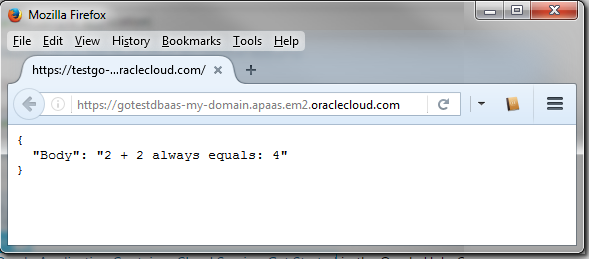
Description of the illustration go-app-response.png
 Want to Learn More?
- Oracle Application Container Cloud Service: Get Started in the Oracle Help Center
- Go website golang.org