
 Deploy a Tomcat Web Application to Oracle Cloud
 Before You Begin
This 15-minute tutorial shows you how to prepare a Java web application (built with Tomcat as the embedded server) and deploy it to Oracle Application Container Cloud Service.
Background
Oracle Application Container Cloud Service provides a lightweight infrastructure so that you can run Java Platform, Enterprise Edition (Java EE), Java Platform, Standard Edition (Java SE), PHP, Python, Node.js, and Ruby applications in Oracle Cloud.
What Do You Need?
- Access to an instance of Oracle Application Container Cloud Service
- Maven 3.0+
- The Employees application: employees-web-app.zip
 Prepare Your Application for Cloud Deployment
- Extract the contents of the
employees-web-app.zipfile to your local system. - Create a
manifest.jsonfile at the same level as thepom.xmlfile and open it in a text editor. - Add the following content and save the file:
{ "runtime": { "majorVersion": "8" }, "command": "java -jar employees-app-jar-with-dependencies.jar", "notes": "Employees Web Application with Tomcat embedded" } - Open the
src\main\java\com\example\employees\Main.javafile in a text editor and add the following code:- Import the
Optionalclass:import java.util.Optional; - Create a
PORTinstance variable:public static final Optional<String> PORT = Optional.ofNullable(System.getenv("PORT")); - Use this
PORTvariable to set the port on the Tomcat instance:tomcat.setPort(Integer.valueOf(PORT.orElse("8080") ));
- Import the
 Compile and Package Your Application
- Open a command-line window (or terminal in Linux) and go to
the
employees-web-appdirectory. - Compile and package your application:
mvn compile package
 Deploy Your Application to Oracle Application Container Cloud Service
- In a web browser, go to https://cloud.oracle.com/home and click Sign In.
- From the Cloud Account menu, select Traditional Cloud Account, select your data center, and click My Services.
- Enter your identity domain and click Go.
- Enter your cloud account credentials and click Sign In.
- In the Oracle Cloud My Services dashboard, click Action
 and select Oracle Application Container Cloud Service.
- In the Create Application dialog box, in the Applications list view, click Create Application and select Java SE.
- In the Application section, enter
EmployeeApplicationfor the name of your application. Click Browse. -
In the File Upload dialog box, select the
employees-app-dist.zipfrom theemployees-web-app/targetdirectory and click Open. - Keep the default values in the Instances and Memory fields and click Create.
 Test the Application
- After the application restarts, click the URL for your application.
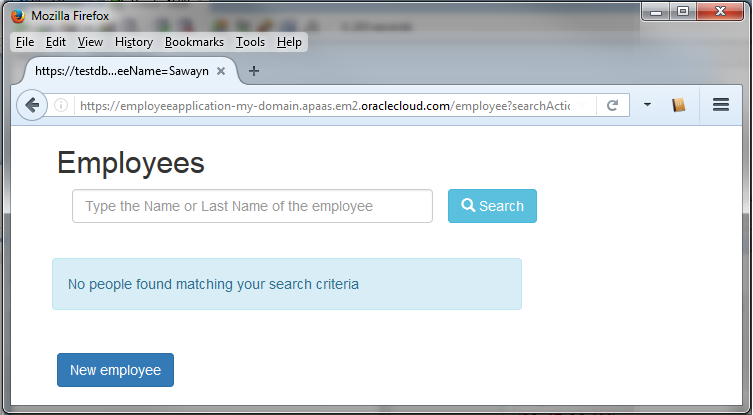
Description of the illustration employee_app_response.png - Click New Employee, enter values in the Name, Last name, Birthdate, Role, Department, and E-mail fields, and click Accept.
- Click the ID number, update the employee information, and click Accept.
- To delete the employee, click
 .
.
 Want to Learn More?