Before you Begin
Purpose
In this tutorial you learn how to deploy a simple PHP based REST microservice project to Oracle Application Container Cloud Service using Oracle Developer Cloud Service.
Time to Complete
Approximately 45 minutes
Background
Oracle Application Container Cloud Service provides a lightweight infrastructure so that you can run Java, PHP, and Node.js applications in Oracle Cloud. This cloud service can be integrated with other Oracle services to complement the development process, for example, Oracle Developer Cloud Service.
Oracle Developer Cloud Service is a cloud-based software development Platform as a Service (PaaS) and a hosted environment for your application development infrastructure. It provides an open source standards-based solution to develop, collaborate, build, and deploy applications within Oracle Cloud.
Scenario
This tutorial provides you the source code of an application project ready to be deployed in Oracle Developer Cloud Service.
The EmployeeApp.zip file provided in
the section "What do you need?"
contains the following structure:
-
The
manifest.jsonfile contains the metadata about the application such as the PHP version and the command to execute the application. Themanifest.jsonis required to deploy the application on Oracle Application Container Cloud Service. -
The
start.shscript file contains the instructions to start the application when it's deployed to Oracle Application Container Cloud Service. -
The
timer.shscript file contains the instructions to simulate an application log. -
The
Employee.phpfile is the employee entity that contains the employee properties. -
The
service.phpfile contains the class with the functionality of the employee service. -
The
employee-api.phpfile is the REST service controller that process the REST calls. -
The
Gruntfile.jsfile defines the build task to create project archive for deployment. -
The
package.jsonfile defines the dependencies required for the Grunt tool to execute the build.
What Do You Need?
- An active Oracle Cloud account
- Eclipse IDE for PHP Developers
- The project file: employees-app.zip
Creating a Project and a Git Repository in Oracle Developer Cloud Service
-
Start your Oracle Developer Cloud Service by following the instructions in Accessing Oracle Developer Cloud Service Using the Web Interface.
-
On the Welcome page, click New Project.
-
On the first page of the New Project dialog box, enter a name for the project, such as
Employee Application.In the Description field, enter a description, such asEmployee REST service using PHP.Select Private for the Security setting, then click Next. -
On the Template page, select Initial Repository, and then click Next.
-
From the Wiki Markup drop-down menu, select TEXTILE. In the Initial Repository area, select Empty Repository, and then click Finish.
-
Wait for provisioning to complete.
After provisioning completes, the project is fully provisioned. You're on the project's Home page, which displays the URLs of the Git and Maven repositories.
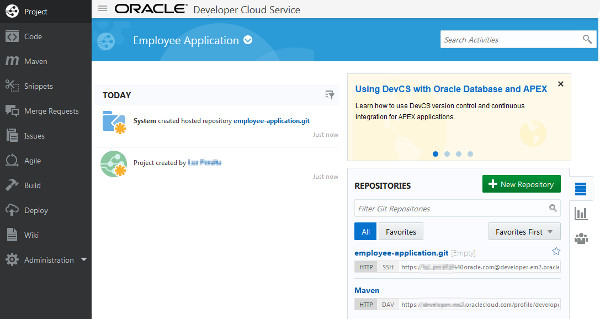
Description of the image
Setting Up Oracle Cloud on Eclipse
Installing the Oracle Cloud Tools Plugin on Eclipse
-
Open the Eclipse program.
-
Click Help and then click Eclipse Market.
-
In the Search tab, find
Oracle
                                      Cloud Tools
, and click Install.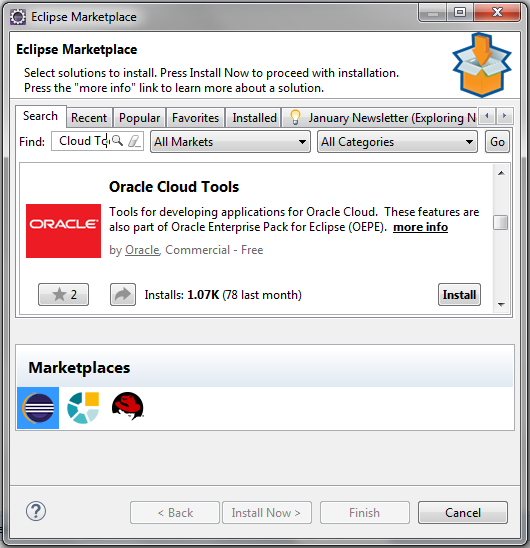
Description of the image -
Keep all the elements selected and click Confirm.
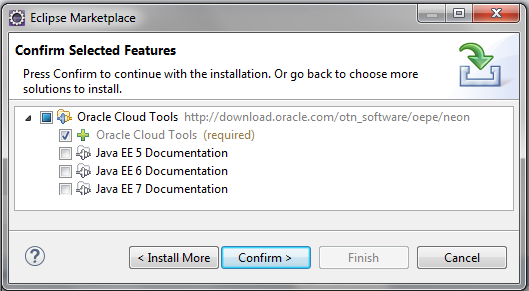
Description of the image -
Select I accept the terms of the license agreements, and click Finish.
-
In the Security Warning confirmation message, click OK.
-
Click Yes to restart the Eclipse program.
Creating an Oracle Cloud connection from Eclipse
-
Click the Window menu, then click Show View, and then click Other.
-
Select Oracle Cloud and then click OK.
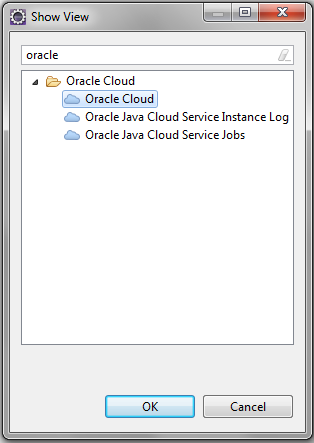
Description of the image -
Click Connect.
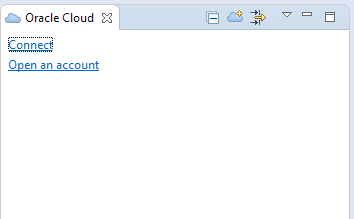
Description of the image -
Enter the Identity domain, User name, Password, Connection Name, and click Finish.
Creating a PHP Project
-
Click the File menu, select New and click PHP Project from the list, and click Next.
-
Enter the Project name and click Finish.
Note: If you want to test your application locally you should create the project in the file directory of your server where all the applications are installed.
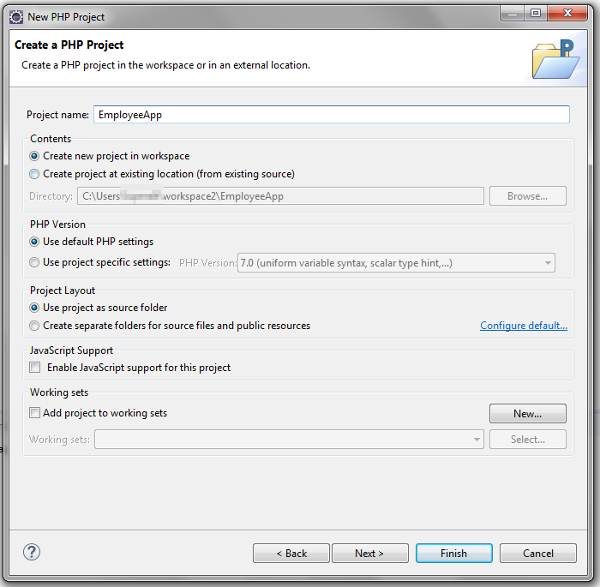
Description of the image -
Extracts the contents of the
employee-service.zipfile into the project directory.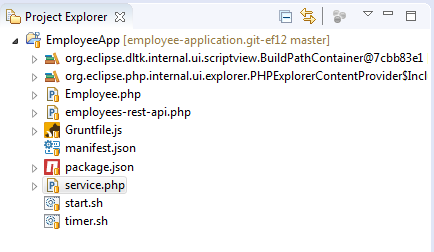
Description of the image
Synchronizing the Project with Developer Cloud Service
-
Take the
EmployeeAppproject and drag it into the Employee Application.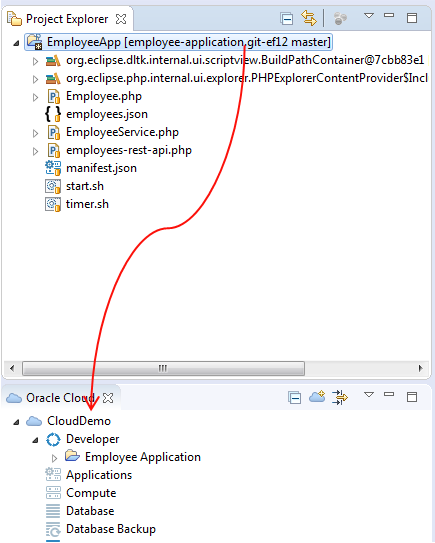
Description of the image -
Keep the default values and click Finish.
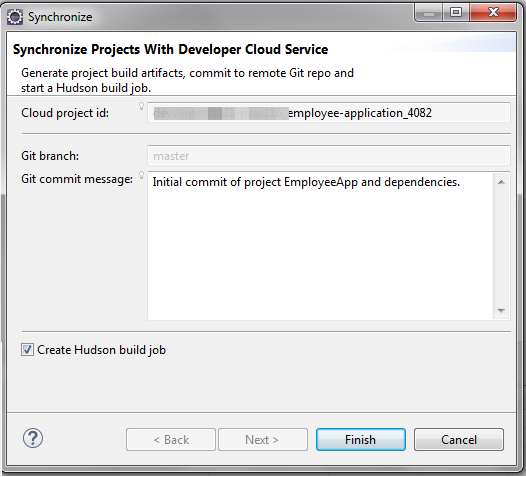
Description of the image -
In the Success confirmation message click OK.
Building Your Application on Oracle Developer Cloud Service
Create a build job to generate the artifacts needed to deploy the application to Oracle Application Container Cloud Service.
-
Return to your Oracle Developer Cloud Service account and go to your project.
-
Click Build and then click New Job.
-
In the New Job dialog box, enter employee-app-build for the Job Name, select Create a free-style job to create a blank job that must be configured to run a build, then click Save.
-
Click the Source Control tab and select the following values:
- Git
- URL: employee-application.git.
-
Click the Triggers tab and select Based on SCM polling schedule.
Note: If the Based on SCM polling schedule option is enabled, polling is always triggered when commits are pushed to an internal Git repository.
-
Click the Build Steps tab, enter and select the following values:
- Click Add Build Step and select Execute shell.
- Command:
cd EmployeeApp

                                    npm install

                                    grunt
-
Click the Post Build tab, enter and select the following values:
- Archive the artifacts
- Files To Archive:
EmployeeApp\employeeservice.zip - Compression Type: NONE
-
Click Save and then click Build Now.
If the build was successful, you'll see the
employeeservice.zipfile in the Artifacts of Last Successful Build section. You can download them by clicking the file name. If the build failed, then go back to check the build job configuration or click Git Logs to see more information about the error.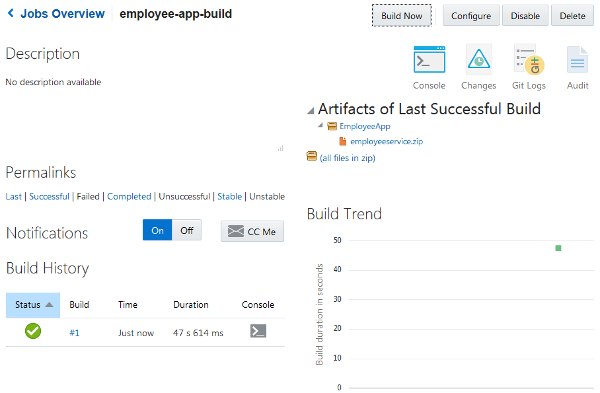
Description of the image
Deploying Your Application to Oracle Application Container Cloud Service
-
Click the Deploy tab and then click New Configuration.
-
In the New Deployment Configuration page, enter and select the following values, then click Save:
- Configuration Name:
deploy-employee-app - Application Name:
EmployeeService - In the Deployment Target field click New and select Application Container Cloud.
In the Deploy to Application Container Cloud window, enter the following values and click Test connection.
- Data center: Data center of your Oracle Cloud account
- Identity Domain: Your identity domain
- Username: Your user name
- Password: Your password
When you see the Successful message click Use Connection.
- Runtime: PHP
- Subscription: Hourly
- Type: Automatic (Select Deploy stable build only)
- Job: employee-app-build
- Artifact: employeeservice.zip
- Configuration Name:
-
Click
 and then select Start
to deploy the application to Oracle Application
Container Cloud Service.
and then select Start
to deploy the application to Oracle Application
Container Cloud Service. Note: It could take a few minutes to complete the deployment process.
-
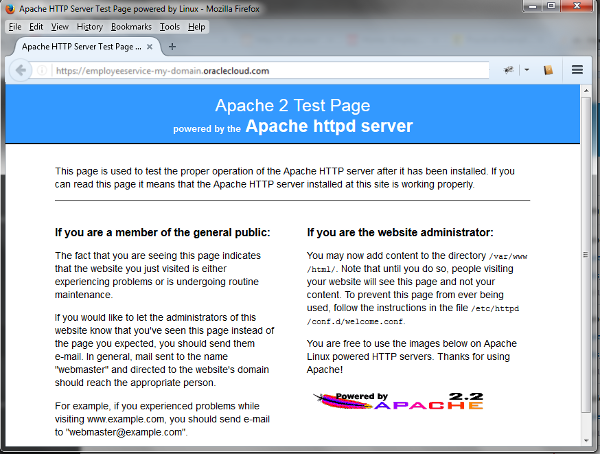
Click EmployeeService to execute the application.
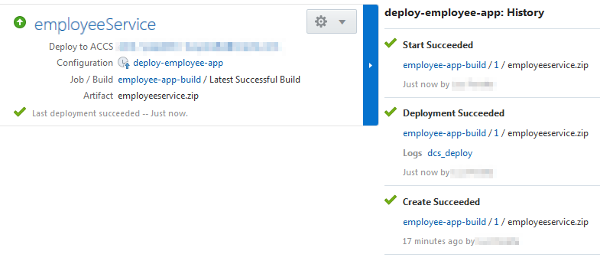
Description of the image Now, you can see that the Apache Server is running properly.
Description of the image -
Add to the end of the URL the service endpoint of your application
employees-rest-api.php/employees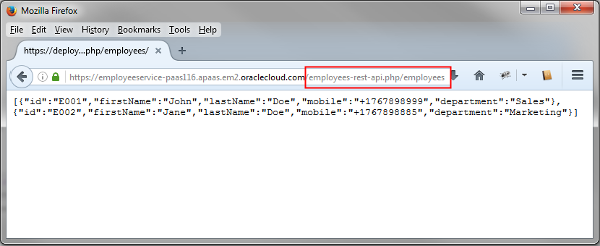
Description of the image
Committing and Pushing Changes into the Git Repository
In this section, you learn how the commits to the git repository in Oracle Developer Cloud Service automatically creates the build and the deployment to Oracle Application Container Cloud Service.
-
Open the
Employee.phpfile and change thefisrtNameandlastNameproperties of theemp1.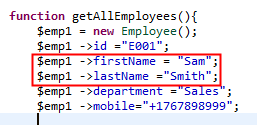
Description of the image -
Right-click the
Employee.phpfile, select Team, and then click Commit.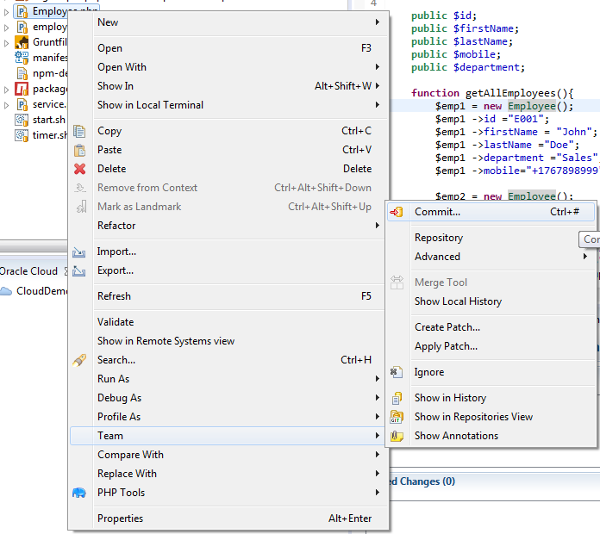
Description of the image -
Select the
Employee.phpfile from the Unstaged Changes and drop it on the Staged Changes section, then enter a commit message, and click Commit and Push. You can also enter the Author and Committer.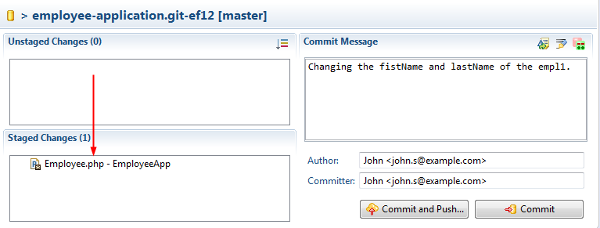
Description of the image -
Click OK.
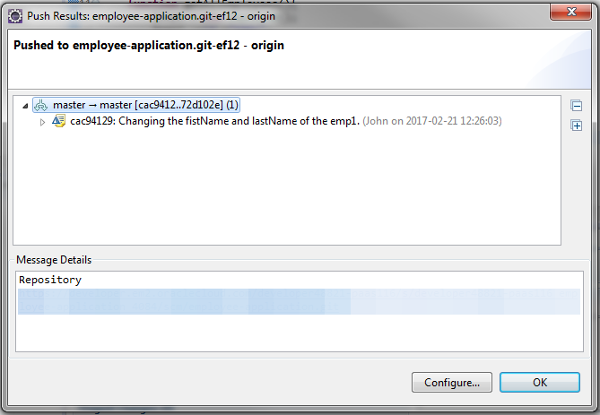
Description of the image -
Go to the Oracle Developer Cloud Service console to the Build section and select employee-app-build.
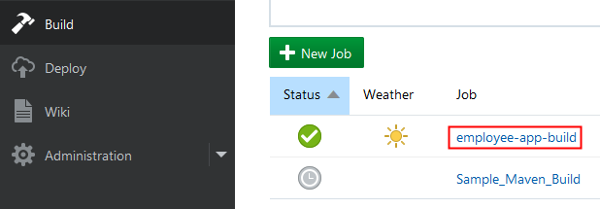
Description of the image -
After you execute the commit the build is executed. Wait until the build is finished.
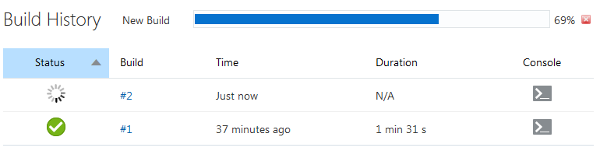
Description of the image -
Click Deploy and wait until the deployment is finished.
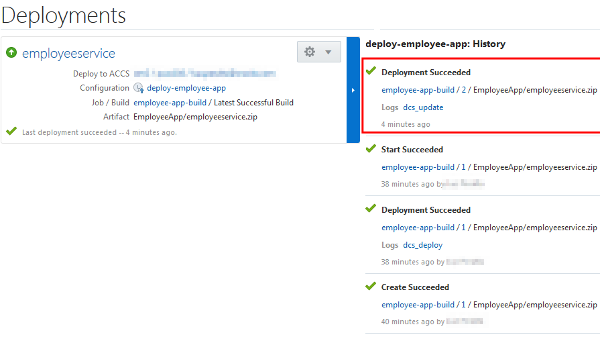
Description of the image -
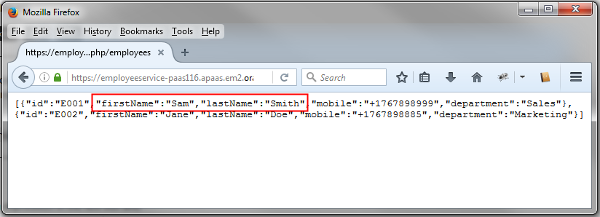
Go to the URL of your service and see the changes.
Description of the image