Before You Begin
Purpose
In this tutorial, you learn how to view the published details of your API and its documentation. You also learn how to create and delete an application in the Oracle API Platform Cloud Service Developer Portal, how to register your applications to APIs, and how to see which APIs your application is registered to.
Time to Complete
30 minutes
Background
The Oracle API Platform Cloud Service Developer Portal provides discovery, learning, and registration for APIs. It's the web page where you subscribe to APIs and get the necessary information to invoke them. When you access the Oracle API Platform Cloud Service Developer Portal, the API Catalog page appears. All the APIs that are published to the portal are listed.
API Portal
When you select an API from the API Catalog, its API Portal details page appears. This page displays information about an API. You can see the state of an API (such as beta, released, deprecated), whether you can register to it, any applications that you have already registered to it, registration requests waiting for approval, and so on. Overview text that describes the API's basic features also appears on this page.
API Portal Documentation
The Documentation tab embeds the documentation reference you specified on the Publication tab when you created the API. Depending on how you configured this tab, the documentation appears inside a frame as a website, as text, or the documentation on Apiary.
Application Registration
Oracle API Platform Cloud Service uses application registrations to determine which users have permission to use an API. Each application is assigned a key. This key can be passed in a header or as a query parameter with the request as specified in a key validation policy. If a key validation policy is enabled, only requests with a valid, current application key corresponding to a registered API are passed. Any other requests to this API are rejected.
Scenario
The Application Developer user wants to create an application and register the Energy API to get the application key and start using the Energy API.
Context
This tutorial is the sixth in a series of nine that shows you how to work in Oracle API Platform Cloud Service.
What Do You Need?
- You must finish the Managing API Grants in Oracle API Platform Cloud Service tutorial.
-
A user with the Application Developer role.
-
A user with the API Manager role.
Creating an Application and Registering an API
In this section, you create an application in the Oracle API Platform Cloud Service Developer Portal using your Application Developer credentials, and then you create a request to register the Energy API into your application.
-
Log in to the API Platform Cloud Service Developer Portal using the Application Developer user role.
http://hostname.domain:port/developers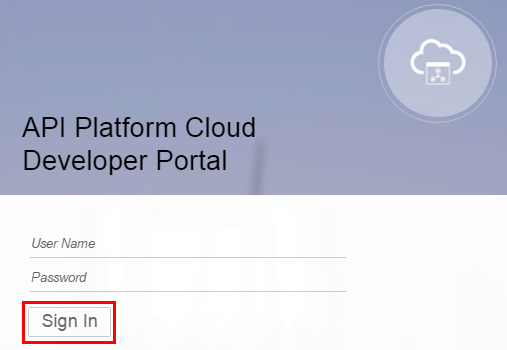
Description of this image -
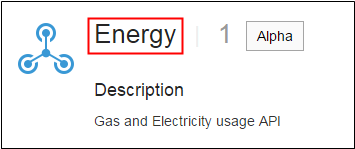
In the API Catalog page, click the Energy API.
Description of this image -
On the Energy API Overview page, click Register.

Description of this image -
On the Registration page, click Create New Application.

Description of this image -
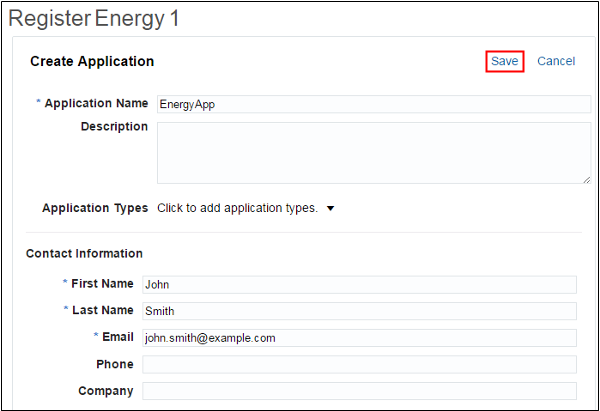
In the Create Application page, enter values in the following fields, and then click Save.
- Application Name (required)
- Description (optional)
- Application Types (optional)
- First Name (required)
- Last Name (required)
- Email (required)
- Phone (optional)
- Company (optional)
Description of this image -
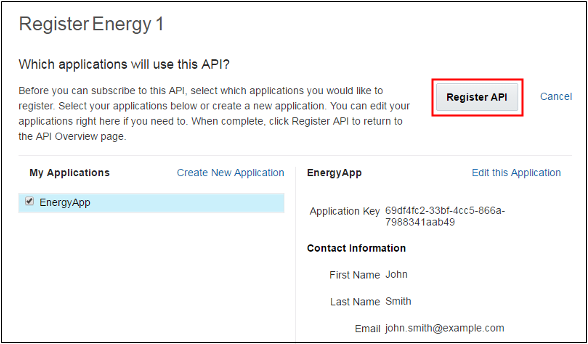
Click Register API.
Description of this image -
Go to the APIs page.
In the Registered Applications section, you'll see that the EnergyApp status is Pending.
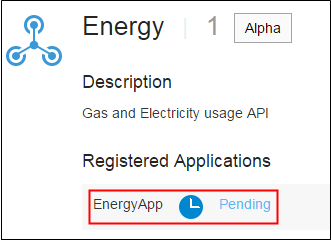
Description of this image
Approving Request Registrations for the API
In this section, you approve the request registration created in the previous section through the Oracle API Platform Cloud Service Management Portal using the API Manager user role.
-
Log in to API Platform Cloud Service Management Portal using your API Manager user role.
http://hostname.domain:port/apiplatform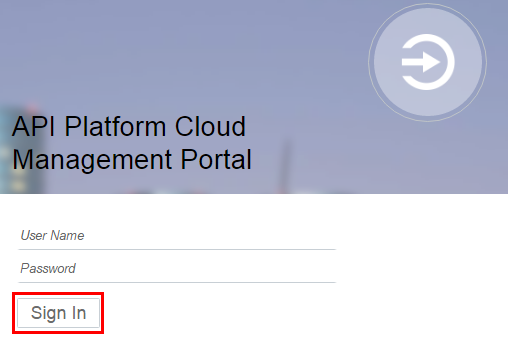
Description of this image -
In the APIs page, click the Energy API.
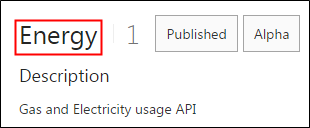
Description of this image -
On the API Implementation page, click the Registration icon
 .
. -
On the Registrations page, click Requesting Registration.
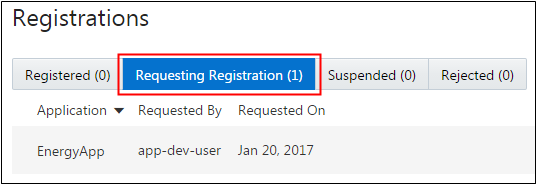
Description of this image -
Select EnergyApp and click Approve.

Description of this image -
In the confirmation dialog box at the top of the Registrations page, click Yes.

Description of this image -
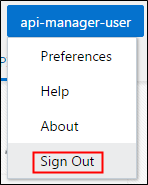
Click the Profile Menu, and then click Sign Out.
Description of this image -
Log in to the API Platform Cloud Service Developer Portal using your Application Developer user role.
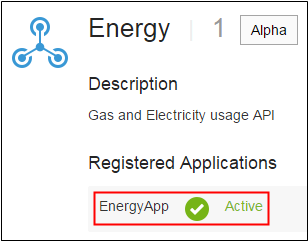
http://hostname.domain:port/developers Description of this image In the API Catalog page, in the Registered Applications section of the Energy API you'll see that the status of the EnergyApp is Active, which means that the request was approved.
Description of this image
Unregistering an API and Deleting an Application
In this section, you verify that you can't delete the EnergyApp application if the application is registered. You unregister the Energy API and delete the application.
-
Log in to the API Platform Cloud Service Developer Portal using your Application Developer user role.
http://hostname.domain:port/developers Description of this image -
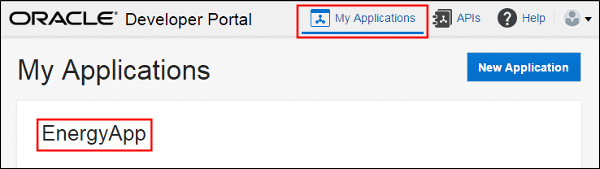
Click My Applications page, and then click EnergyApp.
Description of this image -
Click the Trash Can icon.

Description of this image -
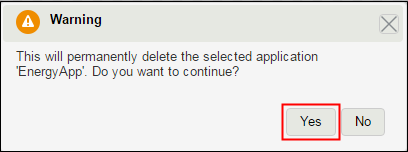
Click Yes.
Description of this image You see the following message:

Description of this image -
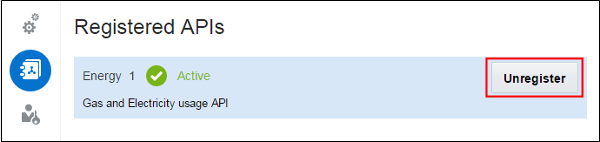
Click Registered APIs, hover the cursor over the Energy link, and then click Unregister.
Description of this image -
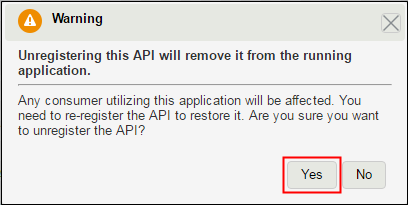
Click Yes.
Description of this image You see the confirmation message:

Description of this image -
Click the Trash Can icon.
Description of this image -
Click Yes to continue.
Description of this image You see the confirmation message:

Description of this image
Want to Learn More?
-
Consume APIs with the Developer Portal in the Oracle Help Center