
 Consuming
an API in Oracle API Platform Cloud Service Developer Portal
Consuming
an API in Oracle API Platform Cloud Service Developer Portal Before You Begin
This 10-minute tutorial shows you how to consume a published API using Oracle API Platform Cloud Service Developer Portal.
Background
Oracle API Platform Cloud Service Developer Portal is a simple catalog that provides information about published APIs. For an application to access an API, the application must subscribe to a plan that provides entitlement to the API.
In this tutorial, you are an application developer working for NextGen company. You have been tasked with creating an application for mobile devices that will allow customers to submit warranty claims. You want this application to invoke the Warranty Claim API. To accomplish this, you create an application in the Developer Portal and subscribe to a plan that allows your application to use the API.
What Do You Need?
- Access to an Oracle API Platform Cloud Service Developer Portal instance with the Application Developer role.
- Access to the published
Warranty ClaimAPI with a key validation policy. - URL of the gateway where
Warranty ClaimAPI is deployed. - Access to the published
LifeTime ProtectionPlan. - A REST client tool
 Create
an Application
Create
an Application
Begin with creating an application. You can enter a name, description, and contact details for your new application.
- Sign in to Oracle API Platform Cloud Developer Service
Portal as an application developer using the following URL
format.
https://instance-identitydomain.apiplatform.ocp.oraclecloud.com/developersWhere, instance-identitydomain refers to the identity domain of your Oracle API Platform Cloud Service instance. For example:
https://apidemo-paasproducm.apiplatform.ocp.oraclecloud.com/developers - In API Platform Cloud Service Developer Portal, click My Applications.
- On the My Applications page, click Register Application.
- Enter the following values on the Register Application page.
- Application Name:
NextGen Mobile Claims - Description:
Warranty Claim to protect your mobile device against any manufacturing defect. - Application Types: Mobile-iOS
- First Name:
John - Last Name:
Doe - Email:
john.doe@example.com
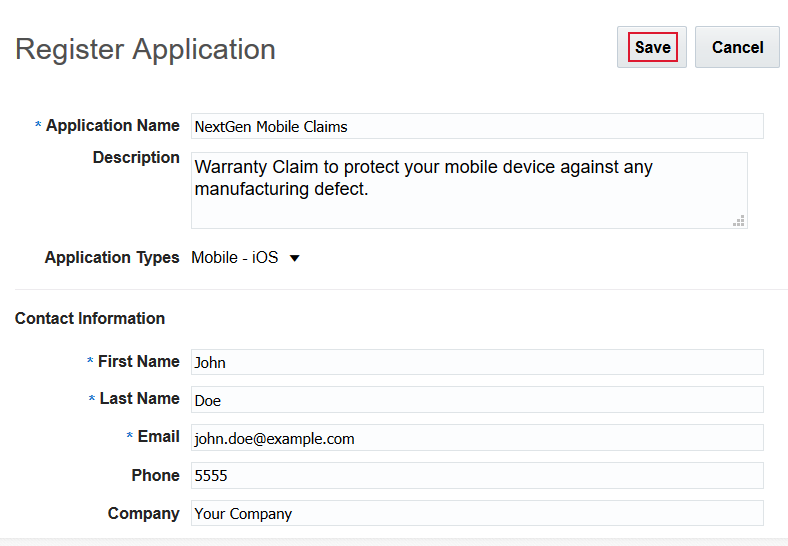
Description of the illustration registerapplication.png - Application Name:
- Click Save.
The My Applications page displays the newly created application,
NextGen Mobile Claims. - Click
NextGen Mobile Claimsto view the details. Note a unique application key is assigned to your application.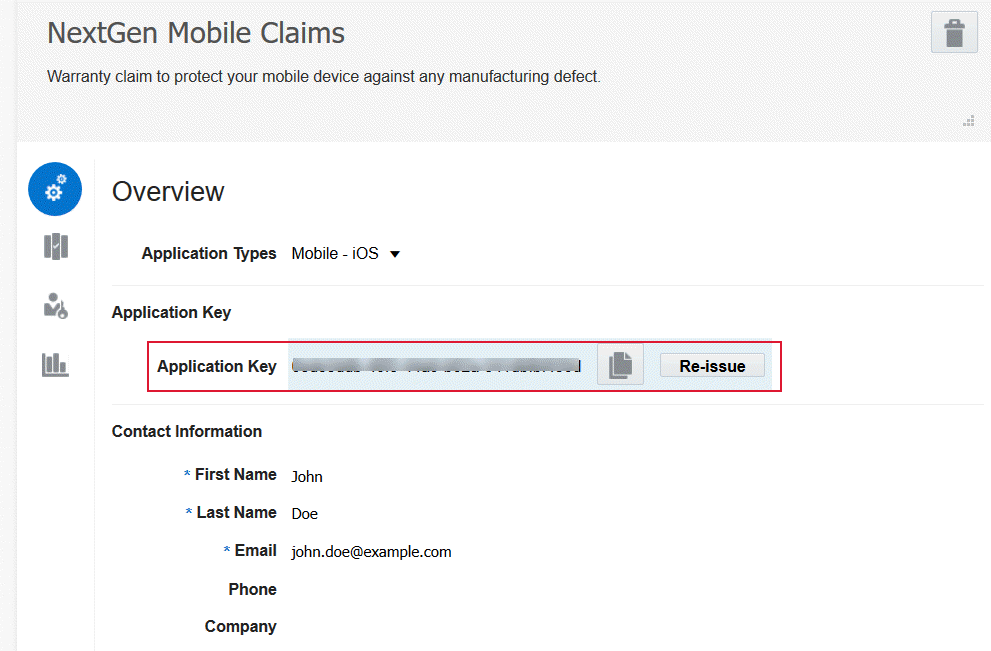
Description of the illustration application-view.png Use the application key in a header or as a query parameter to invoke a request for your API.
 Discover
Your
API in the Catalog
Discover
Your
API in the Catalog
Next, find the desired API and evaluate the plan associated
with it. In this tutorial, use the Warranty Claim
API.
- In API Platform Cloud Service Developer Portal, click APIs.
- On the APIs page, enter
Warranty Claimin the search box and click Search .
. - Click the Warranty Claim API to open the API page.
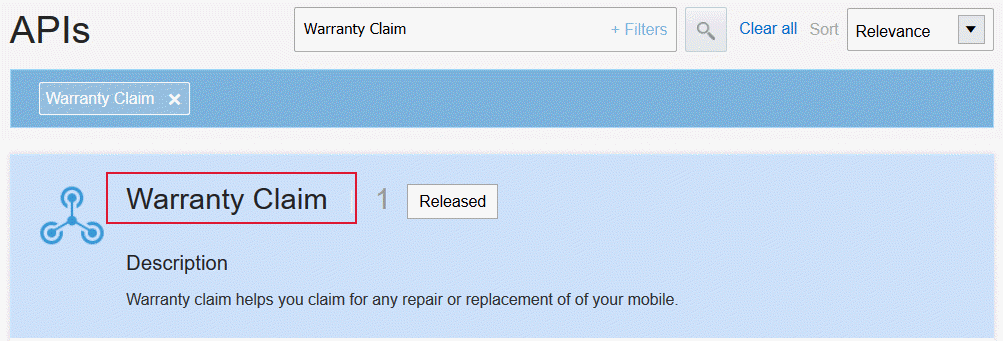
Description of the illustration apicatalogpage.png - On the Warranty Claim API page, click Plans
 to view the associated plans
that provide access to the API and click View Plan
Details for the individual plans to view the plan
details.
to view the associated plans
that provide access to the API and click View Plan
Details for the individual plans to view the plan
details.
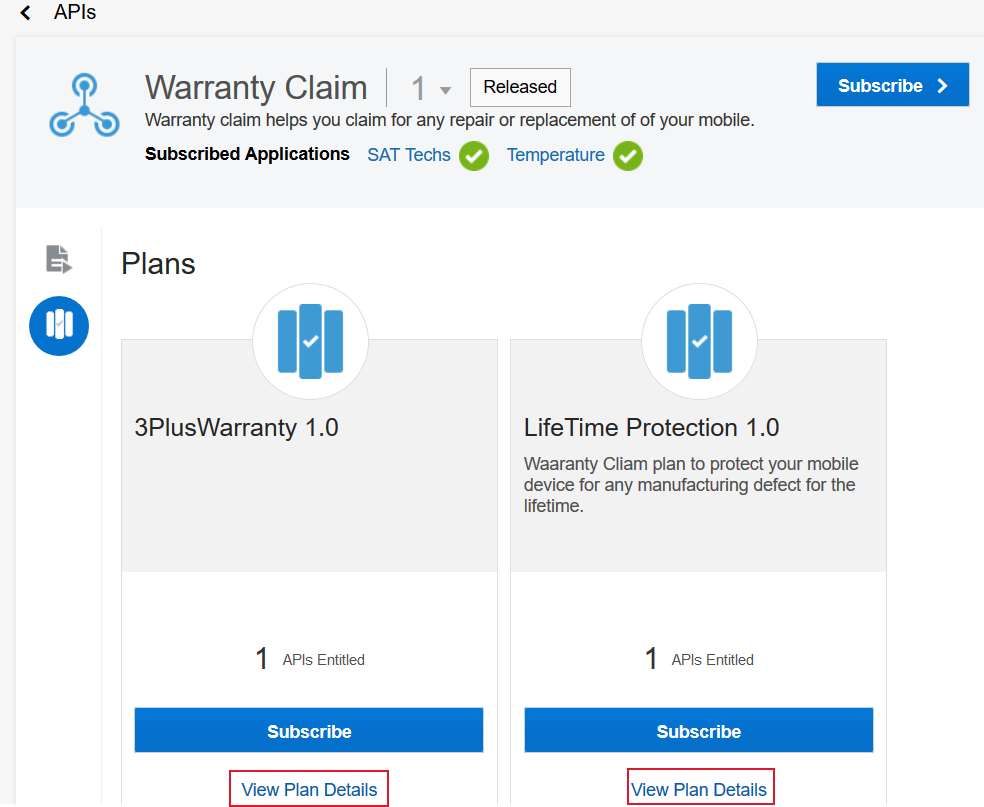
Description of the illustration planspage.png
 Subscribe
to a Plan for the API
Subscribe
to a Plan for the API
Subscribe to a plan to enable your application to use the
selected API. In this tutorial, subscribe to the LifeTime
Protection plan.
- On the Warranty Claim API Plans page, click Subscribe.
- From the list of available plans, select Plan
LifeTime Protection and click Select Plan.
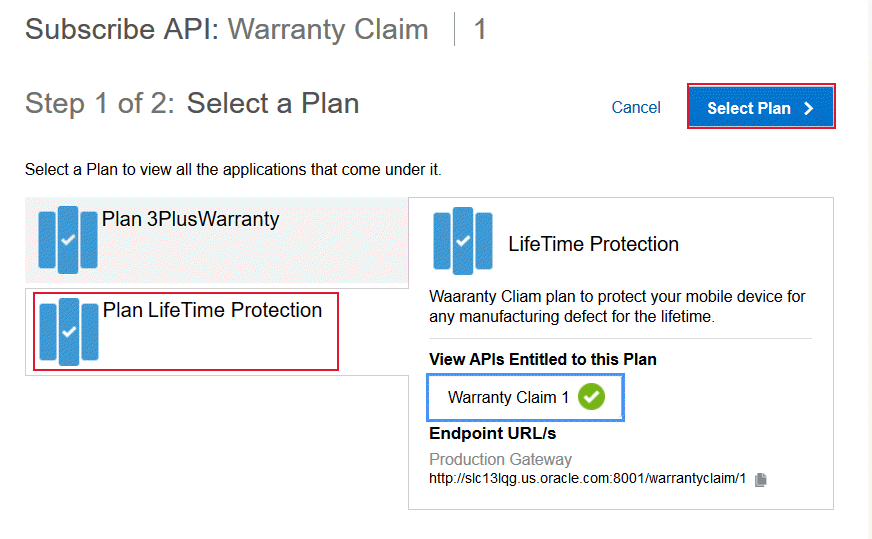
Description of the illustration selectplan.png - From the list of available applications, select NextGen
Mobile Claims and click Subscribe.
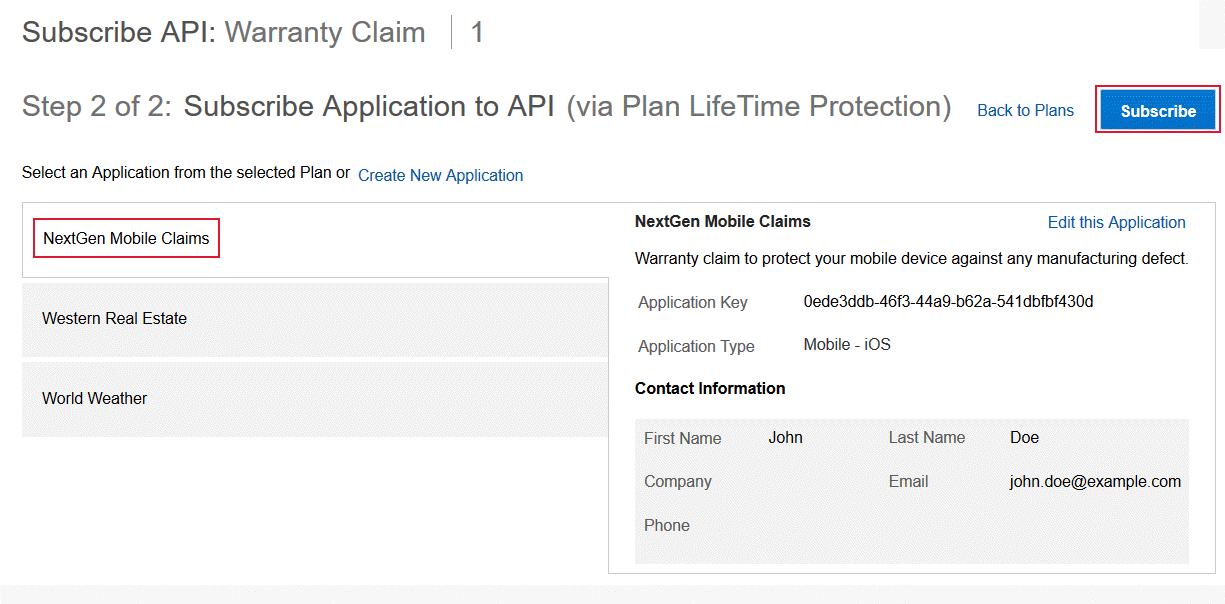
Description of the illustration selectapplication.png The subscription request is sent to Oracle API Platform Manager Portal. Your application users can consume the Warranty Claim API after the subscription is approved by Plan Manager.
 Invoke
the Subscribed API from Your Application
Invoke
the Subscribed API from Your Application
After your subscription request is approved, invoke the API using the application key.
- Using the REST client tool, send the request to invoke the
API. Use the application key in the header.
The following example shows how to send a GET request with an application key in the header.
curl -X GET
  -H 'Accept: application/json'
  -H 'Content-Type: application/json'
  -H 'appkey: 0ede-541dbfbf430d'
  http://example.com/warrantyclaim/1/tickets
Where, example.com refers to the path of the gateway where API is deployed,
warrantyclaimrefers to your API andticketsrefers to the REST resource. - Review the response retrieved for the GET request.
 View
Analytics for Your Application
View
Analytics for Your Application
Use analytics to determine the performance of the subscribed API on your application. You can review details such as how often and why requests to the API are rejected and what are the data trend, including the volume of request.
- On the API Developer Portal page, click My Applications.
- On the Application page, click NextGen Mobile Claims to open the application.
- Click Analytics
 .
. - From the API drop-down list, select the
Warranty Claim API.
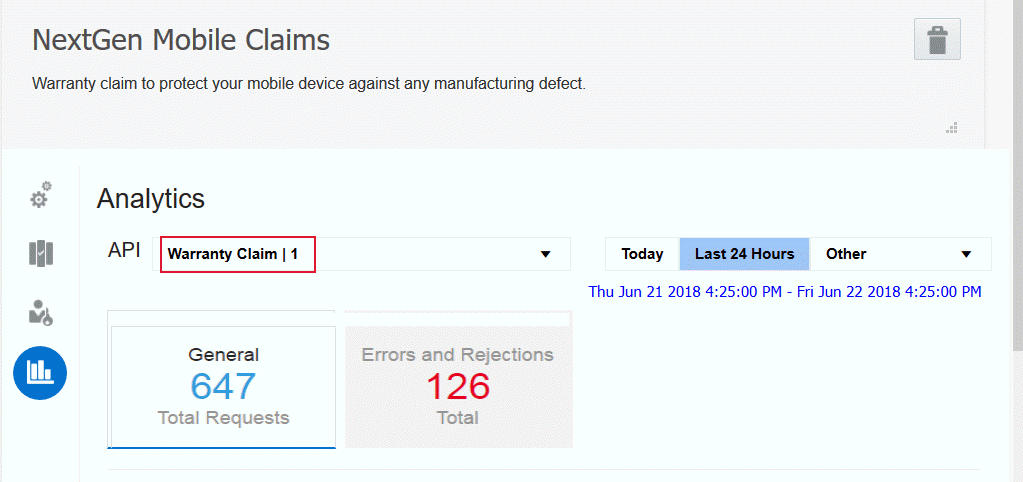
Description of the illustration application-analytics-api.png - Click General or Errors and
Rejections to view the available charts. The
following example shows the volume of the request sent.
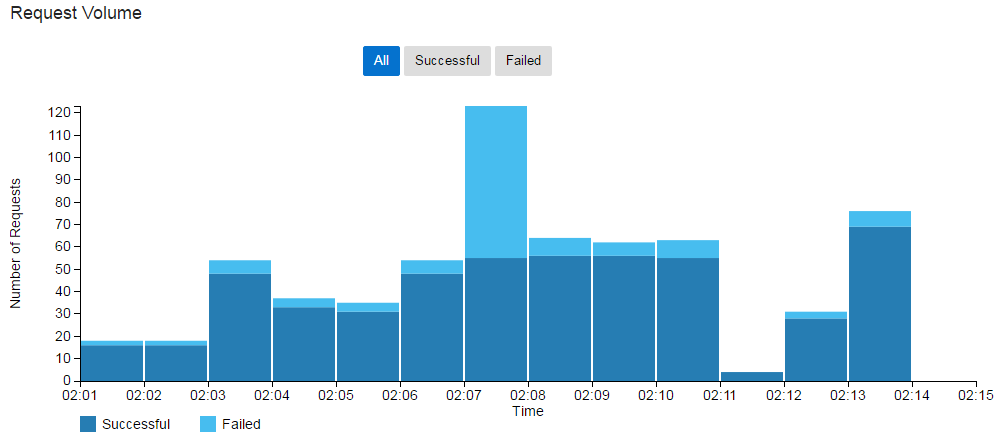
Description of the illustration application-analytics-graph.png
 Unsubscribe
from a Plan
Unsubscribe
from a Plan
You can unsubscribe an application from a plan if you no longer want your application users to have access to the APIs entitled by the plan.
- On the NextGen Mobile Claims page, click Subscriptions
 .
. - From the list of available plans, click
LifeTime
                    Protection
and click Unsubscribe.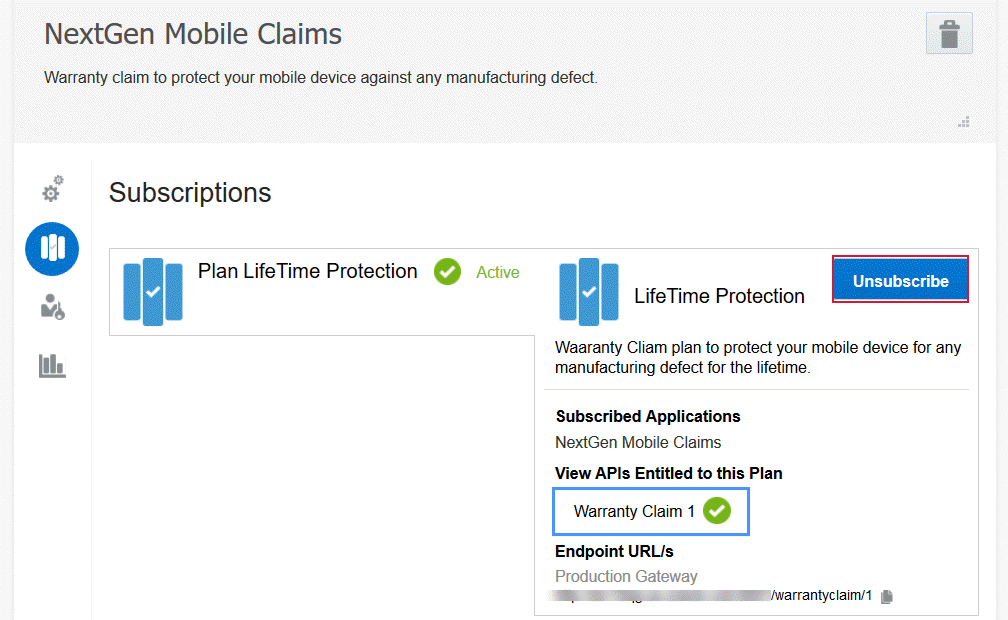
Description of the illustration unsubscribe.png - In the Warning dialog, click Yes to
confirm.
The subscription to the plan is now removed. You can re-subscribe to the plan if you want to access its APIs.
 Want
to Learn More?
Want
to Learn More?