Before You Begin
Purpose
In this tutorial, you learn how to issue grants to determine who can manage or consume your APIs. You also learn the differences between all of the available grants in Oracle API Platform Cloud Service.
Time to Complete
30 minutes
Background
Every action a user performs on an object in Oracle API Platform Cloud Service is made possible by a grant. Each role is eligible to receive only certain grants.
These are the available API grants:
Manage API Grant
The Manage API grant is available only to an API manager. It's given automatically to the person who creates an API. Administrators don't specifically need this grant. The Manage API grant gives an API manager the ability to view and edit API details, delete or apply policies to the API, and to issue grants to other API managers.
View All Details Grant
The View All Details grant allows API managers and gateway managers to view the details of an API in read-only format in the Management Portal. The information available includes general information, implementation, deployed endpoints, users, applications, and analytics.
View Public Details Grant
The View Public Details grant allows application developers to view an API's details page on the Developer Portal. This grant doesn't allow application developers to register or to request registration of their applications to this API.
Deploy API Grant
To allow a gateway manager to deploy an API without making a formal request, the API manager who created the API gives the gateway manager the Deploy API grant. API managers already have permission to deploy APIs they own because they're issued the Manage API grant. A Deploy API grant can be given to API managers to allow them to deploy APIs they didn't create.
Register Grant
The Register grant allows a user to register an application to an API without another user's approval. This grant also gives the user the ability to view the API. You don't need to issue a separate view grant to a user if you give the user the Register or Request Register grants.
Request Register Grant
Like the Register grant, the Request Register App grant is issued to application developers or API managers. Users issued this grant can request only a registration. While their requests are being reviewed by an API manager, they can't use the API. An API manager must approve the registration request for the runtime key validation policy to approve requests sent to an API using this application's key.
Scenario
The Energy company has three main users with the following roles working on the billing project: the API Manager user role, the Gateway Manager user role, and the Application Developer user role. The API manager decided to delegate the deployment task to the gateway manager, so the API manager must assign the View API Details grant and the Deploy API grant to the gateway manager in order to give the API manager the privileges to execute the deployments on the Energy API. The API manager also wants the application developers be able to request a registration to the Energy API.
Context
This tutorial is the fifth in a series of nine that shows you how to work in Oracle API Platform Cloud Service.
What Do You Need?
- You must finish the Publishing APIs in Oracle API Platform Cloud Service tutorial.
-
A user with the API Manager role.
-
A user with the Gateway Manager role.
-
A user with the Application Developer role.
Verifying the Grants of Your API
In this section, you log in to Oracle API Platform Cloud Service using your API Manager credentials to verify the grants of the Energy API before you start to add grantees.
-
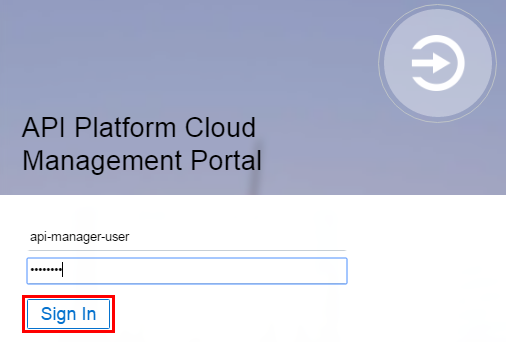
Log in to the Oracle API Platform Cloud Service Management Portal using your API Manager user role.
Description of this image -
On the APIs page, click Energy.

Description of this image -
On the API Implementation page, click the User Management icon
 .
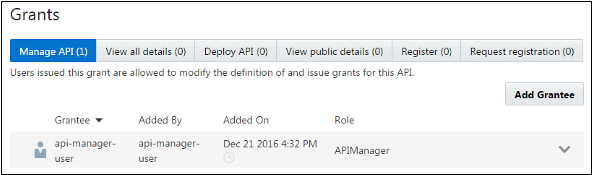
.By default, the API Manager grant is given to the user who creates the API.
Description of this image -
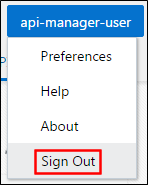
Click Sign Out.
Description of this image
Assigning the View All Details Grant to the Gateway Manager
In this section, you first log in to the Oracle API Platform Cloud Service using the Gateway Manager user role to verify that the gateway manager doesn't have access to the Energy API. Then using the API Manager user role, you assign the View All Details grant to the gateway manager.
-
Log in to the Oracle API Platform Cloud Service Management Portal using your Gateway Manager user role.
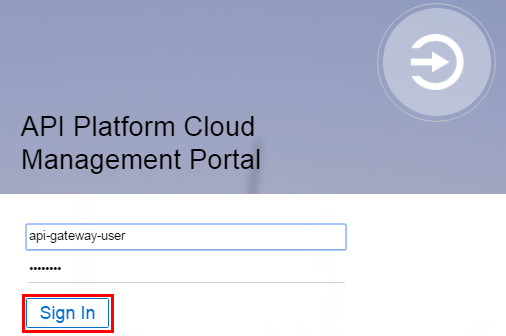
Description of this image Gateway managers are responsible for deploying, registering, and managing gateways. Gateway managers can also view the details of an API when they're issued the View All Details grant by an API manager. In this case, you can’t see the APIs link because the gateway manager doesn’t have the View All Details grant yet.

Description of this image -
Click Sign Out.
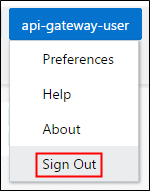
Description of this image -
Log in to the Oracle API Platform Cloud Service Management Portal using your API Manager user role.
Description of this image -
On the APIs page, click Energy.
Description of this image -
On the API Implementation page, click the User Management icon
. -
Click the View all details tab.
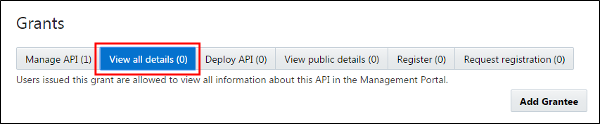
Description of this image -
Click Add Grantee.
-
Select your gateway manager user from the list and click Add.
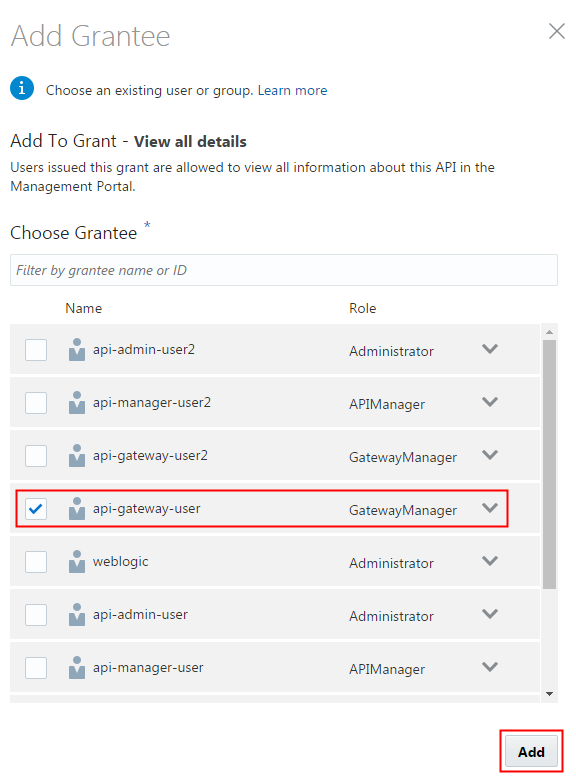
Description of this image -
Click Sign Out.
Description of this image -
Log in to the Oracle API Platform Cloud Service Management Portal using the Gateway Manager user role.
Description of this image Now, the gateway manager user can see the APIs page, and the Energy API.
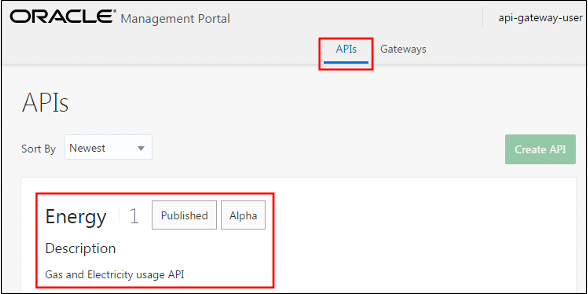
Description of this image Stay logged in with the Gateway Manager user role.
Assigning the Deploy API Grant to the Gateway Manager
In this section, you first try to deploy the Energy API using the Gateway Manager user role to verify that the gateway manager can't execute the task. Then, using the API Manager user role, you assign the API Deploy grant to the gateway manager to allow the gateway manager to deploy the API.
-
On the Management Portal, click Gateway.

Description of this image -
On the Gateways page, click Production Gateway.

Description of this image -
On the Production Gateways page, click the Deployments icon
 .
. -
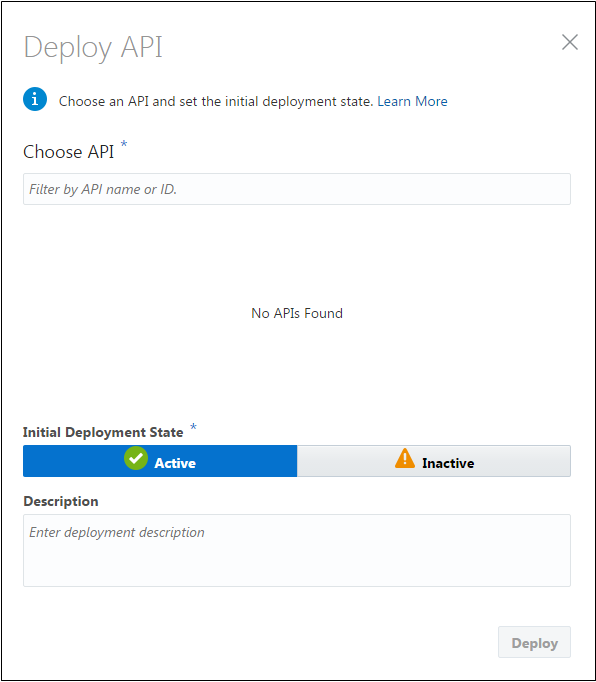
On the Deployments page, click Deploy API.

Description of this image At this point, the gateway manager can't deploy the API because the gateway manager can't see the Energy API.
Description of this image -
On the API Deployment page, click the Close icon
 .
. -
Click Sign Out.
Description of this image -
Log in to the Oracle API Platform Cloud Service Management Portal using your API Manager user role.
Description of this image -
On the APIs page, click Energy.
Description of this image -
On the API Implementation page, click the User Management icon
. -
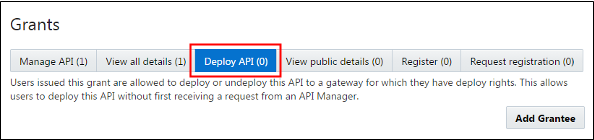
On the User Management page, click the Deploy API tab.
Description of this image -
Click Add Grantee.
-
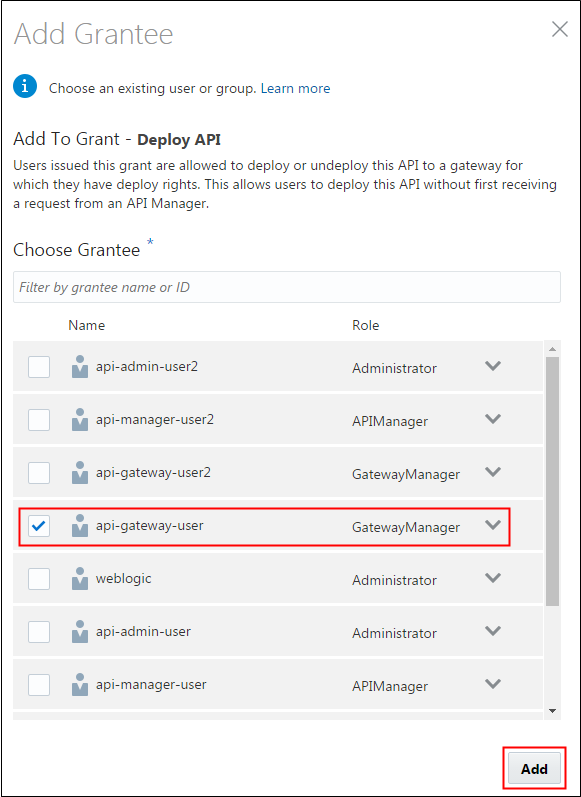
Select your gateway manager user from the list and click Add.
Description of this image -
Click Sign Out.
Description of this image -
Log in to the Oracle API Platform Cloud Service Management Portal using your Gateway Manager user role.
Description of this image -
On the Management Portal, click Gateway.
Description of this image -
On the Gateways page, click Production Gateway.
Description of this image -
On the Production Gateways page, click the Deployments icon
. -
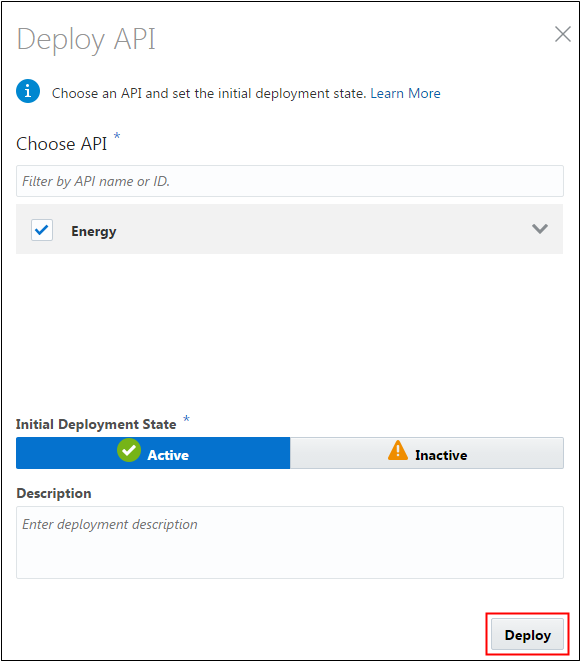
On the Deployments page, click Deploy API.
Description of this image Now, you can view the Energy API and create the deployment using the Gateway Manager user role.
Description of this image -
On the API Deployment page, click the Close icon
. -
Click Sign Out.
Description of this image
Assigning the Request Register Grant to the Application Developer
In this section, you first log in to the Oracle API Platform Cloud Service Developer Portal using the Application Developer user role to verify that the application developer can't see the Energy API. Then, using the API Manager user role, you assign the Request Register grant to the application developer to allow the application developer to request the registration of the Energy API.
-
Log in to the Oracle API Platform Cloud Service Developer Portal using your Application Developer user role.
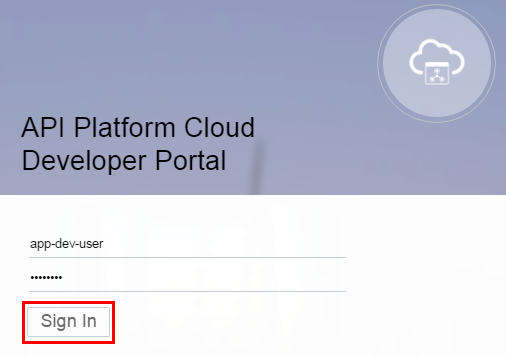
Description of this image At this point, the application developer user can't see the Energy API.

Description of this image -
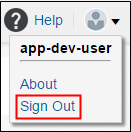
Click Sign Out.
Description of this image -
Log in to the Oracle API Platform Cloud Service Management Portal using your API Manager user role.
Description of this image -
On the APIs page, click Energy.
On the API Implementation page, click the User Management icon
.-
On the User Management page, click the Request registration tab.
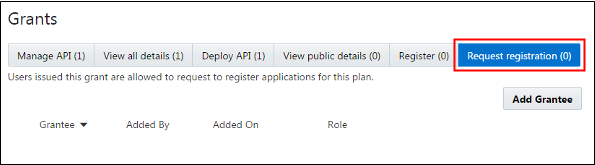
Description of this image -
Click Add Grantee.
-
Select your application developer user from the list and click Add.
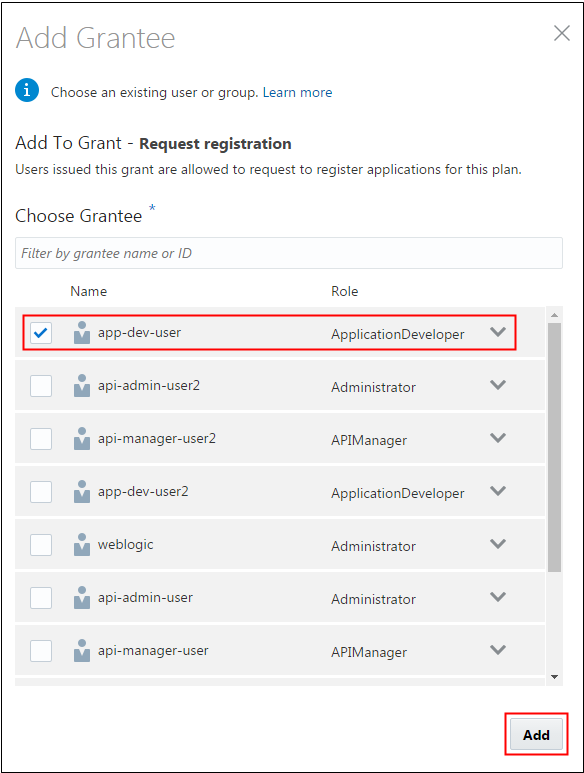
Description of this image -
Click Sign Out.
Description of this image -
Log in to the Oracle API Platform Cloud Service Developer Portal using your Application Developer user role.
Description of this image Now, the application developer can see the Energy API.

Description of this image
Want to Learn More?
-
Manage APIs in the Oracle Help Center