Before You Begin
Purpose
In this tutorial, you'll learn how to develop a Business Object Provider (BOP) for Oracle Visual Builder Cloud Service and use it in an application.
Time to Complete
Approximately 45 minutes
Background
A BOP is a kind of extension, which in Oracle Visual Builder Cloud Service is defined as a collection of files that provide a custom function or resource that can be used to extend an application. A BOP enables you to create a connection to an external REST service that you want to use to provide business objects to your application.
A business object is a resource, such as an invoice or purchase order. Like a database table, a business object provides the structure for data used with business processes. A business object contains fields, just as a database table contains columns. Business objects are stored in a database.
The images in this tutorial show the standalone version of Oracle Visual Builder Cloud Service. If you are using the Oracle Integration Cloud version, you will see an additional menu at the top of each page that lets you switch between Visual Builder and Integration Cloud.

Scenario
You'll use a template to create a BOP that provides a connection to a JIRA implementation. JIRA software, created by Atlassian, provides issue tracking for project development. To use this particular BOP, you need access to a JIRA system. However, the principles you will learn, and the basic structure of a BOP, apply to any service you want to connect to.
To implement a BOP, you use not only the API for the external REST service, but also the REST API for Oracle Visual Builder Cloud Service, which is documented in JavaScript Extension Development API for Oracle Visual Builder Cloud Service
In this tutorial, you'll learn how to:
-
Research your REST service and become familiar with its REST APIs, if you aren't already
-
Create a basic web application, then create a BOP using a wizard
-
Decide on the structure you will use for your BOP
-
Define the entities (business objects and fields) that your BOP will use
-
Define the operations your BOP will allow on the business objects
-
Define the authentication for your BOP (optional)
-
Define pagination for your BOP (optional)
-
Create a ZIP archive for your BOP (optional)
-
Test the BOP by importing it as a REST service
Context
This tutorial doesn't depend on your completing any other tutorials, but you may find it useful to complete the Creating a Theme in Oracle Visual Builder Cloud Service OBE tutorial first, so that you can compare a BOP to another kind of extension.
What Do You Need?
-
Access to Oracle Visual Builder Cloud Service
-
Familiarity with the REST service that your BOP will access
-
A thorough knowledge of JavaScript and web application development, including JavaScript promises. If you aren't familiar with promises, the following may be helpful:
-
Basic understanding of the JavaScript Extension Development API for Oracle Visual Builder Cloud Service
-
A supported browser (see Known Issues for Oracle Visual Builder Cloud Service for more information)
Research the External REST Service
Begin by studying the APIs for the REST service you plan to access. As the name Business Object Provider indicates, your goal in writing a BOP is to make particular data objects in the REST service available as business objects for your Oracle Visual Builder Cloud Service applications to use. So you'll identify the objects, and the fields of those objects, that you want to use. This tutorial uses only one object, an issue, and only five fields of the many that are available.
You can find the JIRA Cloud REST API Reference
at https://docs.atlassian.com/jira/REST/cloud/.
For this simple BOP, you'll just retrieve a list of
issues using the GET /rest/api/2/search
method. As you determine how to specify your search,
you may want to practice on the command line to make
sure you have the syntax right, using a client such
as curl or HTTPie.
For example, you could use a curl
command like the following to retrieve the five
fields from a specific issue:
curl -v -k https://issues.apache.org/jira/rest/api/2/issue/DERBY-3006?fields=id,key,project,summary,assignee
If you formatted the returned data, it would look
like this. REST APIs return data in JSON format.
Some issue properties are retrieved by default
whether or not you specify them. And if a property
has sub-properties, all of those are retrieved. For
example, the project field has
properties that in turn have their own
sub-properties.
{
  "expand":"renderedFields,names,schema,transitions,operations,editmeta,changelog",
  "id":"12375980",
  "self":"https://issues.apache.org/jira/rest/api/2/issue/12375980",
  "key":"DERBY-3006",
  "fields":
    {
      "summary":"Documentation: Need ability to link from one manual to another",
      "project":
        {
          "self":"https://issues.apache.org/jira/rest/api/2/project/10594",
          "id":"10594",
          "key":"DERBY",
          "name":"Derby",
          "avatarUrls":
            {
              "48x48":"https://issues.apache.org/jira/secure/projectavatar?pid=10594&avatarId=10122",
              "24x24":"https://issues.apache.org/jira/secure/projectavatar?size=small&pid=10594&avatarId=10122",
              "16x16":"https://issues.apache.org/jira/secure/projectavatar?size=xsmall&pid=10594&avatarId=10122",
              "32x32":"https://issues.apache.org/jira/secure/projectavatar?size=medium&pid=10594&avatarId=10122"
            },
          "projectCategory":
            {
              "self":"https://issues.apache.org/jira/rest/api/2/projectCategory/10090",
              "id":"10090",
              "description":"DB related projects",
              "name":"DB"
            }
        },
      "assignee":null
    }
}
Create a Web Application and BOP
In this section, you'll create a simple application using an application template and then create a BOP using an extension template.
-
In your web browser, log in to Oracle Visual Builder Cloud Service.
-
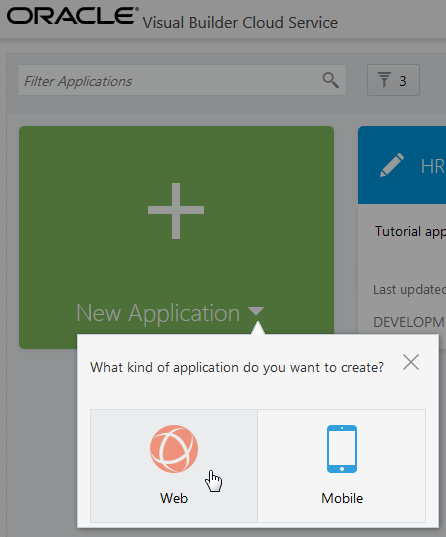
On the Home page, click + New Application and select Web.
Description of this image -
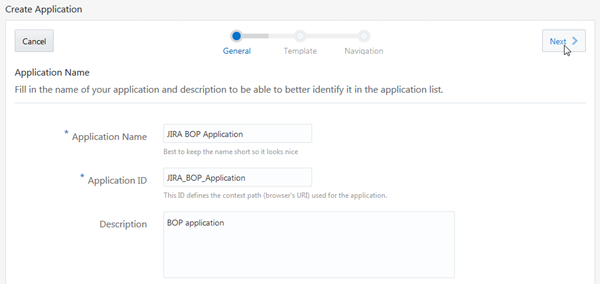
On the first page of the Create Application wizard, enter the following:
-
Application Name:
JIRA BOP Application -
Description:
BOP
                                      application
The Application ID text field is automatically populated based on the Application Name.
Click Next.
Description of this image -
-
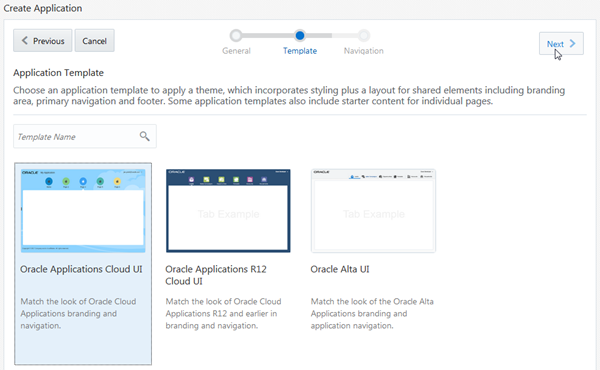
On the next page, select the Oracle Applications Cloud UI template, and then click Next.
Description of this image -
On the last page, click Finish.
By default, one tab with Home as its label is available.
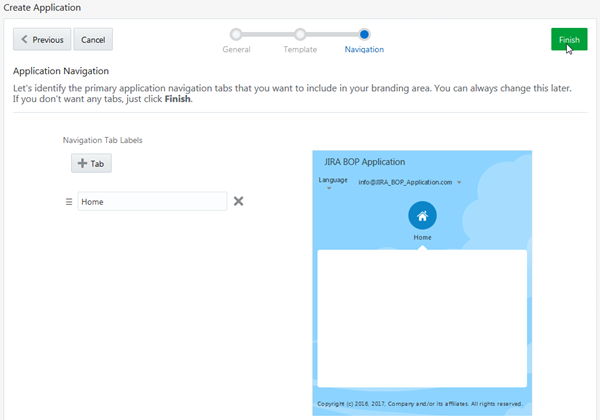
Description of this image Your application is created and opens in the Page Designer.
-
Click the
 icon and select Application Settings.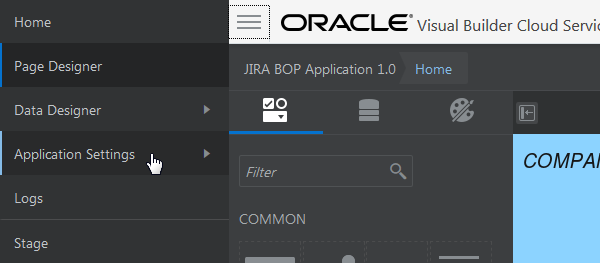
Description of this image -
Click the Extensions tile.
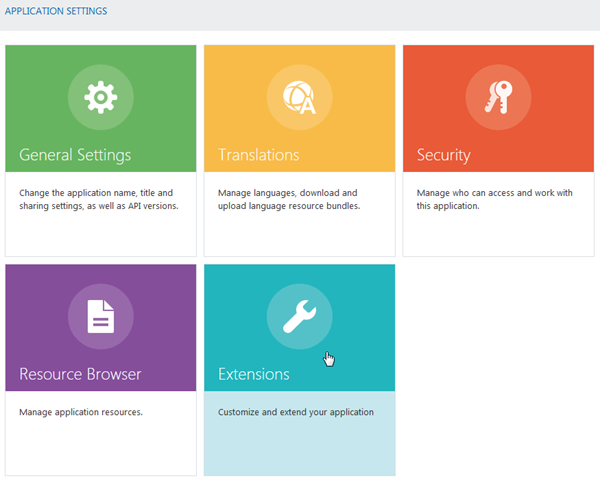
Description of this image -
On the Extensions page, click the Business Object Provider tab.
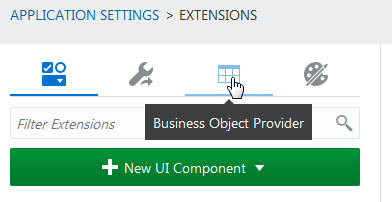
Description of this image -
Click + New Business Object Provider and select Create new.
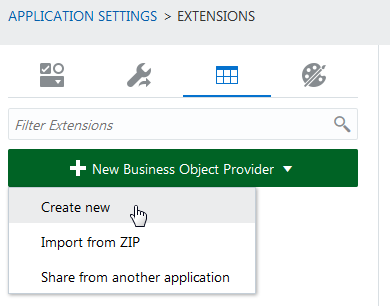
Description of this image -
On the first page of the Create New Extension wizard, enter the following:
-
Display Name:
MyBOP -
Extension ID:
com.example.bop(at least two groups of letters or numbers separated by a period) -
AMD Package Name:
com.example.bop(automatically populated) -
Description:
JIRA
                                      BOP
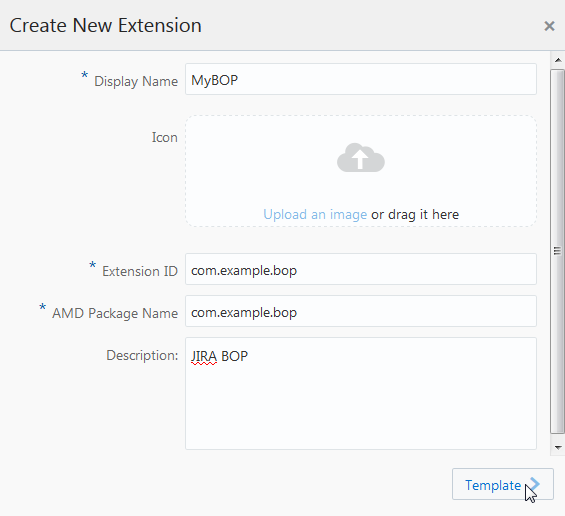
Description of this image Click Template.
Note: AMD stands for Asynchronous Module Definition.
-
-
On the Available Templates page of the wizard, select Jira BOP example, then click OK.
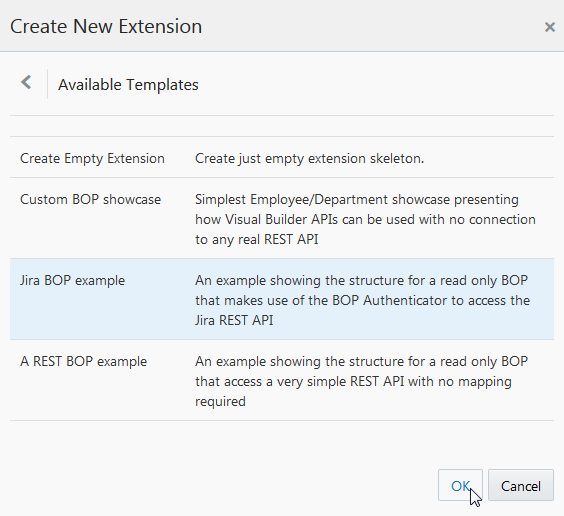
Description of this image You'll notice some other sample BOP templates that you can use. You also have the option of creating an empty extension.
-
The Overview tab of the BOP opens.
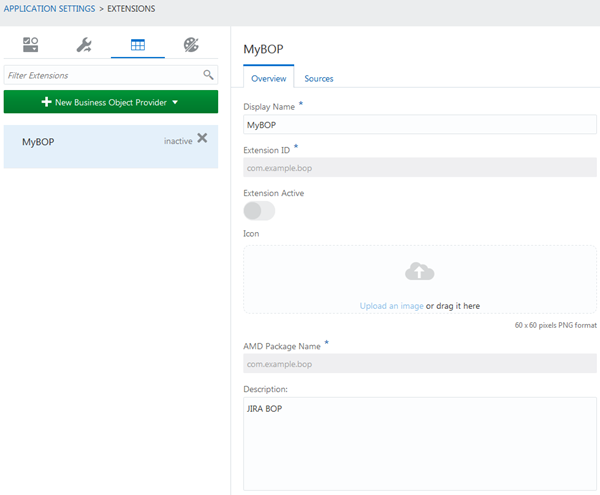
Description of this image
Decide on the Structure of the BOP
In this section, you'll learn the basic requirements for the structure of a BOP and the decisions available to you. For this BOP, a guiding principle is to keep the code specific to the JIRA REST service API as separate as possible from code specific to Oracle Visual Builder Cloud Service. This should make it easier for you to adapt this BOP to interact with a different REST service.
-
From the Overview page, click Sources to open the BOP files in the Resource Browser.
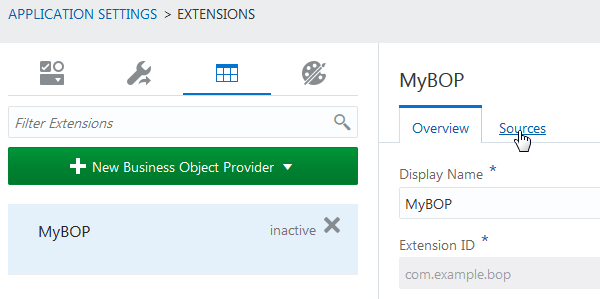
Description of this image -
Expand the nodes in the Resource Browser, if necessary, and view the file names (you may need to widen your web browser window to see them). Your BOP is stored under
user/extensions.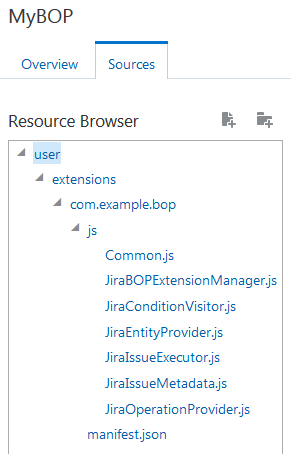
Description of this image The following table lists and describes these files. This particular BOP observes a naming convention that prefixes
Jirato the file names. Your BOP can use its own conventions, giving the files any names you like so long as they implement the required classes.File What's the File For? Is It Required? manifest.jsonLists information about the BOP extension, including all of the files it contains Yes, all extensions must have a manifest.jsonfile.JiraBOPExtensionManager.jsDefines the overall behavior of the BOP, implementing SimpleBOPExtensionManagerYes, all extensions must implement an ExtensionManager. You could implementBOPExtensionManager, which provides more capabilities.JiraEntityProvider.jsDefines the business object and its fields Yes, all BOPs must implement an EntityProvider.JiraIssueMetadata.jsDefines JIRA-specific information about the business object and its fields No, all this information could be put in the EntityProvider.JiraOperationProvider.jsDefines the operations that can be performed on the business object and its fields Yes, all BOPs must implement an OperationProvider.JiraIssueExecutor.jsDefines JIRA-specific operations No, all this information could be put in the OperationProvider.JiraConditionVisitor.jsContains some low-level code, some of it using JIRA-specific APIs, to define operators for the OperationProviderNo, all this information could be put in the OperationProvider.Common.jsContains a method that works around a gap in the current REST API for BOPs No. -
Click the manifest.json file to open it in the Resource Browser. This file defines the overall structure of the BOP. You can see that the
description,displayName,id, andpackageproperties are just as you specified them in the wizard. The image property is set to an empty value, but you can provide your own image underuser/extensions/com.example.bopif you want. Thetypeproperty is set tobusinessObjectsProvider.{ "description": "JIRA BOP", "displayName": "MyBOP", "extensionManager": "com.example.bop/js/JiraBOPExtensionManager", "id": "com.example.bop", "image": "", "package": "com.example.bop", "runtime": { "resources": [ "js/JiraEntityProvider.js", "js/JiraOperationProvider.js", "js/JiraConditionVisitor.js", "js/JiraIssueExecutor.js", "js/JiraIssueMetadata.js", "js/Common.js" ] }, "type": "businessObjectsProvider" }The
extensionManagerproperty defines the BOP's extension manager, which defines the overall behavior of the BOP. -
Click the JiraBOPExtensionManager.js file to open it in the Resource Browser. It implements the Oracle Visual Builder Cloud Service REST API
bop.dt/js/api/SimpleBOPExtensionManager, documented in JavaScript Extension Development API for Oracle Visual Builder Cloud Service. The extension manager retrieves theJiraEntityProviderand theJiraOperationProviderand also creates a custom parameter, which is the URI of the JIRA server.To use this BOP, you'll need to modify the third argument of the
CustomParameter.createSimplecall to specify the JIRA server you want to access. To access the Apache JIRA server, for example, you would specifyhttps://issues.apache.org/jira/. After you edit the argument, click Save Changes to save the file.define([ 'bop.dt/js/api/SimpleBOPExtensionManager', 'extensions.dt/js/api/CustomParameter' ], function( SimpleBOPExtensionManager, CustomParameter ) { 'use strict'; // Provide an implementation of the Jira REST interface as a BOP // https://docs.atlassian.com/jira/REST/cloud/ var bop = { getEntityProviderPath: function() { return 'com.example.bop/js/JiraEntityProvider'; }, getOperationProviderPath: function() { return 'com.example.bop/js/JiraOperationProvider'; }, getCustomParameters: function() { return [ CustomParameter.createSimple('baseUri', 'The base URI of the JIRA server', 'https://myjira.example.com/')]; } }; var em = new SimpleBOPExtensionManager(bop); // Shim to work around BUFP-9999 if (!em.getCustomParameters) { em.getCustomParameters = function() { return bop.getCustomParameters(); }; } return em; });The entity provider defines the business objects and their fields. This BOP uses only one business object.
The operation provider defines the operations that users can perform on the business objects.
Define the Business Objects and Fields for the BOP
This section describes the entity provider and its related file, which the BOP uses to define the business object and its fields.
-
Click the JiraEntityProvider.js file to open it in the Resource Browser. Like
JiraBOPExtensionManager.js,JiraEntityProvider.jsis a relatively short file. It contains all the code specific to Oracle Visual Builder Cloud Service, invoking thebop/js/api/entity/DataModelFactoryAPI to create the entities. It specifies theJiraIssueMetadata.jsfile as the location where the JIRA REST service data is defined. The code retrieves the entities from theJiraIssueMetadatafile, then iterates over them to create a property for each entity it finds.define([ 'bop/js/api/entity/DataModelFactory', 'com.example.bop/js/JiraIssueMetadata' ], function( DataModelFactory, JiraIssueMetadata ) { 'use strict'; var JiraEntityProvider = function() {}; JiraEntityProvider.prototype.getEntities = function() { var self = this; // Lazily create entities. This model is not used for RT or most of DT // so it make sense to do this work as late as possible. if (!self._entities) { self._entities = []; // Create a definition for the issue entity var sourceEntities = [JiraIssueMetadata]; sourceEntities.forEach(function(entity) { var properties = entity.entityPropertiesDefinition .map(function(def) { return DataModelFactory.createProperty(def); }); var entityDefinition = entity.entityDefinition; entityDefinition.properties = properties; self._entities.push(DataModelFactory.createEntity(entityDefinition)); }); } return self._entities; }; return JiraEntityProvider; });The separation between the entity provider code and the JIRA-specific code makes it easier to use a similar entity provider for other BOPs. You could, however, define all the data in the entity provider file if you wanted to, or in a separate file with a different name, or in several files (one for each business object, perhaps). The other templates all use different mechanisms.
-
Click the JiraIssueMetadata.js file to open it in the Resource Browser. It's not very long, either.
define([
    'entity/js/api/PropertyType'
], function(
    PropertyType
) {

    'use strict';

    var JiraIssueMetadata = function() {};

    // Metadata
    //

    JiraIssueMetadata.entityId = 'com.example.bop.issue';

    JiraIssueMetadata.entityDefinition = {
        id: JiraIssueMetadata.entityId,
        singularName: 'Issue',
        pluralName: 'Issues',
        description: 'An Issue in the Jira Database'
    };

    JiraIssueMetadata.entityPropertiesDefinition = [{
            id: 'id',
            name: 'ID',
            type: PropertyType.KEY
        },
        {
            id: 'key',
            name: 'Jira Bug',
            type: PropertyType.TEXT
        },
        {
            id: 'summary',
            name: 'Summary',
            type: PropertyType.TEXT
        },
        {
            id: 'project',
            name: 'Project',
            type: PropertyType.TEXT
        },
        {
            id: 'assignee',
            name: 'Assignee',
            type: PropertyType.TEXT
        }
    ];

    // Information is fed back from the operation provider as to
    // what the user has selected
    //

    JiraIssueMetadata.registeredProperties = [];

    return JiraIssueMetadata;
});
This file defines the entity -- that is, the business object -- as a JIRA issue. It defines the properties of the entity -- that is, the fields of the business object -- using the JIRA API values for the
idproperty, and gives them business object field names by specifying values for thenameproperty. The code uses the Oracle Visual Builder Cloud Service REST APIentity/js/api/PropertyType. Every entity has to have a key, specified withPropertyType.KEY. (Try not to be confused by the fact that the JIRAidfield is the entity key, while the JIRA field namedkeyis actually what JIRA users think of as the bug ID -- DERBY-1234, for example.) All the properties we're defining are of typeKEYorTEXT, but you can also define properties of many other types:DATE,CURRENCY,BOOLEAN, and so on.A JIRA issue has many fields that can be retrieved. This BOP retrieves only a few of them.
Notice the
JiraIssueMetadata.registeredPropertiesassignment near the end. This object is populated in the operation provider.
Define the Operations the BOP Will Use
This section describes the operation provider for
the BOP, which defines the operations that can be
performed on the business object and its fields.
Like the entity provider, the operation provider for
this BOP separates the basic Oracle Visual Builder
Cloud Service code from the code specific to the
JIRA API. The file JiraOperationProvider.js
contains the basic code. The file JiraConditionVisitor.js
provides detailed operator handling, and the file JiraIssueExecutor.js
provides processing and postprocessing in addition
to defining the operations in detail.
-
Click the file JiraOperationProvider.js to open it in the Resource Browser. This is a longer file, so we'll look at in in parts. The first part defines the
JiraOperationProviderby first retrieving thebaseUricustom parameter defined in the extension manager and then adding another segment to the URI to access the JIRA API. For Apache, for example, the complete URI would behttps://issues.apache.org/jira/rest/api/2/.var API_SEGMENT = 'rest/api/2/'; var JiraOperationProvider = function(dependencies) { var self = this; // This object implements both the OperationProvider and the ResourceProvider // interfaces this._operations = []; this._resources = []; // Get the baseUri parameter of the BOP, fail if this is not defined this._parameters = Common.getParameters(dependencies); if (!this._parameters.baseUri) { throw new Error('Missing required parameter baseUri' + JSON.stringify(this._parameters)); } var baseUri = this._parameters.baseUri; var restRoot = baseUri + API_SEGMENT;Next, the
OperationProviderretrieves a default authenticator using the declared list of resources. A BOP must provide resources if it uses the defaultbop/js/api/operation/BOPAuthenticatormethods. The default authenticator defines a whitelist of resources in order to use the built-in authentication mechanism.this._authenticator = BOPAuthenticators.getDefault(dependencies, { getResources: function() { return self._resources; } });The remaining part of the
OperationProviderdefinition locates the issue entity and calls the function_initIssue. After_initIssuereturns, it sets the registered properties to reflect those returned in theissueEntity.// Add actions for issue entity var issueEntity = Abcs.Entities().findById(JiraIssueMetadata.entityId); if (issueEntity) { self._initIssue(issueEntity, restRoot); JiraIssueMetadata.registeredProperties = issueEntity.getProperties() .map(function(property) { return property.getId(); }); } };The
OperationProvideralso definesgetOperationsandgetAuthenticatormethods.JiraOperationProvider.prototype.getOperations = function() { return this._operations; }; JiraOperationProvider.prototype.getAuthenticator = function() { return this._authenticator; }; -
Look at the next function,
_initIssue, which provides most of theOperationProvidercode to enable searching for both a collection of issues and for a single issue. It takes theissueEntityandrestRootas parameters. It then defines asearchUriby appending the JIRAsearchAPI to the value of therestRootargument. It retrieves the authenticator and defines the resource for whitelisting. Thetemplateproperty specifies the resource.JiraOperationProvider.prototype._initIssue = function(issueEntity, restRoot) { var self = this; var searchUri = restRoot + 'search'; var authenticator = self.getAuthenticator(); // First deal with collection types, register a resource then // each operation // this._resources.push( Resource.create({ id: 'jira.search', template: API_SEGMENT + 'search', entity: issueEntity.getId() }) );Next, the code creates an
OperationInputinstance,searchInput, specifying the entity as parameter, and sets up the operators for the entity properties. TheJiraConditionVisitor.jsfile, which we aren't describing here, contains some low-level code, some of it using JIRA APIs, to define operators for theOperationProvider.// Generic search var searchInput = new OperationInput({ entity: issueEntity }); JiraConditionVisitor.setOperatorsForType(searchInput);The function builds a search operation by creating an
OperationBuilder, defining its parameters and calling its methods. This operation searches for multiple issues.this._operations.push( new OperationBuilder({ name: 'Search Issues', type: Operation.Type.READ_MANY, performs: JiraIssueExecutor.find(authenticator, searchUri) }).description('Fetch issues based on fields.') .specialType(Operation.SpecialType.QUERY_BY_ANYTHING) .returns(issueEntity) .takes(searchInput) .paginates(Pagination.STANDARD) .build());The
nameyou define will be the value for the operation in all UI components you create for it. The operationtypefor the search is set toREAD_MANY. Theperformsparameter specifies the REST call that the operation performs. In this case, it's afindcall that takes as parameters the authenticator and thesearchUri, now specified ashttps://issues.apache.org/jira/rest/api/2/search. The search also performs pagination on the results.The
findcall is defined inJiraIssueExecutor.js, along with two other search functions (findReportedCurrentUserandfindById).JiraIssueExecutor.jsalso defines some internal functions,_processQueryParametersand_postProcessResponse, which specify pagination.The
specialTypemethod sets the type of the operation toQUERY_BY_ANYTHING, which allows it to search using any input condition (the others allow it to query only by one or more ID values). The buildertakesthe specifiedsearchInputandreturnsanissueEntityvalue, using standard pagination. Finally, thebuildmethod builds the operation.Next, the
_initIssuemethod retrieves theidvalue from the specifiedissueEntity. If a singleidvalue is returned, it executes code to build a resource and operation to retrieve a single issue instead of many issues.var idParameter = issueEntity.getKeyProperty('id'); if (idParameter) { this._resources.push( Resource.create({ id: 'jira.issue', template: API_SEGMENT + 'issue/{issue}', entity: issueEntity.getId() }) ); var idInput = new OperationInput({ entity: issueEntity }).parameter({ property: idParameter, operators: [Operator.EQUALS] }); this._operations.push( new OperationBuilder({ name: 'Read one issue', type: Operation.Type.READ_ONE, performs: JiraIssueExecutor.findById(authenticator) }).description('Fetch issues based on id.') .specialType(Operation.SpecialType.QUERY_BY_ID) .returns(issueEntity) .takes(idInput) .build()); }
Define Authentication (Optional)
Authentication is not required for BOPs, but you
are likely to want to use it. The authentication
code for the JIRA BOP is confined to the OperationProvider
code. To retrieve a default authenticator, you need
to specify a set of dependencies and a ResourceProvider
instance as arguments to the BOPAuthenticators.getDefault
method.
You can perform read operations against the Apache JIRA server without authenticating.
Define Pagination (Optional)
If your queries are likely to return more than a
few results, you'll want to define pagination. In
the JIRA BOP, the operation provider specifies
standard pagination for the search operation by
using the paginates call. Standard
pagination supports the following:
- Previous/Next page buttons
- First/Last page buttons
- Jumping between pages using page navigation
- Direct navigation to a few pages immediately before and after the current page
This is the push method defined in
the OperationProvider, with the paginates
call highlighted.
        this._operations.push(
            new OperationBuilder({
                name: 'Search Issues',
                type: Operation.Type.READ_MANY,
                performs: JiraIssueExecutor.find(authenticator, searchUri)
            }).description('Fetch issues based on fields.')
            .specialType(Operation.SpecialType.QUERY_BY_ANYTHING)
            .returns(issueEntity)
            .takes(searchInput)
            .paginates(Pagination.STANDARD)
            .build());
Click the file JiraIssueExecutor.js
to open it in the Resource Browser. In this file,
the internal function _processQueryParameters
retrieves the pagination request and creates query
parameters based on it.
    JiraIssueExecutor._processQueryParameters = function(operationData, searchUri, queryMap) {

        var condition = operationData.getQuery() ?
            operationData.getQuery().getCondition() : undefined;
        var pr = operationData.getPaginationRequest();
        queryMap = queryMap || {};

        // Only request the fields that have been requested by the user
        queryMap.fields = JiraIssueMetadata.registeredProperties.join(',');

        // Apply query parameters based on any conditions defined.
        if (condition && !queryMap.jql) {
            condition.visit(new JiraConditionVisitor(queryMap));
        }

        // Add query parameters based on the pagination request
        if (pr) {
            queryMap.startAt = pr.getOffset();
            queryMap.maxResults = pr.getPageSize();
        }

        return searchUri + '?' + $.param(queryMap);
    };
Also in JiraIssueExecutor.js the
internal function _postProcessResponse
defines an operation/js/api/PaginationCursor
if the search returns more than one issue.
    JiraIssueExecutor._postProcessResponse = function(response) {

        if (!response.getData) {
            throw new Error('Response appears to be of the wrong type');
        }

        var data = response.getData();
        var result;
        var pc;
        if (data.issues) {
            result = data.issues.map(JiraIssueExecutor._mapIssue);
            // Create pagination cursor based on the results
            pc = new PaginationCursor({
                offset: data.startAt,
                count: data.issues.length,
                total: data.total
            });
        } else {
            result = JiraIssueExecutor._mapIssue(data);
        }

        return OperationResult.success(result,
            pc,
            response.getAdditionalInfo());
    };
The _mapIssue function retrieves the
data from a JIRA issue and creates an issue for the
BOP, mapping only the few fields that the BOP
defines: id, key, summary,
project, and assignee.
JiraIssueExecutor._mapIssue = function(JiraIssueExecutor) {

        if (!JiraIssueExecutor.fields) {
            throw new Error('Payload is missing required property "fields"');
        }

        var issue = {
            id: JiraIssueExecutor.self,
            key: JiraIssueExecutor.key,
            summary: JiraIssueExecutor.fields.summary ? JiraIssueExecutor.fields.summary : undefined,
            project: JiraIssueExecutor.fields.project ? JiraIssueExecutor.fields.project.name : undefined,
            assignee: JiraIssueExecutor.fields.assignee ? JiraIssueExecutor.fields.assignee.name : undefined

        };
        return issue;
    };
Write Some Troubleshooting Code
Click the file Common.js to open
it in the Resource Browser. This file contains a
method, getParameters, that works
around a gap in the current REST API for BOPs. It is
called by the JiraOperationProvider
code.
Create a ZIP Archive for the BOP (Optional)
You can export the BOP as a ZIP file if you need to make more than minor edits to the sources, or if you want to be able to use it in another application.
-
On the Resource Browser page, click Export.
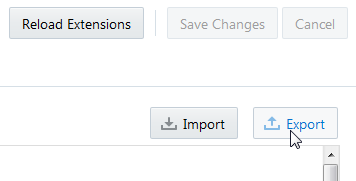
Description of this image -
Save the ZIP file in a location of your choice. Its default name is
resources_followed by a number of digits. Feel free to give it a more user-friendly name.
Test the BOP
-
Click the
icon and select Data Designer.
Description of this image -
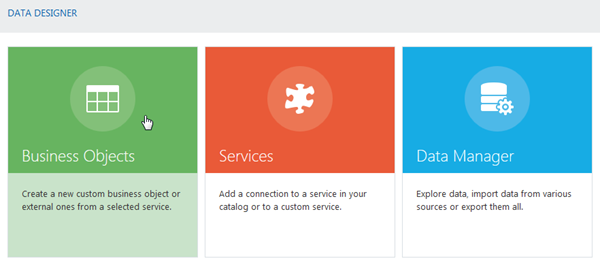
Click Business Objects.
Description of this image -
Click + Select from External Service.

Description of this image -
On the Access page, select Catalog, the default, then lick Next.

Description of this image -
On the Catalog page, scroll down (if necessary) and select MyBOP, which is now available as a service. Click Next.

Description of this image -
On the Parameters page, click Next. The parameter is the base URI of the JIRA server, as defined in
ExtensionManager.js. The only reason to change this would be if you'd made a typo in the source code, such as omitting the final slash (/), or if you decided to specify a different JIRA server. A different BOP might have parameters that are left for you to specify.
Description of this image -
On the Business Objects page, select the Issue checkbox and click Next. (This simple BOP has only one business object.)

Description of this image -
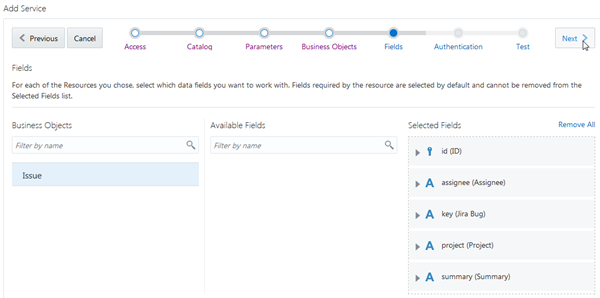
On the Fields page, click Add All to add all the Available Fields to the Selected Fields column.

Description of this image -
After the fields are moved, click Next.
Description of this image -
On the Authentication page, select None (the default), because you you do not need an Apache JIRA login to perform read operations.

Description of this image If you have an Apache JIRA login, you can select Basic from the Authentication Mechanism drop-down list and enter your username and password for the JIRA server.
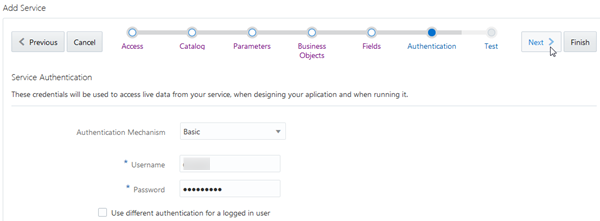
Description of this image You can also select the Use different authentication for a logged in user check box and enter the authentication information. Whichever choice you make, click Next.

Description of this image -
On the Test page, click Issue and view the retrieved data. You'll need to use the scroll bar or widen the browser window to see all the fields.
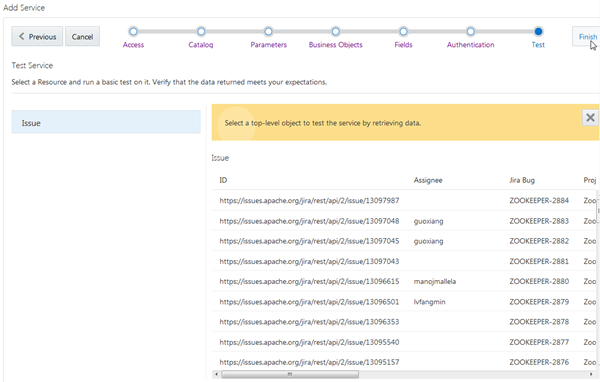
Description of this image You may see the error message
Test
                                  Mapping Action failed. Status Code: 403 Unable
                                  to verify URL against whitelist : No matching
                                  entities. Please check your credentials and
                                  try again.
If you do, click Previous and check your authentication credentials. -
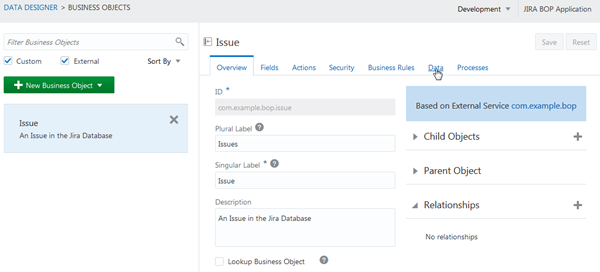
Click Finish. You're transported to the Data Designer, on the Overview page for the Issue business object.
Description of this image -
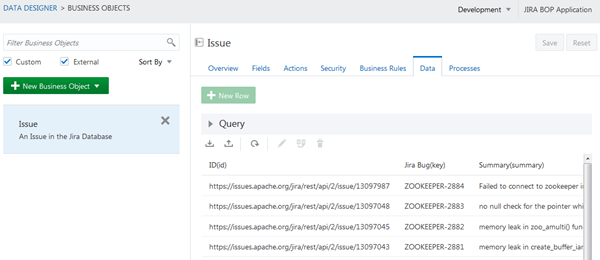
Click Data to go to the Data page for the Issue business object. Don't try creating a Query, because you can't query data retrieved from an external service.
Description of this image
Tips on Creating Your Own BOP
Here are some tips on creating your own BOP.
-
You can create a BOP almost from scratch by selecting the Create Empty Extension template in the create wizard. This template gives you a
manifest.jsonfile and a single JavaScript file calledEmptyTemplate.js. You can then populate the BOP as you wish, as long as you include implementations of the required classes.Alternatively, you can create a BOP from one of the other BOP templates ("Custom BOP showcase" or "A REST BOP example") and modify it.
-
You may find it difficult to edit your JSON and JavaScript code in the Oracle Visual Builder Cloud Service source code editor, because the editor can't check your syntax. It's probably easier to export the BOP sources as a zip file to your local system and edit them in a more robust editor of your choice, then archive them in a ZIP file and import them.
To import a ZIP file containing a BOP, return to the Extensions page under Application Settings and select Import from ZIP from the New Business Object Provider menu.

Description of this image -
You'll probably want to debug your BOP code when you run it in Oracle Visual Builder Cloud Service. There are a couple of ways to do this: you can use the Source tab of your browser's debugger, or you can insert the JavaScript
debuggerstatement in your code to insert a breakpoint that causes the debugger to start when the statement is executed.
Want to Learn More?
-
JavaScript Extension Development API for Oracle Visual Builder Cloud Service in the Oracle Help Center
-
JIRA Cloud REST API Reference on the Atlassian website
-
Using Oracle Visual Builder Cloud Service in the Oracle Help Center
-
Known Issues for Oracle Visual Builder Cloud Service in the Oracle Help Center