Before You Begin
In this tutorial, you'll learn how to edit your application's business objects, and also how to import data into your application.
Time to Complete
Approximately 25 minutes
Background
Oracle Visual Builder Cloud Service is a visual development tool for creating web and mobile applications by simply dragging and dropping UI components onto a page. You can create business objects at the click of a button, and you can easily import data to your application. You don't need any programming experience to develop an application.
Scenario
In this tutorial, you'll edit the Human Resources (HR) application that you created in the Getting Started with Oracle Visual Builder Cloud Service tutorial and updated in the Editing an Application in Oracle Visual Builder Cloud Service tutorial. As you go through the tutorial, you'll learn how to:
-
Add new fields to the business objects using Page Designer and Data Manager
-
Configure validation rules for business object fields using Data Manager
-
Remove business object fields using Data Manager
-
Import sample data to the application from a zip of CSV files
Context
Before you begin this tutorial, make sure that you've edited the HR Application application as described in the Editing an Application in Oracle Visual Builder Cloud Service tutorial.
What Do You Need?
-
Access to Oracle Visual Builder Cloud Service
-
A supported browser (see Known Issues for Oracle Visual Builder Cloud Service for more information)
Editing Business Objects In the Page Designer
In the Editing an Application in Oracle Visual Builder Cloud Service tutorial, you learned how to lay out pages and edit the properties of components. Now you'll take the next step, and learn how to work with business objects.
After creating a business object, you can add and remove fields from it, and configure data validation rules too. You can use both the Page Designer and the Data Designer to add new fields to a business object. However, you must use the Data Designer to remove fields from a business object. Note that once a field has been created, you can't change its data type.
Adding a Field to a Business Object in the Page Designer
In the Page Designer, you can use the Data palette to add a field to a business object. You can then add the new field to business component pages as an input or output component.
Another way to do things, instead of adding a field to a business object, is to add an input component to a page of the business object (such as the Create page). That way, the new input component is automatically added as a field to the business object.
Adding a Field to a Business Object Using the Data Palette
In this section, you'll use the Data palette to add a Job list-of-values field to the Employee business object.
-
In the web browser, log in to Oracle Visual Builder Cloud Service.
-
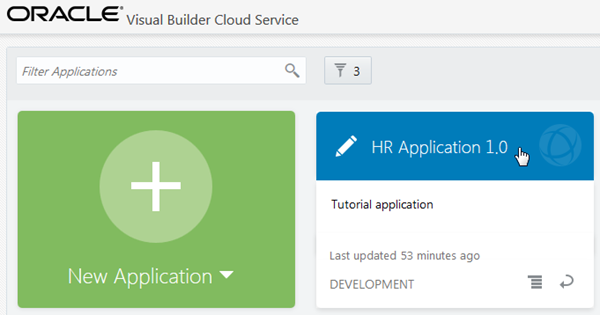
On the Home page, click HR Application 1.0.
Description of this image -
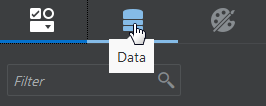
Click the Data palette.
Description of this image -
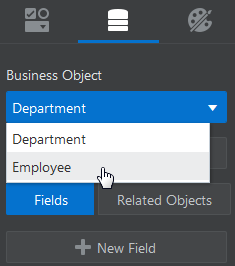
In the Business Object list, select Employee.
Description of this image -
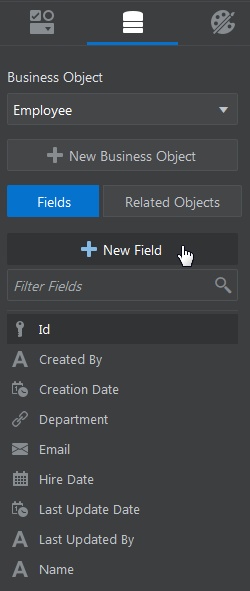
Click + New Field.
Description of this image -
In the pop-up box, enter the following:
-
Default Display Label:
Job -
Field Data Type:
 Lookup
 -
Field ID:
ref2Job(automatically populated) -
Lookup Object: If necessary, select Create New, and enter
Jobsin the Lookup Label text field.
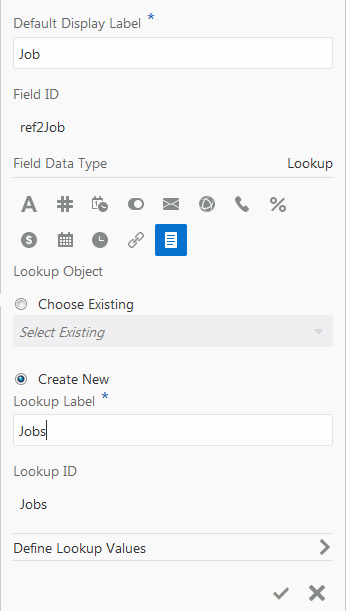
Description of this image -
-
Click Define Lookup Values.
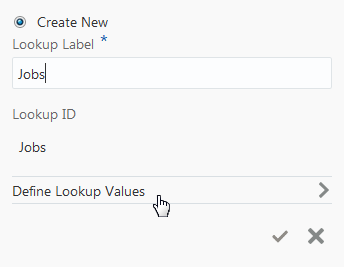
Description of this image -
Click + Add Lookup Value six times and enter the following values one by one:
-
President -
Vice President -
Finance Manager -
Accountant -
Programmer -
Resources Representative
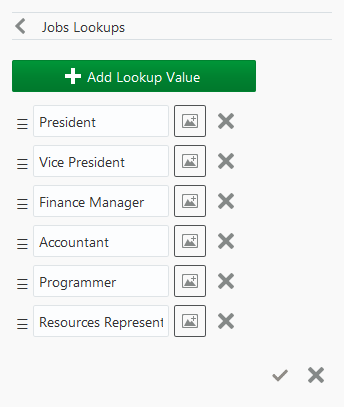
Description of this image If you make a mistake, you can click the
 icon in the row to remove
the value, or drag the
icon in the row to remove
the value, or drag the  icon to change the order.
Once a lookup value is added and saved, it cannot be deleted. However, you can use the Data Designer to add more fields or make a field inactive.
-
-
Click the
 icon.
icon.The Data palette shows the new Job field.
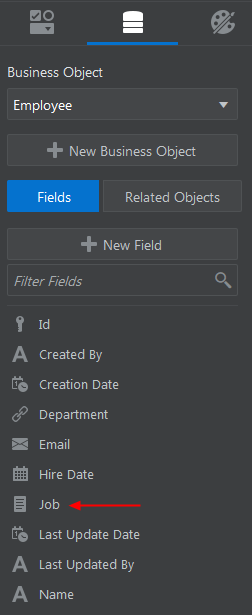
Description of this image
Adding the New Field to a Page
After adding the Job field to the Employee business object, add the field to the Employee business object pages.
When you add a field to a business object page, you can drag and drop the field from the Data palette onto the page and choose the component type. Alternatively, you can drag and drop a component from the Components palette onto the page and then choose the business object field name.
-
Open the page menu and select Create Employee.
-
Select the Job field in the Data palette and drag and drop it onto the Create Employee page below the Department field.
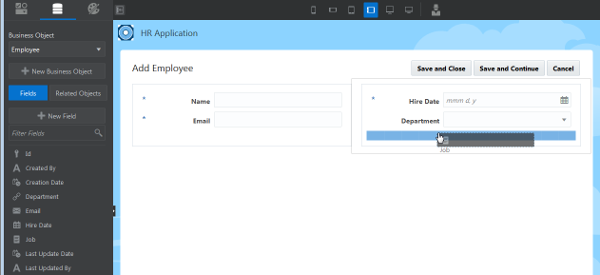
Description of this image -
In the Component pop-up box, select Output Combo Box.
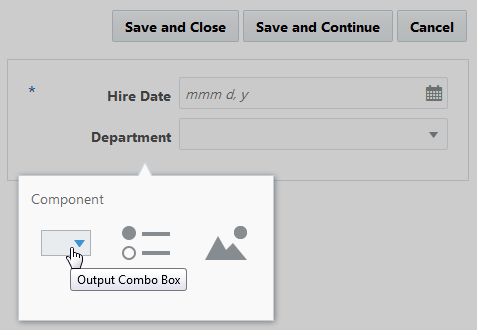
Description of this image The Create Employee page should look like this.
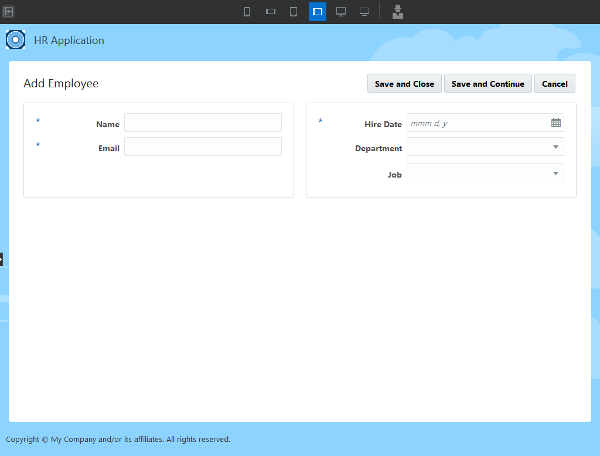
Description of this image -
Open the page menu and select Edit Employee.
-
Click the Components palette, then drag and drop the Combo Box component onto the Edit Employee page below the Department field.
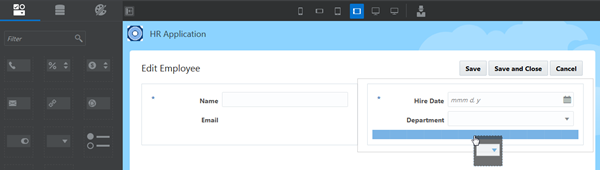
Description of this image -
In the pop-up box, enter the following:
-
Business Object Field: Click the
Existingtoggle button -
Field ID: Select
ref2Jobfrom the drop-down list - Label:
Job(automatically populated) -
Business Object:
Employee(automatically populated) -
Field Data Type:
Lookup(automatically populated)
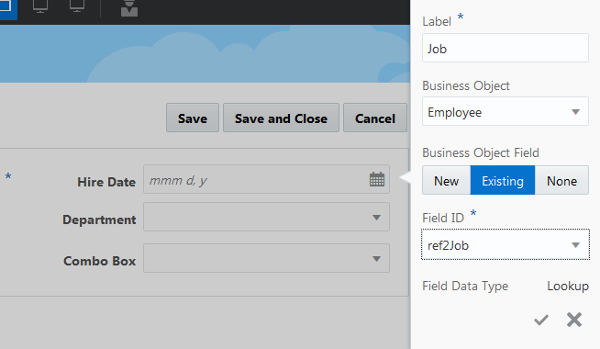
Description of this image Click the
icon to save the details. -
-
Open the page menu and select Employees.
-
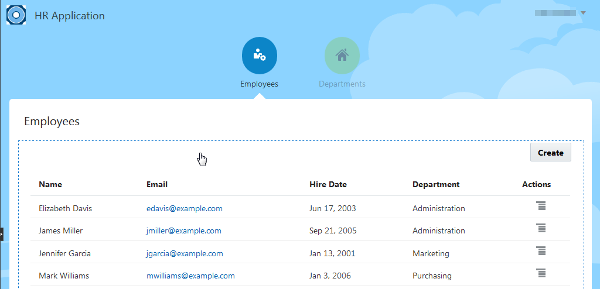
Select the Employees table component.
Description of this image -
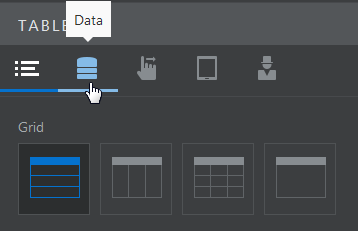
In the Table Properties pane, click the Data tab.
Description of this image -
Click the
 icon
next to Table Columns.
icon
next to Table Columns.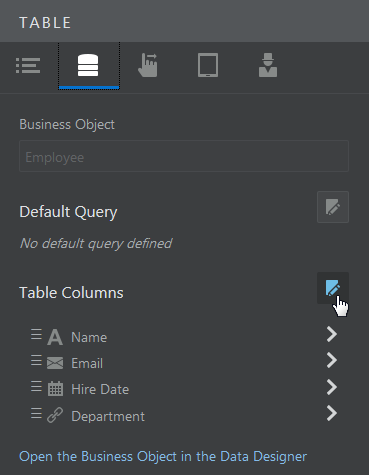
Description of this image -
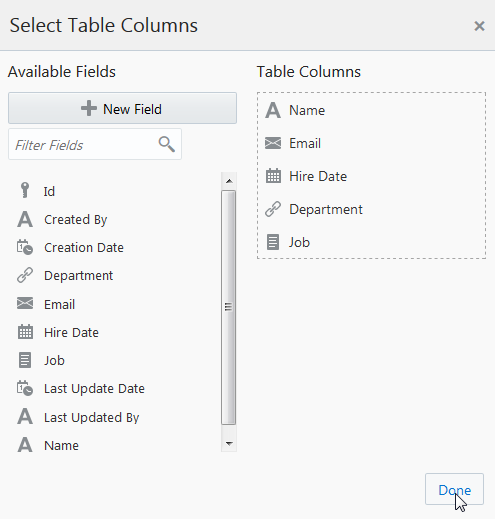
In the Select Table Columns dialog box, drag and drop the Job field into Table Columns and click Done.
Description of this image -
Verify that the Job column has been added to the Employees table.
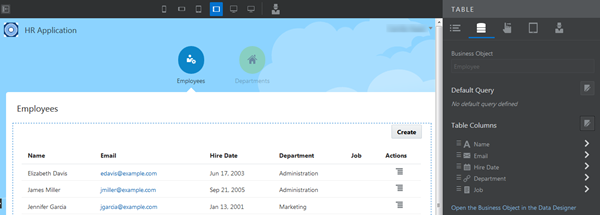
Description of this image As there is no data for the Job field, the column is empty. Don't enter any data now. You'll import data from CSV files later in this tutorial.
Adding a Field to a Business Object by Dragging and Dropping a Component onto a Page
T2_2 In this section, you'll create the Address field in the Employee business object. Instead of using the Data palette to create a field, you'll drag and drop a Text Area component from the Components palette onto the Create Employee and Edit Employee pages.
-
Open the page menu and select Create Employee.
-
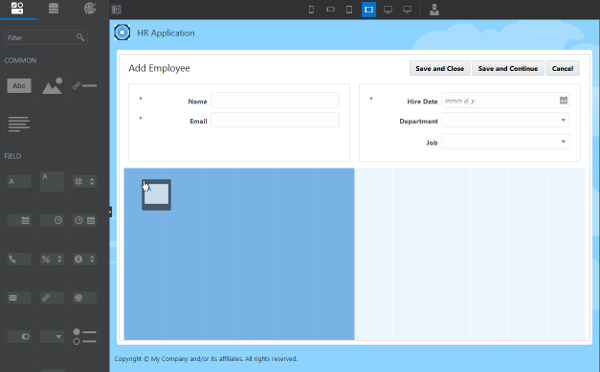
From the Components palette, drag and drop the Text Area component onto the Create Employee page below the Two-Column component.
Description of this image -
In the pop-up box, enter the following:
-
Label:
Address -
Business Object:
Employee(selected by default) -
Business Object Field:
New(selected by default) -
Field ID:
address(automatically populated) -
Field Data Type:
Text(selected by default)
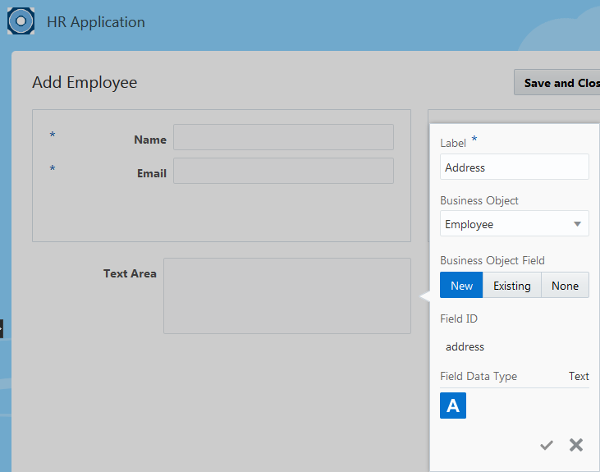
Description of this image Click the
icon to save the details. -
-
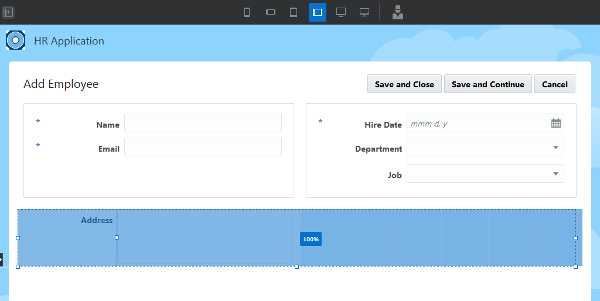
Drag the left and right widths of the text area field, as needed, to adjust it to 100%.
Description of this image -
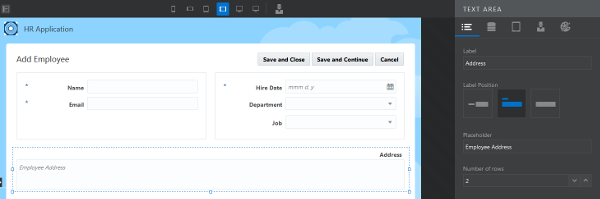
Click the Properties tab and, for the Text Area properties, enter the following:
-
Label Position: Select Top.
-
Placeholder:
Employee Address -
Number of Rows:
2
Description of this image -
-
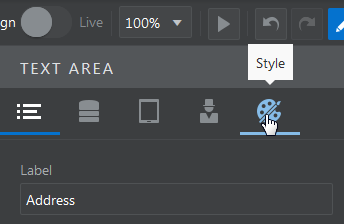
Click the Style tab.
Description of this image -
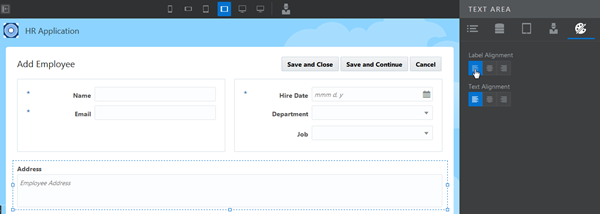
Set the Label Alignment to Left.
Description of this image -
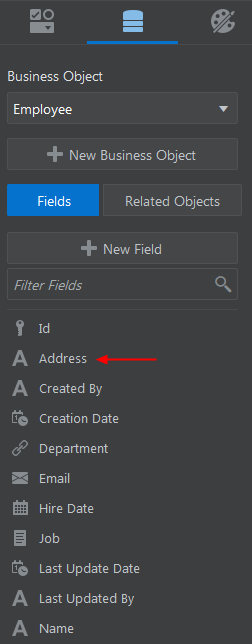
Click the Data palette and see the Address field added to the list of fields.
Description of this image -
Open the page menu and select Edit Employee.
-
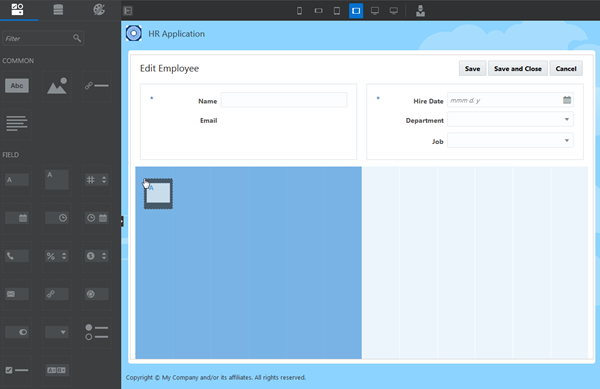
Open the Component palette and drag and drop the Text Area component onto the Edit Employee page below the Two-Column component.
Description of this image -
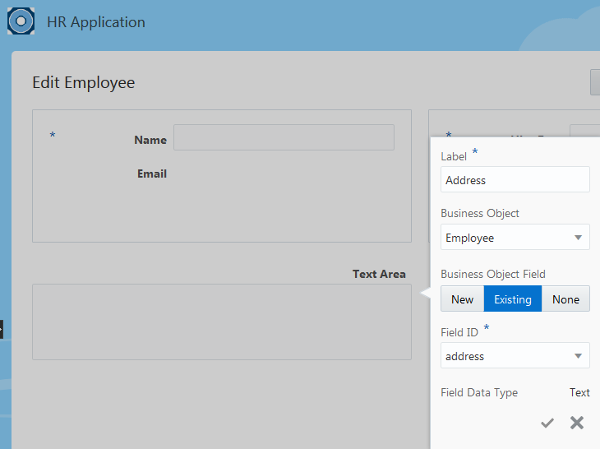
In the pop-up box, enter the following:
-
Business Object Field:
Existing -
Field ID:
address -
Label:
Address(automatically populated) -
Business Object:
Employee(selected by default) -
Field Data Type:
Text(selected by default)
Description of this image Click the
icon to save the details. -
-
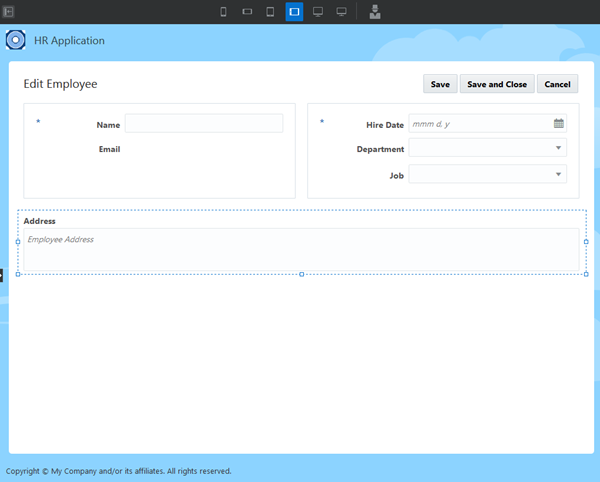
Click the Properties tab and edit the Text Area properties (Label Position, Placeholder, and Number of Rows) as you did in the Add Employee page. Drag the left and right widths of the text area field, as needed, to adjust it to
100%. Click the Style tab and set the Label Alignment to Left.The Edit Employee page should look like this.
Description of this image -
Open the page menu and select Employees.
-
Select the Employees table.
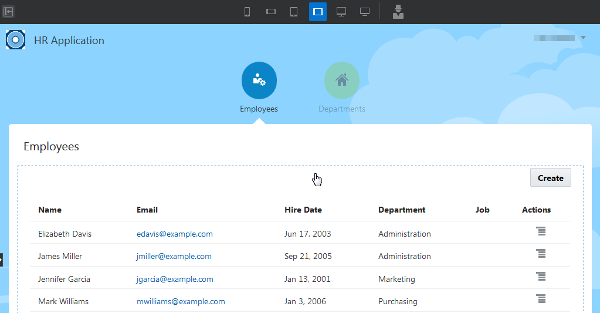
Description of this image -
In the Table Properties pane, click the Data tab.
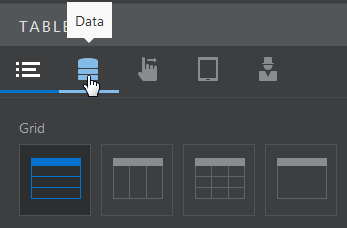
Description of this image -
Click the
icon
next to Table Columns.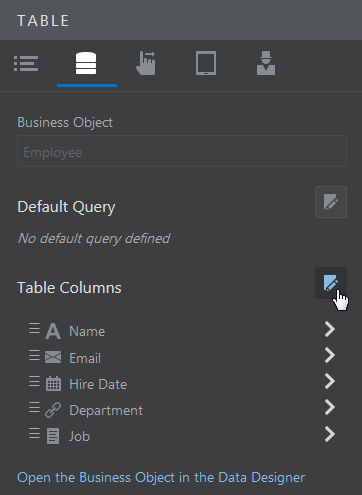
Description of this image -
Drag and drop the Address field into Table Columns and click Done.
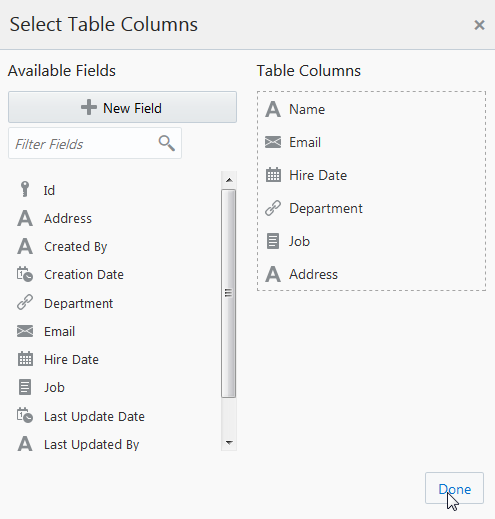
Description of this image -
Verify that the Address column has been added to the Employees table.
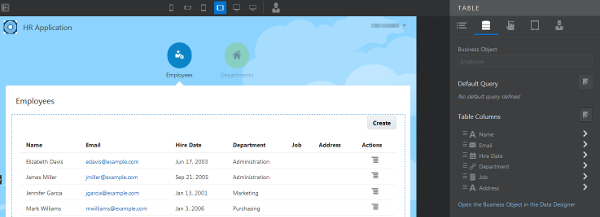
Description of this image
Editing Business Objects in the Data Designer
The Data Designer contains various tools that you use to manage your business objects and data. You can create and delete business objects, add and remove fields from a business object, edit properties of fields, set validation rules, add data to the business objects manually, or import data from CSV files or XLS spreadsheets.
Lookup fields are read-only and cannot be edited or deleted, but you can make them inactive.
In this section, you'll use the Data Designer to
configure the properties of the Hire Date
field of the Employee business object.
-
Click the
 icon in the top left corner and select Data
Designer.
icon in the top left corner and select Data
Designer.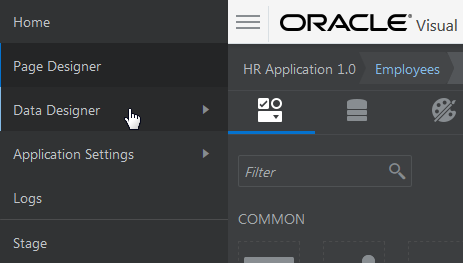
Description of this image -
Click the Business Objects tile, then select the Employee business object.
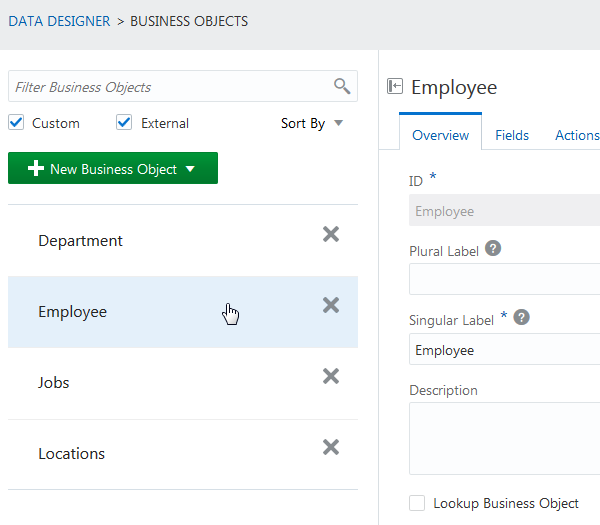
Description of this image -
Click the Fields tab.
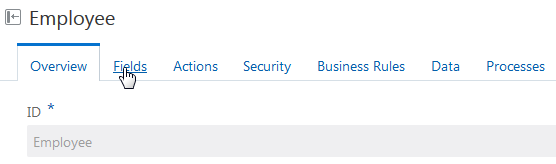
Description of this image -
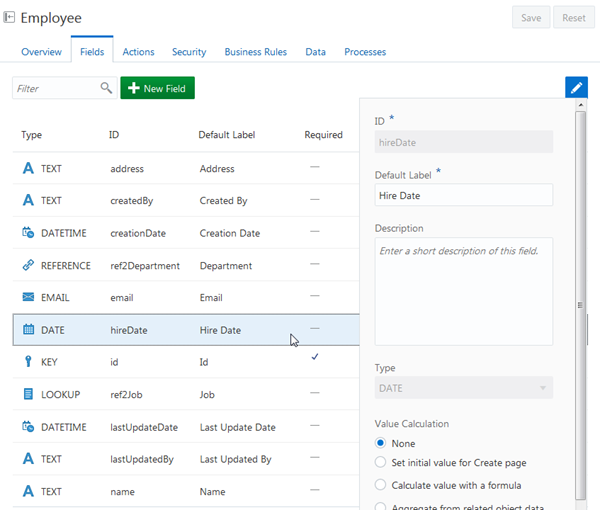
Select the Hire Date field. The Edit dialog box is displayed.
Description of this image -
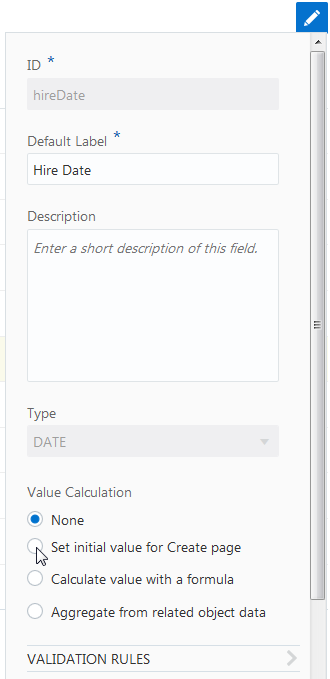
Select the Set initial value for Create page option.
Description of this image -
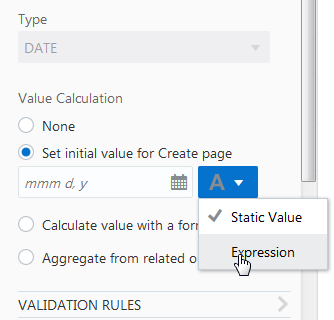
Click the Insert drop-down, then select Expression.
Description of this image -
If you are opening the Set Initial Value dialog box for the first time, an overlay product tour will highlight the key components of the dialog box. Click Got it! to close the tour.
In the Set Initial Value dialog box, enter
$current_datein the text area as the initial value, and click OK.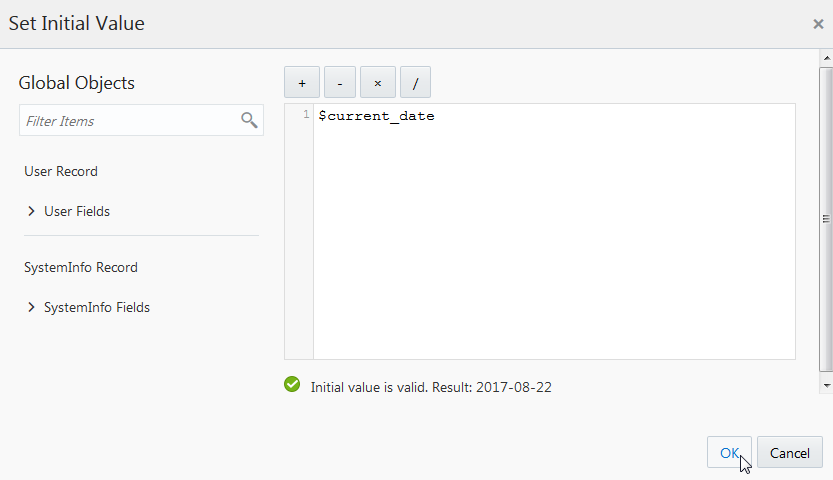
Description of this image The
$current_datevariable inserts the current date. -
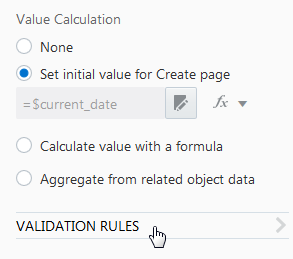
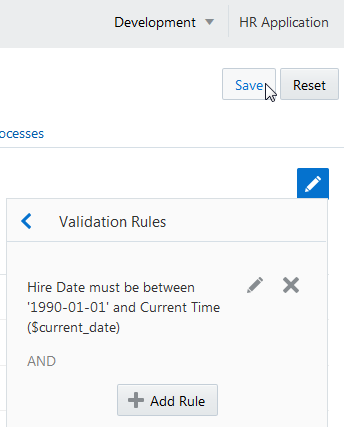
In the Properties pane, click Validation Rules.
Description of this image -
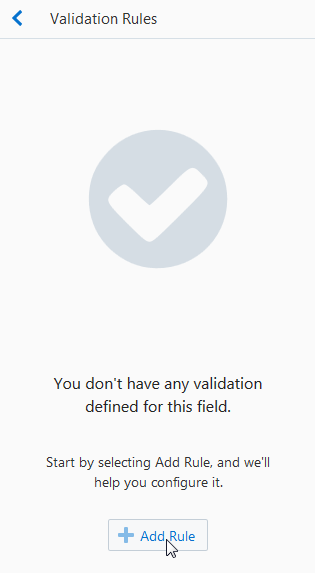
Click + Add Rule.
Description of this image -
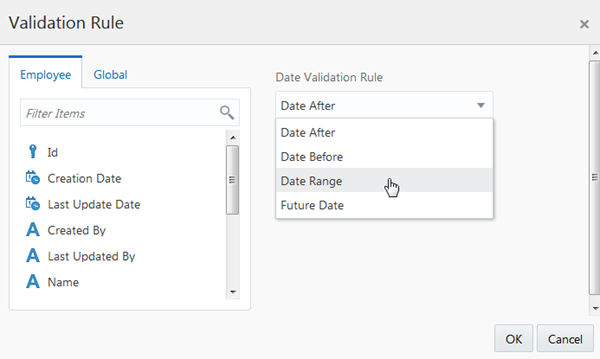
In the Date Validation Rule drop-down list, select Date Range.
Description of this image -
In Value 1, enter
'1990-01-01'. Remember to add quotes when you enter the value in Value 1.In Value 2, enter
$current_date. Click OK.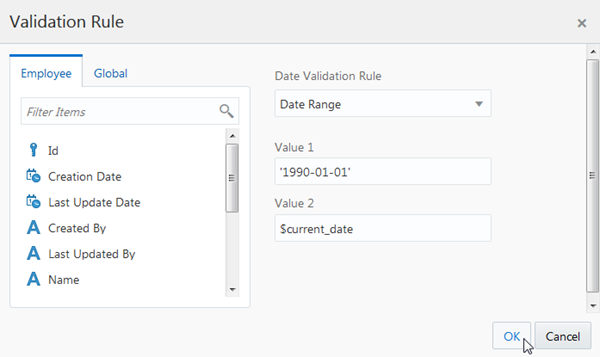
Description of this image -
Click Save to save your changes, then click the Edit icon (the pencil) to close the properties pane.
Description of this image -
Click
in the top left corner and select Page
Designer.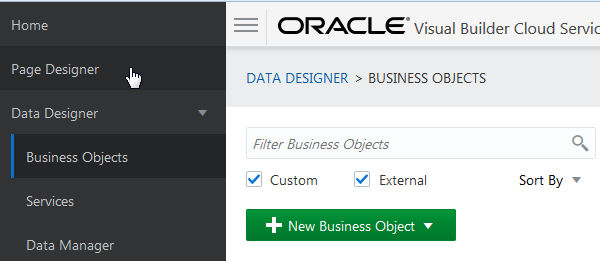
Description of this image -
Click the
 button in
the toolbar.
button in
the toolbar. -
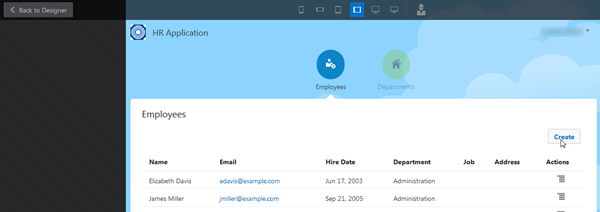
In the Employees page, click Create.
Description of this image -
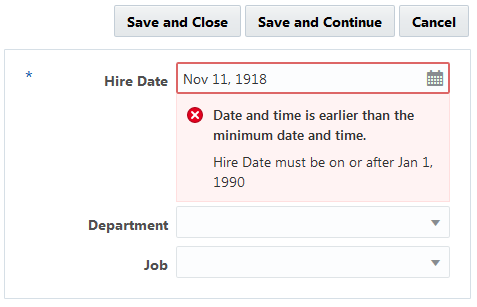
In the Add Employee page, the Hire Date field shows the current date as the default value. Delete the current date and enter a date value before Jan 01, 1990 or after the current date to verify the validation rule.
Description of this image -
Click Cancel, then click Back to Designer to return to the Page Designer.
Import Sample Data to the Application from CSV Files
In the Getting Started with Oracle Visual
Builder Cloud Service tutorial, you imported
data from a CSV file to the Employee
business object. In this section, you'll learn how
to import data from CSV files to all business
objects of the application.
Note: You cannot add new fields to a schema or edit their properties by importing data from a CSV file. The names and data types of columns in the CSV file must match the names and data types of columns in the schema.
-
Download the
HR Application.zipfile to your machine. Right-click this link and choose Save As to download the zip file. The zip file contains CSV files for the business objects of the HR Application. Feel free to review the contents of the zip file. -
Click the
icon in the top left corner and select Data
Designer.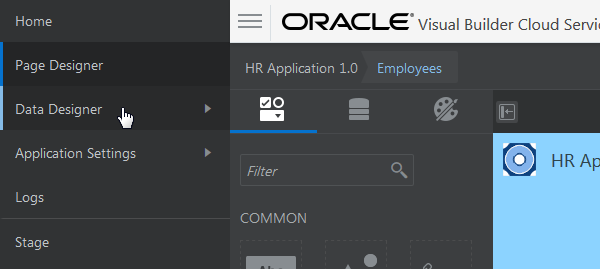
Description of this image -
Click the Data Manager tile.
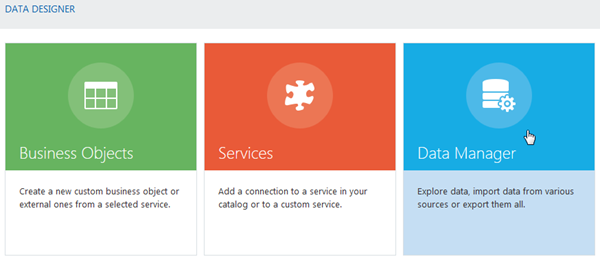
Description of this image -
The Data Manager page contains tools for copying data between your development, staging, and live databases and for importing and exporting data files. Ensure that Development is selected in the Database menu, then click the Import from File tile.
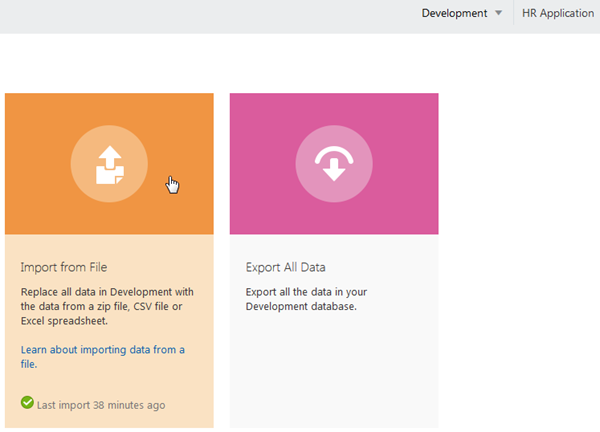
Description of this image -
In the Confirm Import Data dialog box, click Upload a file, browse, and select the
HR Application.zipfile.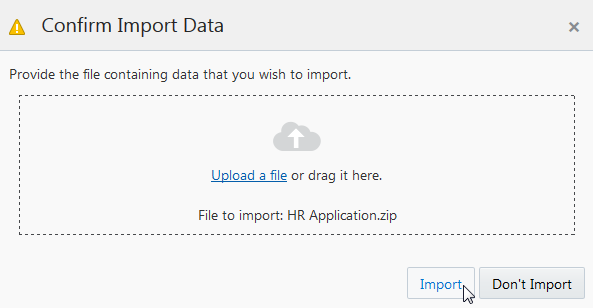
Description of this image -
Click Import.
-
In the Import from File dialog box, click OK.

Description of this image -
Click
in the top-left corner and click Page
Designer, then, if necessary, open
the page menu and select Employees. -
Click the
button and
see the imported data in the Employees page of
the application.Tip: You may need to do a hard refresh (control-R) and/or clear the browser cache to see the latest data of the application, and you may need to select the Desktop or Widescreen canvas area to see all the employee fields without scrolling.
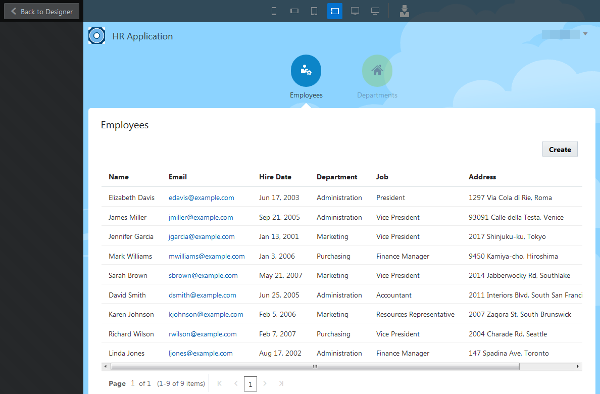
Description of this image -
Click the Departments tab. The departments are on different floors from when you created them.
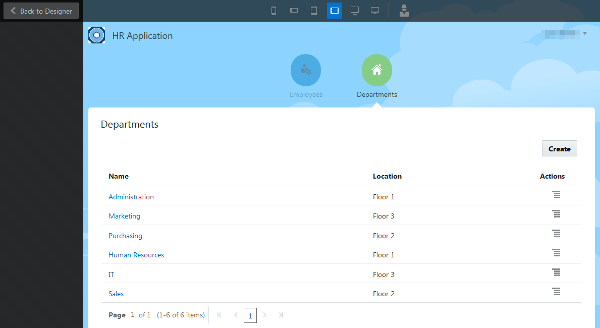
Description of this image -
Return to the Employees page and switch the canvas view to Phone portrait. Because of the way you set the responsive properties in the Editing an Application tutorial, the Email and Hire Date columns aren't visible, but the new Job and Address fields are visible if you scroll. Switch to other canvas views to see how the fields appear in the table.
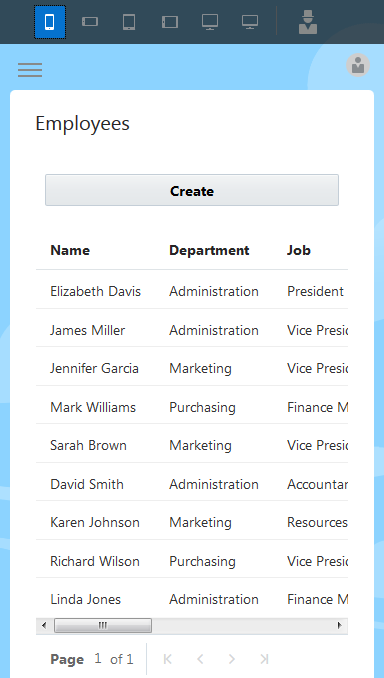
Description of this image -
Click Back to Designer.
-
If you want to, click the user menu in the top right corner of Oracle Visual Builder Cloud Service and select Sign Out from the menu.
After you've edited the application pages and business objects, you may find it useful to run the tutorial Modifying Button Behavior in Oracle Visual Builder Cloud Service, which uses the application from this tutorial. After that, you would want to stage and publish your application. To stage and publish the application with the live data, see the Staging and Publishing an Application in Oracle Visual Builder Cloud Service tutorial in the Want to Learn More section.
Want to Learn More?
-
Getting Started with Oracle Visual Builder Cloud Service OBE
-
Editing an Application in Oracle Visual Builder Cloud Service OBE tutorial
-
Modifying Button Behavior in Oracle Visual Builder Cloud Service OBE
-
Staging and Publishing an Application in Oracle Visual Builder Cloud Service OBE
-
Using Oracle Visual Builder Cloud Service in the Oracle Help Center
-
Designing Pages in Oracle Visual Builder Cloud Service in Using Oracle Visual Builder Cloud Service
-
Working with Business Objects in Using Oracle Visual Builder Cloud Service
-
Managing Application Data in Using Oracle Visual Builder Cloud Service