Before You Begin
Purpose
In this tutorial, you'll learn how to change the default behavior of a button defined in an Oracle Visual Builder Cloud Service application.
Time to Complete
Approximately 25 minutes
Background
You can configure the behavior of buttons by using the Actions tab of the Property Inspector.
When you select a button on the canvas, you can use the Configure Actions dialog box to configure the behavior of the button. You can program the button’s behavior by dragging one or more items from the list of suggested actions or navigation targets into the recipe area. You can also choose to enter custom JavaScript code for the button. For example, you might want the button to navigate to a specific page, perform an action on a business object, or display a message.
Scenario
For the HR Application, you'll change the Create Employee button to assign a new employee to a default job and department if the user doesn't specify them. The company is primarily hiring programmers right now to beef up its product development department. When you edited the business objects for the application, however, you defined a Programmer job but didn't create a Product Development department. In this tutorial, you'll create the new department and then assign new hires to the Programmer job in the new department if they are not assigned otherwise.
Context
This tutorial uses the application that you created and edited in the tutorials Getting Started with Oracle Visual Builder Cloud Service, Editing an Application in Oracle Visual Builder Cloud Service, and Editing Business Objects in Oracle Visual Builder Cloud Service. It assumes that you have not yet run the tutorial Staging and Publishing an Application in Oracle Visual Builder Cloud Service.
What Do You Need?
-
Access to Oracle Visual Builder Cloud Service
-
Some knowledge of JavaScript, including JavaScript promises
-
A supported browser (see Known Issues for Oracle Visual Builder Cloud Service for more information)
Adding a Department to the HR Application
-
In the web browser, log in to Oracle Visual Builder Cloud Service.
-
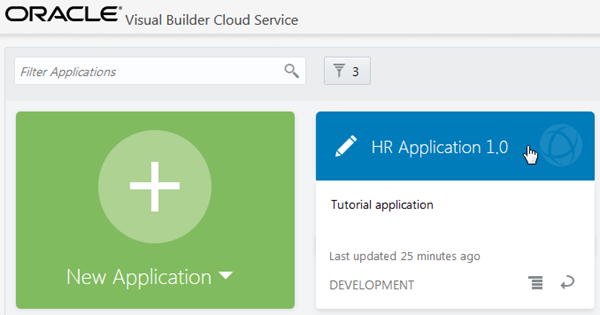
On the Home page, click HR Application 1.0.
Description of this image -
In the Page Designer, open the page menu and select Departments.

Description of this image -
Click the
 button in
the toolbar.
button in
the toolbar. -
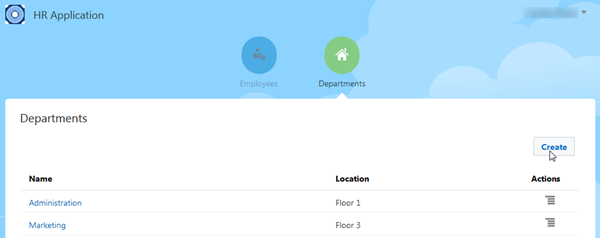
On the Departments page, click Create.
Description of this image -
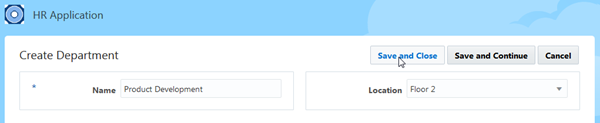
On the Create Department page, enter Product Development in the Name field, and select Floor 2 from the Location drop-down list. Finally, click Save and Close.
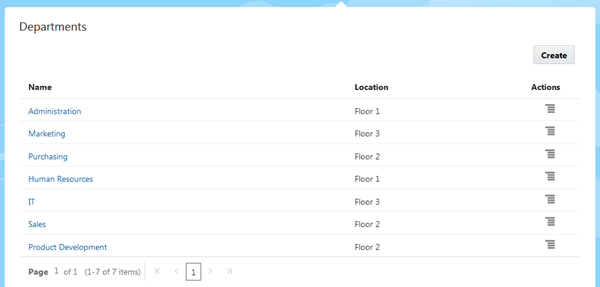
Description of this image A success message appears, and the new department appears at the end of the Departments table.
Description of this image -
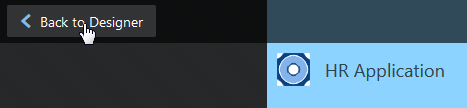
Click Back to Designer to return to the Page Designer.
Description of this image The Departments page of the Page Designer also displays the new department.
Obtaining Department and Job Values for your Custom Code
Before you write custom JavaScript code for a button, you may need to verify some values.
-
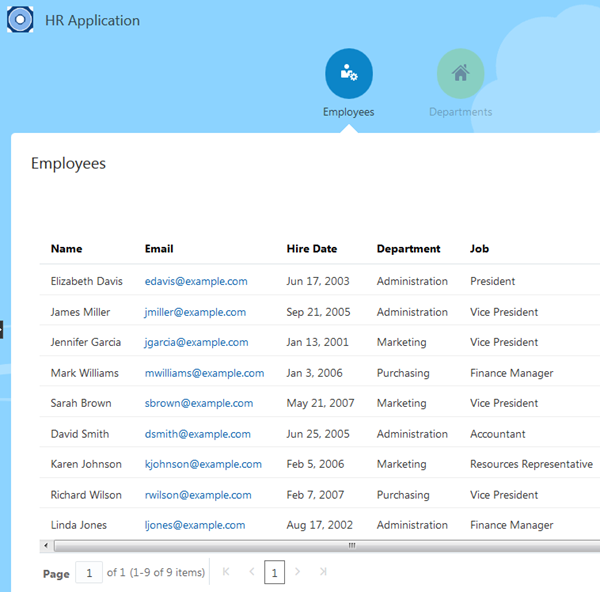
In the Page Designer, open the page menu and select Employees. Notice that no employees are assigned to the Programmer job yet.
Description of this image -
Click
 ,
expand Data Designer, and
select Business Objects.
,
expand Data Designer, and
select Business Objects.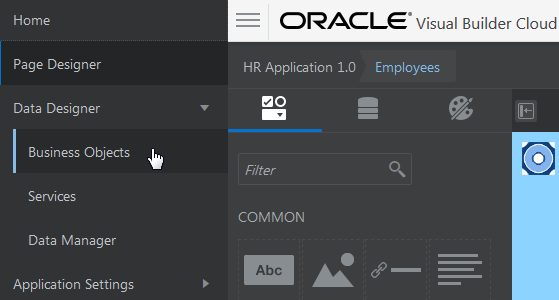
Description of this image -
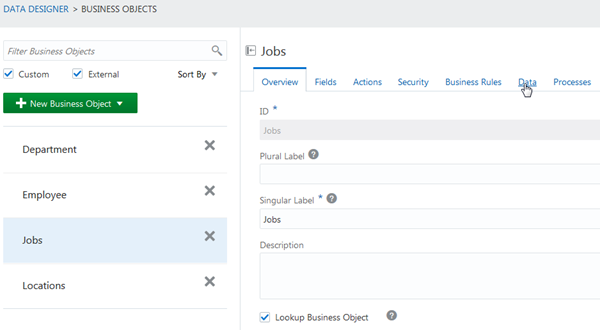
Click Jobs, then click the Data tab.
Description of this image -
In the Data tab, notice that the Id value for the Programmer job is 6. Make a note of this value.

Description of this image -
Click Department. You are on the the Data page.
Make a note of the ID value, 7, for the Product Development department you just created.

Description of this image -
Click
,
then click Page Designer.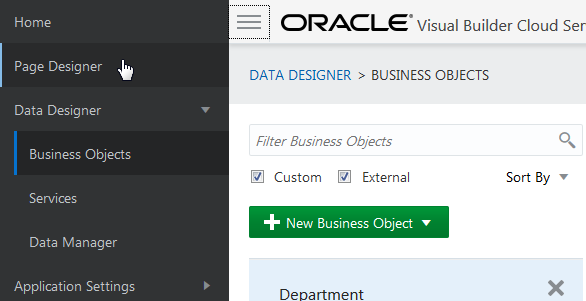
Description of this image
Configuring a Button Action
-
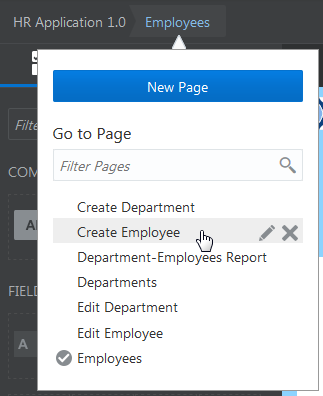
From the page menu, select Create Employee.
Description of this image -
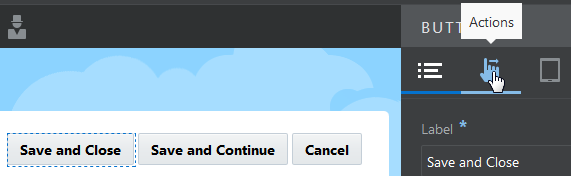
Click the Save and Close button, then click the Actions tab in the Button Property Inspector.
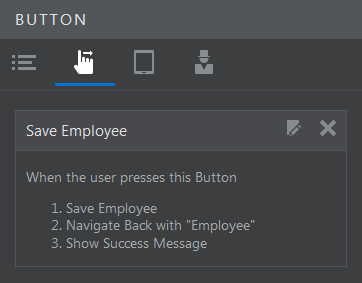
Description of this image The Actions tab displays the default actions performed when a user clicks the button:
- Save Employee
- Navigate Back with "Employee"
- Show Success Message
We want to add the creation of a default job and department.
Description of this image -
Click the
 button to open the Configure Action page.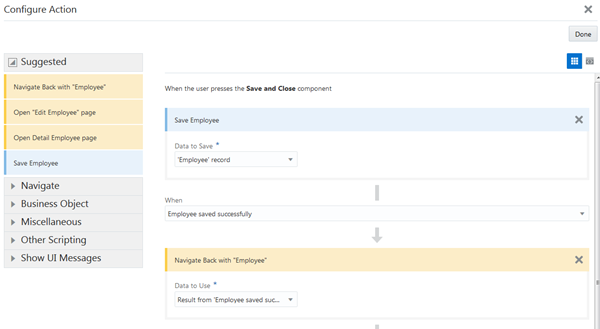
Description of this image -
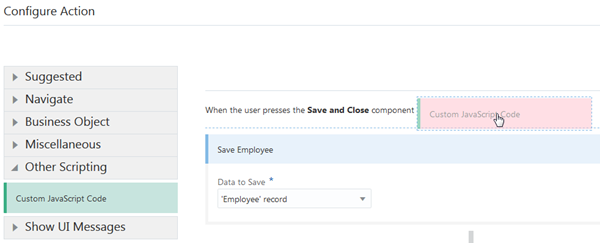
Expand Other Scripting in the left column, then drag Custom JavaScript Code above the Save Employee action.
Description of this image -
In the Description text field, enter a description of the action you'll define, such as
If Job and Department
                                  aren't defined, set defaults
, then click Edit Custom Code.
Description of this image -
In the Edit Custom Code dialog box, expand the Employee Fields node and click Department. A
getValuecall for the Department reference appears in the code window.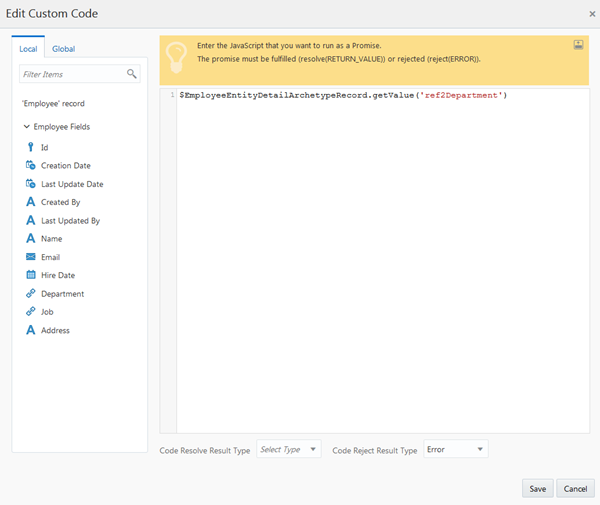
Description of this image -
Add a space after the
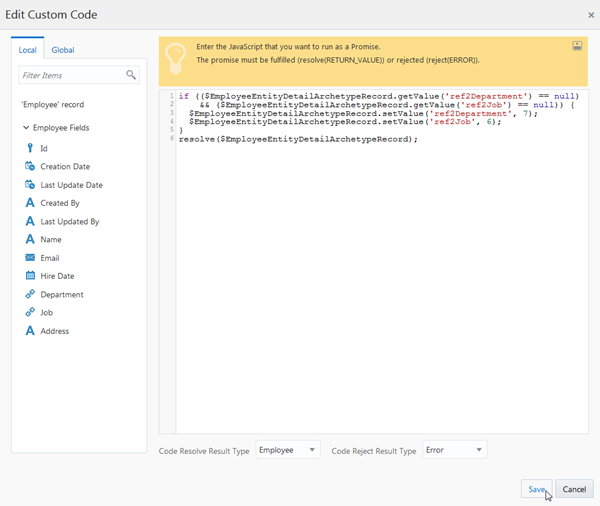
getValuecall and then click Job to get anothergetValuecall. Then add code to perform the logic you need. The final code looks like this. (You can just paste the following code into the text area to avoid mistakes.)if (($EmployeeEntityDetailArchetypeRecord.getValue('ref2Department') == null) && ($EmployeeEntityDetailArchetypeRecord.getValue('ref2Job') == null)) { $EmployeeEntityDetailArchetypeRecord.setValue('ref2Department', 7); $EmployeeEntityDetailArchetypeRecord.setValue('ref2Job', 6); } resolve($EmployeeEntityDetailArchetypeRecord);If both the Department and Job fields are empty, call
setValueto set the Department to the correctIdvalue for Product Development (7), and call the same method to set the Job to the correctIdvalue for Programmer (6). Make sure that you finish with a call toresolveto fulfill a promise. -
At the bottom, select Employee from the Code Resolve Result Type drop-down list, then click Save to return to the Configure Actions dialog box.
Description of this image Scroll down and review the other actions.
Error handling is done automatically unless you decide to change it. Oracle Visual Builder Cloud Service provides error messages and details in case of failure.
-
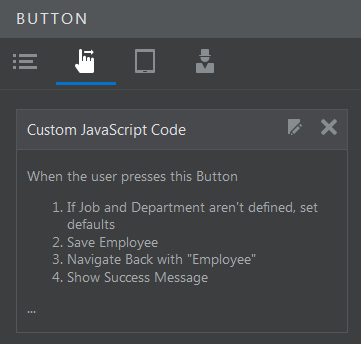
Click Done to return to the Create Employee page. Verify that the list of button actions reflects your changes:
- If Job and Department aren't defined, set defaults
- Save Employee
- Navigate Back with "Employee"
- Show Success Message
Description of this image
Testing Your Change
-
To verify that your button modification works correctly, click the
button in the toolbar. Since you were on the
Create Employee page in the Page Designer, you
are on that page when you test the application.
Description of this image -
Enter values in the Name and Email fields, but leave the Department and Job fields blank. (If you like, enter a value in the Address field or change the Hire Date.) Finally, click Save and Close.

Description of this image A success message appears briefly ("Employee 10 has been created"). The Employees page opens, and the employee you added is at the end of the list, in the Product Development department, and with the job of Programmer.

Description of this image Note: A hang or an error message means there's an error in the custom JavaScript code. (The web browser console may help you identify the error.) Edit the Custom JavaScript Code for the button and copy the code correctly.
You can try creating more employees. If you specify either a job or a department, only the field you specify will be populated.
-
When you're done, click Back to Designer to return to the Page Designer.
Description of this image -
(Optional) Click the user menu in the top-right corner and select Sign Out from the menu, or go on to the tutorial Staging and Publishing an Application in Oracle Visual Builder Cloud Service.
Want to Learn More?
-
Getting Started with Oracle Visual Builder Cloud Service OBE
-
Editing an Application in Oracle Visual Builder Cloud Service OBE
-
Editing Business Objects in Oracle Visual Builder Cloud Service OBE
-
Staging and Publishing an Application in Oracle Visual Builder Cloud Service OBE
-
Using Oracle Visual Builder Cloud Service in the Oracle Help Center
-
About Configuring Button Actions in Using Oracle Visual Builder Cloud Service
-
Known Issues for Oracle Visual Builder Cloud Service in the Oracle Help Center