Before You Begin
In this tutorial, you will learn how to stage and publish an application.
Time to Complete
Approximately 30 minutes.
Background
Oracle Visual Builder Cloud Service is a visual development tool for creating web and mobile applications by simply dragging and dropping UI components onto a page. You can create business objects at the click of a button and add data by importing CSV files to your application. You do not need any programming experience to develop an application.
Scenario
You will stage and publish the Human Resources (HR) application that you created in the Getting Started with Oracle Visual Builder Cloud Service tutorial and updated in the Editing an Application in Oracle Visual Builder Cloud Service tutorial.
In this tutorial, you will learn how to do the following:
-
Stage the HR Application application with development data
-
Edit the HR Application schema to add a new field
-
Import live data to the Staging database
-
Stage the application again
-
Publish the application
You will edit the HR Application schema to include
a Manager field in the Department
business object as per the following diagram.

Context
Before you begin this tutorial, make sure that you have created the HR Application application as described in the Getting Started with Oracle Visual Builder Cloud Service tutorial and updated it as described in the Editing an Application in Oracle Visual Builder Cloud Service and Editing Business Objects in Oracle Visual Builder Cloud Service tutorials.
What Do You Need?
-
Access to Oracle Visual Builder Cloud Service
-
A supported browser (see Known Issues for Oracle Application Builder Cloud Service for more information)
Staging the Application
You can use the staged application to have other users test the behavior of the application.
In this section you will learn how to stage the HR Application application.
-
Log in to Oracle Visual Builder Cloud Service.
-
In the Home page, click the
 icon for HR Application and select Stage.
Description of this image -
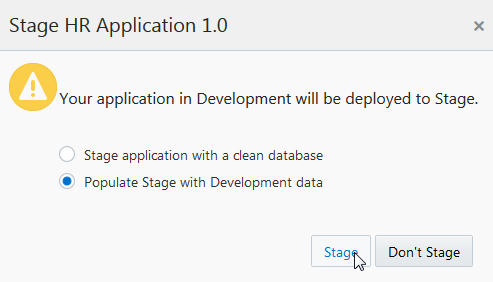
In the Stage HR Application 1.0 dialog box, select Populate Stage with Development data and click Stage.
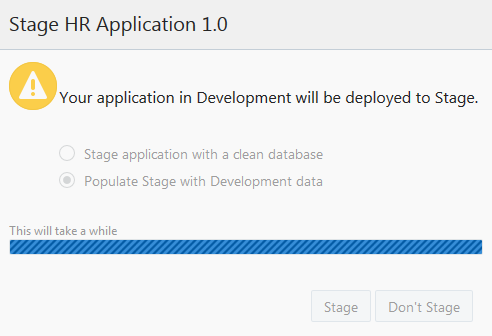
Description of this image The application takes a few minutes to stage.
Description of this image -
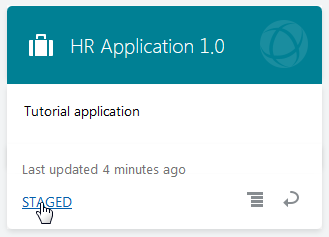
In the Home page, click the STAGED link. Note the icon of the application has changed.
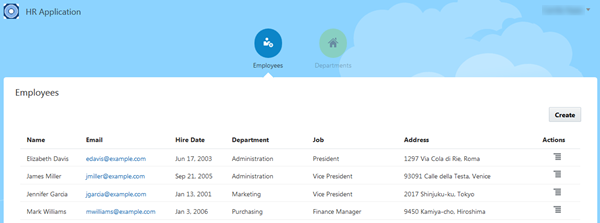
Description of this image The staged application opens in a new browser tab or window. The tables are populated with the data from Development. When you are done, you can close this tab or window and return to the Home page.
Description of this image
Restaging the Application
After you stage or publish the application, if you make any updates to business objects or the schema of the Development or the Staging database, you will need to stage the application again before you publish it.
Updating the Schema
Let's make some changes to the HR Application
schema of the Development database and add a Manager
field to the Department business
object.
-
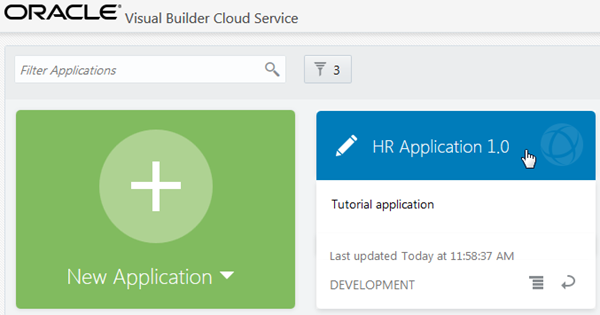
In the Home page, click HR Application.
Description of this image -
If you are not there already, click the
 icon and select Page Designer.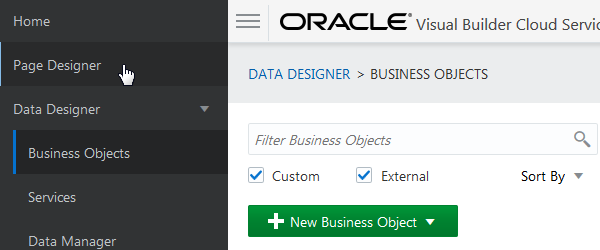
Description of this image -
Click the page menu and select Create Department.
-
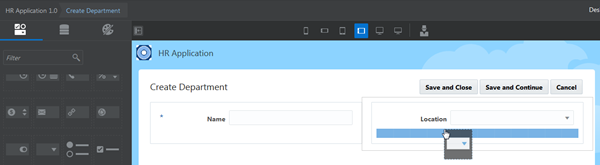
Drag and drop a Combo Box component to the Create Department page below the Location field.
Description of this image -
Enter the following values in the pop-up box:
-
Label:
Manager -
Business Object:
Department(automatically selected) -
Business Object Field:
New(automatically selected) -
Field Name:
ref2Manager(automatically populated) -
Field Data Type:
Reference(automatically selected) -
Reference Business Object:
Employee(automatically selected) -
Default Displayed Field:
Name
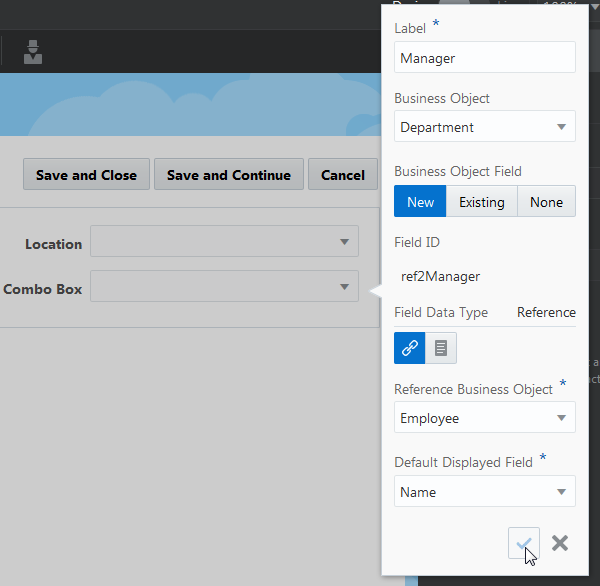
Description of this image Click the
 icon to save the field. The Manager field is
also added to the Department business
object.
icon to save the field. The Manager field is
also added to the Department business
object. -
-
Click the page menu and select Edit Department.
-
Open the Data palette.
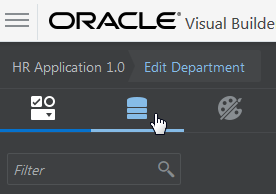
Description of this image -
Drag the Manager field to the Edit Department page below the Location field.
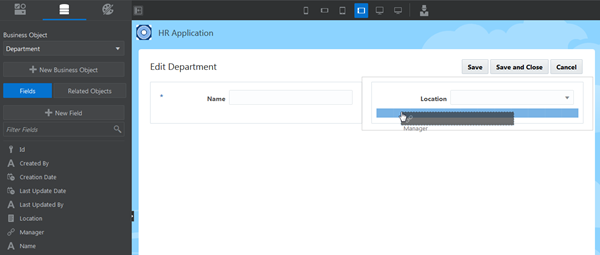
Description of this image The field is automatically added as a drop-down list.
-
Click the page menu and select Departments.
-
Select the Departments table and open the Data tab in Table Properties Inspector.
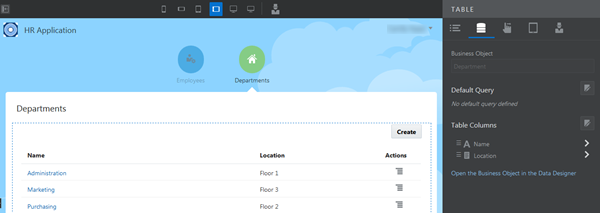
Description of this image -
Click the Table Columns edit
 icon.
icon. -
In the Select Table Columns dialog box, drag the Manager field to Table Columns and click Done.
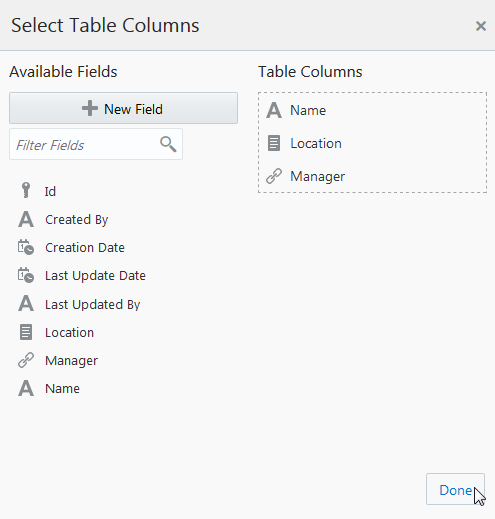
Description of this image -
The Manager field is now added to the Departments table.
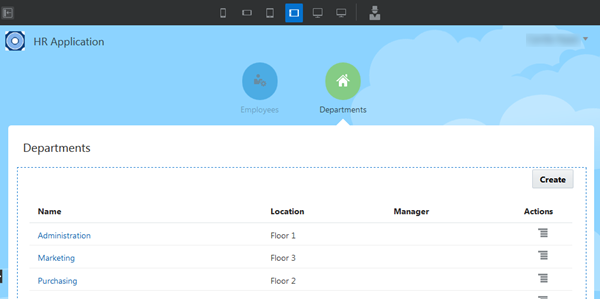
Description of this image
Staging the Application Again
After updating the schema, you must stage the application again before you publish the application.
Note: It is not necessary to import data to the Staging database. You may want to import the data if you want to test and view it in the staged application before you publish the application.
-
Click the
icon and select Stage.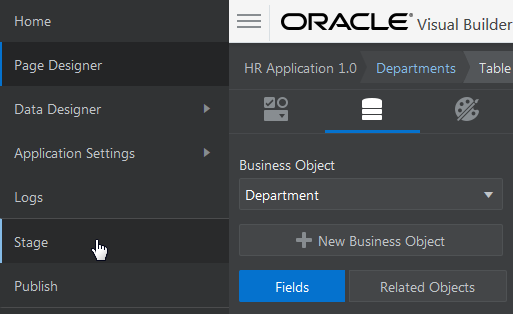
Description of this image -
Select Keep existing data in Stage, then click Stage.
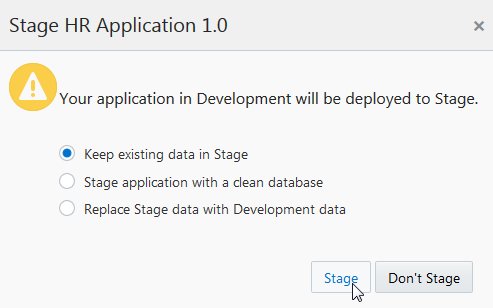
Description of this image -
Click the
icon and select Home. -
On the Home page, click the STAGED link, then click the Departments tab.

Description of this image The staged application opens with the existing data. The new Manager field has been added. Close the staged application and return to the Home page.
-
Because you made a change to the application schema, the new Manager field is empty. Right-click this link and download the
HR
                                      Application-Stage 2.zip
file. The zip file contains CSV files of all business objects of the updated HR Application schema. -
In the Home page, click HR Application.
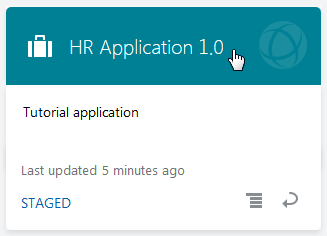
Description of this image -
Click the
icon and select Data Designer.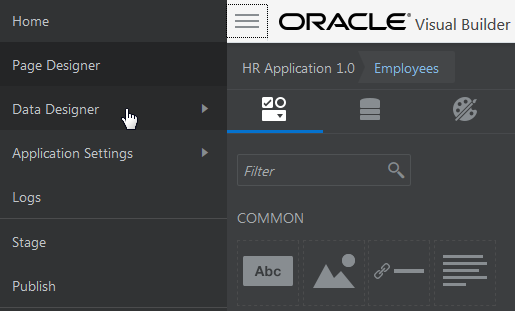
Description of this image -
Click the Data Manager tile.
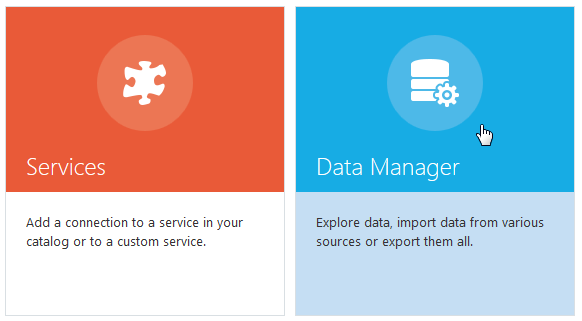
Description of this image -
Click the Database menu and select Staging.
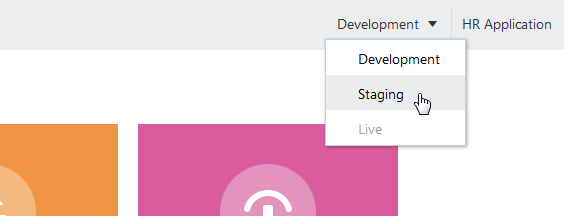
Description of this image -
Click Import from File.
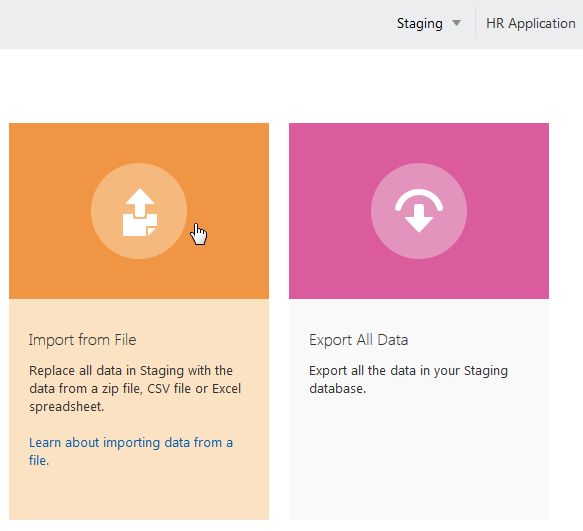
Description of this image -
In the Confirm Import Data dialog box, click Upload a File. Select the
HR
                                      Application-Stage 2.zip
file, click Open, and then click Import.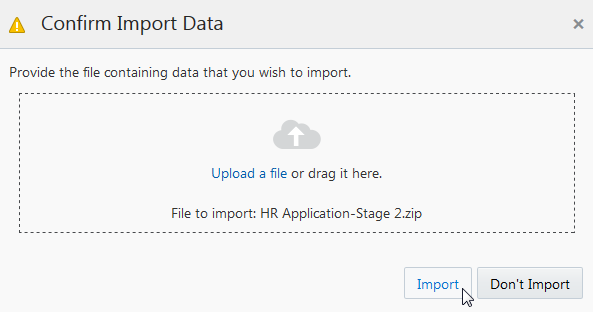
Description of this image -
In the Import from File dialog box, click OK.
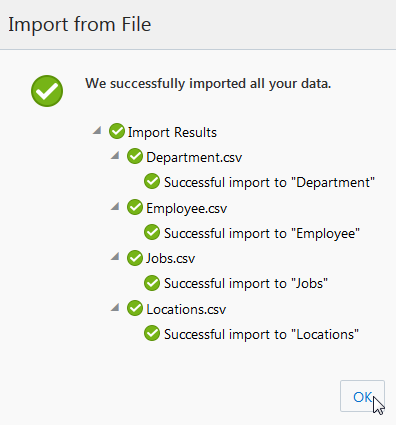
Description of this image -
Click the
in the top-left corner and select Home.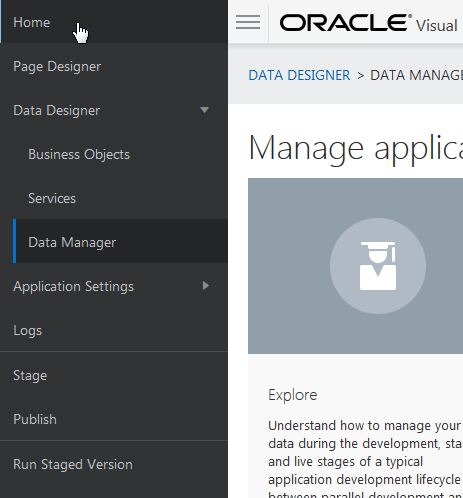
Description of this image -
Click the STAGED link.
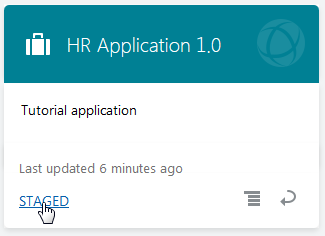
Description of this image -
The staged application now shows the data from the imported files. When you are done, you can close this tab or window.
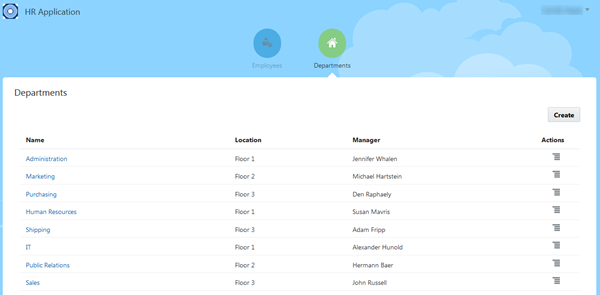
Description of this image
Publishing the Application
After you have successfully tested the staged application, you can publish it and make the application live. The live application is visible to users with proper credentials.
-
Return to the Home page.
-
Click the
icon of HR
Application 1.0 and select Publish.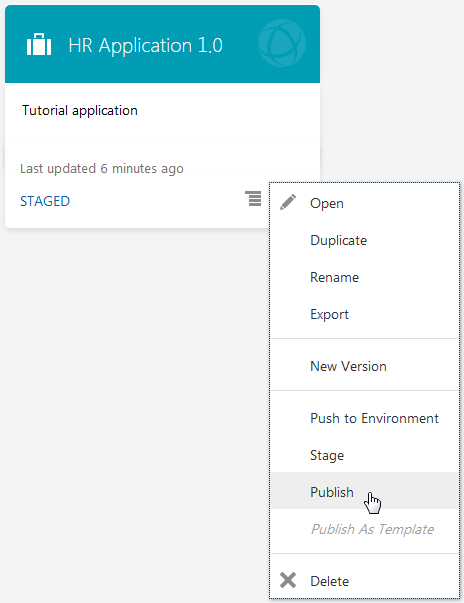
Description of this image -
In the Publish HR Application 1.0 dialog box, select Include data from Stage, then click Publish.
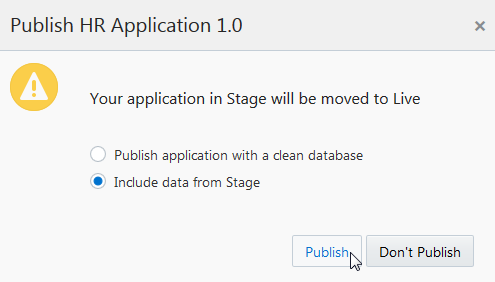
Description of this image The application takes a short time to publish. After the application is published, notice that the application icon has changed in the Home page.
-
Click the Live link to open the published application.
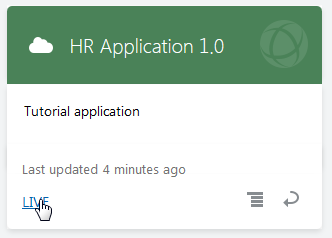
Description of this image The schema and the data from the staging database are copied to the live database. You can now share the application's URL with public users.
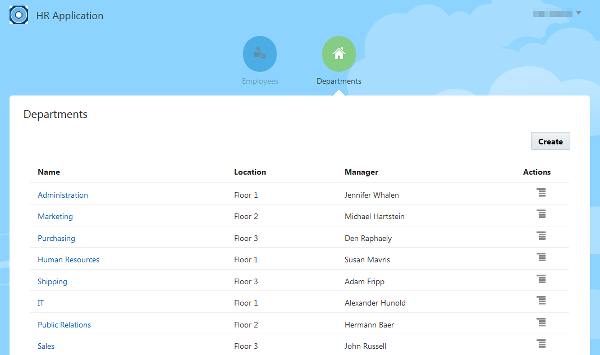
Description of this image - If you want to, click the user menu in the top-right corner and select Sign Out from the menu. After you've published an application, you will no longer be able to make changes to it. Instead, you can create a new version of it, and edit that.
Want to Learn More?
-
Managing Application Data in Oracle Help Center
-
Staging and Publishing an Application in Oracle Help Center