Oracle by Example brandingRunning a Batch Spark Job in a Big Data Cloud Cluster

section 0Before You Begin

This 15-minute tutorial shows you how to run a simple batch spark job in a Big Data Cloud cluster.

Background

The New York City (NYC) Taxi & Limousine Commission - Trip Record Data is analyzed in this tutorial. Two jobs are created for this task:

  1. TripParserJob: This job reads the NYC Taxi logs stored in Oracle Storage Cloud Container and stores it as a Comma-seperated values (CSV) file in Hadoop Distributed File System (HDFS).
  2. TripProcessorJob: This job reads the output generated by the TripParserJob and computes the average fare for each hour of the day. The result is a key-value pair where the key is the hour of the day and the value is the average fare paid by customers in such hour of any day, month, or year during the given time period represented by the initial input file. The output is stored as a text file in the Oracle Storage Cloud Container associated with the BDC cluster.

What Do You Need?

  • A running BDC cluster.
  • BDC account credentials or Big Data Cloud Console direct URL (for example: https://xxx.xxx.xxx.xxx:1080/).
  • BDC cluster login credentials.
  • Oracle Storage Cloud credentials, tenant name, and container name.
  • The smallTrip.csv file uploaded in the Oracle Storage Cloud Container that is linked to the BDC cluster.
  • For instructions on how to upload/create objects in Oracle Storage Cloud Service, see Creating a Single Object.

section 1Navigate to Big Data Cloud Console - Jobs Page

  1. Login to your BDC account.
  2. Note: If you have the direct URL to access the Big Data Cloud Console, you can navigate to the link directly and continue from step 3.
  3. In the Services page, click the Manage this Servicemanage this service icon of the cluster where you want to create the job and then click Big Data Cloud Console.
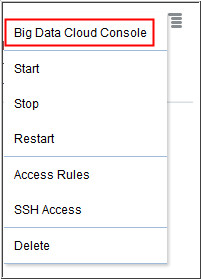
    Services page - Context menu of a service
    Description of this image
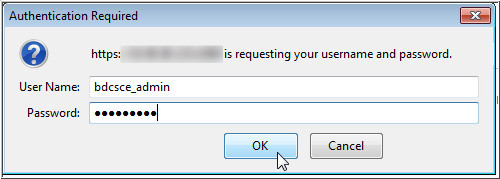
  4. A window titled Authentication Required appears. Enter your BDC cluster user name and password and click OK.
    Authentication page
    Description of this image
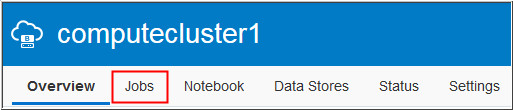
  5. In the Big Data Cloud Console, click Jobs.
    Big Data Cloud - Compute Edition Console
    Description of this image

section 2Create the TripParserJob

  1. In the Big Data Cloud Console Jobs page, click New Job.
    Big Data Cloud - Compute Edition Console New Job button
    Description of this image
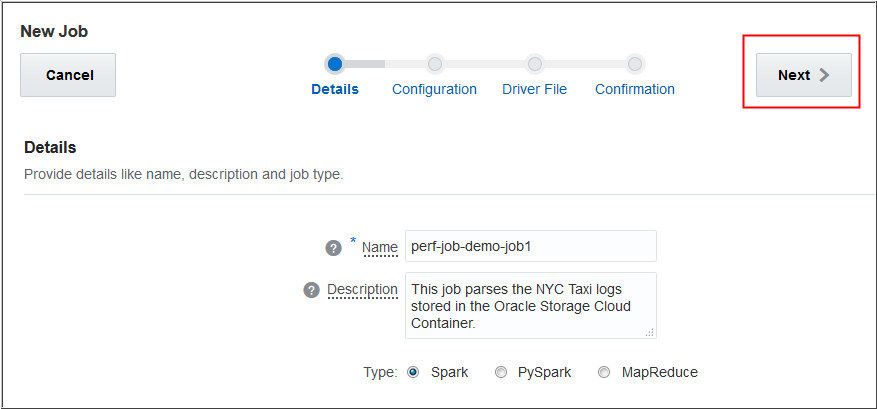
  2. Enter a Name and Description for your TripParserJob, and click Next.
    New Job - Details page
    Description of this image
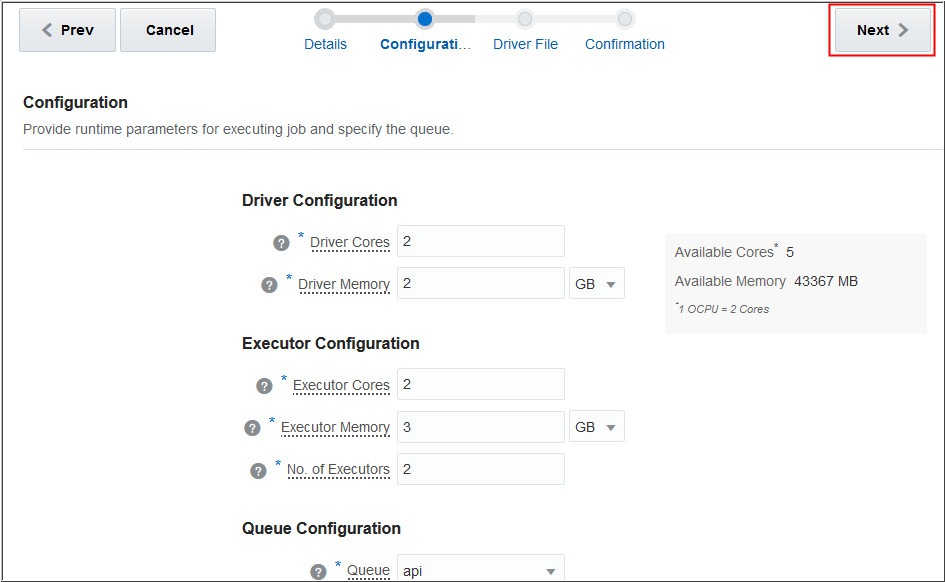
  3. Provide your configuration parameters for executing the job and click Next. In this example, the following parameters are used:
    • Driver Cores: 2
    • Driver Memory: 2 GB
    • Executor Cores: 2
    • Executor Memory: 3 GB
    • No. of Executors: 2
    • Queue: api
    New Job - Configuration page
    Description of this image
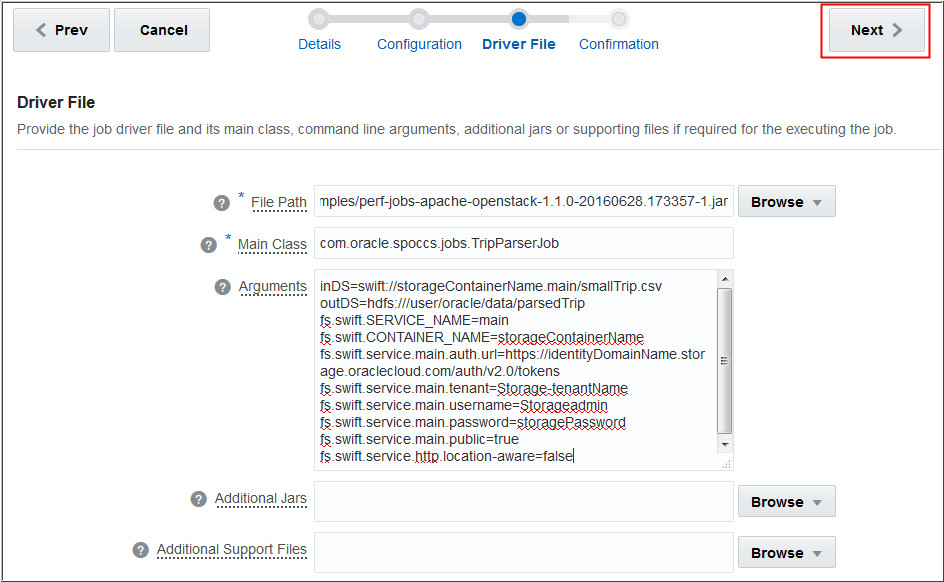
  4. Provide your driver file information such as File Path, Main Class, Arguments, Additional Jars, Additional Support Files, and click Next. In this example, the following information is entered:
    • File Path: hdfs:///spark/examples/perf-jobs-apache-openstack-1.1.0-20160628.173357-1.jar
    • Main Class: com.oracle.spoccs.jobs.TripParserJob
    • Arguments:
      inDS=swift://storageContainerName.main/smallTrip.csv
      outDS=hdfs:///user/oracle/data/parsedTrip
      fs.swift.SERVICE_NAME=main
      fs.swift.CONTAINER_NAME=storageContainerName
      fs.swift.service.main.auth.url=https://identityDomainName.storage.oraclecloud.com/auth/v2.0/tokens
      fs.swift.service.main.tenant=Storage-tenantName
      fs.swift.service.main.username=Storageadmin
      fs.swift.service.main.password=storagePassword
      fs.swift.service.main.public=true
      fs.swift.service.http.location-aware=false
      Change the storageContainerName, identityDomainName, tenantName, Storageadmin, and storagePassword values in the arguments as per your configuration.
      New Job - Driver File page
      Description of this image
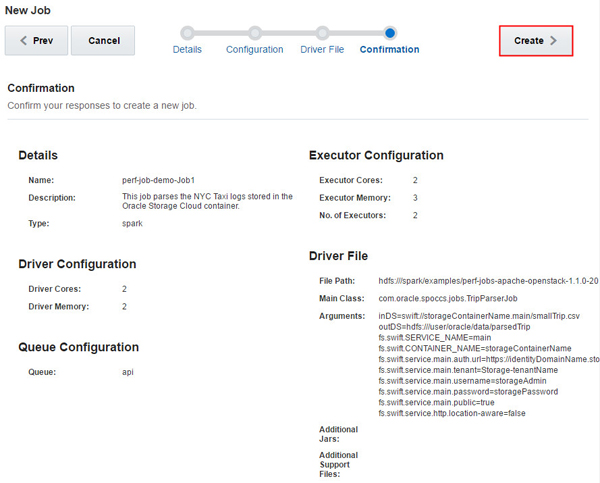
  5. In the confirmation page, confirm your responses and click Create.
    New Job - Confirmation page
    Description of this image
  6. After the job completes successfully, you create the TripProcessorJob.
    Spark Jobs page - perf-job-demo-Job1 status
    Description of this image

section 3Create the TripProcessorJob

  1. In the Big Data Cloud Console Jobs page, click New Job.
    Big Data Cloud - Compute Edition Console New Job button
    Description of this image
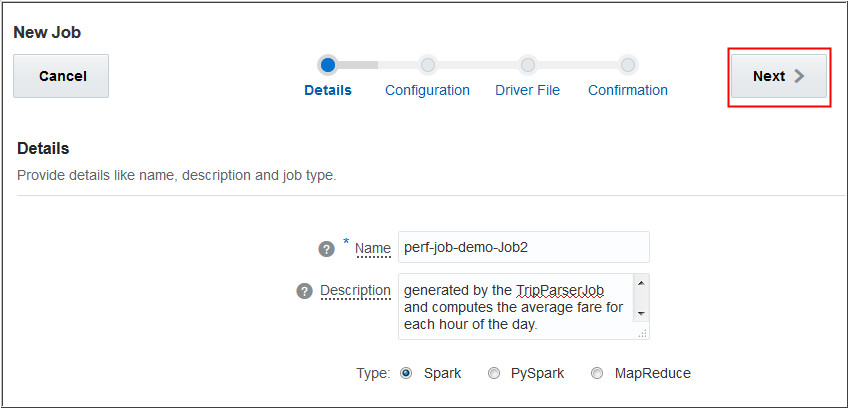
  2. Enter a Name and Description for your TripProcessorJob, and click Next.
    New Job - Details page
    Description of this image
  3. Provide your configuration parameters for executing the job and click Next. In this example, the following parameters are used:
    • Driver Cores: 2
    • Driver Memory: 2 GB
    • Executor Cores: 2
    • Executor Memory: 3 GB
    • No. of Executors: 2
    • Queue: api
    New Job - Configuration page
    Description of this image
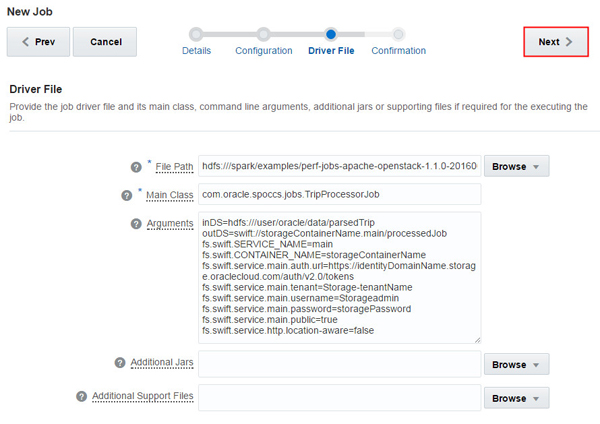
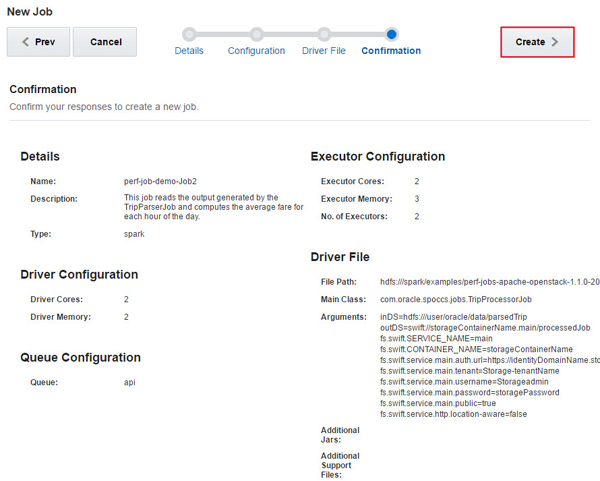
  4. Provide your driver file information such as File Path, Main Class, Arguments, Additional Jars, Additional Support Files, and click Next. In this example, the following information is entered:
    • File Path: hdfs:///spark/examples/perf-jobs-apache-openstack-1.1.0-20160628.173357-1.jar
    • Main Class: com.oracle.spoccs.jobs.TripProcessorJob
    • Arguments:
      i nDS=hdfs:///user/oracle/data/parsedTrip
      outDS=swift://storageContainerName.main/processedJob
      fs.swift.SERVICE_NAME=main
      fs.swift.CONTAINER_NAME=storageContainerName
      fs.swift.service.main.auth.url=https://identityDomainName.storage.oraclecloud.com/auth/v2.0/tokens
      fs.swift.service.main.tenant=Storage-tenantName
      fs.swift.service.main.username=Storageadmin
      fs.swift.service.main.password=storagePassword
      fs.swift.service.main.public=true
      fs.swift.service.http.location-aware=false
    Change the storageContainerName, identityDomainName, tenantName, Storageadmin, and storagePassword values in the arguments as per your configuration.
    New Job - Driver File page
    Description of this image
    Note: The output file that was generated in the TripParserJob is used as the input file here.
  5. In the confirmation page, confirm your responses and click Create.
    New Job - Confirmation page
    Description of this image
  6. After the job completes successfully, you proceed to viewing the output.
    Spark Jobs page - perf-job-demo-Job2 status
    Description of this image

section 4View the Output

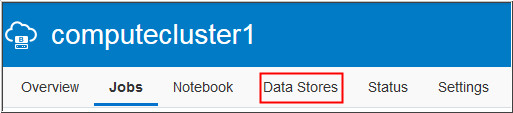
  1. In the Big Data Cloud Console, click Data Stores.
    Big Data Cloud - Compute Edition Console tabs
    Description of this image
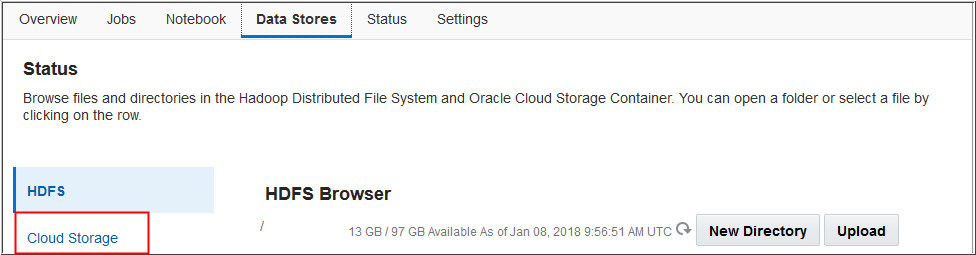
  2. Click Cloud Storage as the final output of the TripProcessorJob was stored in Oracle Storage Cloud Container.
    Data Stores page - HDFS and Cloud Storage tab
    Description of this image
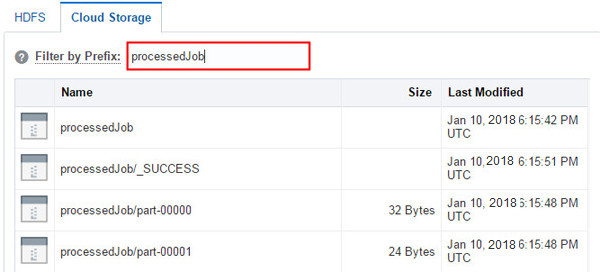
  3. Enter the outDS value of the TripProcessorJob argument (in this case processedJob) in the Filter by Prefix field and press Enter.
    Cloud Storage page - Filtering by Prefix
    Description of this image
    Notice that the output files are created in the Oracle Storage Cloud Container.

more informationWant to Learn More?