Getting Started with Oracle Big Data Cloud on Oracle Cloud
Infrastructure
Before You Begin
This 10-minute tutorial shows you how to create an Oracle Big
Data Cloud (BDC) cluster on Oracle Cloud Infrastructure region.
Background
Oracle Big Data Cloud combines open source technologies such as
Apache Spark and Apache Hadoop to deliver a complete Big Data
platform for running and managing Big Data Analytics
applications.
Oracle Big Data Cloud leverages Oracle’s Infrastructure Cloud
Services to deliver a secure, elastic, integrated platform for
all Big Data workloads.
You can create Oracle Big Data Cloud clusters in
Oracle Cloud Infrastructure and in Oracle
Cloud Infrastructure Classic. The infrastructure a
cluster gets created in depends on the region you select when
you create the cluster. If you see the Availability
Domain and Subnet fields
when you select a region for the cluster you're creating, that
means the cluster will be created in Oracle Cloud
Infrastructure. Otherwise, the cluster is created in Oracle
Cloud Infrastructure Classic.
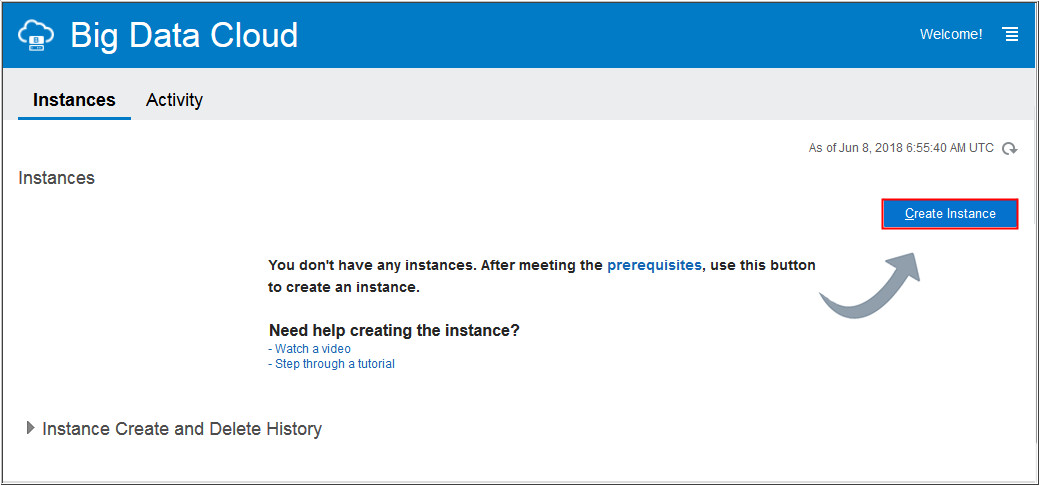
On the My Services Dashboard page, locate the Big
Data Cloud tile. Click the Action
menu ,
and select Open Service Console.
If this is the first time that you're
accessing the web console of Oracle Java Cloud Service, the
Welcome page is displayed. You can continue to the web
console by clicking Go to Console.
On the Instance page of the wizard, complete the following
steps:
Enter a unique Instance Name for your Big
data Cloud instance.
Enter your email address in the Notification Email
field.
In the Region field, select an Oracle
Cloud Infrastructure region: us-phoenix-1, us-ashburn-1,
eu-frankfurt-1, or uk-london-1. The field shows only those
regions that are in the default region of your account.
In the Availability Domain field, select
an availability domain.
In the Subnet field, select a subnet from
a virtual cloud network (VCN) that you had created previously
in Oracle Cloud Infrastructure.
Note: If you want the subnet to be assigned
automatically, then select Select No Preference.
On the Service Details page of the wizard, complete the
following steps:
In the Cluster Configuration section, leave the Deployment
Profile, Number of Nodes, Compute Shape,
Queue Profile, and Spark Version fields at
the default values.
Description of the
illustration c1.jpg
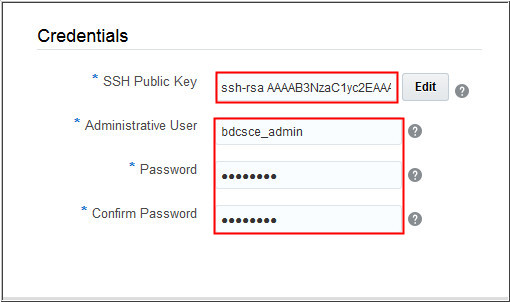
In the Credentials section, click Edit
next to the SSH Public Key field.
Select Create a New Key and then click Enter.
In the Download Keys dialog box, click Download
and save the file sshkeybundle.zip to your local
machine.
Note: The option to download
the SSH keys won't be available again. You'll need the
private key to SSH to the compute nodes of the Big
Data Cloud instance. So don't skip this step.
In the Associations section, select the Cloud Service that
you want to associate with your Oracle Big Data Cloud cluster.
In the Cloud Storage Credentials section,enter the following
values:
OCI Cloud Storage URL:
enter OCI Cloud Storage URL. For
example:https://objectstorage.us-phoenix-1.oraclecloud.com
OCI Cloud Storage Bucket
URL: enter the URL of the object-storage bucket
that you created earlier in Oracle Cloud Infrastructure.
Format: oci://bdcsce@mytenancy/
OCI Cloud Storage User
OCID: enter the Oracle Cloud Infrastructure
Object Storage User OCID. For example:
ocid1.tenancy.oc1..aaaaaaaaba3pv6wkcr4jqae5f44n2b2m2yt2j6rx32uzr4h25vqstifsfdsq
OCI Cloud Storage PEM
Key:click Browse
and select the OCI Cloud
Storage PEM Key. Note:
In Big
Data Cloud, the PEM key must be created without a
password.
In the Oracle Big Data Cloud instances page, the new cluster
is displayed, with the status Creating Service.
Refresh the page periodically, until the instance is created.
Description of the
illustration d2.jpg
After the instance is created, you'll receive a notification
at the email address that you specified earlier.
To view details of the instance, click the cluster name.


 Before You Begin
 Start
the Instance-Creation Wizard
Start
the Instance-Creation Wizard ,
and select Open Service Console.
,
and select Open Service Console.
 Configure
Basic Cluster Information
Configure
Basic Cluster Information
 Configure
Service Details
Configure
Service Details

 Complete
the Instance Creation
Complete
the Instance Creation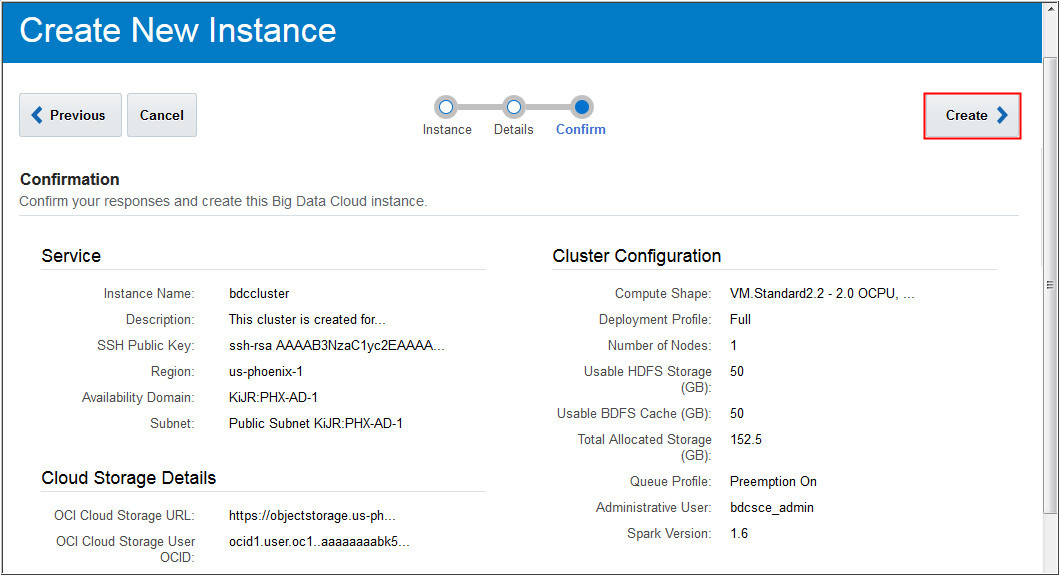

 Want
to Learn More?
Want
to Learn More?