
 Getting Started with Oracle Big Data Cloud Service - Compute Edition
 Before You Begin
This tutorial shows you how to create and use an Oracle Big Data Cloud Service- Compute Edition (BDCS-CE) cluster. This tutorial takes approximately 10 minutes to complete.
Background
Oracle Big Data Cloud Service - Compute Edition combines open source technologies such as Apache Spark and Apache Hadoop to deliver a complete Big Data platform for running and managing Big Data Analytics applications.
Oracle Big Data Cloud Service - Compute Edition leverages Oracle’s Infrastructure Cloud Services to deliver a secure, elastic, integrated platform for all Big Data workloads.
What Do You Need?
- Access to Oracle Big Data Cloud Service - Compute Edition
 Create an Oracle Big Data Cloud Service - Compute Edition Cluster
Perform the following steps to create a BDCS-CE cluster.
-
Login to your BDCS-CE account and navigate to the Services page.
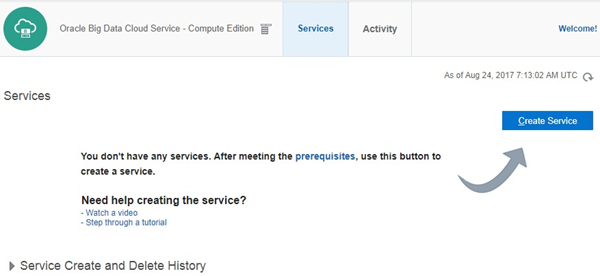
Description of the illustration a_01.jpg - Click the Create Service button.
-
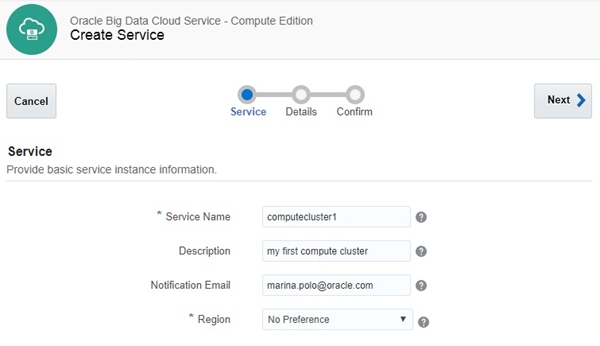
The Service section appears. Provide basic service instance information here. Enter the values for the following parameters and then click Next.
- Service Name: computecluster1
- Description: my first compute cluster
- Notification Email: <your email>
- Region: No Preference
Description of the illustration a_02.jpg - The Service Details section appears. Provide additional configuration parameters for BDCS-CE here.
-
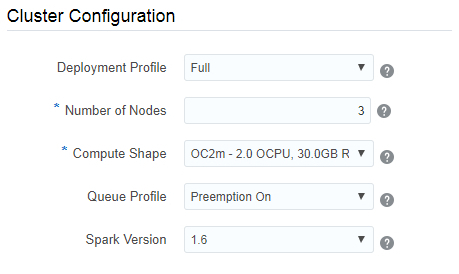
In the Cluster Configuration sub-section, enter the values for the following parameters.
- Deployment Profile: Full
- Number of Nodes: 3
- Compute Shape: OC2m-2.0 OCPU, 30GB RAM
- Queue Profile: Preemption On
- Spark Version: 1.6
Description of the illustration a_03.jpg -
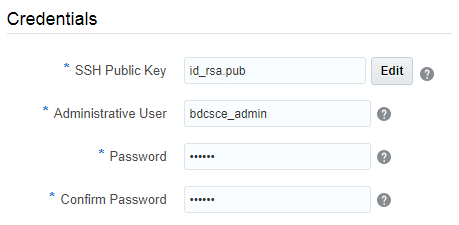
In the Credentials sub-section, enter the values for the following parameters.
- SSH Public Key: <your ssh public key>
- Administrative User: bdcsce_admin
- Password: <password>
- Confirm Password: <password>
Description of the illustration a_04.jpg -
In the Cloud Storage Credentials sub-section, enter the values for the following parameters.
- Cloud Storage Container: Path to Cloud Storage Container
- Username: <username>
- Password: <password>
- Create Cloud Storage Container: select if a new cloud storage container is required.
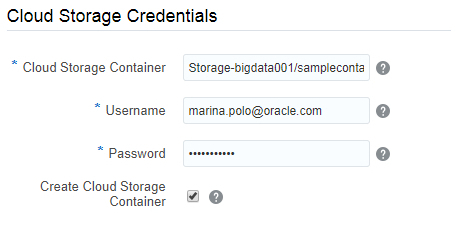
Description of the illustration a_05.jpg -
In the Block Storage Settings sub-section, enter the values for the following parameters.
- Use High Performance Storage: Select if High Performance Storage is required.
- Usable HDFS Storage (GB): 50
- Usable BDFS Cache (GB): 50
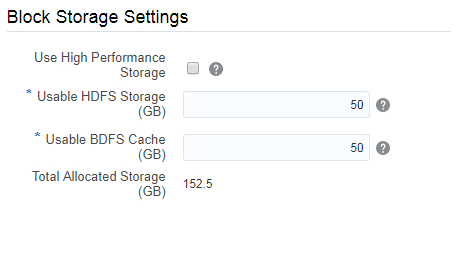
Description of the illustration a_06.jpg -
In the Associations sub-section, enter the values for the following parameters and click Next.
- Database Cloud Service: Select if required.
- MySQL Cloud Service: Select if required.
- Event Hub Cloud Service: Select if required.
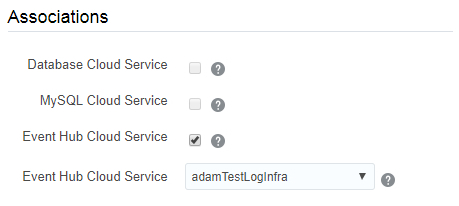
Description of the illustration a_07.jpg -
The Confirmation page appears. Confirm your responses and click Create to create the BDCS-CE cluster.
If you want to edit or update any parameter, click Previous to navigate back to Service Details page.
 View Cluster Details
Perform the following steps to view details of BDCS-CE clusters.
-
Navigate to services page. All the clusters with their details are listed here.
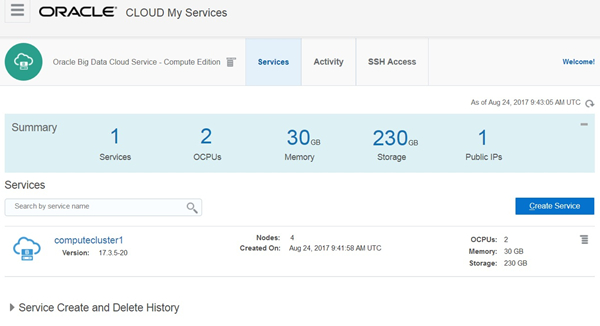
Description of the illustration b_01.jpg -
Click on your cluster name. The Service Overview page is displayed.
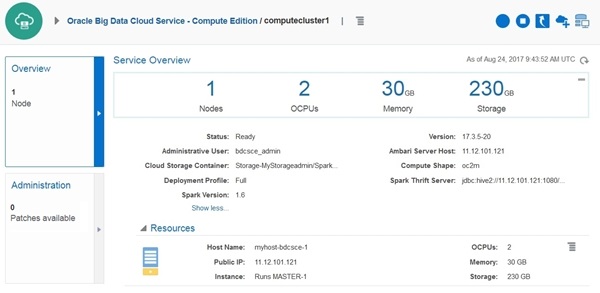
Description of the illustration b_02.jpg - Click Administration on the left to view the administration page.
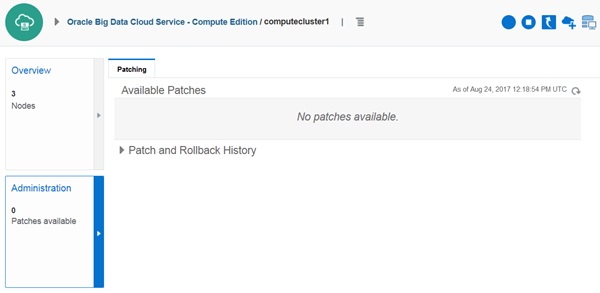
Description of the illustration b_03.jpg
 View the Cluster Console
Perform the following steps to view the BDCS-CE cluster console.
-
In the Services page, click the Manage this Service
 icon of the cluster and then click Big Data Cluster Console.
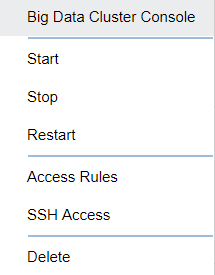
Description of the illustration c_01.jpg -
A window titled Authentication Required appears. Enter your BDCS-CE cluster username and password and click Log In.
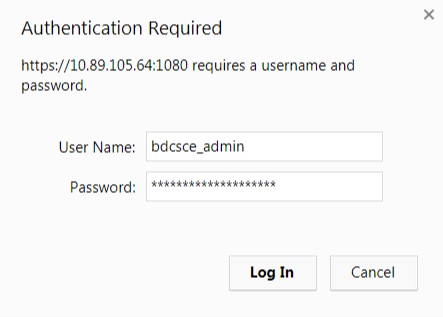
Description of the illustration c_02.jpg -
The Big Data Cluster Console is displayed. Observe the page. You can manage your jobs and notebooks from here.
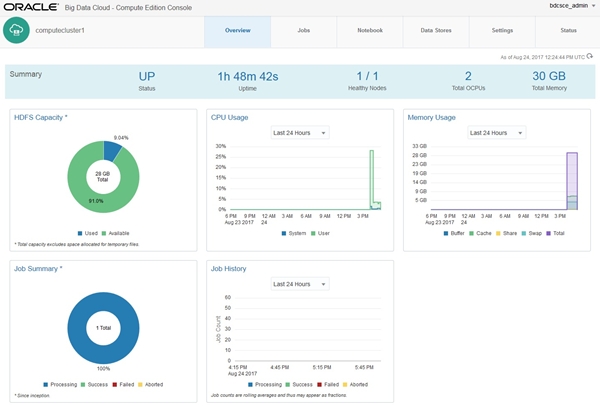
Description of the illustration c_03.jpg
 Want to Learn More?
- You’ve completed the module. Go to the learning path overview to see what’s next.
- Oracle Help Center Page for Oracle Big Data Cloud Service - Compute Edition
- Using Guide for Oracle Big Data Cloud Service - Compute Edition