Before You Begin
Purpose
This tutorial describes the process to set up network security to open ports 139 and 445 on a Linux VM to allow access from a Microsoft Windows VM for the Samba shared drive on Oracle Compute Cloud Service.
Time to Complete
10 minutes
Background
To deploy PeopleSoft PeopleTools Clients in a Microsoft Windows VM, you must be able to access the Samba shared drive folders that are set up in a Linux VM in Oracle Compute Cloud Service. Samba shared drives are created during the deployment of a PeopleSoft environment on Oracle Compute Cloud Service instances to make the file system on the Linux operating system accessible to a Microsoft Windows host or VM.Context
This tutorial is part of the following set of tutorials, which describe how to migrate a PeopleSoft environment to Oracle Compute Cloud Service:
- Generating SSH Key Pair for Oracle Compute Cloud Service Instances
- Using PeopleSoft Update Images in Oracle Compute Cloud Service
- Migrating PeopleSoft Applications to Oracle Compute Cloud Service
- Permitting Access for the Samba Shared Drive in Oracle Compute Cloud Service Instances
- Permitting Access for Oracle Database Ports in Oracle Compute Cloud Service Instances
- Accessing the Samba Shared Drive from a Microsoft Windows VM for PeopleTools Client Deployment
- Deploying PeopleTools Clients for PeopleSoft Update Manager on Microsoft Windows Host or VM
What Do You Need?
- A subscription to Oracle Compute Cloud Service
is mandatory and you must be a user with the
Compute_OperationsandStorage Read Write Grouproles. - A Linux VM instance created in Oracle Compute
Cloud Service (Oracle Cloud), with the Samba
Shared Drive folder created.
- A Microsoft Windows VM instance created in Oracle Cloud or a Microsoft Windows host or VM on-premises (that is, at your site).
Creating Security Lists
- Sign in to Oracle Cloud My Services.
Select the identity domain where you have created your Linux VM (mid-tier or full tier) and Microsoft Windows VM in Oracle Cloud, and enter your Oracle Cloud user name and password. - Select Oracle Compute Cloud Services, Open Services.
- Click the Network tab:

- Select the Security Applications
tile:

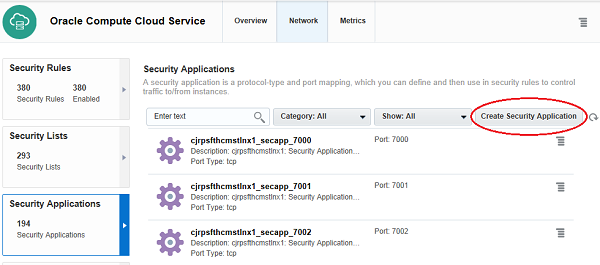
- Click Create Security Applications:
- Enter the information on the Create Security
Application page for Port 139, and then click the
Create button:
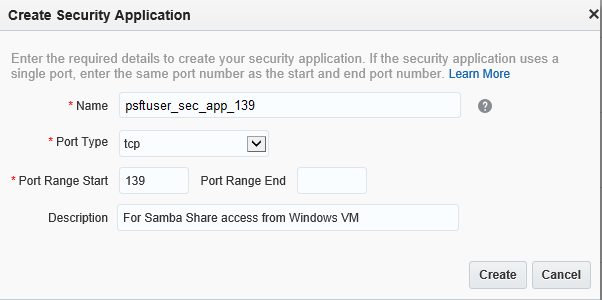
- Name: Enter a descriptive name, such as psftuser_sec_app_139
- Port Type: Select tcp.
- Port Range Start: Enter 139
- Select Create Security Applications.
- Enter the information on the Create Security
Application page for Port 445, and then click the
Create button:
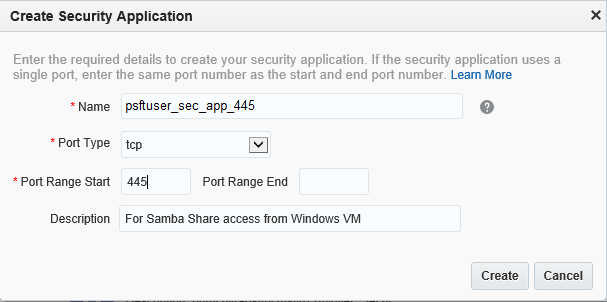
- Name: Enter a descriptive name, such as psftuser_sec_app_445.
- Port Type: Select tcp.
- Port Range Start: Enter 445.
- Select the Security IP Lists
tile:

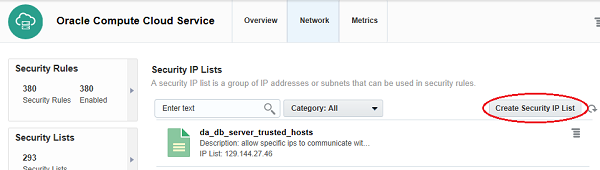
- Click Create Security IP List:
- Enter the following information on the Create
Security IP List page, and then click the Create
button:
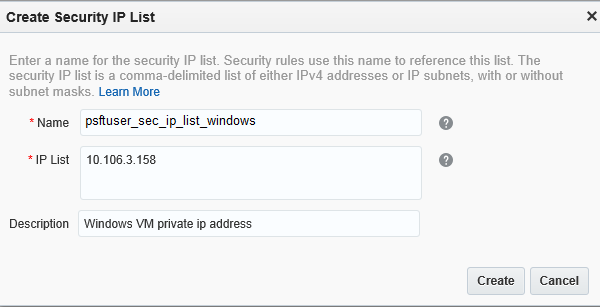
- Name: Enter a descriptive name, sch as psftuser_sec_ip_list_windows.
- IP List: Enter the Private
IP address for your Microsoft Windows VM
instance.
If your Microsoft Windows VM is in Oracle Compute Cloud Service, enter the Microsoft Windows VM instance Private IP address.
If your Microsoft Windows VM is on-premises, enter the Microsoft Windows VM instance Public IP address.
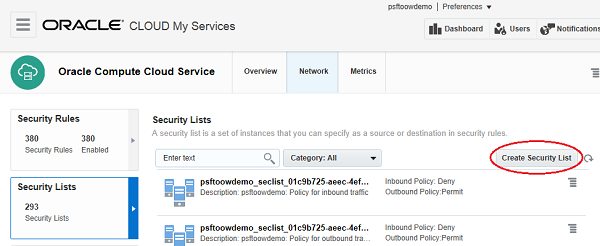
- On the Security Lists page, click Create
Security List:
- Enter the following information for port 139 on
the Create Security List page, and then click the
Create button:

- Name: Enter a descriptive name, sch as psftuser_sec_list_139.
- Inbound Policy: Select Permit (allow packets) from the drop-down list.
- Outbound Policy: Select Permit (allow packets) from the drop-down list.
- Select Create Security List.
- Enter the following information for port 445 on
the Create Security List page, and then click the
Create button:
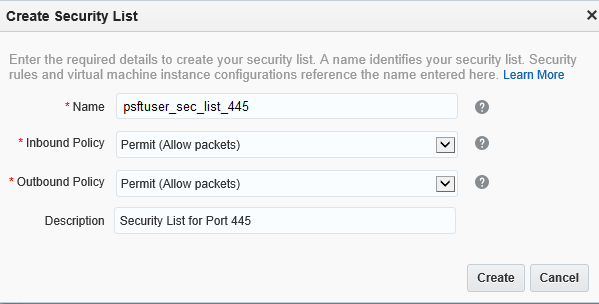
- Name: Enter a descriptive name, sch as psftuser_sec_list_445.
- Inbound Policy: Select Permit (allow packets) from the drop-down list.
- Outbound Policy: Select
Permit (allow packets) from the drop-down
list.
Creating Security Rules
- On the Oracle Compute Cloud Service console,
Network page, select the Security Rules
tile:

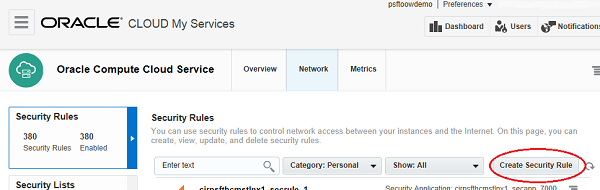
- Click Create Security Rule:
- Enter the following information for Port 139 on
the Create Security Role page, and then click the
Create button:
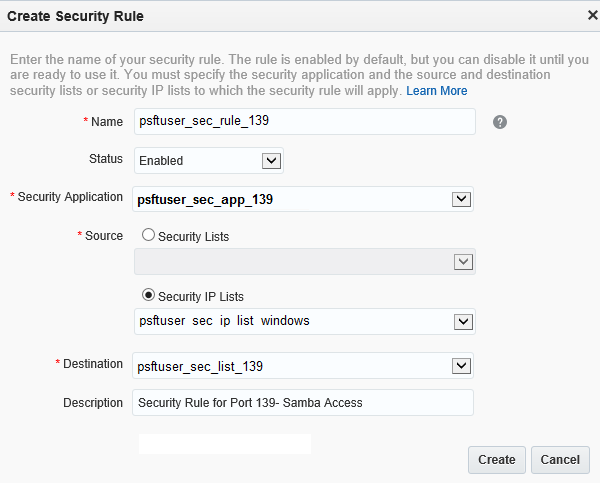
- Name: Enter a descriptive name, for example psftuser_sec_rule_139.
- Security Application: From the drop-down list, choose the application you created in the previous section, for example psftuser_sec_app_139.
- Source: Select the Security IP List radio button, and choose the one that you created for your Microsoft Windows Client Private IP Address, for example psftuser_sec_ip_list_windows.
- Destination: Choose the Security List that you created in the previous section for port 139, for example psftuser_sec_list_139.
- Enter the following information for Port 445 on
the Create Security Role page:
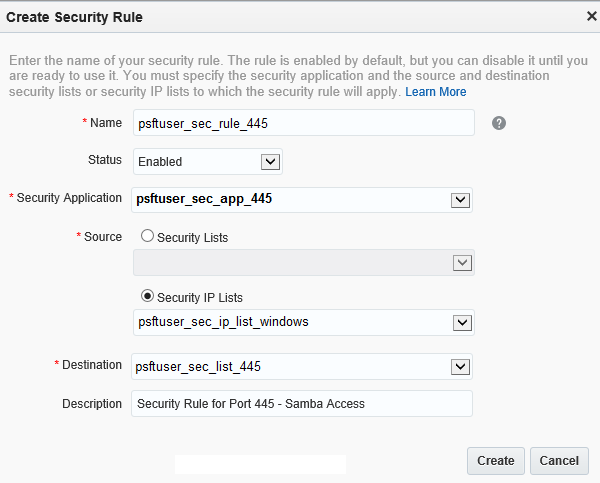
- Name: Enter a descriptive name, for example psftuser_sec_rule_445.
- Security Application: From the drop-down list, choose the application you created in the previous section, for example psftuser_sec_app_445.
- Source: Select the Security IP List radio button, and choose the one that you created for your Microsoft Windows Client Private IP Address, for example psftuser_sec_ip_list_windows.
- Destination: Choose the Security List that you created in the previous section for port 139, for example psftuser_sec_list_445.
Adding Instances to the Security Lists
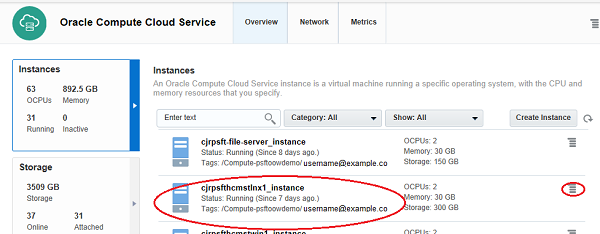
- On the Oracle Compute Cloud Service console, select the Instances tile.
- From the Instances list, click
the options button for the Linux VM instance
created for PeopleSoft mid-tier deployment:
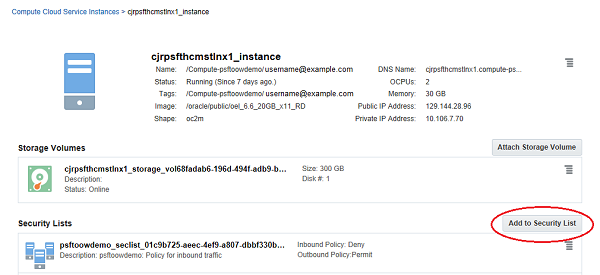
- On the page for the Linux VM instance, click Add
to Security List:
- Choose the security list created for Port 139,
for example psftuser_sec_list_139, and then click
Attach:

- Click Add to Security List.
- Choose the security list created for Port 445,
for example psftuser_sec_list_445, and then click
Attach:

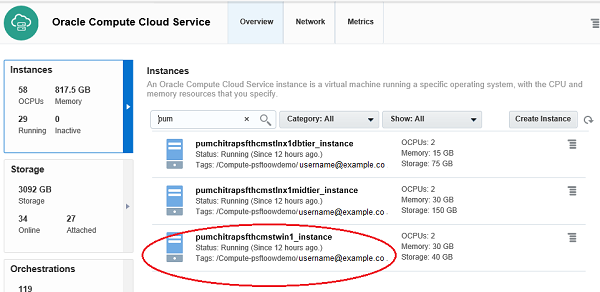
- From the Instances list, click
the options button for the Microsoft Windows VM
instance created for the PeopleSoft PeopleTools
Client deployment.
Note. Proceed with the following steps only if your Microsoft Windows VM is in Oracle Compute Cloud Service.
- Click Add to Security List:

- Choose the security list created for Port 139,
for example psftuser_sec_list_139, and then click
Attach:
- Select Add to Security List.
- Choose the security list created for Port 445,
for example psftuser_sec_list_445, and then click
Attach.
Want to Learn More?
- How to Begin with Oracle Compute Cloud Service Subscriptions in Using Oracle Compute Cloud Service
- Creating a Single Instance Using the Oracle Compute Cloud Service Web Console
- Oracle Compute Cloud Service Documentation
- Oracle Enterprise Manager Cloud Control Documentation
- PeopleSoft Information Portal