Before You Begin
Purpose
This tutorial demonstrates how to use the PeopleSoft PeopleTools Client Deployment Package (DPK) to perform a PeopleTools-only upgrade to PeopleSoft PeopleTools 8.55 on PeopleSoft environments running in Oracle Compute Cloud Service (Oracle Cloud).
Time to Complete
1 hour
Background
This tutorial assumes that you are familiar with PeopleSoft PeopleTools systems. The tutorial uses Change Assistant, one of the PeopleSoft life-cycle management tools.
See PeopleTools 8.55 Installation for your database platform.
See PeopleTools: Change Assistant and Update Manager, PeopleSoft Online Help.
Context
This tutorial is part of the following set of tutorial, which describe how to deploy a PeopleSoft environment to Oracle Compute Cloud Service:
- Generating an SSH Key Pair for Oracle Compute Cloud Service Instances
- Migrating PeopleSoft Applications to Oracle Compute Cloud Service
- Installing Micro Focus COBOL Compiler and License on an Oracle Compute Cloud Service Instance (optional)
- Compiling PeopleSoft COBOL Programs on an Oracle Compute Cloud Service Instance (optional)
- Performing PeopleTools-Only Upgrade on PeopleSoft Environments Running in Oracle Cloud (optional)
- Performing a PeopleTools Patch Update on a PeopleSoft Environment Running in Oracle Cloud (optional)
- Cloning a PeopleSoft Environment in Oracle Cloud (optional)
- Scaling Existing PeopleSoft Environments on Oracle Cloud (optional)
- Using PeopleSoft Update Images in Oracle Compute Cloud Service
What Do You Need?
Access to File Server VM in the Oracle Compute Cloud Server where the DPKs are downloaded from the Oracle Storage Cloud Service Object Storage.
For hardware and software requirements for the PeopleTools Client DPK, see PeopleSoft Deployment Packages Installation (PeopleSoft PeopleTools 8.55), My Oracle Support, Doc ID 2062712.2.
Deploying PeopleTools Client on Microsoft Windows VM
This procedure uses the PeopleTools Client DPK that is provided with the PeopleSoft PeopleTools Patch DPKs to deploy the PeopleTools Client for Oracle database on a local Microsoft Windows VM in Oracle Compute Cloud Service. The deployment installs Change Assistant, which you will use in the next section.
- Copy only the PeopleSoft PeopleTools Client DPK zip file (PTC-DPK-WIN8.nn.nn-1of1) from the File Server VM in the Oracle Compute Cloud Server (where the DPKs are downloaded from the Oracle Storage Cloud Service Object Storage), to a directory called DPK_INSTALL in a Windows VM in the Oracle Cloud.
- Extract the copied zip file from the C:\DPK_INSTALL directory to a local or shared directory; for example C:\tools-client.
- Open a command prompt, running as administrator.
- Go to the C:\tools-client directory, and run the
setup script with this command:
SetupPTClient.bat -t - Answer Y at the following prompt to
deploy the PeopleTools Client:
Do you want to deploy PeopleTools client? [Y/N]: Y
- Press ENTER to accept the default location to
the installation directory, referred to as PSHOME,
for the PeopleTools Client for the following
prompt:
Please specify the PSHOME for the PeopleTools Client [C:\PT8.55.01_Client]:
- Choose 1 (Oracle) for the Database
Platform for target database.
Please Select the Database Platform:
1.    Oracle
2.    DB2 for LUW
3.    Microsoft SQL Server
4.    DB2 for zOS
Enter your choice [1-4] : 1 - Enter N at the following prompt:
Do you want to configure PeopleTools client? [Y/N]: N
- Choose 1 (Tools Full Upgrade) at the
following prompt:
Please make your selection for the Tools Client deployment:
1.    Tools Full Upgrade
2.    Tools Patch
3.    None of the above
Enter your choice [1-3]: - Enter Y to install Change
Assistant at the following prompt:
Do you want to install Change Assistant? [Y/N]:
- Press ENTER to accept the default location at
the next prompt:
Please specify the directory to install Change Assistant
[C:\Program Files\PeopleSoft\Change Assistant]: - Type N to the following prompts:
Do you want to install Change Impact Analyzer? [Y/N]: N
Do you want to install PeopleSoft Test Framework? [Y/N]:N
Do you want to configure PeopleSoft Test Framework? [Y/N]:N - To review the log file for the setup process, go
to:
%USERPROFILE%\AppData\Local\Temp\PeopleSoft\PTClientDeploy.log.
For example, C:\Users\username\AppData\Local\Temp\PeopleSoft\PTClientDeploy.log.
The deployment installs Change Assistant to C:\Program Files\PeopleSoft\Change Assistant and creates a shortcut on your desktop.
Setting Up Change Assistant
- Create two directories named ‘output’ and
‘staging’ under PS_HOME (C:\PT8.55.01_Client):
C:\PT8.55.01_Client\Output
C:\PT8.55.01_Client\Staging - Launch PeopleSoft Change Assistant by double-clicking the Change Assistant 8.55.01 icon on the desktop.
- Click the Next button on the Welcome Page.
- In the Select Action dialog box, select the Update Manager radio button and then click Next button.
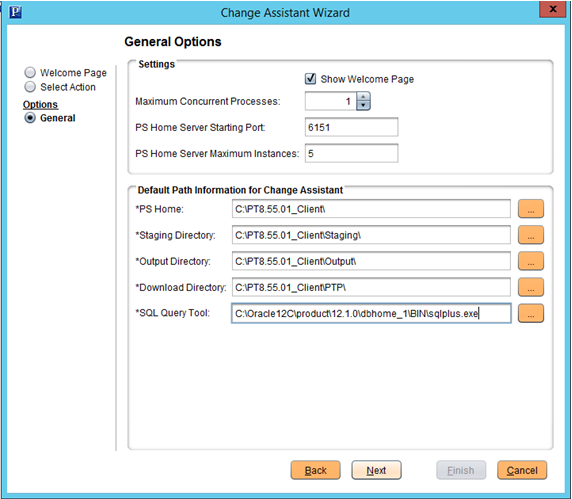
- On the General Options page, fill in the
required information and click Next.
- Accept the default values in the Settings section.
- Set the Download Directory to your PS_HOME\PTP,
which is C:\PT8.55.01_Client\PTP in this
example.
- Click Next on the PUM Source Options page without making any changes.
- Click Next on the EM Hub Options page without making any changes.
- On the Additional Options Page, enter any optional information and then click Next.
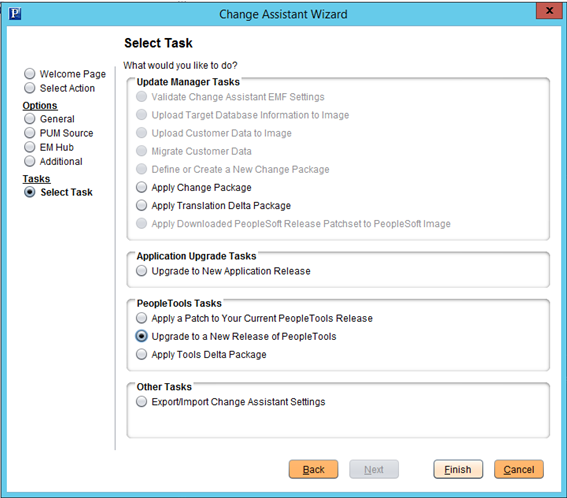
- On the Select Task page, select the Upgrade
to a New Release of PeopleTools radio
button under PeopleTools Tasks
and then click Next.
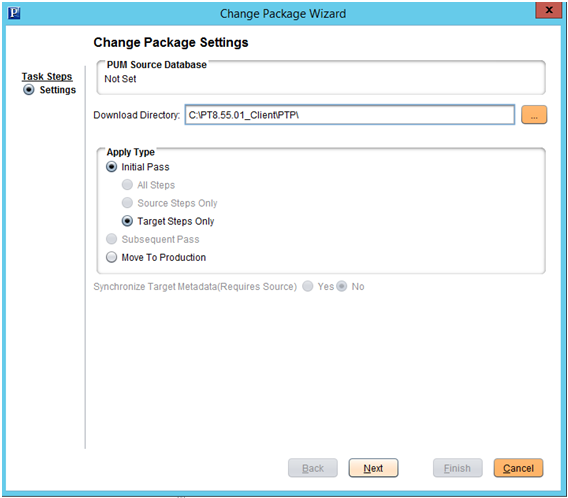
- On the Change Package Settings page, enter C:\PT8.55.01_Client\PTP\
for the Download Directory.
Accept the default values for the other options, and then click Next.
- On the Select Upgrade Target Database page,
click Create to define your
PeopleSoft PeopleTools 8.54.xx database, which you
are upgrading to PeopleSoft PeopleTools 8.55.01.
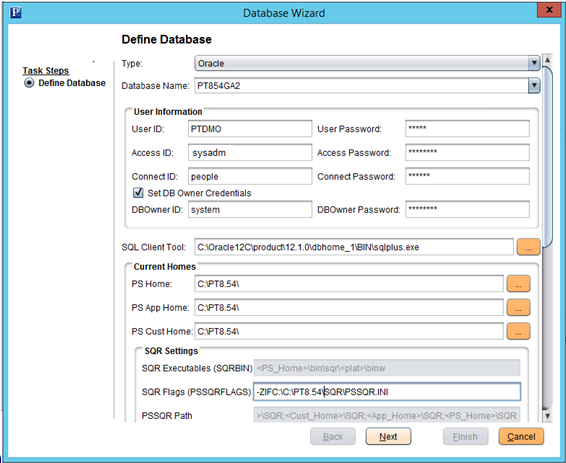
The Database Wizard appears. - On the Define Database page in the Database
Wizard, specify the following User Information for
your PeopleTools 8.54.xx database:
- User ID and User Password: In this example the User ID is PTDMO.
- Access ID and Access Password: In this example the Access ID is sysadm.
- Connect ID and Connect Password: In this example the Connect ID is people.
- Set DB Owner Credentials: Select this check box.
- DBOwner ID and DBOwner Password: In this example the DBOwener ID is system.
- SQL Client Tool: Provide the full path; for example, C:\Oracle12C\product\12.1.0\dbhome_1\BIN\sqlplus.exe.
- On the same page, scroll down using the vertical
scroll bar. In the Current Home area, specify the
values for the Old Release (that is, the release
that you are upgrading from, PeopleTools 8.54.x):
- PS Home: The installation location for the PeopleSoft PeopleTools software, PS_HOME.
- PS App Home: The installation location for the PeopleSoft application software, PS_APP_HOME.
- PS Cust Home: The installation location for customer-defined software, such as SQR, PS_CUST_HOME.
- SQR Settings: Settings for SQR executables.
- On the same page, under New Homes, specify the
information for the New Release (that is, the
release that you are upgrading to, PeopleSoft
PeopleTools 8.55.01):
- PS Home: The installation location for the PeopleSoft PeopleTools software, PS_HOME.
- PS App Home: The installation location for the PeopleSoft application software, PS_APP_HOME.
- PS Cust Home: The installation location for customer-defined software, such as SQR, PS_CUST_HOME.
- SQR Settings: Settings for the SQR executables for the New Release.
- On the Select PeopleTools Upgrade page, correct package and patch and click Next.
- On the Check Compatibility page, click Next.
- On the Apply Summary page, review the displayed information and click Finish.
Change Assistant lists all the manual and automated steps for applying upgrade. The next section describes the manual steps.
Running the Upgrade Job
After you complete the Change Assistant setup, the upgrade job is created and opened. The job follows a template, indicated by a series of manual and automated steps on the left-hand side of the Change Assistant window. The steps are described in the documentation on the right-hand side of the Change Assistant window.
Reviewing the Manual and Automated Upgrade Tasks
- The red square (
 )
indicates each step that must be performed
manually. The status of manual steps can be
set only to Stop or Complete.
)
indicates each step that must be performed
manually. The status of manual steps can be
set only to Stop or Complete. - The green circle (
 )
indicates that Change Assistant can
automatically run this step. You can set the
status to Stop, Run, Restart, or Complete.
)
indicates that Change Assistant can
automatically run this step. You can set the
status to Stop, Run, Restart, or Complete.
If you set the status to Stop, this indicates that you want to stop the upgrade job at that step or that a milestone has been reached. The status can be reset to Run when desired.
Running the Initial Manual Steps
The upgrade job begins with several manual steps. After you complete the actions required for each step, you must set the step status to Complete in Change Assistant by right-clicking the step and selecting Complete, or press F7.
Follow the instructions given in the Change Assistant documentation to complete these manual steps:- Verifying the Database User
- Editing the GRANT Script
- Editing the UPGGRANT_855 Script
- Editing the DDL Parameters
- Preparing for a PeopleTools Patch
- Preparing for the Environment Configuration Update
- Shrinking Images
- Saving Transparent Data Encryption Information
- Saving Oracle Fine Grained Auditing Information
- Verifying Upgrade Jobs
Running Other Manual Steps
As the upgrade job proceeds, Change Assistant completes several steps automatically, and stops when manual action is required. Monitor the status of the automated steps in the Step Details box. The following are manual steps that must be completed before you can proceed:
- Editing DBTSFIX Output Scripts
- Reviewing the Initial Audits
- Reviewing PeopleTools Objects
- Editing the Updated PeopleTools Script
- Editing the Tablespace Alter Script
- Reviewing PeopleTools Functionality
- Reviewing the Final Audits
- Reviewing Change Control
- Updating the Environment Configuration
- Updating Application Objects
Running the Final Upgrade Steps
Follow the instructions given in Change Assistant to complete the following manual steps at the end of the upgrade job:
- Enabling Oracle Transparent Data Encryption
- Enabling Oracle Fine Grained Auditing
- Backing Up After the PeopleTools Upgrade
- Booting Servers
Want to Learn More?
-
Change Assistant and Update Manager, PeopleSoft Online Help