Before You Begin
Purpose
This tutorial covers how to back up and restore database deployments in Oracle Database Cloud Service - Database as a Service (DBaaS).
Time to Complete
Approximately 30 minutes.
Background
By backing up your Database Cloud Service (DBaaS) database deployment, you can protect these deployments' software, configuration and database against loss if a failure occurs. By restoring a deployment from a backup, you can restore the deployment's software, configuration, and database to their state at the time of the backup.
Database Cloud Service (DBaaS) provides a backup feature that backs up the database, database configuration files, and important system files. To provide this backup feature, Database Cloud Service (DBaaS) relies on system utilities and on Oracle Database Backup Service, which is installed on the instance's virtual machine (VM).
The default configuration provides for the following:
- Full (level 0) backup of the database followed by rolling incremental (level 1) backups on a 7–day cycle
- Full backup of selected database configuration files
- Full backup of selected system files
- A backup retention period of 7 days or, if backup to cloud storage is chosen, 14 days, with the 7 most recent days' backups being available on local storage as well as cloud storage
- Encrypted backups to cloud storage
- Encrypted backups of Enterprise Edition databases and normal backup of Standard Edition One databases to local storage
- Automatic backups daily at 1:01 AM (if automatic backups are chosen when the instance is created)
The default backup configuration follows a set of Oracle best-practice guidelines, but you can customize the configuration to meet any more particular or stringent guidelines or requirements you may have. For information, see Customizing the Current Backup Configuration.
Scenario
In this tutorial, you will create an on-demand backup of a database deployment and then restore the backup.
What Do You Need?
- You need a database deployment that is configured for backups to Cloud Storage.
- You need a secure shell (SSH) connection from your local workstation to the compute node hosting your Oracle Database Cloud Service (DBaaS). There are two ways to create an SSH connection, one using a Windows GUI client, such as PuTTY, and one using the ssh utility at the UNIX command line. You don't need to do both, although you might want to learn both ways.
-
PuTTY is a free, open-source implementation of several network protocols, including SSH. It is available for Windows and for UNIX platforms. PuTTY includes several utilities including a terminal emulator, an SSH key generator, and a network transfer application.
PuTTY is available from many sites, but you can reach the main download site at http://www.putty.org.
-
Alternatively, you can use an SSH client. Many implementations of UNIX and UNIX-like operating systems already include ssh; so if you have one of those, you won't have to install ssh. Check the documentation for your operating system to see if you have ssh already (or simply try typing ssh at the command line to see if it is installed already).
If you don't already have ssh installed, you can install OpenSSH on UNIX or Cygwin for Windows. OpenSSH is available from http://www.openssh.com/portable.html. Cygwin is available from https://cygwin.com/install.html.
- You need one of the supported browsers listed
below:
- Microsoft Internet Explorer: version 9 or 10; set Browser Mode to IE9 or IE10
- Mozilla Firefox: version 24 and later
- Google Chrome: version 29 and later
- Apple Safari: version 6
Creating an On-Demand Backup of a Database Deployment
You can create an on-demand backup of a Oracle Database Cloud - Database as a Service database deployment by using the Oracle Database Cloud Service console.
-
Log in to the Oracle Database Cloud Service (DBaaS) console using the credentials provided by your Oracle Cloud account administrator.
-
Click the database deployment for which you want to create a backup.
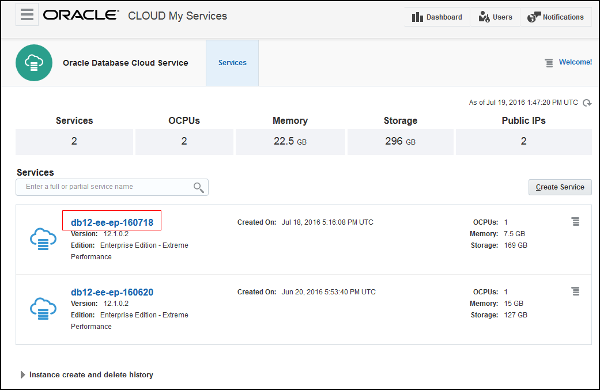
Description of this image -
The Oracle Database Cloud Service Overview page is displayed. Click the Administration tile.
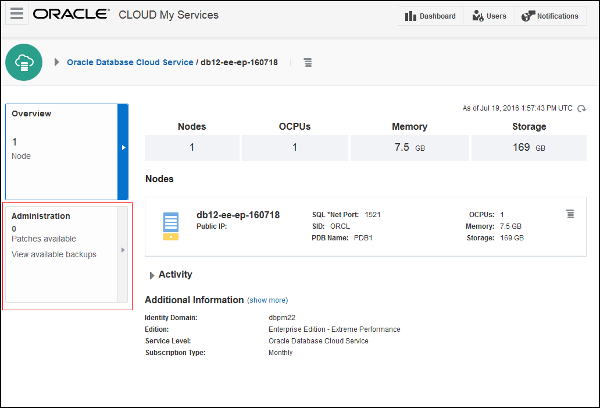
Description of this image -
The Oracle Database Cloud Service Backup page is displayed. Click Backup Now.
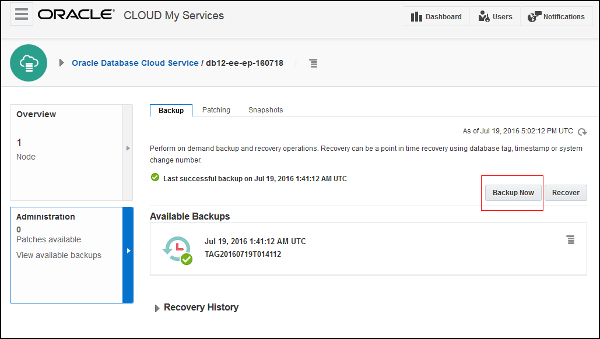
Description of this image -
Click Backup to confirm that you want to create an on-demand backup now.
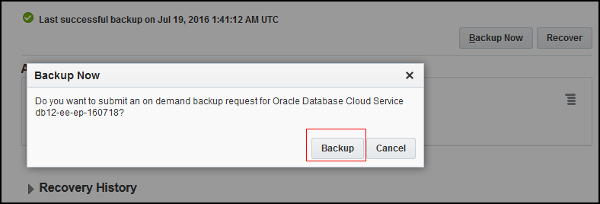
Description of this image -
A confirmation message is displayed and the in-progress backup is shown in the Available Backups list. Notice that there is no tag associated with the backup at this point.
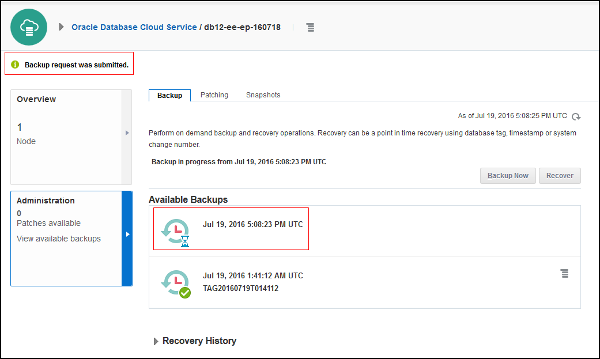
Description of this image -
You can refresh the page until you see that the backup has completed. Note that there is now a tag listed with the backup.
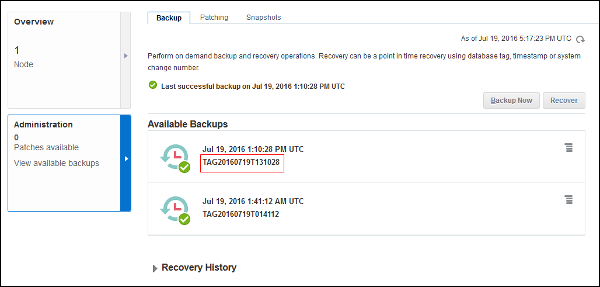
Description of this image
Restoring From the Most Recent Backup
You can use the Oracle Database Cloud Service console to restore from the most recent backup and perform complete recovery.
-
Log in to the Oracle Database Cloud Service (DBaaS) console using the credentials provided by your Oracle Cloud account administrator.
-
Click the database deployment for which you want to restore a backup.
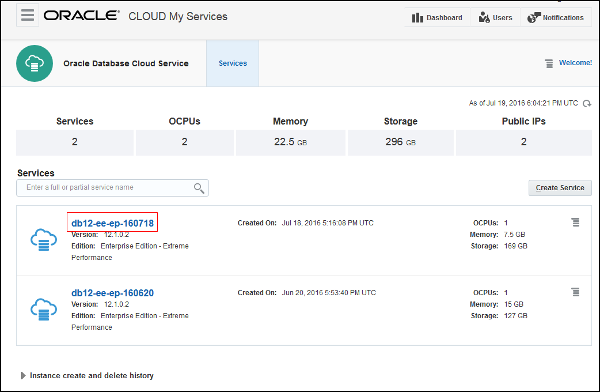
Description of this image -
The Oracle Database Cloud Service Overview page is displayed. Click the Administration tile.
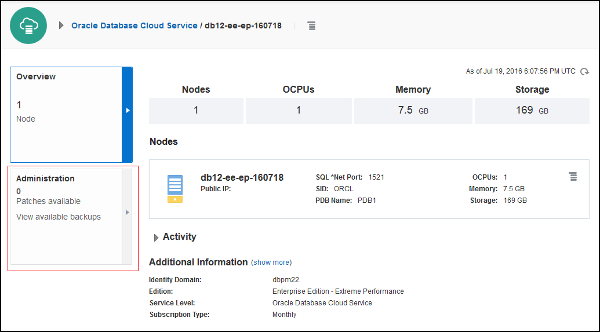
Description of this image -
The Oracle Database Cloud Service Backup page is displayed. Click Recover.
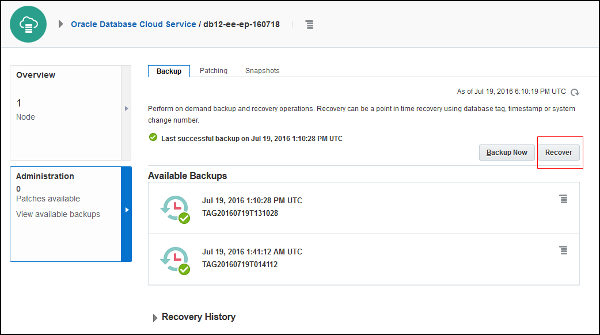
Description of this image -
Select Latest and Click Recover.
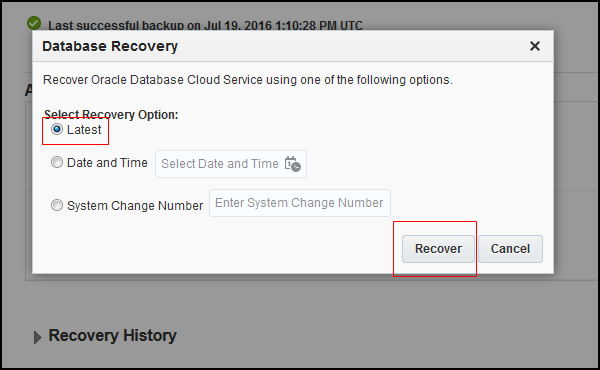
Description of this image -
A confirmation message is displayed and the in-progress recovery is shown in the Recovery History area.
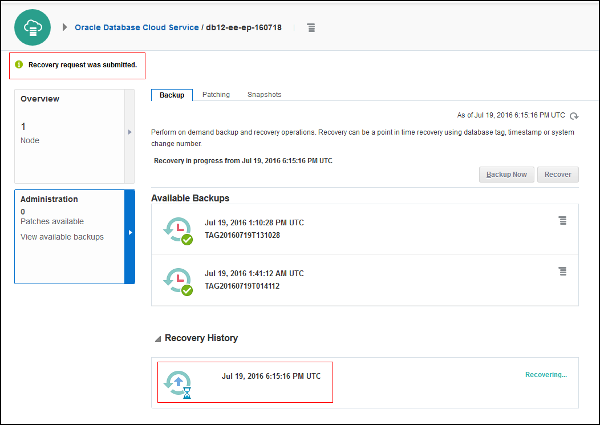
Description of this image -
You can refresh the page until you see that the recovery operation has completed.
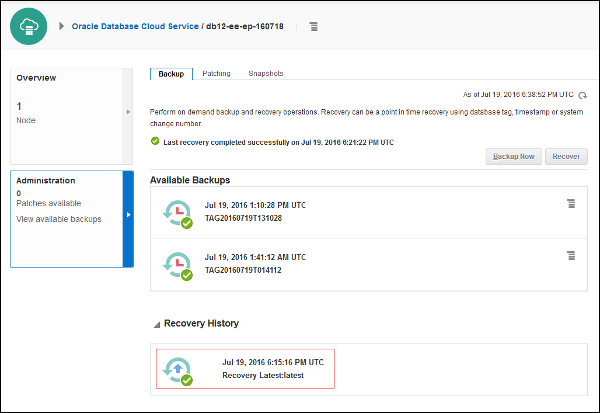
Description of this image
Want to Learn More?
-
For more detailed information about backing up and restoring databases in Oracle Database Cloud Service (DBaaS), see the Database Cloud Service documentation.
-
To learn more about Oracle Database Cloud Service, visit Database Cloud Service.