Before You Begin
Purpose
This tutorial shows you how to build a PHP REST API application in Oracle Developer Cloud Service and deploy it to Oracle Application Container Cloud Service.
Time to Complete
30 minutes
Background
You can use Oracle Developer Cloud Service to build a PHP application, package it, and then deploy to Oracle Application Container Cloud Service without leaving the Oracle Developer Cloud Service interface.
Context
In this tutorial, you will build and deploy the the RESTful API application described in the Oracle Application Container Cloud Service: Building a RESTful API with PHP tutorial. You should go through the Building a RESTful API with PHP tutorial to learn about the PHP application and its files before you continue with this tutorial.
This tutorial also expects you to be familiar with creating a project and committing files to the project Git repository.
What Do You Need?
-
An active subsription to Oracle Developer Cloud Service and Oracle Application Container Cloud Service
-
The PHP sample application: phpEmployeeAPI.zip
The
phpEmployeeAPI.zipcontains the complete PHP application with source code.
Set Up the Oracle Developer Cloud Service Project
In this section, you will create an Oracle Developer Cloud Service project and upload the PHP applucation source code files to the project Git repository.
-
Create an Oracle Developer Cloud Service project.
You can follow the instructions described in the Creating an Oracle Developer Cloud Service Project tutorial.
-
Clone the Oracle Developer Cloud Service project Git repository and commit the files of the PHP application.
You can follow the instructions described in the Cloning an Oracle Developer Cloud Service Project Git Repository Using a CLI tutorial.
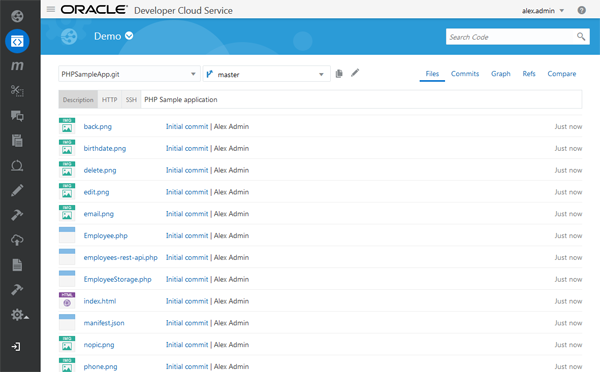
After the PHP application files are pushed to the project Git repository, open the Code page and verify the files.
Building and Packaging the PHP Application
In this section you will create a build job in Oracle Developer Cloud Service that will package the application and create an archive file.
-
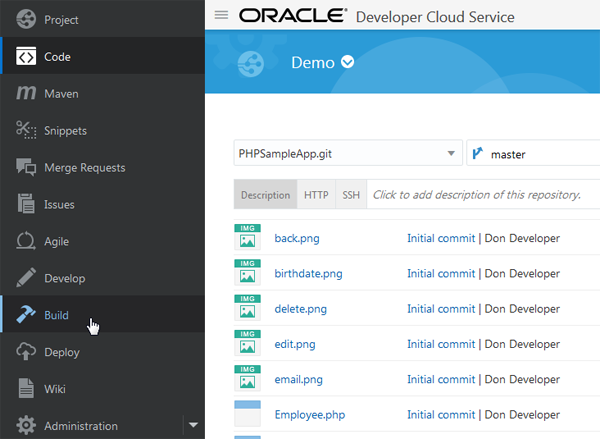
In the navigation bar of the Oracle Developer Cloud Service project, click Build.
Description of this image -
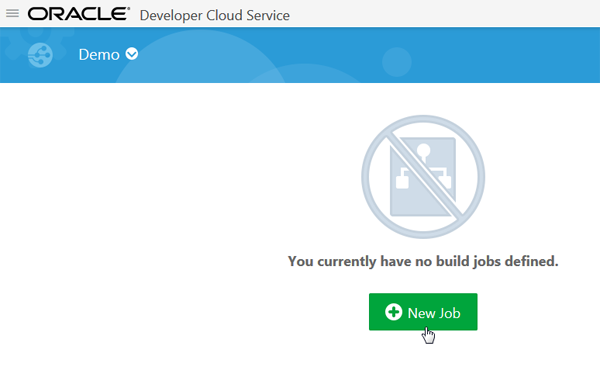
In the Jobs Overview page, click New Job.
Description of this image -
In the Job Name field of the New Job dialog, enter
PHPSampleAppand click Save.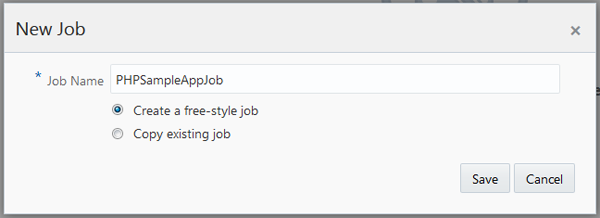
Description of this image -
In the Source Control tab, select the Git option. In the Repository field, select the Git repository that contains the PHP application code files.
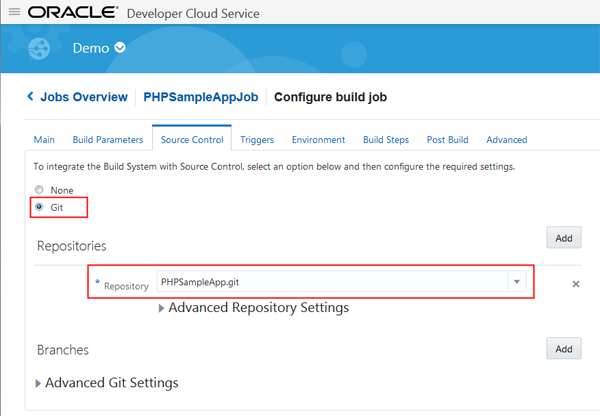
Description of this image -
In the Build Steps tab, open the Add Build Step menu and select Execute Shell.
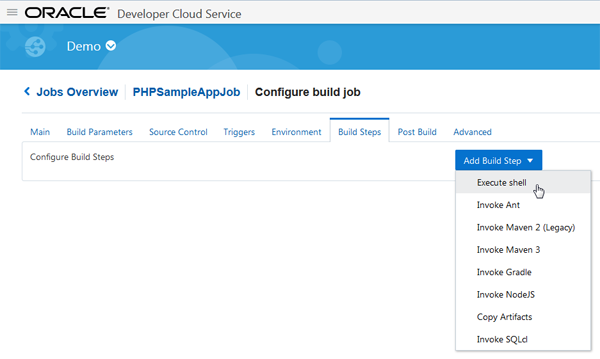
Description of this image -
In the Command field, enter the following command to package and create an archive file of the application.
zip -r phpEmployeeAPI.zip *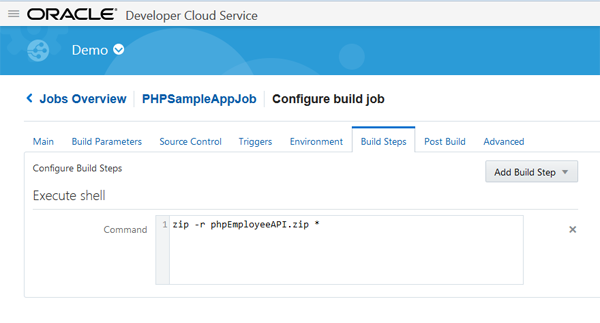
Description of this image -
In the Post Build tab, select the Archive the Artifacts check box. In the Files to Archive field, enter
phpEmployeeAPI.zip.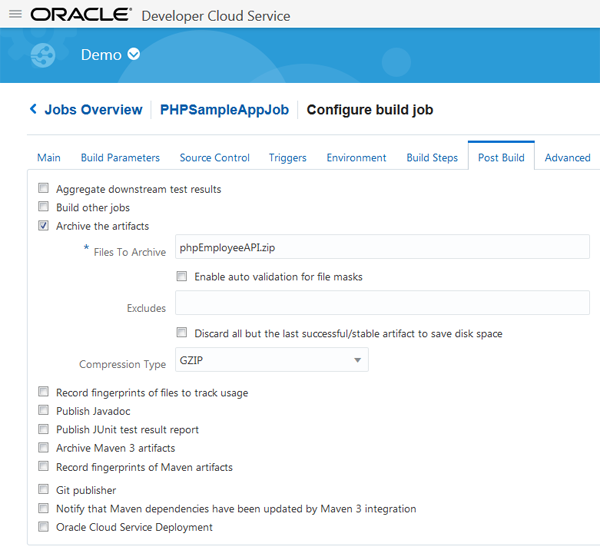
Description of this image -
Click Save.

Description of this image -
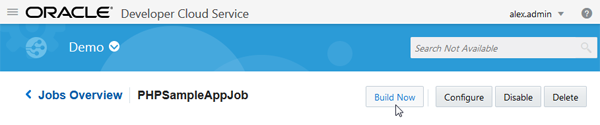
In the Job Details page, click Build Now.
Description of this image -
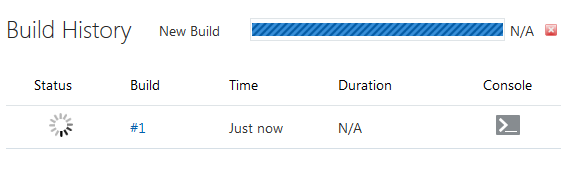
In the Build Hisotry table, track the build's status.
Description of this image
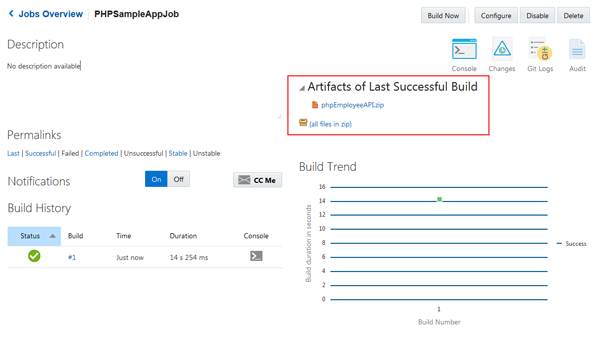
After the build is successful, you will notice the archive file in the Artifacts of Last Successful Build section.
Deploying the PHP Application to Oracle Application Container Cloud Service
In this section you will create a deployment configuration that will deploy to the PHP application archive to Oracle Application Container Cloud Service.
-
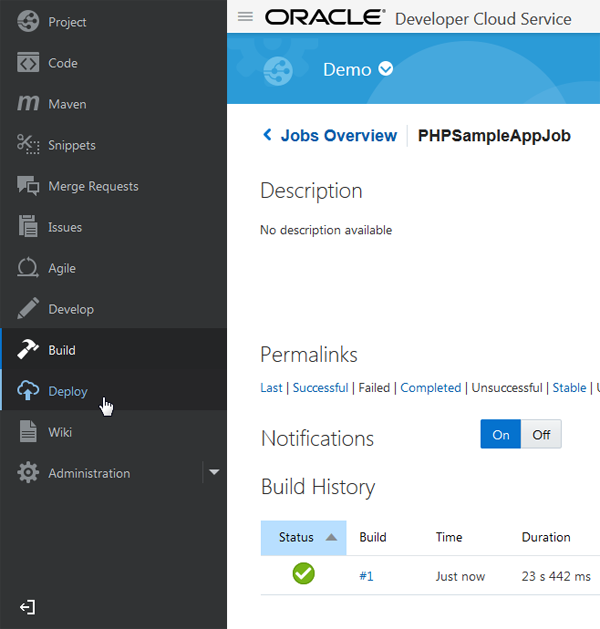
In the navigation bar of the Oracle Developer Cloud Service project, click Deploy.
Description of this image -
In the Deploy Configuration page, click New Configuration.
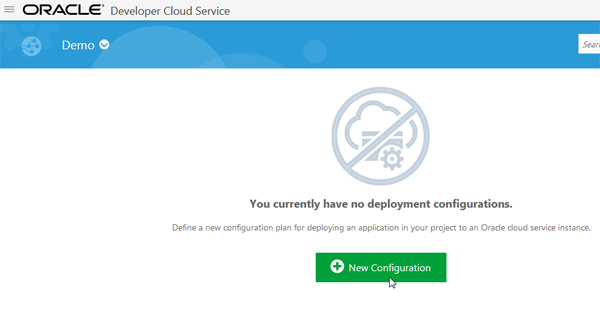
Description of this image -
In the New Deployment Configuration page, enter the following details:
-
Configuration Name: Enter
PHPSampleAppThe same name is automatically populated in the Application Name field.
-
Deployment Target: Select a predefined Oracle Application Container Cloud Service target or create one.
-
ACCS Properties: In Runtime, select PHP. In Subscription, select Hourly.
-
Type: Select OnDemand.
-
Job: Select PHPSampleAppJob.
-
Build: Select the last successful build number.
-
Artifact: Select the archive file name phpEmployeeAPI.zip.
Some of the above fields might get populated automatically and do not require manual entry.

Description of this image If you want to create a deployment target, click New and select Application Container Cloud.
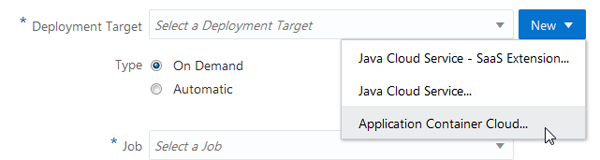
Description of this image Enter the details in the dialog that opens and then click Test Connection. When the connection is successful, click Use Connection.
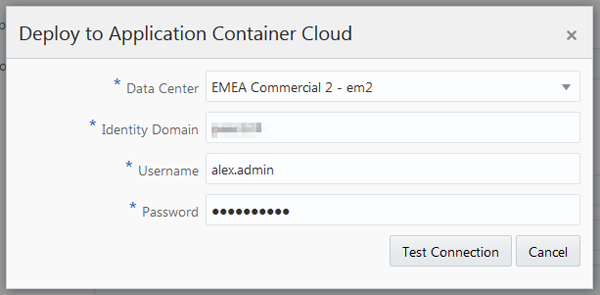
Description of this image -
-
Click Save and Deploy.
Wait for the deployment to complete. Click the configuration name to open the deployed application in the browser.
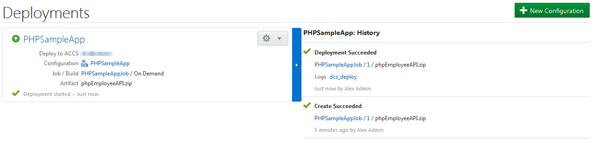
If requried, follow the database configuration steps described in the Adding the Service Binding section of the Building a RESTful API with PHP tutorial to add the database service binding.