Before You Begin
Purpose
In this tutorial, you'll learn how to clone an Oracle Developer Cloud Service project Git repository on your local system using a command-line interface (CLI).
Time to Complete
Approximately 15 minutes
Background
After you create an Oracle Developer Cloud Service project using the Oracle Developer Cloud Service user interface, you'll want to clone the Git repository to your local system so that you can populate it with your own application or applications. You can use an IDE to do this, or you can use Git Bash or another command-line interface.
Context
This tutorial assumes you have completed the OBE tutorial Creating an Oracle Developer Cloud Service Project.
What Do You Need?
-
A login to an Oracle Developer Cloud Service instance
-
One of the following supported browsers:
- Chrome 48 or later (also for Android)
- Firefox 38 or later
- Internet Explorer 11 or 12
- Safari 7 or 8 (Mac OS)
- Safari Mobile 5 (iOS)
-
A local installation of Git
Cloning an Oracle Developer Cloud Service Project
-
Launch your Oracle Developer Cloud Service, following the instructions in "Accessing Oracle Developer Cloud Service Using the Web Interface" in Using Oracle Developer Cloud Service.
-
Provide your identity domain, user name, and password, and click Sign In. Then, from the My Services Dashboard, click Open Service Console for the Developer service.
-
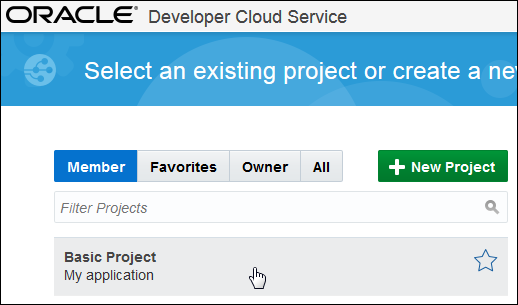
On the Welcome page, click the project you created in the tutorial Creating an Oracle Developer Cloud Service Project.
Description of this image -
On the Project page, click the Code tab. (You can click the
 icon to hide the
labels.)
icon to hide the
labels.)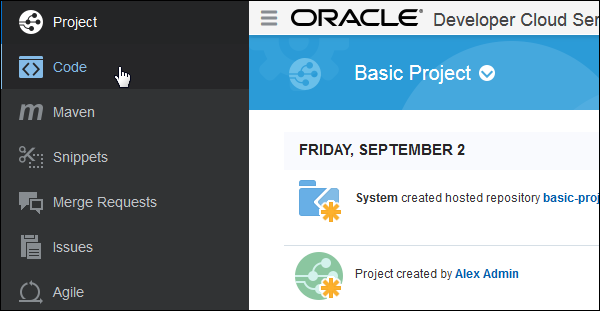
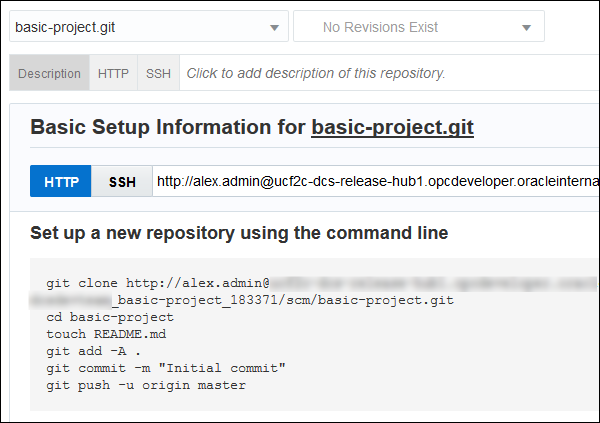
Description of this image The Code page provides instructions on how to clone the Git repository, including sample command lines.
Description of this image -
On your home system, open a command window that provides access to Git commands, such as Git Bash. Change to the location where you want to clone the project.
-
Copy the
git clonecommand line from the browser and paste it into the command window. Your command line will have its own service URL, organization name, and project name. You will be asked for your password. The warning means only that the repository is empty, so don't be alarmed.$ git clone https://alex.admin@service-url/org-name/s/org-name_project-name/scm/project-name.git Cloning into 'project-name'... Password for 'https://alex.admin@service-url': Checking connectivity... done. warning: remote HEAD refers to nonexistent ref, unable to checkout. -
Change to the project directory and create an empty README file to populate the repository.
$ cd basic-project $ touch README.md -
Add all the files to the commit list. (There is only one at present.)
$ git add -A . -
(Optional) Get a list of the files to be committed.
$ git status On branch master Initial commit Changes to be committed: (use "git rm --cached <file>..." to unstage) new file: README.md -
Commit the files, adding a commit message.
$ git commit -m "Initial commit" -
Push the files to the remote repository. You'll be asked for your password again.
$ git push -u origin master Password for 'https://alex.admin@service-url': Counting objects: 3, done. Writing objects: 100% (3/3), 234 bytes | 0 bytes/s, done. Total 3 (delta 0), reused 0 (delta 0) remote: Updating references: 100% (1/1) To https://alex.admin@service-url/org-name/s/org-name_project-name/scm/project-name.git * [new branch] master -> master Branch master set up to track remote branch master from origin. -
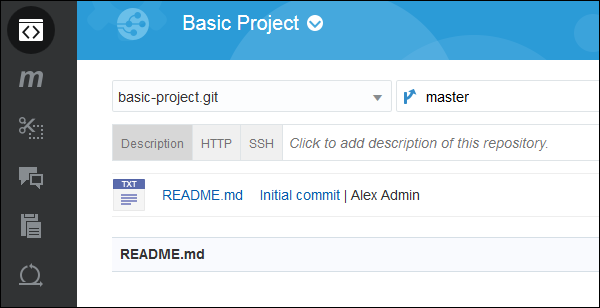
In the browser, click the Code tab again to view the committed project file.
Description of this image
You can now go on to populate the repository by copying an application on your local system into it, then committing and pushing it.
Want to Learn More?
- Creating an Oracle Developer Cloud Service Project OBE
- Oracle Developer Cloud Service in the Oracle Help Center
- Using Oracle Developer Cloud Service in the Oracle Help Center
- Oracle Developer Cloud Service product page