Before You Begin
Purpose
In this tutorial, you'll learn how to create a project and work with Git repositories using Oracle Developer Cloud Service and NetBeans IDE.
Time to Complete
Approximately 30 minutes
Background
This tutorial shows you how to create an Oracle Developer Cloud Service project using only NetBeans IDE. NetBeans IDE creates a project with an empty repository that does not use a template. If you want to create a non-empty project or use a template, use the Oracle Developer Cloud Service user interface as described in Creating an Oracle Developer Cloud Service Project.
Both Oracle Developer Cloud Service and NetBeans IDE use the term project, but the term has a different meaning in each tool. An Oracle Developer Cloud Service project is a set of modules that includes a code repository, an issues module, an Agile technology module, a review module, a wiki module, a deployment module, and others. A NetBeans IDE project consists of the source code and libraries that form a deployable application. You check the NetBeans IDE project into the Oracle Developer Cloud Service code repository.
Context
After completing this tutorial, you may want to move on to Managing Issues Using Oracle Developer Cloud Service.
What Do You Need?
-
A login to an Oracle Developer Cloud Service instance
-
One of the following supported browsers:
- Chrome 48 or later (also for Android)
- Firefox 38 or later
- Internet Explorer 11 or 12
- Safari 7 or 8 (Mac OS)
- Safari Mobile 5 (iOS)
-
An installation of Oracle WebLogic Server 11g or 12c (12.1.3.0 or 12.2.1.0)
-
An installation of the Java EE bundle of NetBeans IDE 8.0 or higher, with Oracle WebLogic Server added to it (this tutorial uses NetBeans IDE 8.2)
-
Some experience developing applications in Java
-
Some familiarity with the Git source control system
Installing the Team Server Plugin for NetBeans IDE
If you have not already done so, install the Team Server plugin.
-
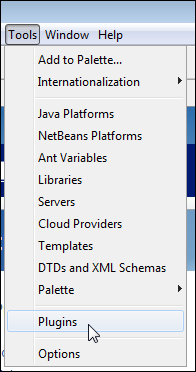
Start NetBeans IDE. From the Tools menu, select Plugins.
Description of this image -
Click the Available Plugins tab and enter
cloudin the Search field.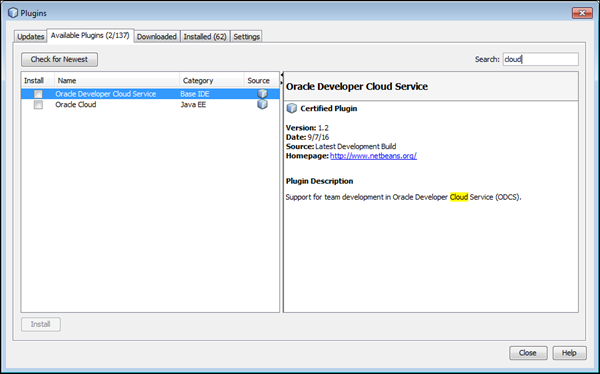
Description of this image -
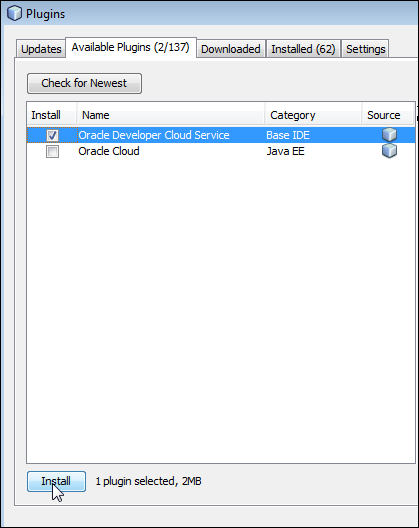
From the list that appears, select the Oracle Developer Cloud Service check box, and then click Install.
Description of this image -
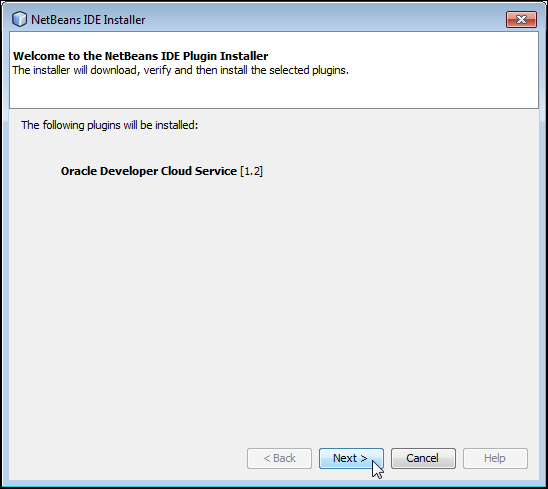
On the first screen of the installation wizard, click Next.
Description of this image -
On the next screen, select the check box to accept all the license agreements and click Install.
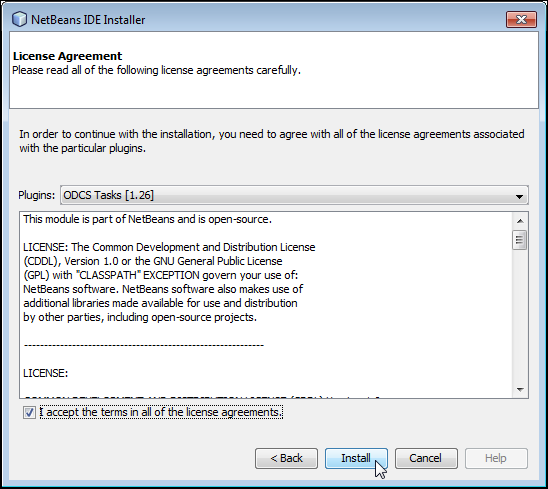
Description of this image Validating the plugins may take some time.

Description of this image -
If a Verify Certificate screen appears, click Continue.

Description of this image -
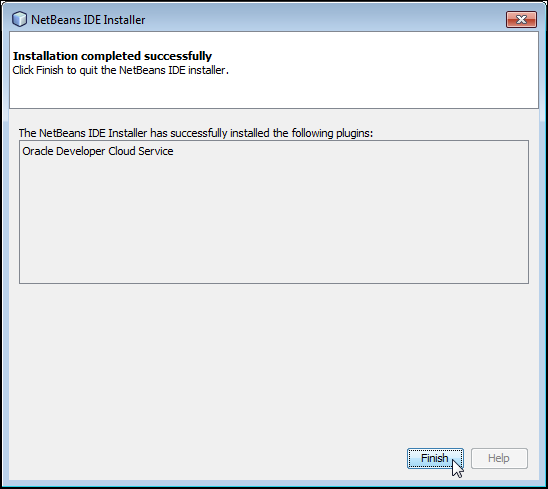
Click Finish when the installation is complete. Finally, click Close to close the Plugins window.
Description of this image
Adding the Team Server for Your Oracle Cloud Developer Service Instance to Your NetBeans IDE Instance
-
In NetBeans IDE, from the Team menu, select Team Server, and then select Add Team Server.

Description of this image -
Specify a name (for example,
My Team
                                  Server
) in the Name field, specify the URL of your Oracle Developer Cloud Service instance in the URL field, and then click OK. The URL includes both the service instance and the identity domain (http://myserviceinstance.oraclecloud.com/myidentitydomain).
Description of this image A Team tab opens.

Description of this image -
Click Click here to select project, and then click Login.

Description of this image -
Enter your username and password, and then click Login.

Description of this image The team server appears in the Team tab.

Description of this image -
(Optional) After you log in, NetBeans IDE synchronizes all issues, builds, and Git repositories of each project, and this may slow down NetBeans IDE performance. To synchronize the selected project only, click the Gear icon and select Auto Synchronize Services, and then select Selected Project Only.
Using the Team Server Plugin to Create an Oracle Developer Cloud Service Project
-
Click the gear icon next to the Team Server name and select New Project from the menu.

Description of this image -
On the Name and License page of the New Project on Oracle Developer Cloud Service wizard, enter a project name, such as
My Web
                                  Application
, in the Project Name field, and enter a description, such asWeb application, in the Project Description field. In the Security area, select the Private option. Select Textile from the Wiki Markup drop-down list. Finally, click Next.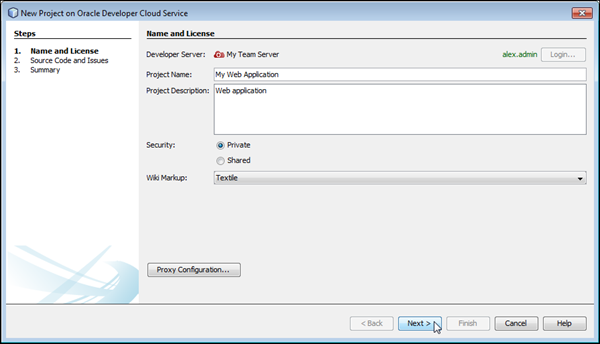
Description of this image -
On the Source Code and Issues page, click Browse next to the Local Repository Folder field.

Description of this image -
In the Open dialog box, navigate to your NetBeansProjects folder or another location on the file system, enter
my-web-application, and then click Open.
Description of this image This naming convention ensures that the local repository folder will have the same name as the Oracle Developer Cloud Service repository on the server instance.
-
Verify that the location is the one you intended, and then click Next.
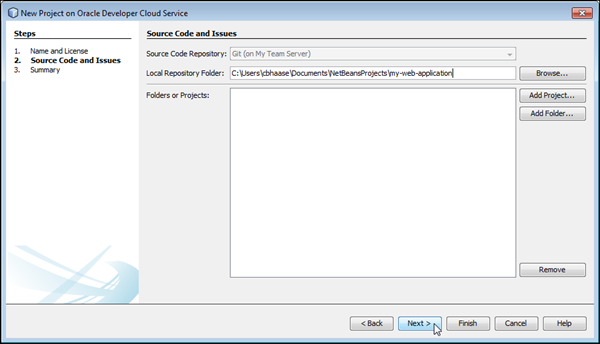
Description of this image -
On the Summary page, verify that the information is correct, and then click Finish.

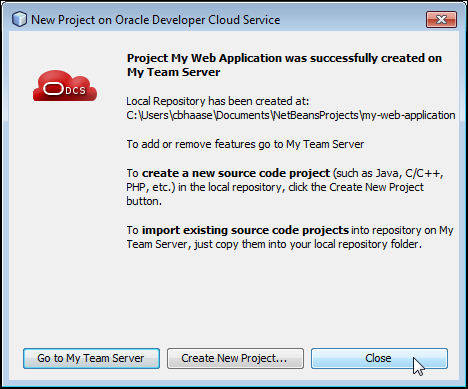
Description of this image A progress bar is displayed while the project is being created. Finally, a dialog box reports that the project was successfully created. Click Close.
Description of this image -
To verify that the project was created, launch your Oracle Developer Cloud Service instance, following the instructions in "Accessing Oracle Developer Cloud Service Using the Web Interface" in Using Oracle Developer Cloud Service.
-
Provide your identity domain, user name, and password, and click Sign In. Then, from the My Services Dashboard, click Open Service Console for the Developer service.
-
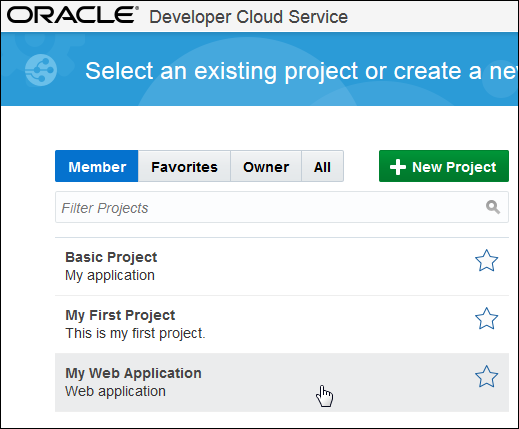
The project you created appears on the Welcome page. Click the project name.
Description of this image On the Project page, you can see that the system created the empty hosted repository
my-web-application.git.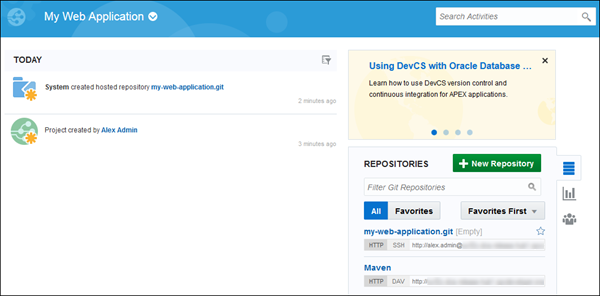
Description of this image -
On your file system, verify that the empty
my-web-applicationproject was created in yourNetBeansProjectsdirectory.
Description of this image
Creating a Local Project Using NetBeans IDE
-
In NetBeans IDE, from the File menu, select New Project to create a NetBeans IDE counterpart to your Oracle Developer Cloud Service project.

Description of this image -
On the Choose Project screen of the New Project wizard, select Java Web, then select Web Application, and then click Next.

Description of this image -
In the Project Name field of what is now the New Web Application wizard, enter
MyWebApp. Click Browse and specify the Project Location under the clonedmy-web-applicationrepository in yourNetBeansProjectsdirectory, then click Next.
Description of this image -
Select Oracle WebLogic Server from the Server drop-down menu, or select Add... to add your Oracle WebLogic Server instance, then click Next. (This project uses Oracle WebLogic Server 12c. If you use Oracle WebLogic Server 11g, the Java EE version will be Java EE 5.)

Description of this image -
Select the JavaServer Faces check box in the Frameworks area. (If you are using Oracle WebLogic Server 11g, do not select any check box.) Click Finish.

Description of this image The project is displayed in the Projects tab, and the
index.xhtmlfile opens in an editor pane. Expand the MyWebApp and Web Pages nodes so that you can see the file in the project tree. (If you are using Oracle WebLogic Server 11g, the file will beindex.jsp.)
Description of this image -
In the XHTML file, change the line
Hello from FaceletstoHello from the Cloud!, then click the Save icon or select Save from the File menu. (If you are using Oracle WebLogic Server 11g, changeHello World!toHello from the Cloud!).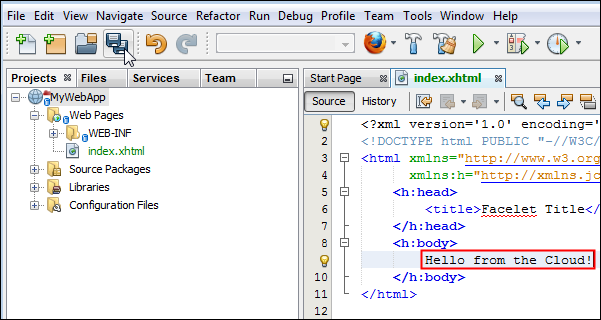
Description of this image
From now on, the instructions assume you are using Oracle WebLogic Server 12c.
Pushing the NetBeans IDE Project to the Oracle Developer Cloud Service Git Repository
-
In NetBeans IDE, return to the Team tab and expand Sources, then click the name of the project to return to the Projects tab. (If you don't see the project name, you may not have created the project under
my-web-application.)
Description of this image -
In the Projects tab, right-click the project and select Git, then Commit.
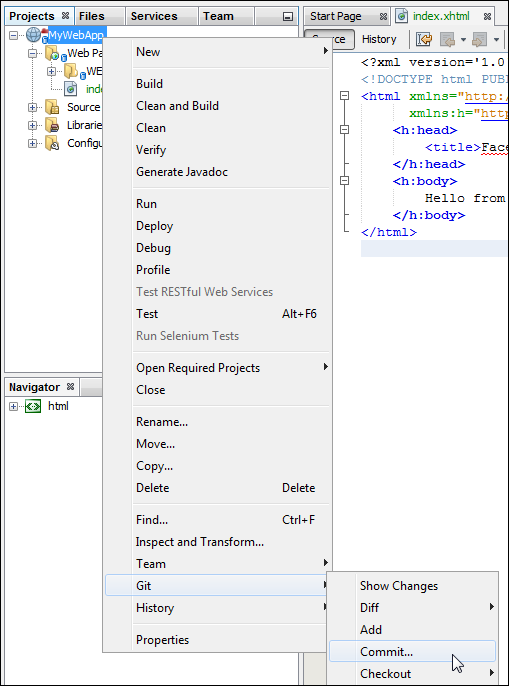
Description of this image -
In the Commit dialog, enter a commit message such as
Initial commit of MyWebApp, and then click Commit to commit the project locally.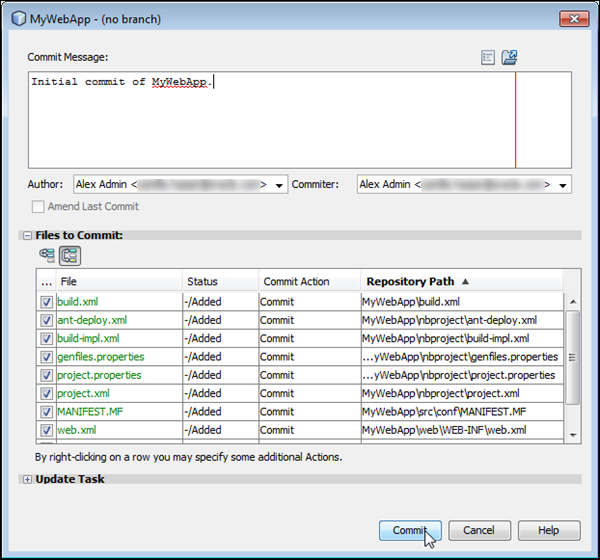
Description of this image -
A Set Repository User dialog box opens if your user name on the Oracle Developer Cloud Service instance is not identical to your user name on your local system. If the dialog box opens, click Yes.

Description of this image -
Right-click the project and select Git, then Remote, then Push to Upstream.

Description of this image Because the repository on the server is empty, you need to create a master branch on the server and a local version of that branch.
-
In the Create New Branch? dialog box, click Yes.

Description of this image -
In the Set Up Remote Tracking? dialog box, click Yes.

Description of this image The project is now pushed to Oracle Developer Cloud Service.
-
From the Team menu, select Repository, and then select Repository Browser to view the repository.

Description of this image The Git Repository Browser window appears below the source code.
-
In the Git Repository Browser window, expand the nodes to see the branches and remotes.

Description of this image
Viewing the Modified Project in Oracle Developer Cloud Service
-
Return to your Oracle Developer Cloud Service browser window and click the Project tab (even if you are already on that page) to view the Git commit in the activity feed. Notice the commit link (an SHA-1 checksum hash).
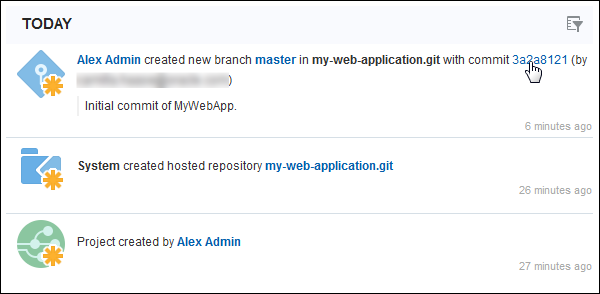
Description of this image -
To view the files that were committed, click the commit link.
The Code page shows all the files that were added.

Description of this image -
Click the Code tab to go to the Files view, then click MyWebApp.

Description of this image -
Click web to see the files in that directory, then click index.xhtml.

Description of this image -
Verify that the line you changed in NetBeans IDE is visible.

Description of this image
You can now make further changes to the project source code in NetBeans IDE, repeating the process of committing the changes locally and pushing them to the remote repository in your Oracle Developer Cloud Service instance.
If you want to log out of the NetBeans IDE Team Server, click the Team tab, click My Web Application, click the gear icon, and then click Logout.

If you wish, exit NetBeans IDE, and log out of your Oracle Developer Cloud Service instance.
Want to Learn More?
- Creating an Oracle Developer Cloud Service Project OBE
- Managing Issues Using Oracle Developer Cloud Service OBE
- Oracle Developer Cloud Service in the Oracle Help Center
- Using Oracle Developer Cloud Service in the Oracle Help Center
- Oracle Developer Cloud Service product page