Before You Begin
Purpose
In this tutorial, you will learn how to set up and create a deployment target in Oracle Developer Cloud Service to deploy an application artifact to Oracle Java Cloud Service instance Virtual Machine (VM).
Time to Complete
Approximately 30 minutes
Background
To deploy your application artifact to an Oracle Java Cloud Service instance, you must first authenticate Oracle Developer Cloud Service to connect and access the Oracle Java Cloud Service instance VM.
Context
You can deploy your application from Oracle Developer Cloud Service to Oracle Java Cloud Service using the Oracle WebLogic REST API protocol or the SSH Tunnel. You can use any of the protocols to deploy to the Oracle WebLogic Server 12c of Oracle Java Cloud Service. However, it is recommended to use the Oracle WebLogic REST API to deploy to Oracle WebLogic Server 12c of Oracle Java Cloud Service as it does not require any additional configuration that SSH Tunnel requires.
You must use the SSH Tunnel to deploy to Oracle WebLogic Server 11g (10.3.x) of Oracle Java Cloud Service. To use the SSH Tunnel, you must first authenticate Oracle Developer Cloud Service connection with the Oracle Java Cloud Service instance VM and upload the Oracle Developer Cloud Service SSH public key to the Oracle Java Cloud Service instance VM. After the SSH public key is uploaded, you can deploy to Oracle Java Cloud Service. This tutorial assumes that you are using a UNIX machine to connect and upload the Oracle Developer Cloud Service SSH public key to the Oracle Java Cloud Service instance VM.
What Do You Need?
-
A subscription to an Oracle Developer Cloud Service instance
-
A subscription to an Oracle Java Cloud Service instance
-
Access to the Oracle Java Cloud Service instance VM
-
Public IP Address of the Oracle Java Cloud Service instance VM
-
User name of the Oracle Java Cloud Service instance VM
-
Private key of the Oracle Java Cloud Service instance VM
-
User name and password of the Oracle Java Cloud Service instance WebLogic Administration Console
-
Port number of the Oracle Java Cloud Service instance WebLogic Administration Console
-
One of the following supported browsers:
-
Internet Explorer 11 or 12
-
Firefox 31 or later
-
Chrome 37 (also for Android)
-
Safari 7 or 8
-
Safari Mobile 5 (iOS)
-
cURL
You will require cURL if you are using the SSH Tunnel to deploy to Oracle Java Cloud Service. cURL is a command line tool used to transfer data using various protocols. For more information, see http://curl.haxx.se/.
Generate the Application Artifacts
If necessary, run a build and genearte the artifacts that you want to deploy to Oracle Java Cloud Service.
-
Log in to the Oracle Developer Cloud Service web interface.
-
Open the project that contains the application.
-
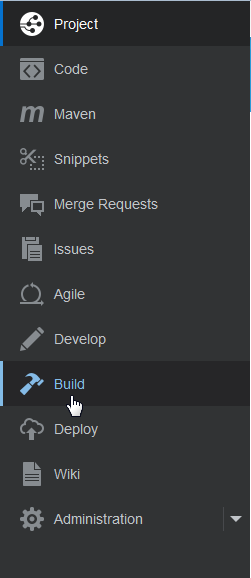
In the navigation bar, click Build.
Description of this image -
In the Jobs table, click the job name that generates the artifacts.

Description of this image -
Click Build Now.

Description of this image -
Wait for the build to complete and generate artifacts.
Deploying to Oracle Java Cloud Service using the Oracle WebLogic REST API
You can use the Oracle WebLogic REST API to deploy to Oracle WebLogic Server 12c of Oracle Java Cloud Service. You can also use the SSH Tunnel, but Oracle WebLogic REST API is recommended as no pre-configuration is required.
Creating a Deployment Configuration in Oracle Developer Cloud Service
To deploy the artifacts to Oracle Java Cloud Service, you must first create a deployment configuration in your Oracle Developer Cloud Service instance.
-
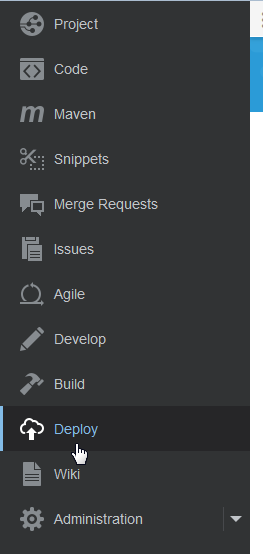
Open the Oracle Developer Cloud Service web interface and click Deploy in the navigation bar.
Description of this image -
Click New Configuration.

Description of this image -
In the New Deployment Configuration page, enter a deployment configuration name in Configuration Name. The Application Name will be auto-filled.
-
Click the New drop-down list next to Deployment Target and select
Java Cloud Service.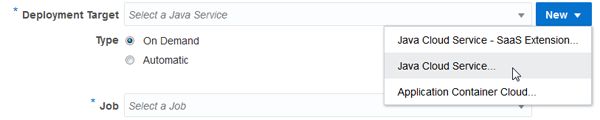
Description of this image -
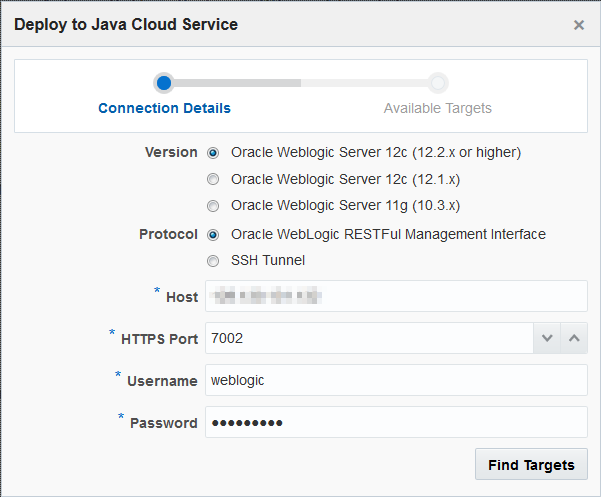
In the Connection Details page of the Deploy to Java Cloud Service wizard, enter the following information:
-
Version: Select the
Oracle Weblogic Server 12c (12.2.x or higher)option.You can also select the
Oracle Weblogic Server 12c (12.1.x)option if you want to. -
Protocol: Select Oracle WebLogic RESTFul Management Interface.
-
Host: Enter the host name or the public IP address of the Oracle Java Cloud Service instance VM.
-
HTTPS Port: Enter the HTTPS port number of the WebLogic Server that runs on the Oracle Java Cloud Service instance.
-
Username: Enter the user name of the Oracle Java Cloud Service WebLogic Administration console.
-
Password: Enter the password of the Oracle Java Cloud Service WebLogic Administration console.
-
Click Find Targets.
-
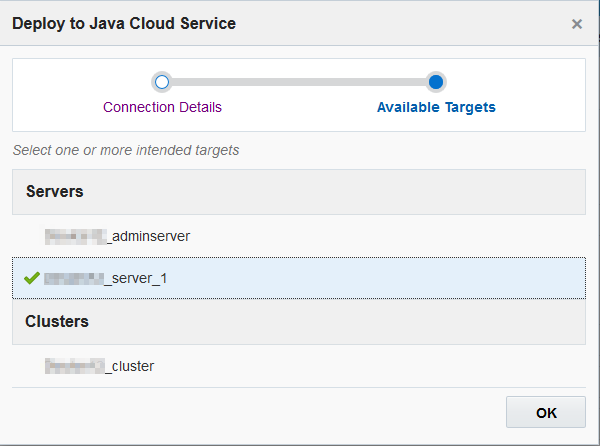
In the Available Targets page of the wizard, select the servers or the clusters you want to deploy the application to. You can select more than one option.
Description of this image -
Click OK.
-
Click Type and select the deployment type as
On DemandorAutomatic.An
On Demanddeployment is triggered when you save the deployment configuration or redeploy the deployment configuration.An
Automaticdeployment is triggered after the associated build is complete. -
Select the Deploy Stable Builds only check box to deploy stable builds only. The check box is available if you selected
Automaticas the Type. -
In the Job list, select the job that you want to deploy.
-
In the Build list, select the build number that you want to deploy. The list is available if you selected
On Demandas the Type. -
In the Artifact list, select the artifact to deploy.
-
If you selected
On Demandas the Type, click Save and Deploy. If you selectedAutomaticas the Type, click Save.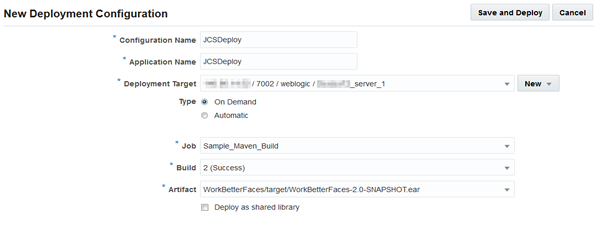
Description of this image
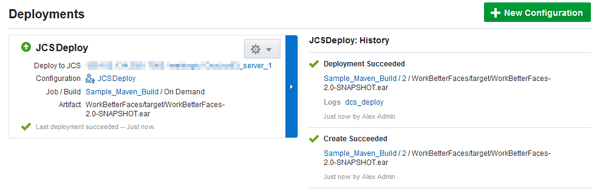
After you save the deployment configuration, it appears in the Deploy page.
Note: If you
selected Automatic as the Type,
run a build to deploy the specified artifact
automatically. To deploy the artifact manually,
click the  icon, and select Start.
Deploying to Oracle Java Cloud Service using the SSH Tunnel
You can deploy to all Oracle WebLogic Server versions available using the SSH Tunnel. To use the SSH tunnel, you would need access to the Oracle Java Cloud Service Console and set up an authenticated connection between Oracle Developer Cloud Service and Oracle Java Cloud Service VM.
Downloading the Oracle Developer Cloud Service SSH Public Key
Use the Oracle Developer Cloud Service REST API to get the Oracle Developer Cloud Service SSH public key.
-
Get the host name and the organization name of your Oracle Developer Cloud Service instance.
If the base URL of the of your Oracle Developer Cloud Service environment is
https://developer.us2.oraclecloud.com/my-org/, then your host name isdeveloper.us2.oraclecloud.comand the organization name ismy-org. - Open the terminal window.
-
Use the following URL syntax with cURL to get the Oracle Developer Cloud Service SSH public key:
https://<host-name>/<organization-name>/api/deployment/sshkeyURL example:
https://developer.us2.oraclecloud.com/my-org/api/deployment/sshkeyNote: Do not enter the URL in the address bar of the web browser. Use cURL or a browser REST plugin to view and download the SSH public key.
cURL command example:
$ curl -u jdoe:mypassword https://developer.us2.oraclecloud.com/my-org/api/deployment/sshkey
{"string":"ssh-rsa AAAABfsietnt36GHhgertASdffyt88tYdtlp3Gdaswwer6+sdfasetKsadJUYaswedsrt78xdsfasaweGJsasqkyujdXLerazfgr6t3dfggggggWcsdfeJ8afdgyrRdwe8fghiE/xk+7h6GHdzdrf5tDefgjiydPLf/em/ger534fhaswdF5dcf&qasdf2asxwQdedGJyujkONMrfrsIoewad+mnhjGTd46sfgt81dthymFgHIScgvfrdrrhbdwwklpuFhjponnmSdjjyt6ejnd+h56rdfgtjedysdbcjr57msgsdlj21mlopwd65FTjndgfUObdfrtewd4DjhokjsretBjegddlkOdhdvfdDgunmnfJivdf OracleDCS:my-org\n"} -
Copy the string value of the key to a text file and save the text file as
odcskey.pubon your machine.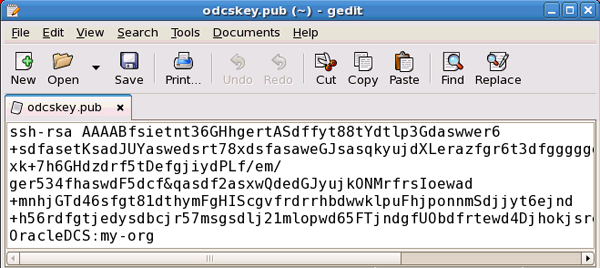
Description of this image Instead of copying the string value, you may also redirect the cURL command output to the
odcskey.pubfile.
$ curl -u jdoe:mypassword https://developer.us2.oraclecloud.com/my-org/api/deployment/sshkey > odcskey.pub
  % Total    % Received % Xferd  Average Speed   Time    Time     Time  Current
                                 Dload  Upload   Total   Spent    Left  Speed
100   210    0   210    0     0    784      0 --:--:-- --:--:-- --:--:--     0
After transferring the output, edit the file in
a text editor to keep the string value of the
key.
Uploading the Oracle Developer Cloud Service SSH Public Key to the Oracle Java Cloud Service Instance VM
After you have copied and saved the Oracle Developer Cloud Service SSH public key, upload it to the Oracle Java Cloud Service instance VM.
Uploading the Oracle Developer Cloud Service SSH Public Key to Oracle Java Cloud Service Instance VM
You can upload the Oracle Developer Cloud Service SSH Public Key from the Overview page of the Oracle Java Cloud Service console.
- In the Oracle Java Cloud Service web user interface, open the Overview page of the service instance.
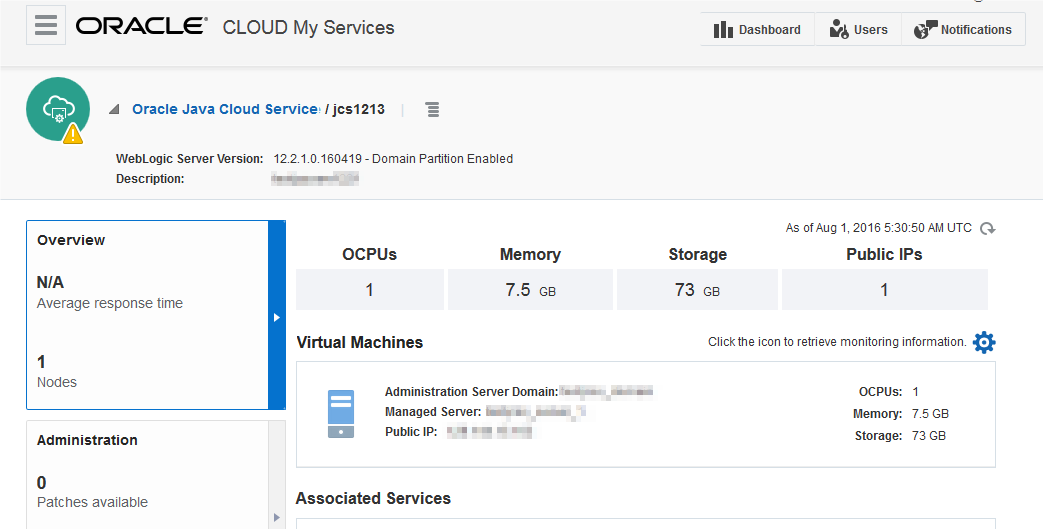
Description of this image
-
In the header of the Overview page, click
 next to the Oracle Java Cloud Service instance name and select SSH Access.
-
In the Add New Key dialog, with Upload a new SSH Public Key value from file selected, click Browse.
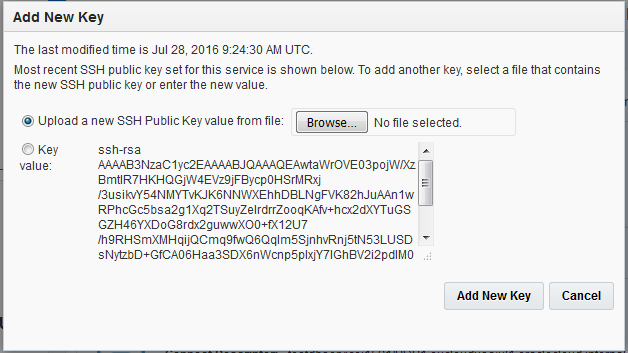
-
Select the Oracle Developer Cloud Service SSH public key file that you saved and click Add New Key.
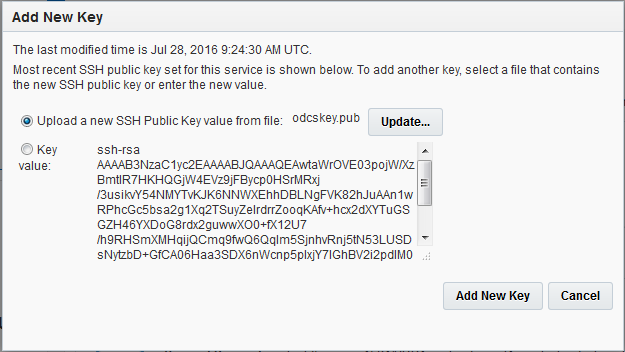
-
In the Add New Key dialog, click Submit.
The Oracle Developer Cloud Service SSH public key is added to the authorized_keys file of the Oracle Java Cloud Service VM. After adding the public key, the VM will restart automatically. This will take some time. You can track the restart activity in the Activity Summary section of the Overview page. When the instance has restarted and the activity is complete, you will see the Add SSH Key is Completed in Activity Summary.
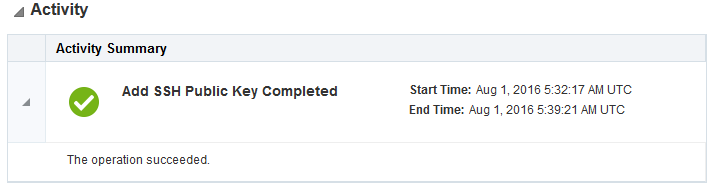
Creating a Deployment Configuration in Oracle Developer Cloud Service
After you have uploaded the publick key to the target Oracle Java Cloud Service instance VM, create a deployment configuration in Oracle Developer Cloud Service to deploy the application artifact.
-
In the navigation bar, click Deploy.
Description of this image -
Click New Configuration.
Description of this image -
In the New Deployment Configuration page, enter a deployment configuration name in Configuration Name. The Application Name will be auto-filled.
-
Click the New drop-down list next to Deployment Target and select
Java Cloud Service. Description of this image -
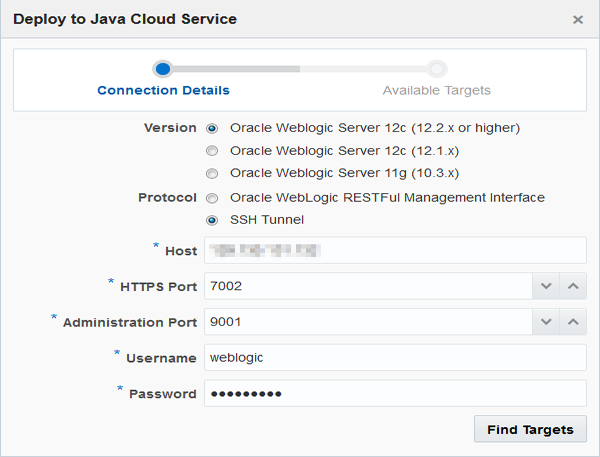
In the Connection Details page of the Deploy to Java Cloud Service wizard, enter the following information:
-
Version: Select the version of the Oracle Java Cloud Service WebLogic instance that you are subscribed to.
-
Protocol: Select
SSH Tunnel. -
Host: Enter the host name or the public IP address of the Oracle Java Cloud Service instance VM.
-
HTTPS Port: Enter the HTTPS port number of the WebLogic Server that runs on the Oracle Java Cloud Service instance.
-
Administration Port: Enter the admin port number of the WebLogic Admin Server that runs on the Oracle Java Cloud Service instance. The default port number is
9001. -
Username: Enter the user name of the Oracle Java Cloud Service WebLogic Administration console.
-
Password: Enter the password of the Oracle Java Cloud Service WebLogic Administration console.
-
Click Find Targets.
-
In the Available Targets page of the wizard, select the servers or the clusters you want to deploy the application to. You can select more than one option.
Description of this image -
Click OK.
-
Click Type and select the deployment type as
On DemandorAutomatic.An
On Demanddeployment is triggered when you save the deployment configuration or redeploy the deployment configuration.An
Automaticdeployment is triggered after the associated build is complete. -
Select the Deploy Stable Builds only check box to deploy stable builds only. The check box is available if you selected
Automaticas the Type. -
In the Job list, select the job that you want to deploy.
-
In the Build list, select the build number that you want to deploy. The list is available if you selected
On Demandas the Type. -
In the Artifact list, select the artifact to deploy.
-
If you selected
On Demandas the Type, click Save and Deploy. If you selectedAutomaticas the Type, click Save. Description of this image
After you save the deployment configuration, it appears in the Deploy page.
Note: If you
selected Automatic as the Type,
run a build to deploy the specified artifact
automatically. To deploy the artifact manually,
click the
icon, and select Start.
Accessing the Deployed Application
To access the deployed application, you would need the content URL of the Oracle Java Cloud Service instance VM and the context root of the of the deployed application.
-
Use the Oracle Java Cloud Service REST API to get the content URL of the Oracle Java Cloud Service instance VM. The
content_urlattribute shows the VM's content URL.Example:
$ curl -i -X GET -u jdoe:mypassword -H "X-ID-TENANT-NAME:exampleidentitydomain" https://jaas.oraclecloud.com/jaas/api/v1.1/instances/exampleidentitydomain/exampleservice
HTTP/1.1 200 OK Date: Wed, 05 Aug 2015 10:34:44 GMT Server: Oracle-Application-Server-11g Content-Length: 1551 . . . { "service_name": "MyJCS04", "version": "12cR3", . . . "num_ip_reservations": 1, "wls_admin_url": "https:\/\/129.130.131.132:7002\/console", "fmw_control_url": "https:\/\/129.130.131.132:7002\/em", "content_url": "http:\/\/129.130.131.132", "secure_content_url": "https:\/\/129.130.131.132", "wls_deployment_channel_port": 9001 } -
Get the context root of the application from the
application.xmldeployment descriptor for EAR deployments and from theweb.xmldeployment descriptor for WAR deployments.If there is no such descriptor, get the context root from the Oracle Java Cloud Service WebLogic Administration console.
-
Open the Oracle Java Cloud Service WebLogic Administration console.
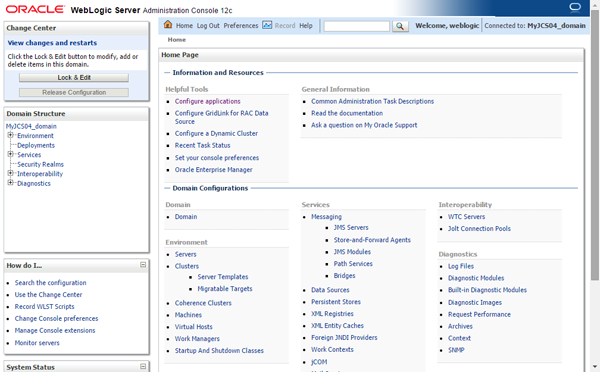
Description of this image -
Click Deployments in Domain Structure.

Description of this image -
Click the deployed application name.
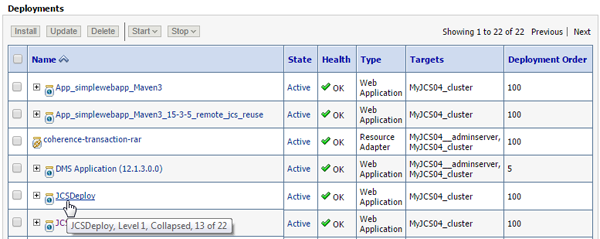
Description of this image -
In the Overview tab, copy the context root.
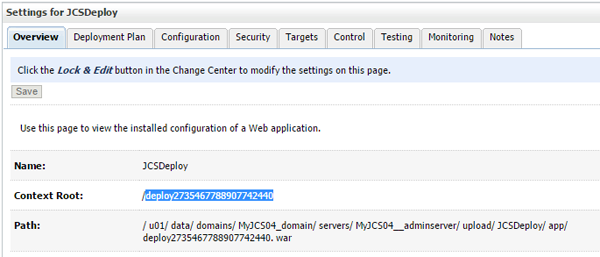
Description of this image -
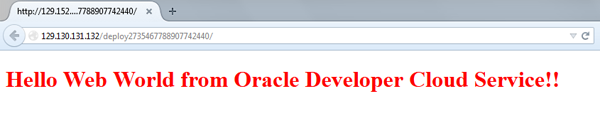
To construct the application's access URL, use the content URL and the context root.
For example, if the content URL is
http://129.130.131.132and the context root isdeploy2735467788907742440, the application's access URL would behttp://129.130.131.132/deploy2735467788907742440/. - Enter
the generated URL in the address bar of the
browser to access the application.
Description of this image
Want to Learn More?
-
Using Oracle Java Cloud Service in the Oracle Help Center
-
Using Developer Cloud Service in the Oracle Help Center