An Oracle Cloud account with an active Oracle Developer Cloud Service subscription
The Identity Domain Administrator role of the Oracle Cloud account to add new users to Oracle Cloud. If the users you want to add to the project are already added to your Oracle Cloud identity domain, then ignore this requirement.
An Oracle Developer Cloud Service project where you are assigned the project Owner role. If you have not created a project, see the Create a Project Using Developer Cloud OBE.
Email addresses of the users you want to add to the project. If you do not have email addresses, create two email addresses. This tutorial uses devel.ora.cloud@example.com as the email address of Don Developer and test.ora.cloud@example.com as the email address of Tina Tester.
Add Users to the Oracle Cloud Identity Domain
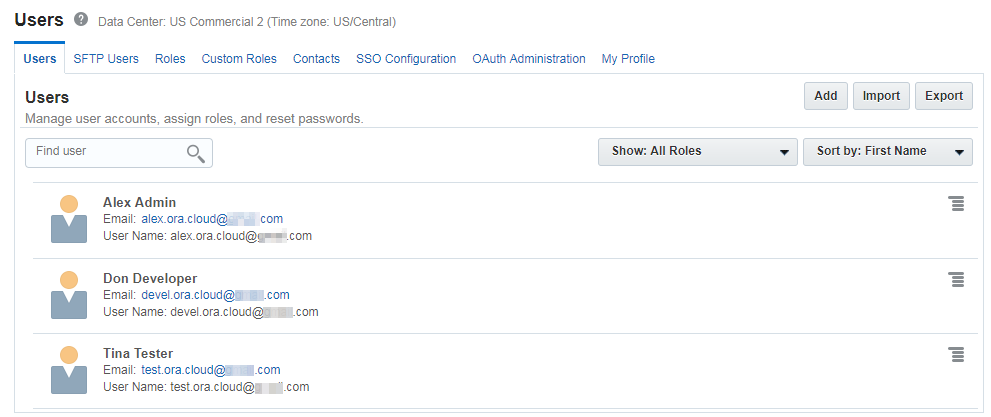
To add users to an Oracle Developer Cloud Service project, you must first add them to the Oracle Cloud identity domain. To do that, you need the Oracle Cloud Identity Domain Administrator role.
If the users you want to add to the project are already added to the Oracle Cloud identity domain, skip this section.
If you are not assigned the Oracle Cloud Identity Domain Administrator role, ask the user who is assigned the role to add the users to the identity domain.
Ask the added users to click the here link in the Click here to access account paragraph at the end of the email. Log in to Oracle Cloud using the account information and change the default password.
Add Users to the Oracle Developer Cloud Service Project
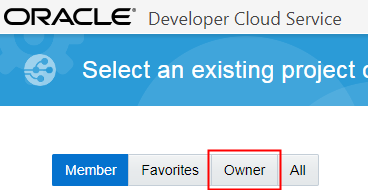
Log on to Oracle Developer Cloud Service using your Oracle Cloud credentials. You can open the Oracle Developer Cloud Service console from Oracle Cloud Dashboard or from the URL in the Welcome to Oracle Developer Cloud Service email.
Description of the illustration add_users_project_01.png
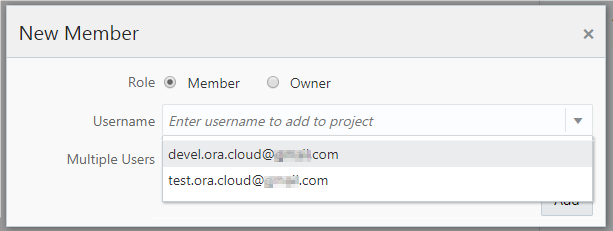
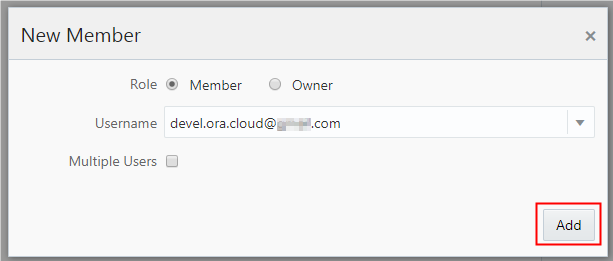
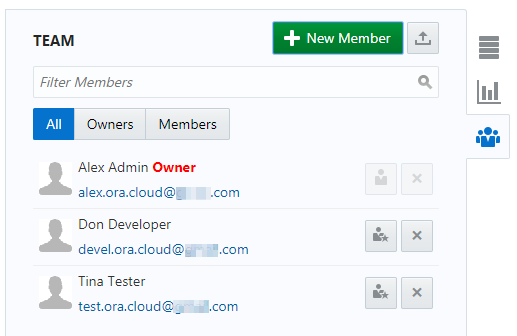
In the New Member dialog box, click the Username list and select the user you want to add. The Username list shows all users that are added to the current identity domain.
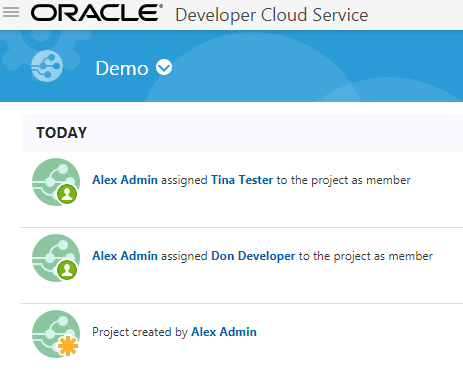
Description of the illustration add_users_project_05.png
After adding users, you may want to clone the project Git repository to your computer, add your application files to it, and then commit and push those files to project Git repository. See Create and Populate a Git Repository of Developer Cloud OBE in the Want to Learn More section.

 Add Users to a Developer Cloud Project
 Before You Begin
 Add Users to the Oracle Cloud Identity Domain



 Add Users to the Oracle Developer Cloud Service Project

 on the right, and then click + New Team Member.

 Next Tutorial
 Want to Learn More?