This tutorial shows you how to build an Oracle Application Development Framework (Oracle ADF) application with Apache Maven and Oracle Maven Repository by using Oracle JDeveloper and Oracle Developer Cloud Service. This tutorial takes approximately 30 minutes to complete.
Background
Oracle Developer Cloud Service is a cloud-based software development Platform as a Service (PaaS) and a hosted environment for your application development infrastructure. It provides an open source, standards-based solution to develop, collaborate, and deploy applications within Oracle Cloud.
Oracle Developer Cloud Service can build Oracle ADF applications by using Maven, Oracle Maven Repository, JDeveloper, Oracle ADF libraries, and OJMake and OJDeploy utilities.
In this tutorial, you use the Oracle Alta UI Work Better sample application and configure it in JDeveloper to use Maven. You configure the Maven Project Object model (POM) file to access the Oracle Maven Repository to download Oracle ADF libraries, and to access the OJMake and OJDeploy utilities available on the Oracle Developer Cloud Service build system. You then create a job in Oracle Developer Cloud Service that runs a Maven build and generates the artifacts.
The Alta UI Work Better sample application is a demo application that uses the Alta UI to develop the most recent Oracle Cloud products.
What Do You Need?
A web browser
Your Oracle Cloud account credentials
An Oracle Cloud account with an active Oracle Developer Cloud Service subscription
Familiarity with creating and configuring a job in Oracle Developer Cloud Service
Familiarity with JDeveloper, Maven, POM file, Oracle Maven repository, and OJMake and OJDeploy utilities
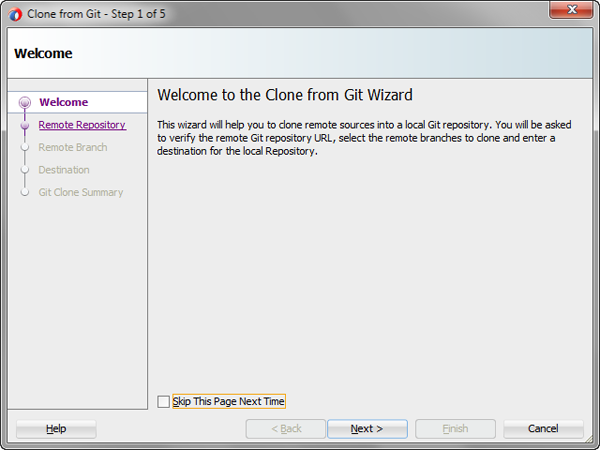
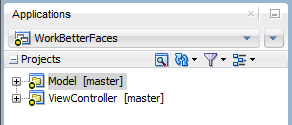
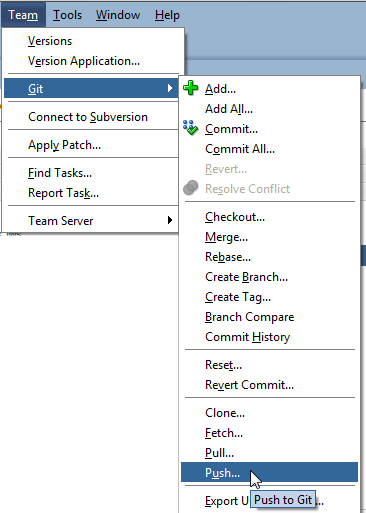
In this section, you learn how to create and use a Team Server in JDeveloper to clone an Oracle Developer Cloud Service project Git repository. You then add the sample Oracle ADF application files to the cloned Git repository, commit, and push the updates to the project Git repository.
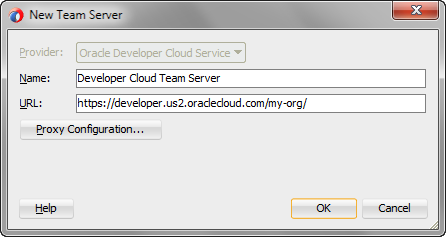
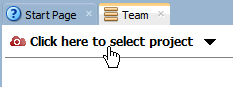
A Team Server is an extension in JDeveloper that you can use to manage your Oracle Developer Cloud Service projects from the IDE. Using the Team Server, you can clone the project repositories to your local computer, perform Git actions, manage project issues, and view the status of project builds. The Oracle Developer Cloud Service Team Server extension is installed, by default, in JDeveloper.
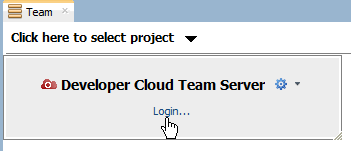
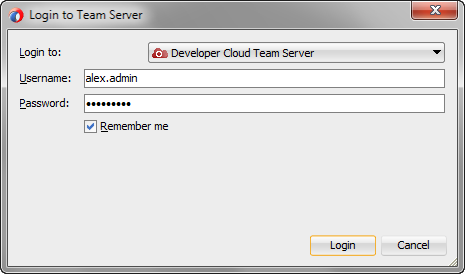
Click Login. If you can't log in, configure the proxy settings of JDeveloper.
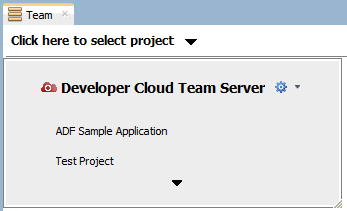
The Team Server displays all projects that you own or that you're a member of.
Description of the illustration create_ts_06.png
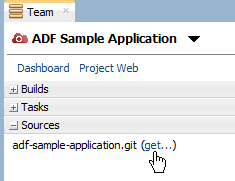
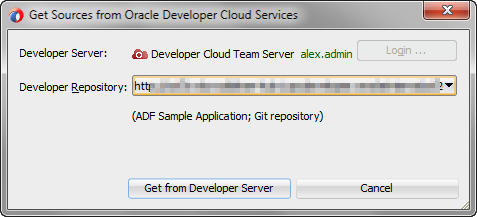
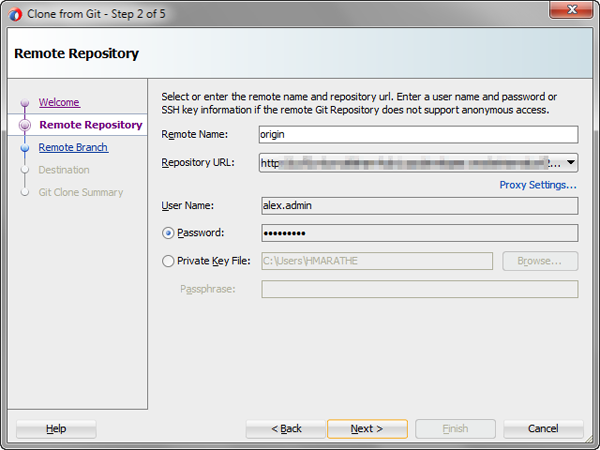
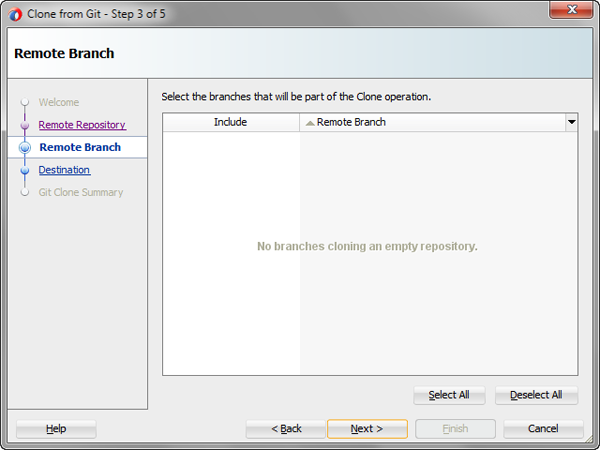
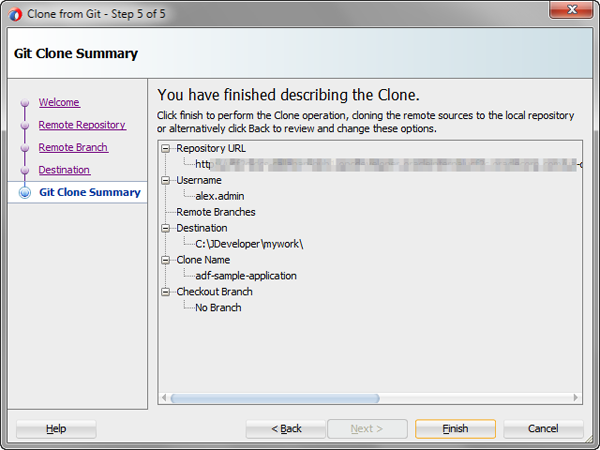
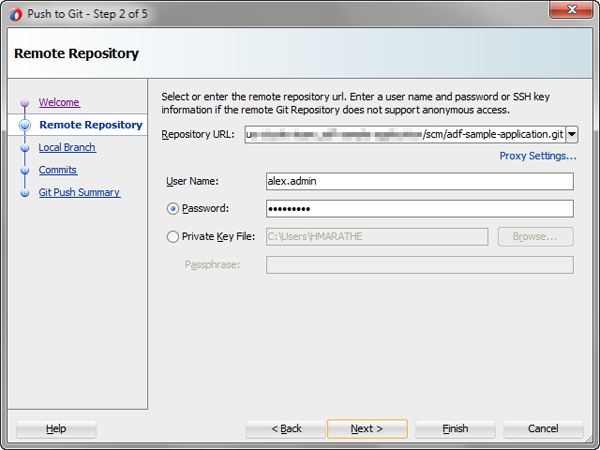
On the Remote Repository page, click Next.Description of the illustration clone_05.png The wizard picks the values for Repository URL,Username, and Password from the Team Server.
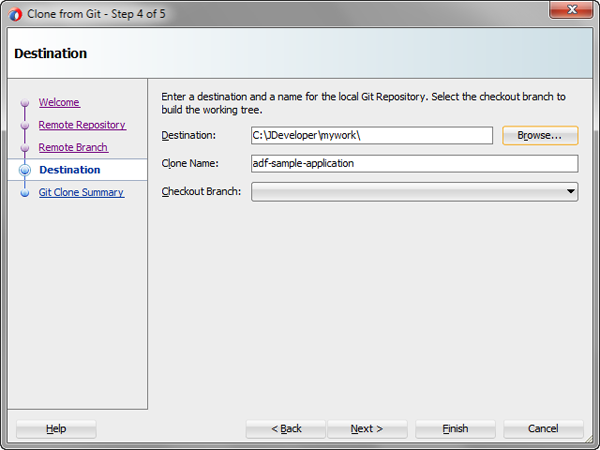
In the New Gallery dialog box, click Cancel to close the dialog box. In the next section, you add the Oracle Alta UI Work Better Application to the cloned Git repository directory.
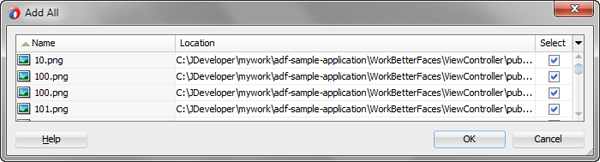
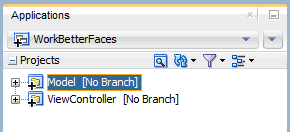
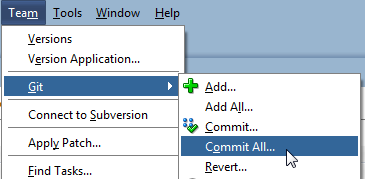
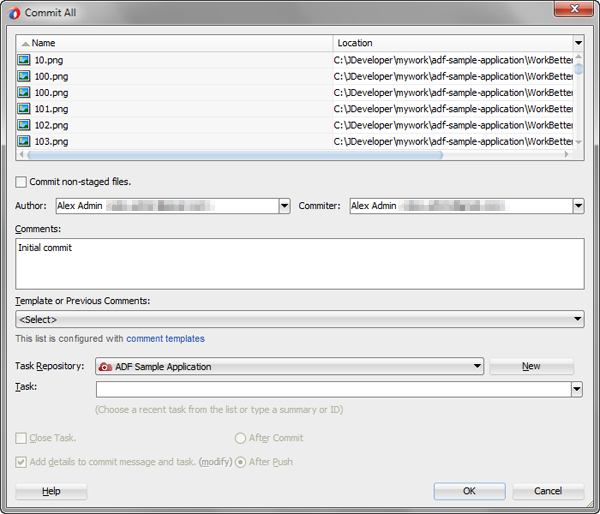
Commit and Push the ADF Application to Oracle Cloud Developer Service
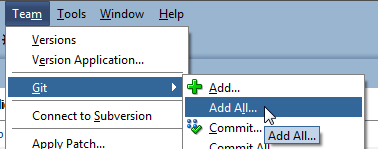
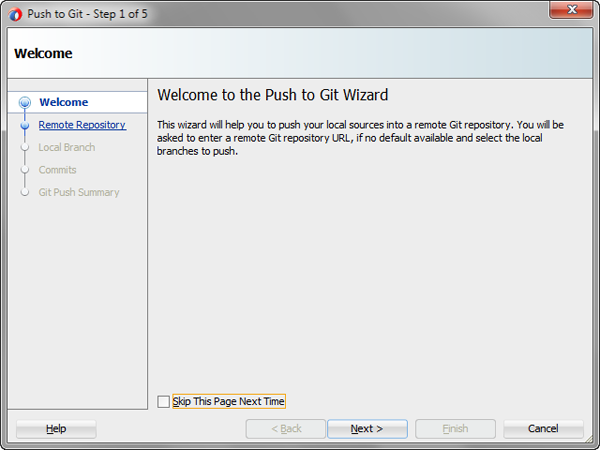
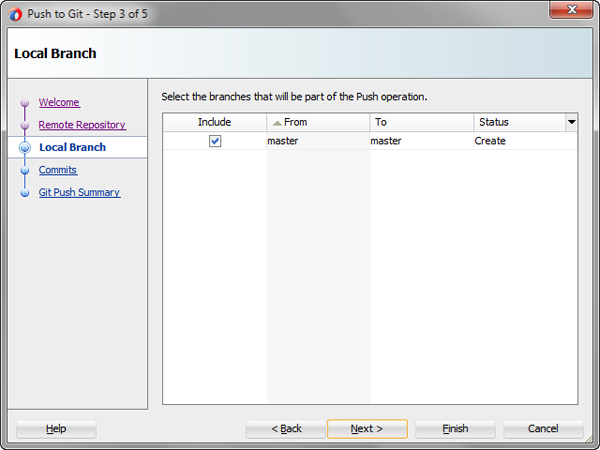
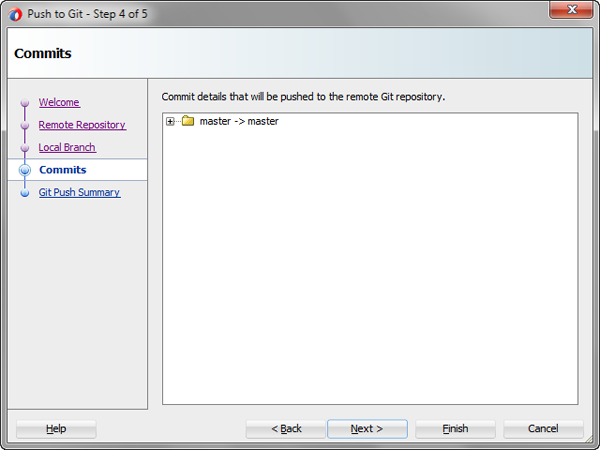
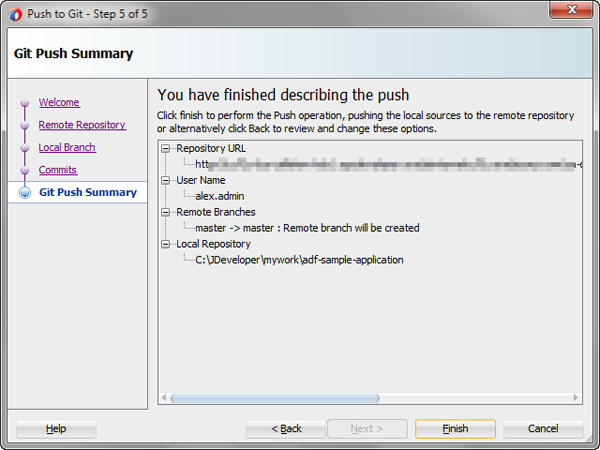
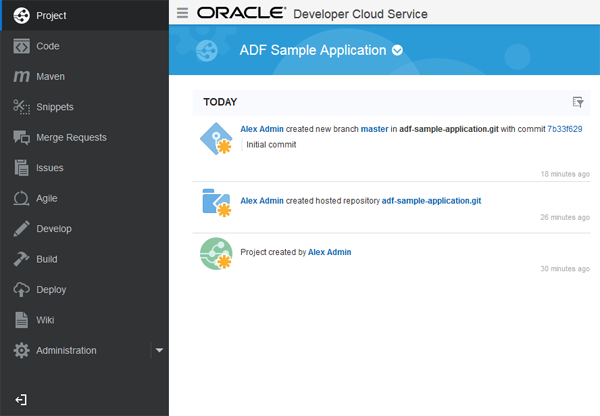
On the Git Push Summary page, click Finish.Description of the illustration commitpush_14.png A Git Push progress bar appears in the Status bar of JDeveloper. Wait for JDeveloper to push all files to the project Git repository.
Add the Maven POM File to the Oracle ADF Application
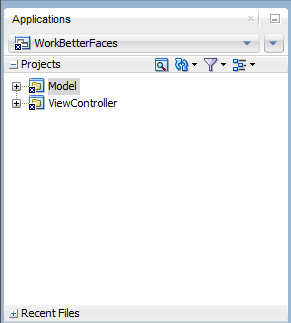
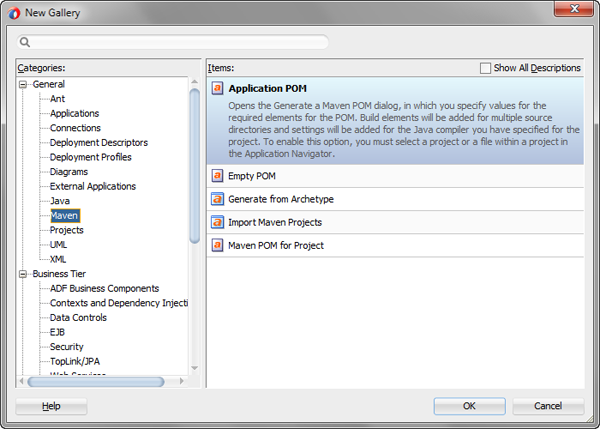
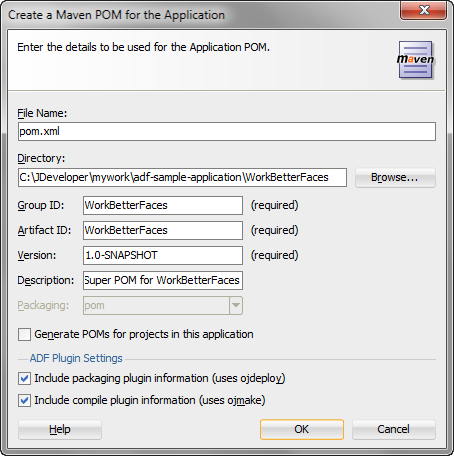
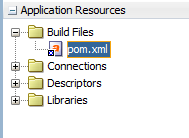
In this section, you add a Maven pom.xml file to an Oracle ADF application in JDeveloper.
In JDeveloper, if you aren't using the Studio Developer role, from the Tools menu, select Switch Roles, and then select Studio Developer (All Features). Save all files and restart JDeveloper.
Configure the POM File to Access Oracle Maven Repository, OJMake, and OJDeploy
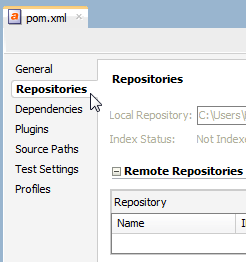
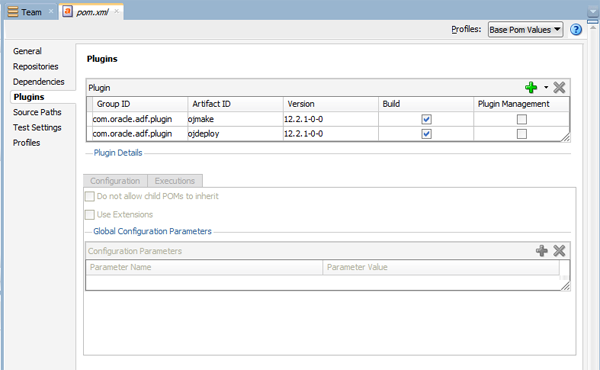
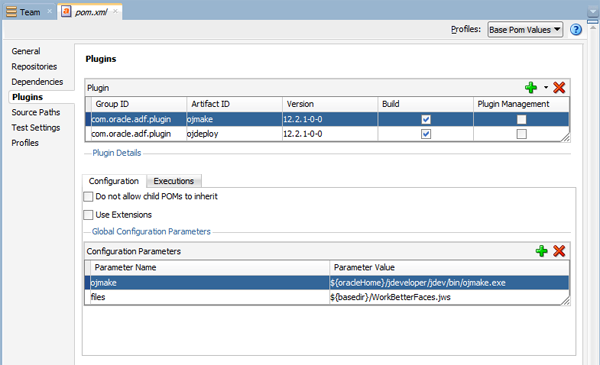
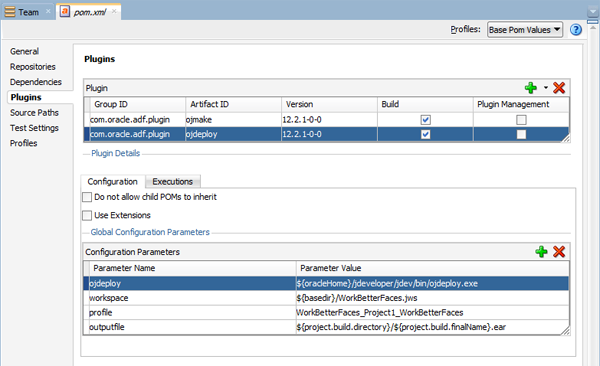
In this section, you configure the POM file to access the Oracle Maven Repository and to use the OJMake and OJDeploy utilities. The OJMake and OJDeploy utilities are available on the build system of Oracle Developer Cloud Service and can be accessed by using Oracle Developer Cloud Service system environment variables.
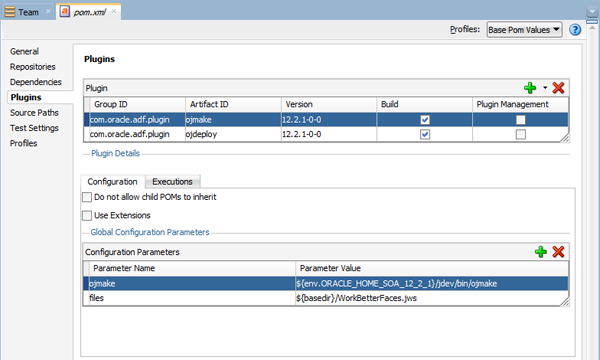
In the Configuration Parameters table, update the parameter value of the ojmake parameter to ${env.ORACLE_HOME_SOA_12_2_1}/jdev/bin/ojmake.
Description of the illustration config_maven_06.png The ORACLE_HOME_SOA_12_2_1 environment variable defines the path of the JDeveloper 12.2.1 directory that's installed on the Oracle Developer Cloud Service build executor.

 Build an ADF Application with Developer Cloud
 Before You Begin
 Create a Team Server in JDeveloper
 Clone the Project Git Repository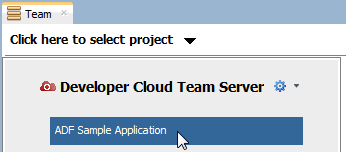
 Commit and Push the ADF Application to Oracle Cloud Developer Service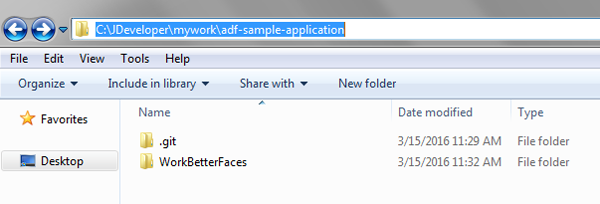
 Add the Maven POM File to the Oracle ADF Application
 Configure the POM File to Access Oracle Maven Repository, OJMake, and OJDeploy
 .
. 

 Create and Configure a Build Job in Oracle Developer Cloud Service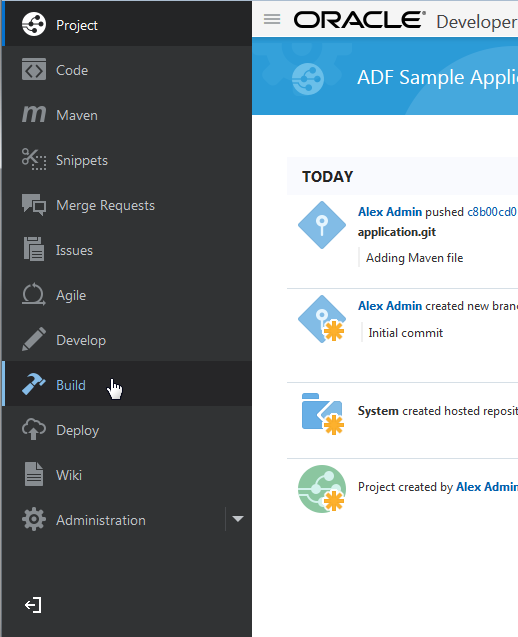
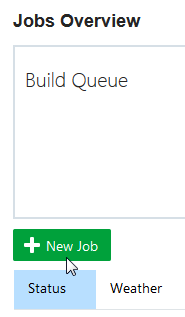
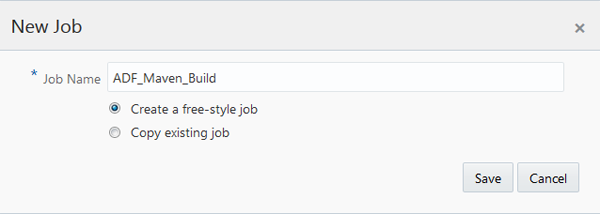
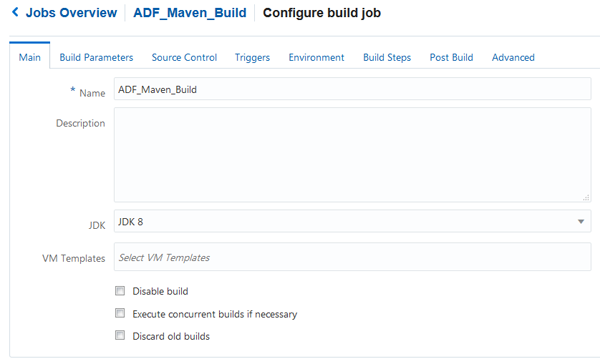
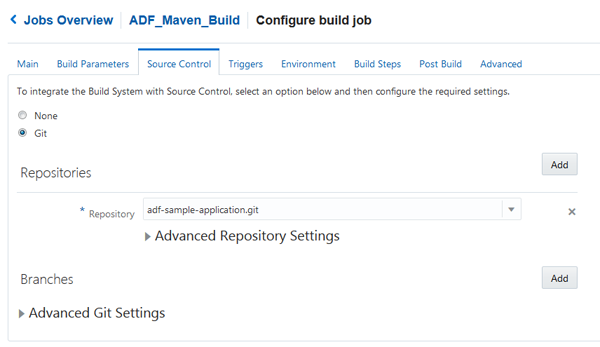
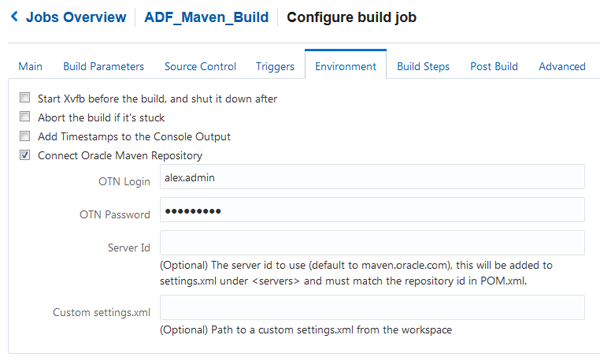
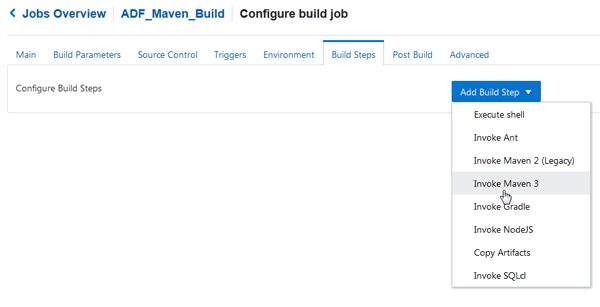
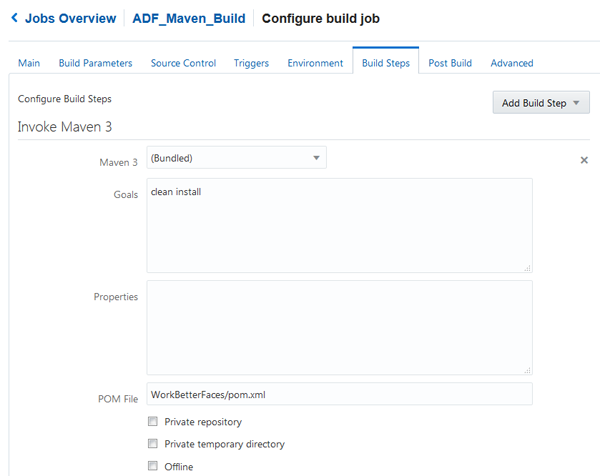
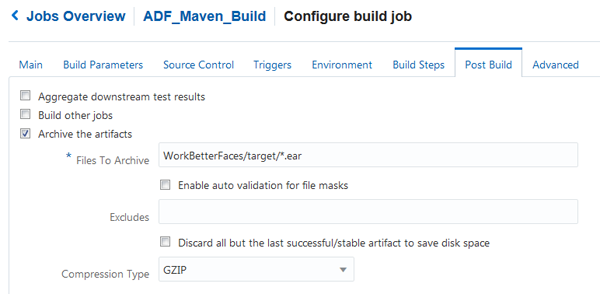

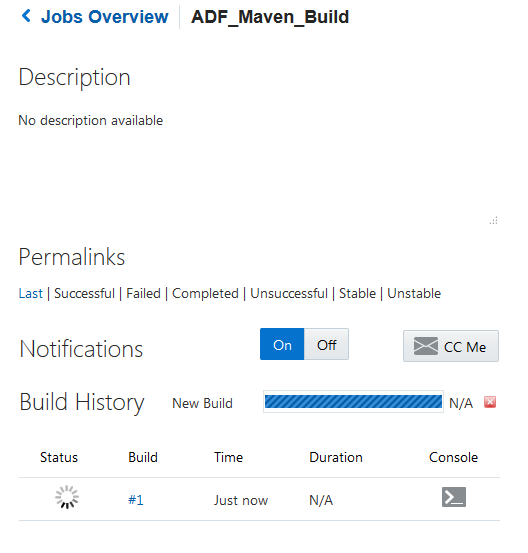
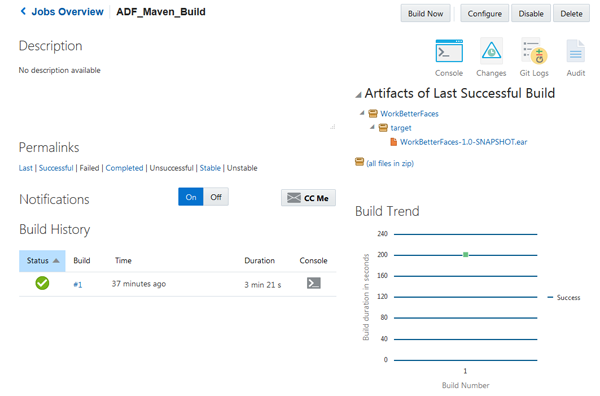
 to view the build console.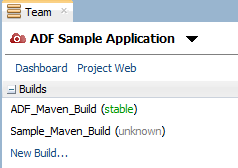
 Want to Learn More?